Drive with the alerts on your way, and park without looking up codes.
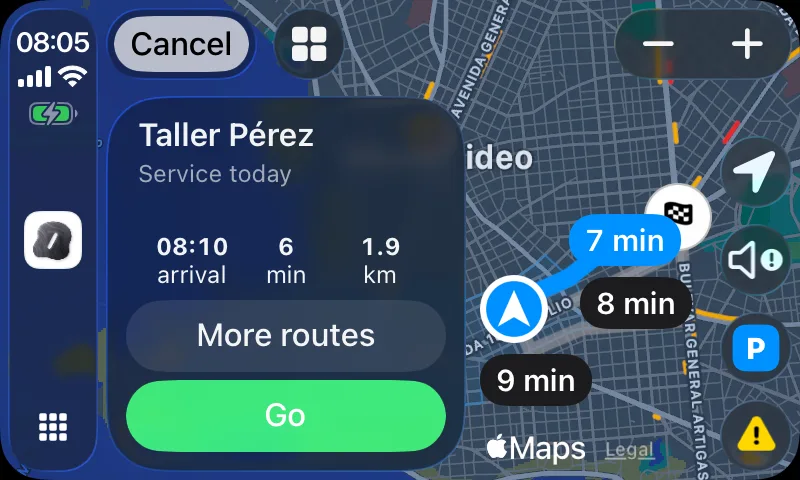
Pick the vehicle once and GarageApp remembers it for that car. It takes you turn by turn and alerts you to speed cameras, checkpoints and road works on the street you are on. When you get there, parking starts with your city’s number and we remind you before it ends.
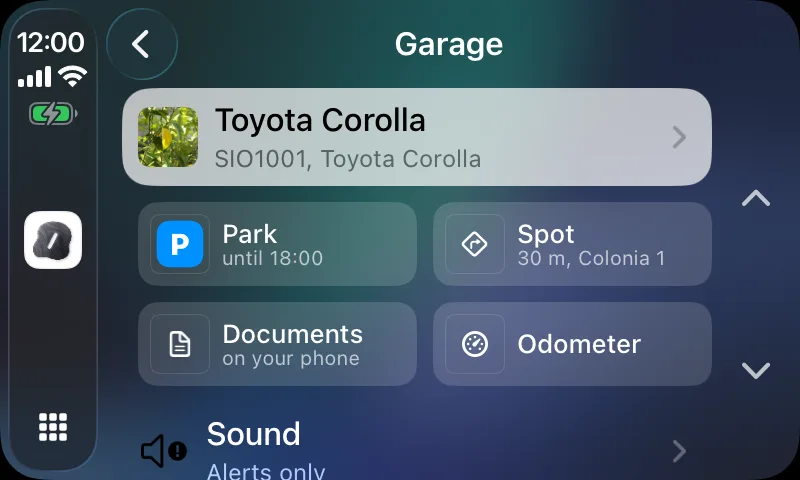
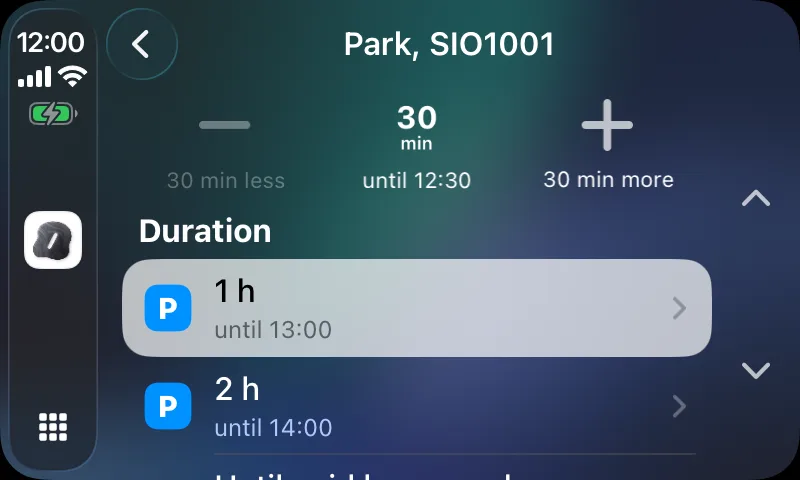
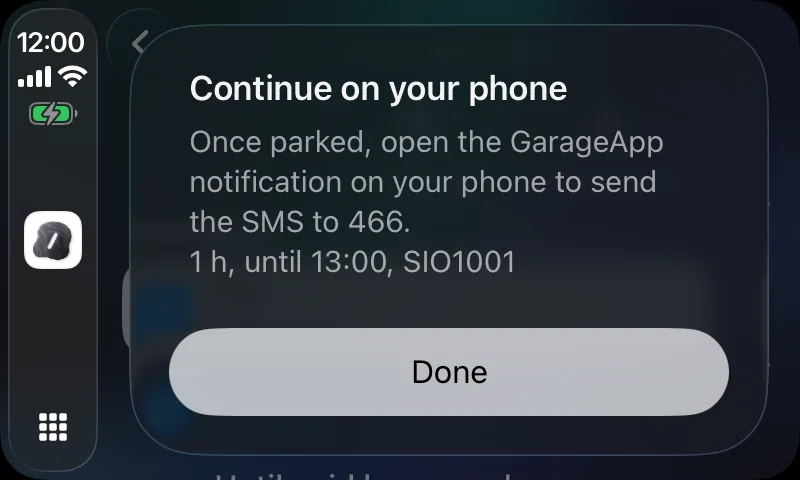
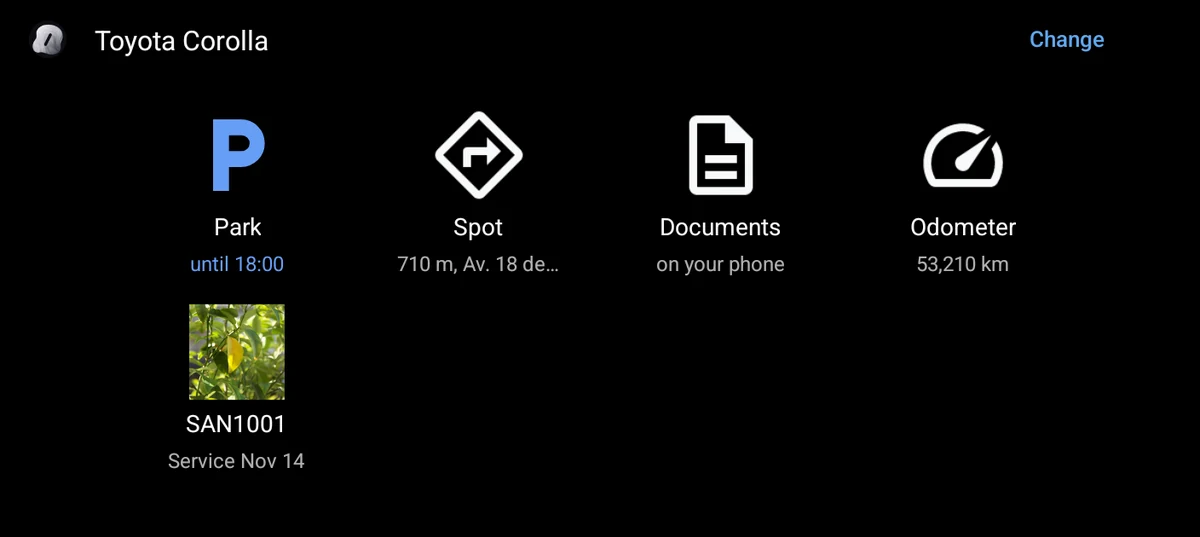
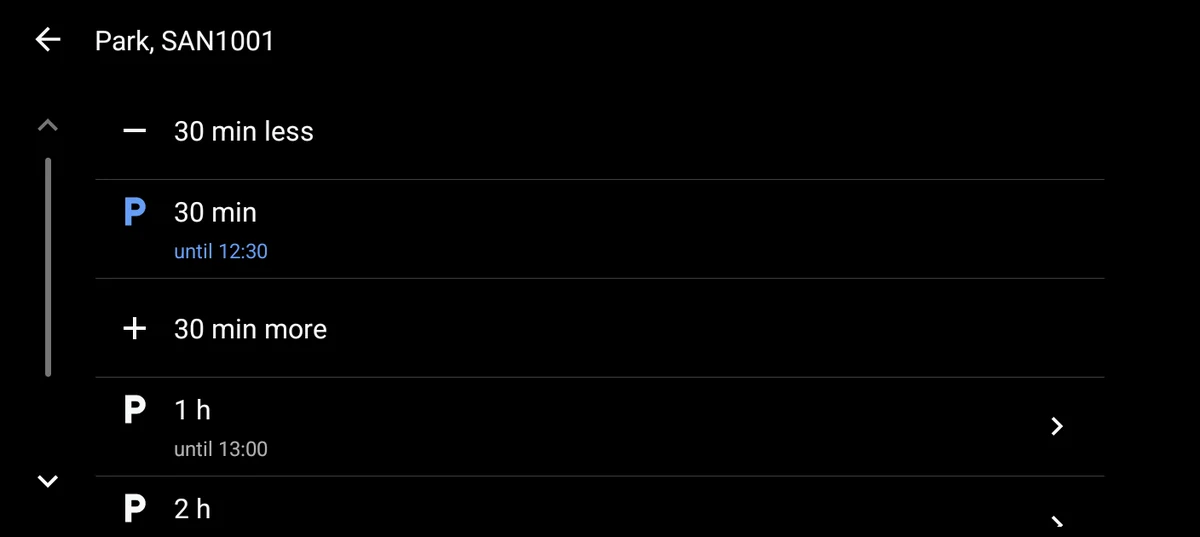
Park, your spot and your documents, in Utilities.
In Utilities you see your vehicle with the date of its next service, and Park, Spot, Documents and Odometer. Inside a paid parking zone, Park shows until what time you pay; Spot shows how far it is. You enter the odometer in the car, typing or dictating; Documents opens on your phone. To switch vehicles, tap the vehicle.
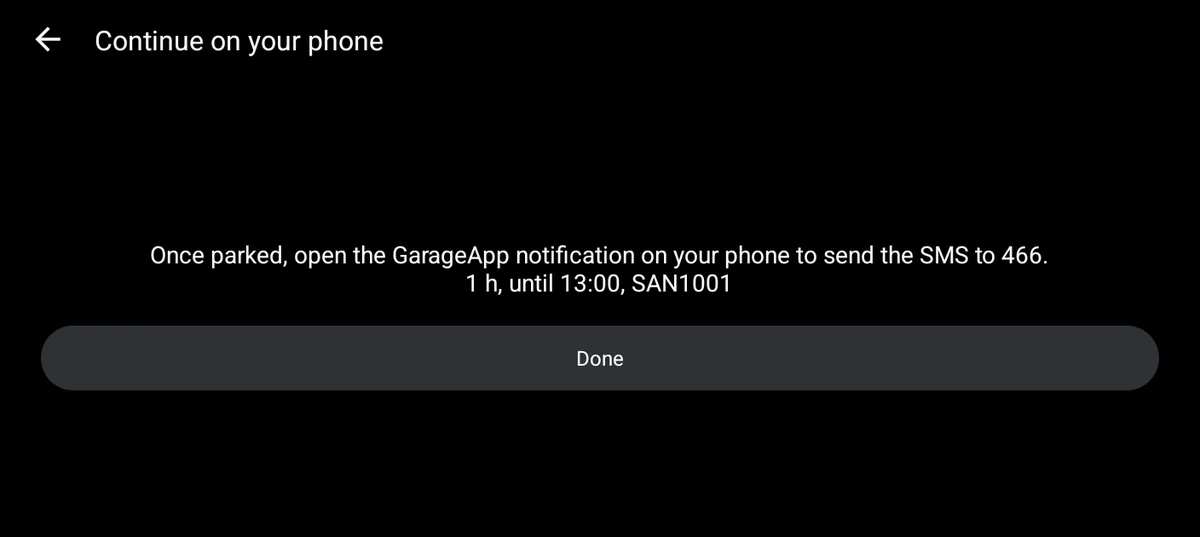
Choose how long you park on the car screen.
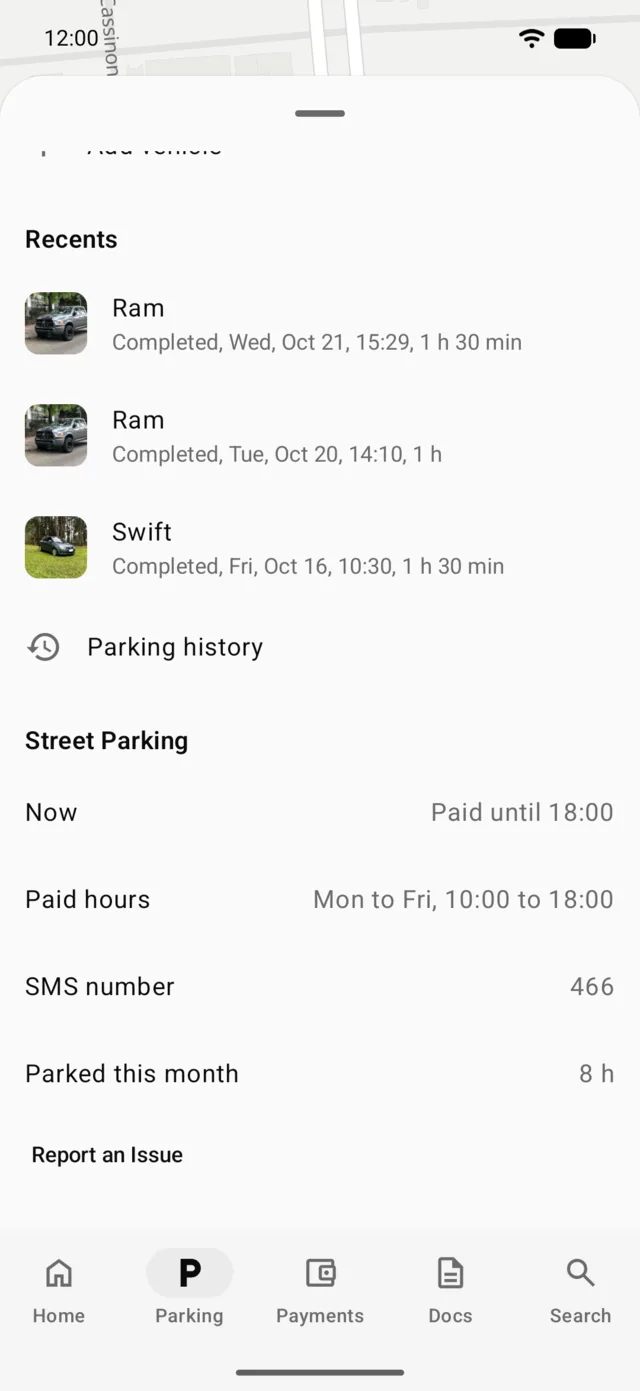
Tap Park and choose the duration: 1 h, 2 h, until the paid hours end or in steps of 30 minutes, each with the time it ends. They are the same rules and warnings as the app’s form.
You send the SMS from your phone, once you are parked.
When you choose the duration, the car screen asks you to continue on your phone: GarageApp sends a notification, and tapping it opens the SMS already written. You send it yourself, parked, and GarageApp asks whether it went out before it starts counting the time.
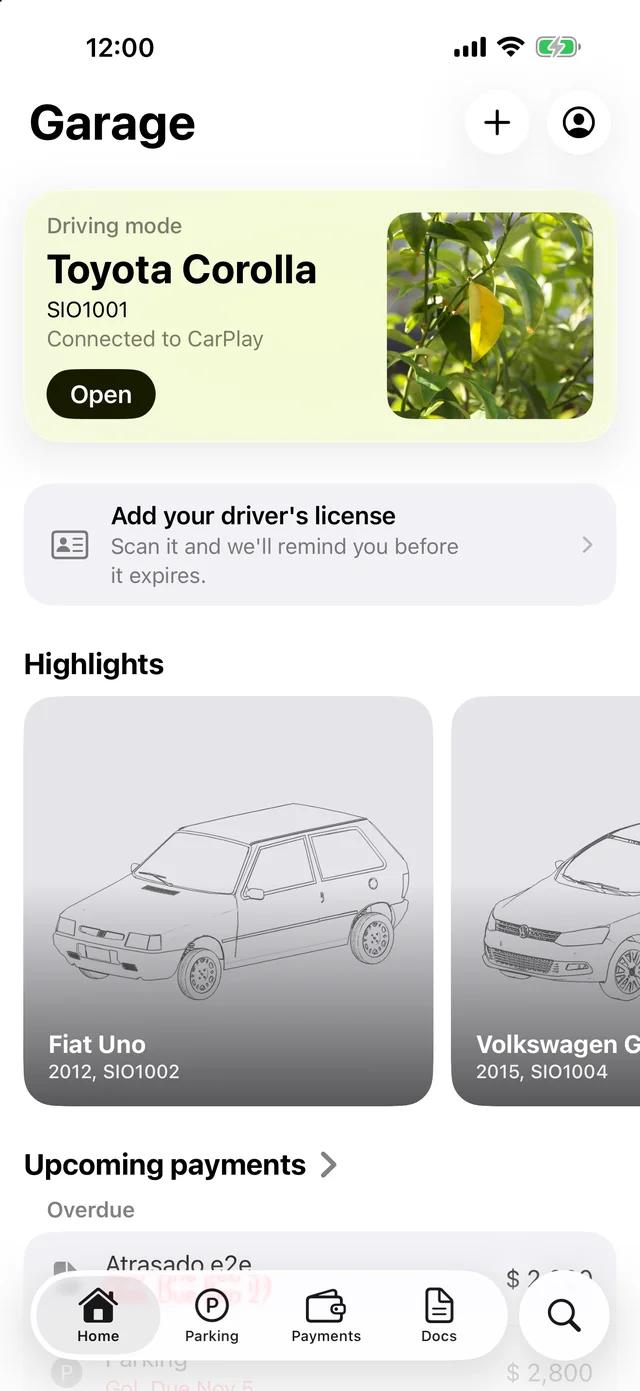
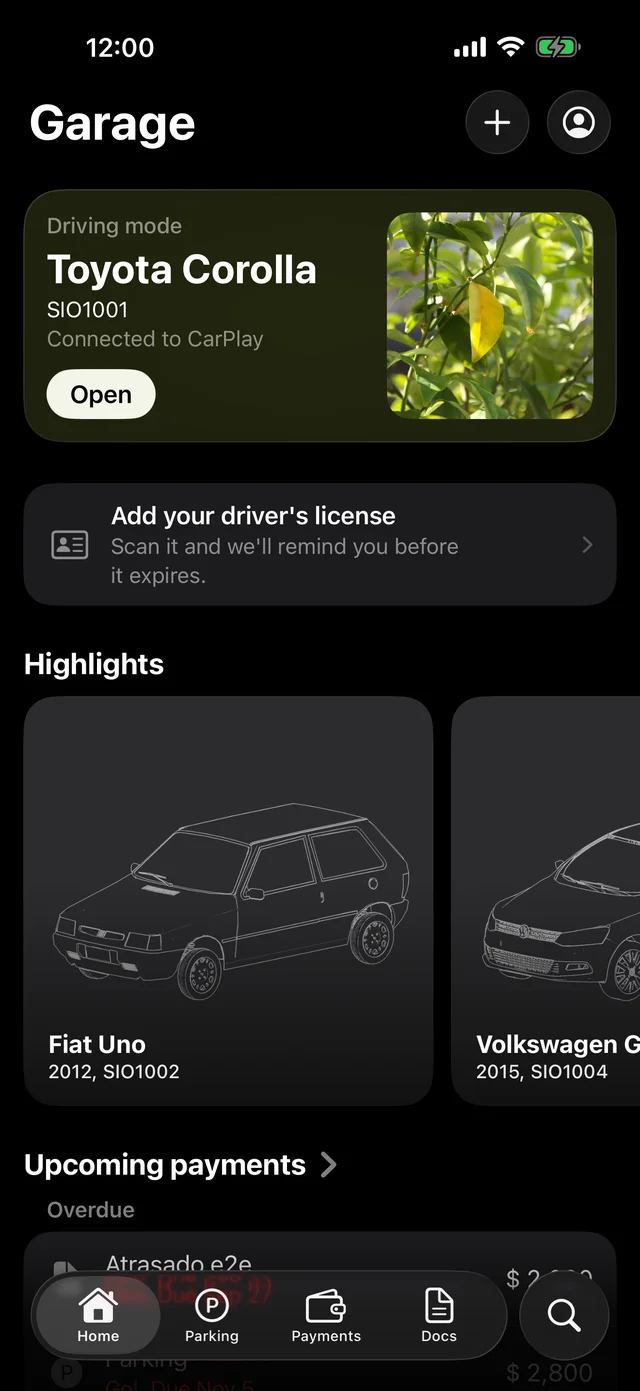
On the phone, a card on Home and big buttons.
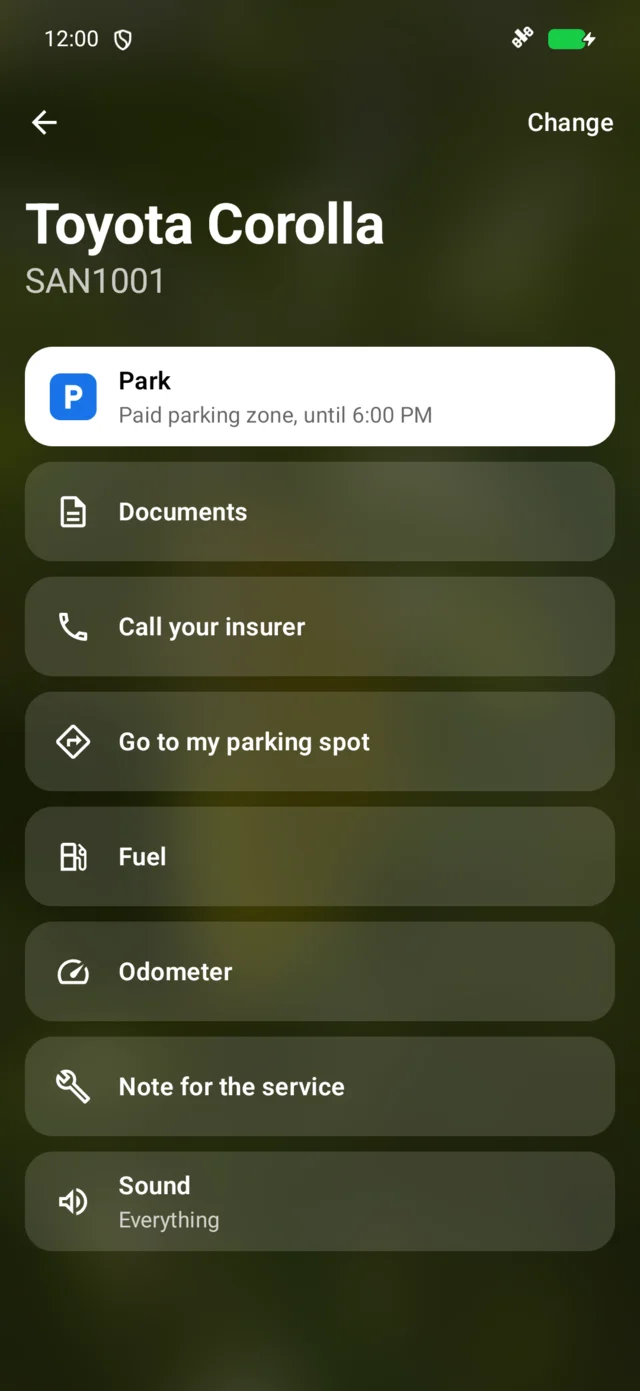
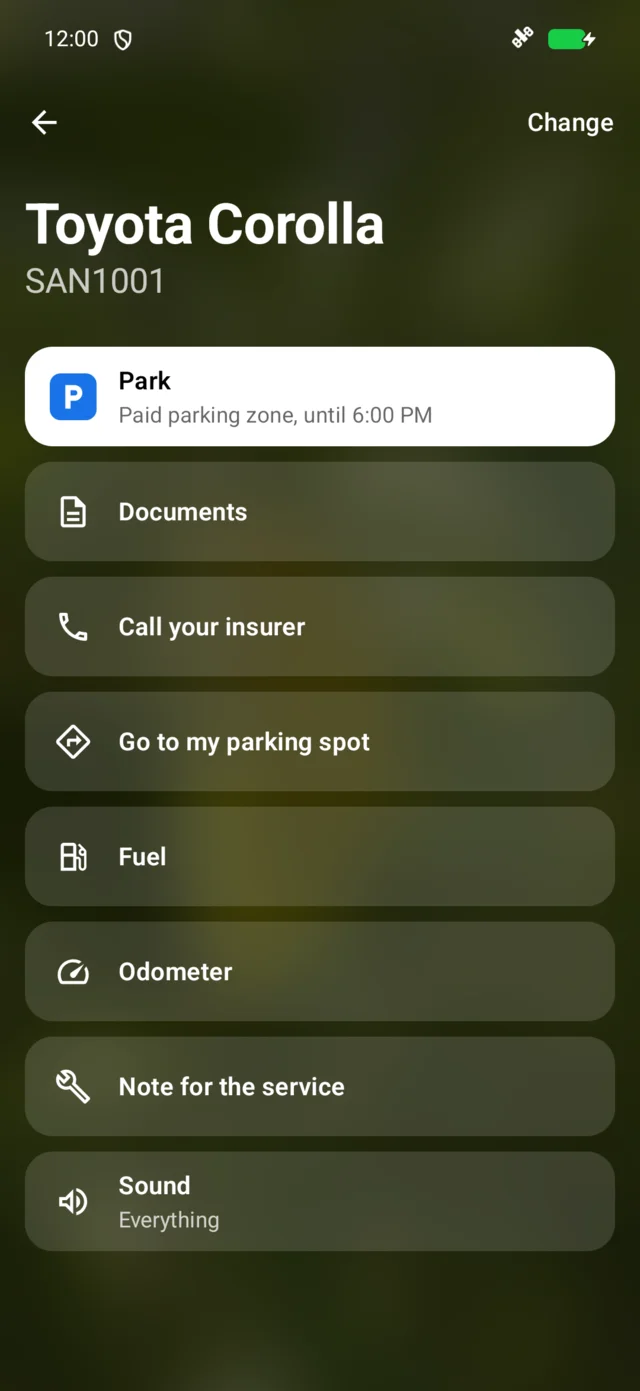
On Android the card appears when the phone connects to Android Auto or to the car’s Bluetooth; on the iPhone, with CarPlay or the phone’s sound on the car, and Driving mode opens by itself. Home shows your vehicle with its plate, and opening it gives you Park, Documents, Call your insurer, Go to my parking spot, Fuel, Odometer and Note for the service. Buttons that do not apply, such as Call your insurer without a policy, are left out. Odometer saves the reading and tells you how far is left to the next service.
Without CarPlay, the phone is the map.
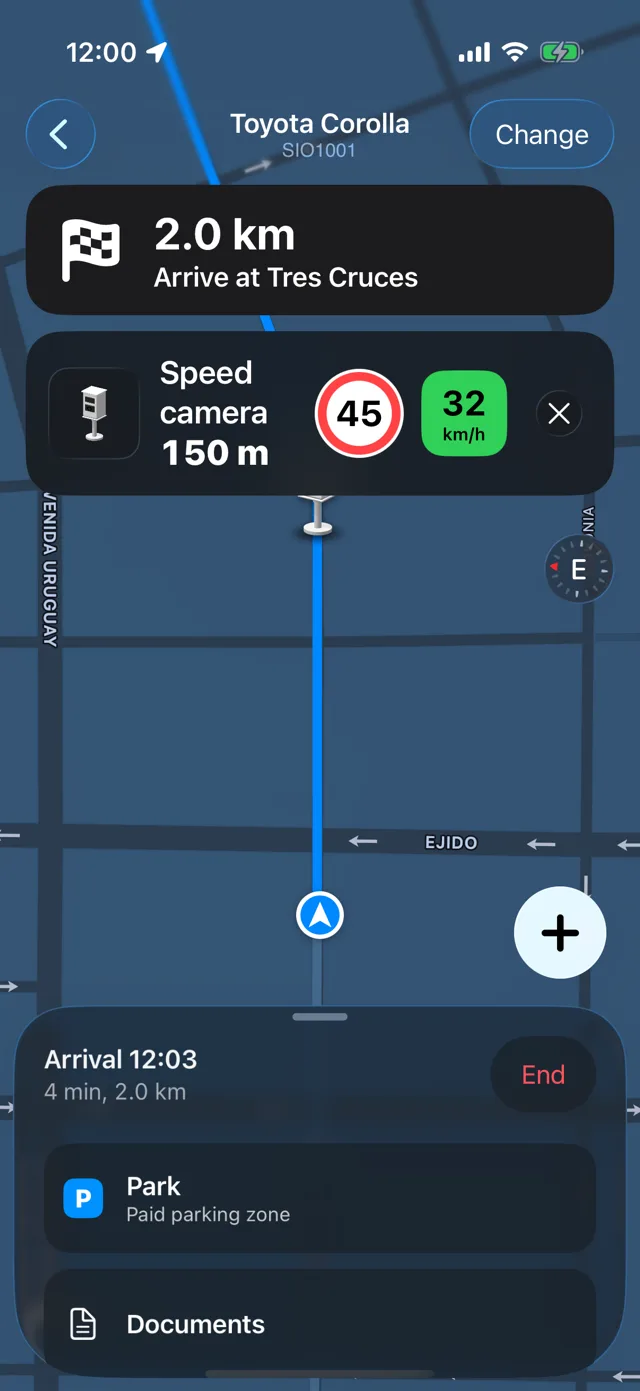
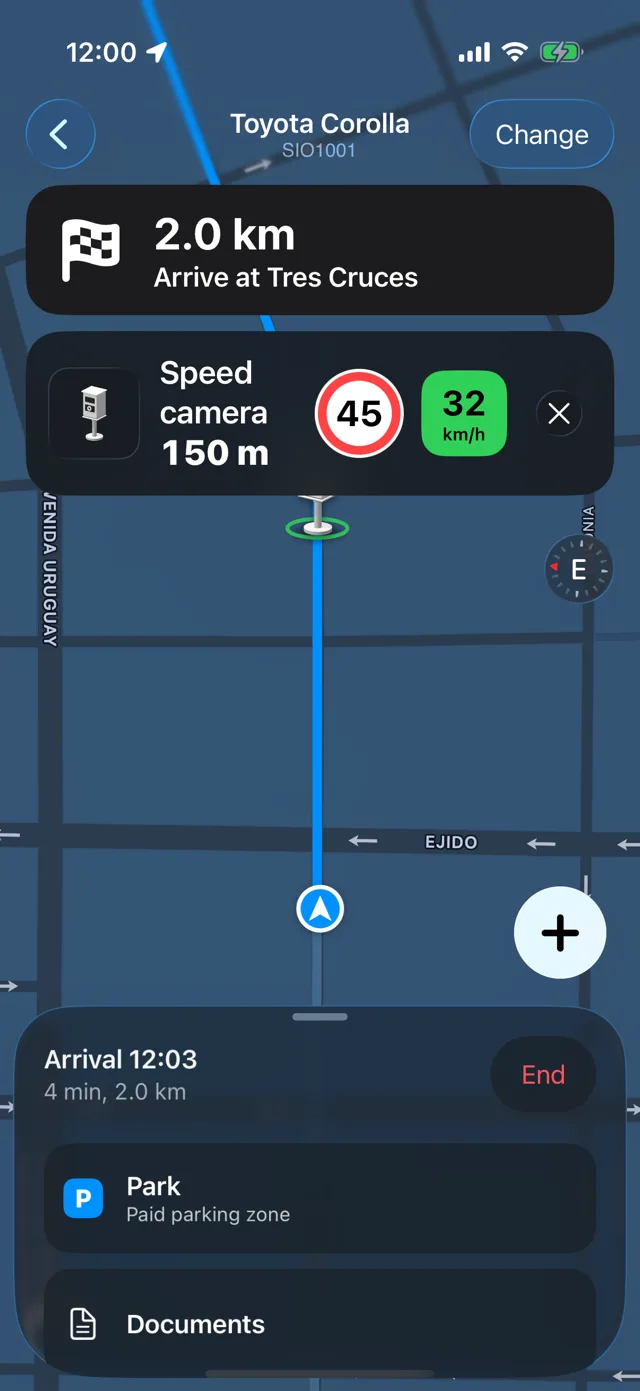
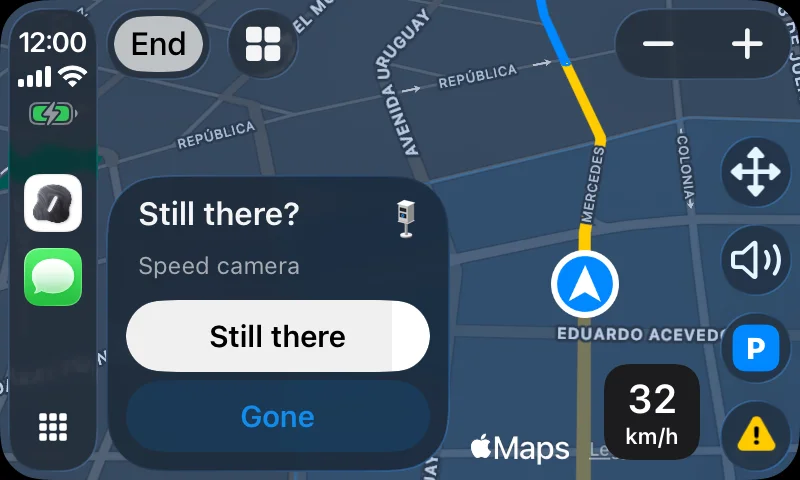
If the car has no CarPlay or Android Auto, as with a Bluetooth stereo, Driving mode on the phone is the same map: fixed speed cameras, which come from OpenStreetMap, what other people report and the paid parking zones. The usual buttons stay in a sheet below. With CarPlay or Android Auto the map is on the car screen. The data is informational and can be out of date.
A notice before each incident.
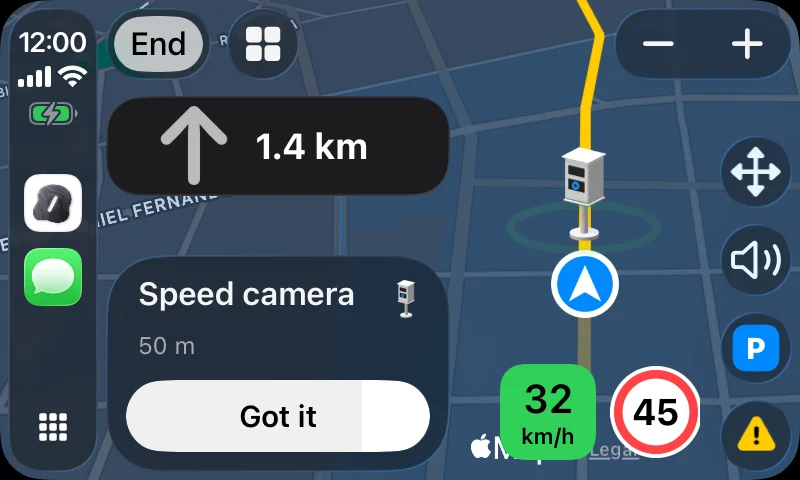
GarageApp warns you about the next incident on the street you are on, in your direction: within 300 meters or, when 20 seconds of driving is farther than that, up to 500 meters. Standing still, it stays quiet. The notice says what it is and how far away, shows the speed limit as a sign when it is known, and your speed in green, yellow or red. It is spoken once, with the music turned down. On iPhone it also shows on the Lock Screen and in the Dynamic Island.
Report what you see on the road.
Report has six kinds: fixed speed camera, mobile camera, police check, accident, roadworks and hazard. Everyone sees a report at once, without your name, and it expires by itself: a mobile camera, police check or accident after 90 minutes, a hazard after 6 hours and roadworks after 7 days. A reported fixed camera is reviewed before it shows.
Navigate to a place.
You search for a place, pick the route and GarageApp guides you on the same map, with the alerts on top. At a roundabout it says Exit 2 with the street under it; before a turn it shows the lanes and, next to your speed, the street's limit, where OpenStreetMap has them. That comes with the Uruguay map, offered the first time you navigate in Uruguay and kept in Driving mode settings. On Android without that map, Go opens Google Maps or Waze. On iPhone you can also open the destination in Maps, Google Maps or Waze.
When the trip ends, the car is parked where you left it.
When you disconnect from CarPlay or Android Auto (on Android, also from the car’s Bluetooth), GarageApp marks the vehicle parked where the phone was, unless it is at its own spot. You get “Corolla parked”: tap it and it walks you back to the car, on Android with the Uruguay map. In a paid zone, during its hours, the P turns red and the notice has Pay, which opens the paid parking form with the place already set. Outside paid zones the notice goes after 30 minutes. Once you drive it again, it is no longer parked.
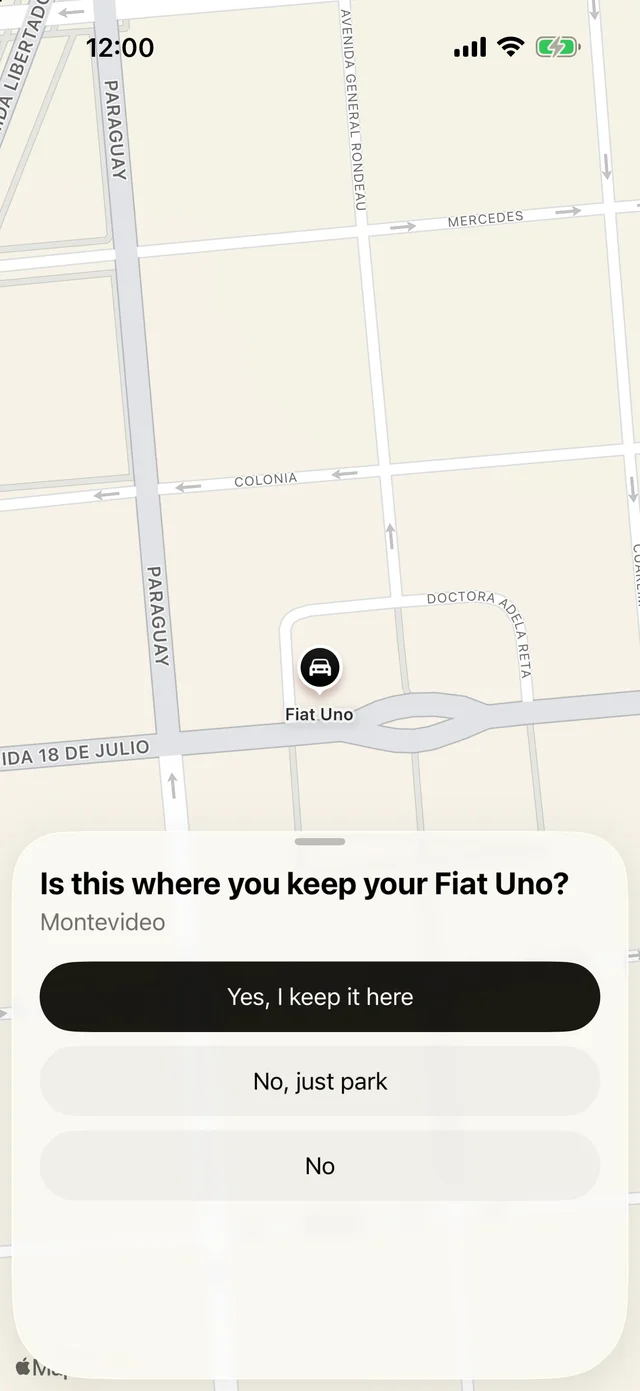
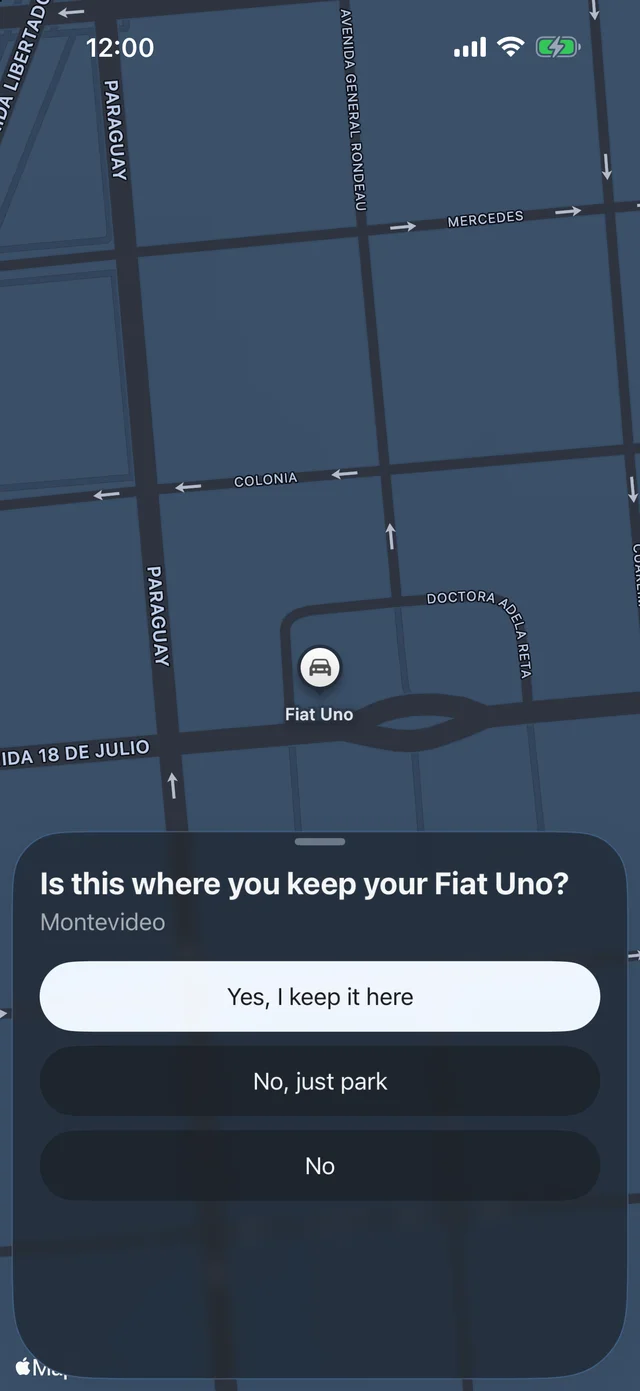
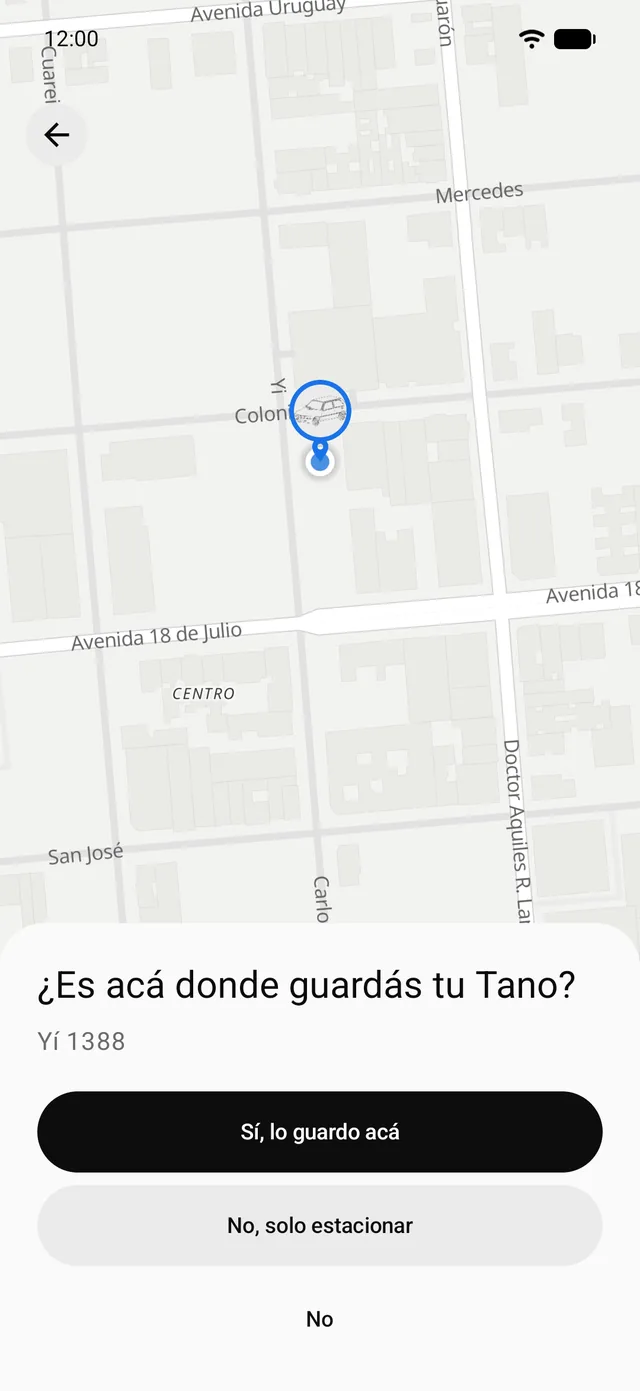
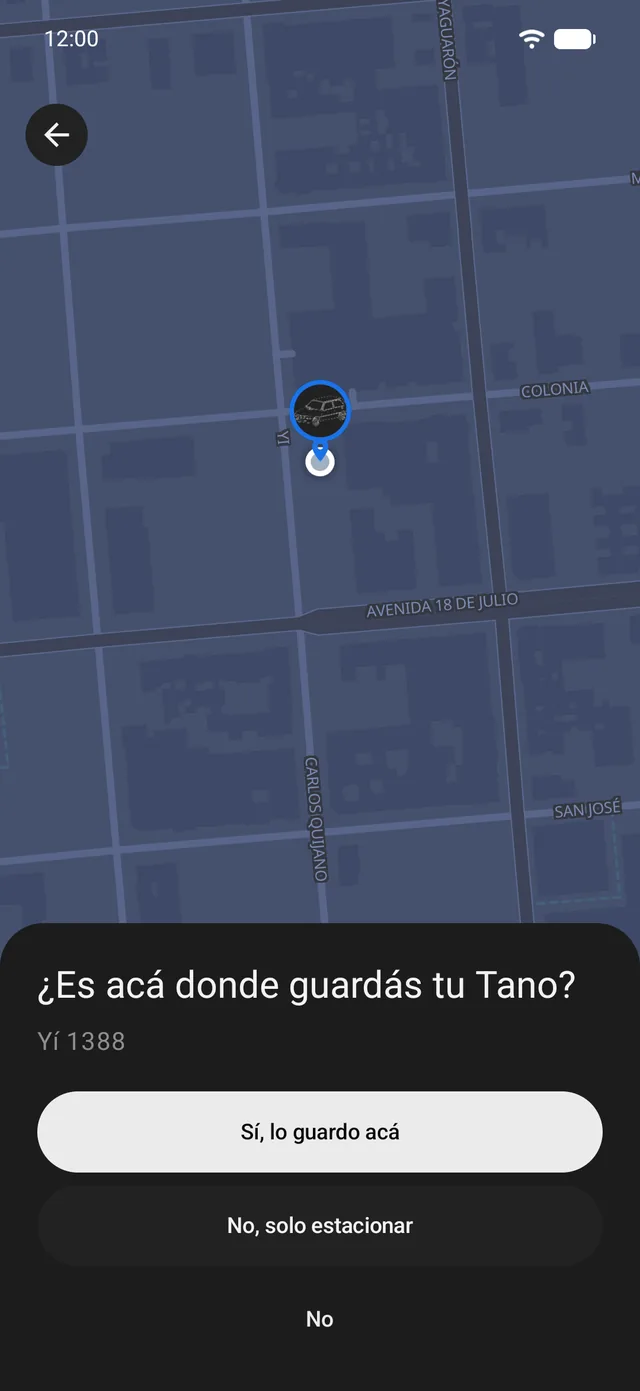
It asks once whether you keep the car there.
If the vehicle has no parking spot, GarageApp asks once, with the place on the map, whether you keep it there: on Android when you disconnect from the car, on the iPhone the first time you tap Park. If you do, you say whether you pay for the spot or it is yours. If it is yours, it is saved with no cost: no payments and nothing added to your expenses.
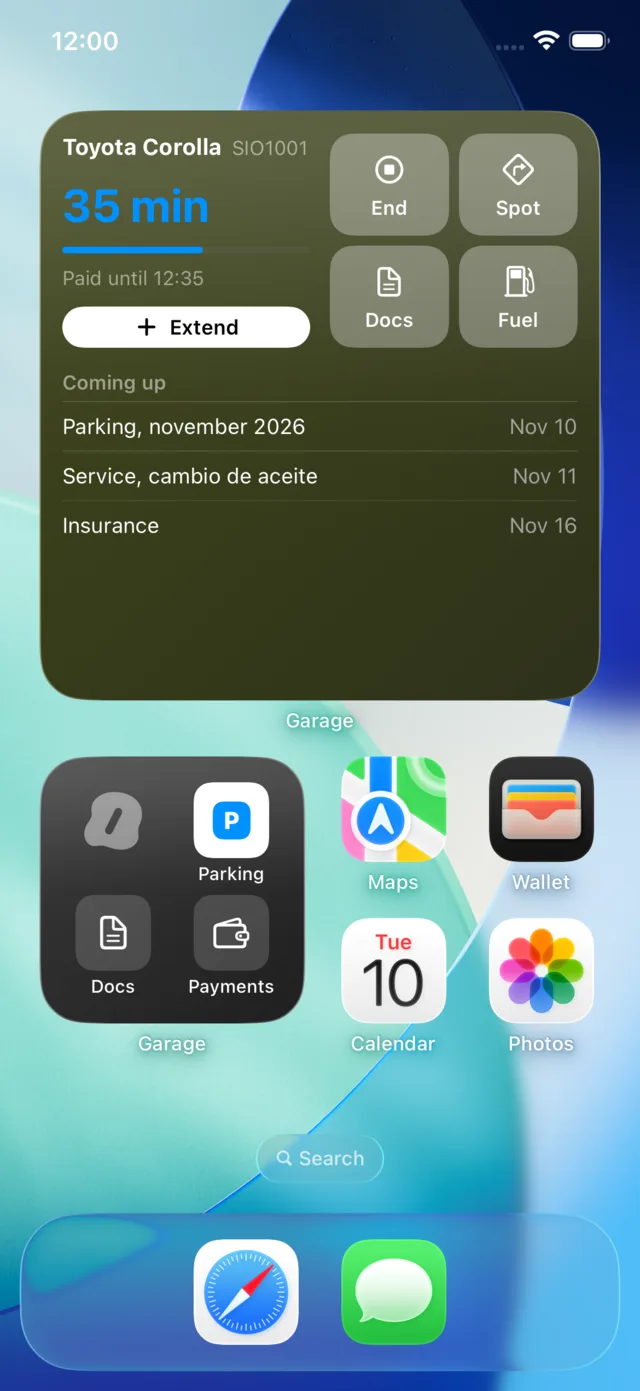
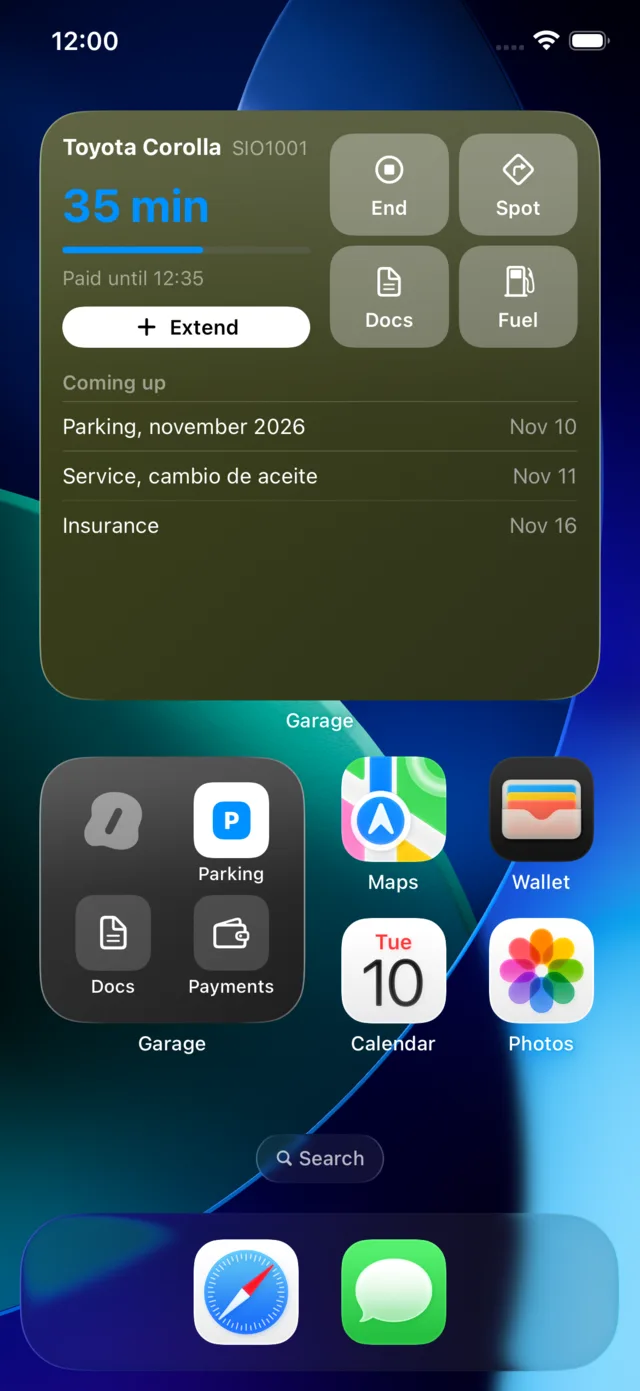
Widgets in three sizes, on iPhone and Android.
The small one opens Parking, Documents and Payments. The medium and large ones show the car you are driving, or the one you pick when you edit them: the paid parking time left with Extend and End, shortcuts to your parking spot, documents and fuel, and in the large one what is due next. And with Siri you say “Add a note for the service in GarageApp” or “Log the odometer in GarageApp”.
Street parking with a reminder before it ends.
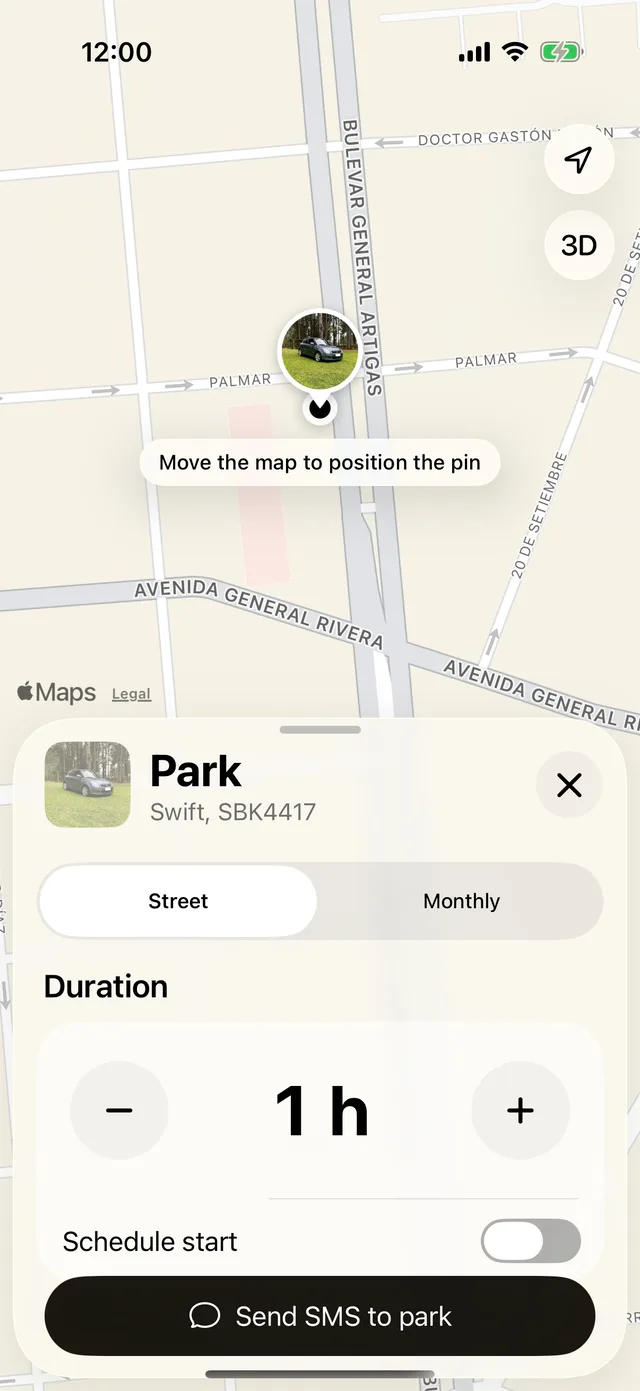
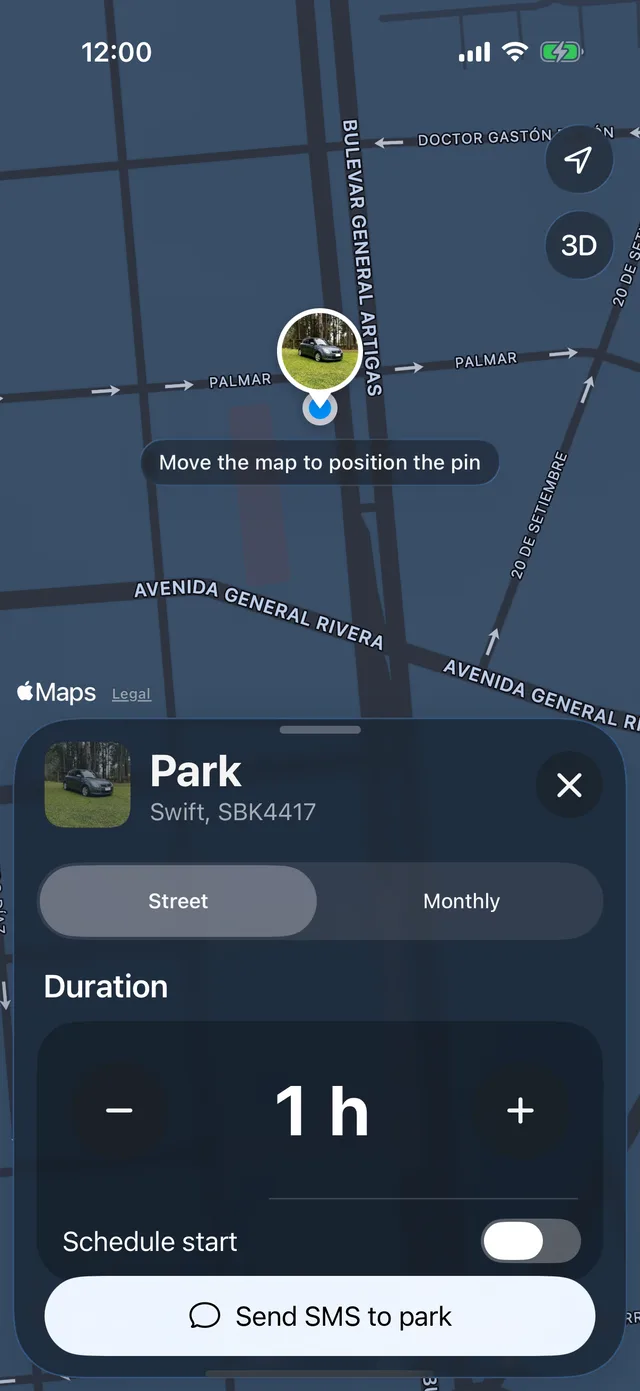
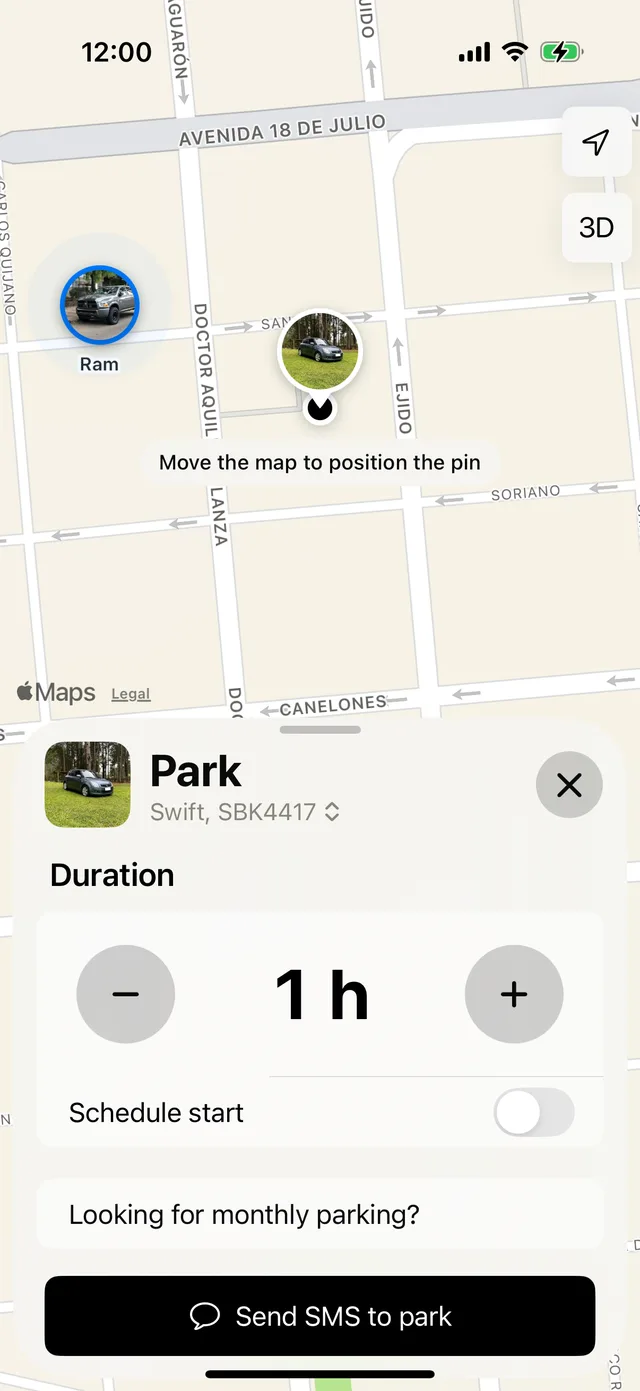
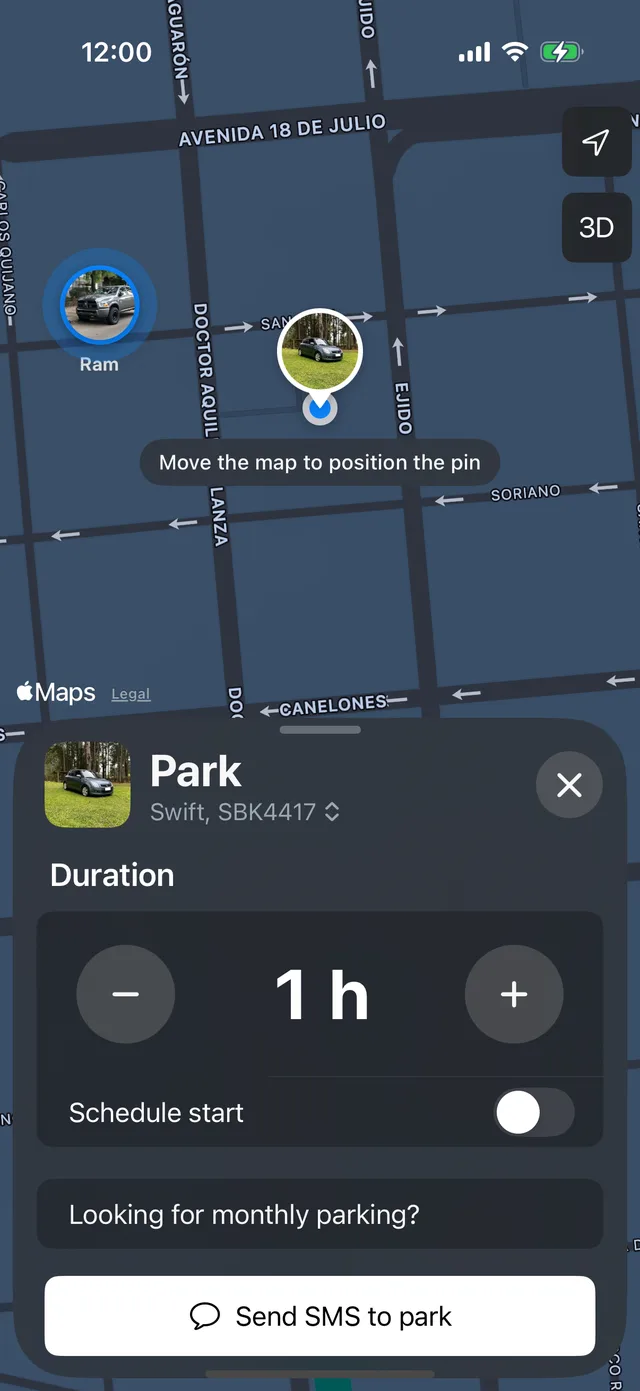
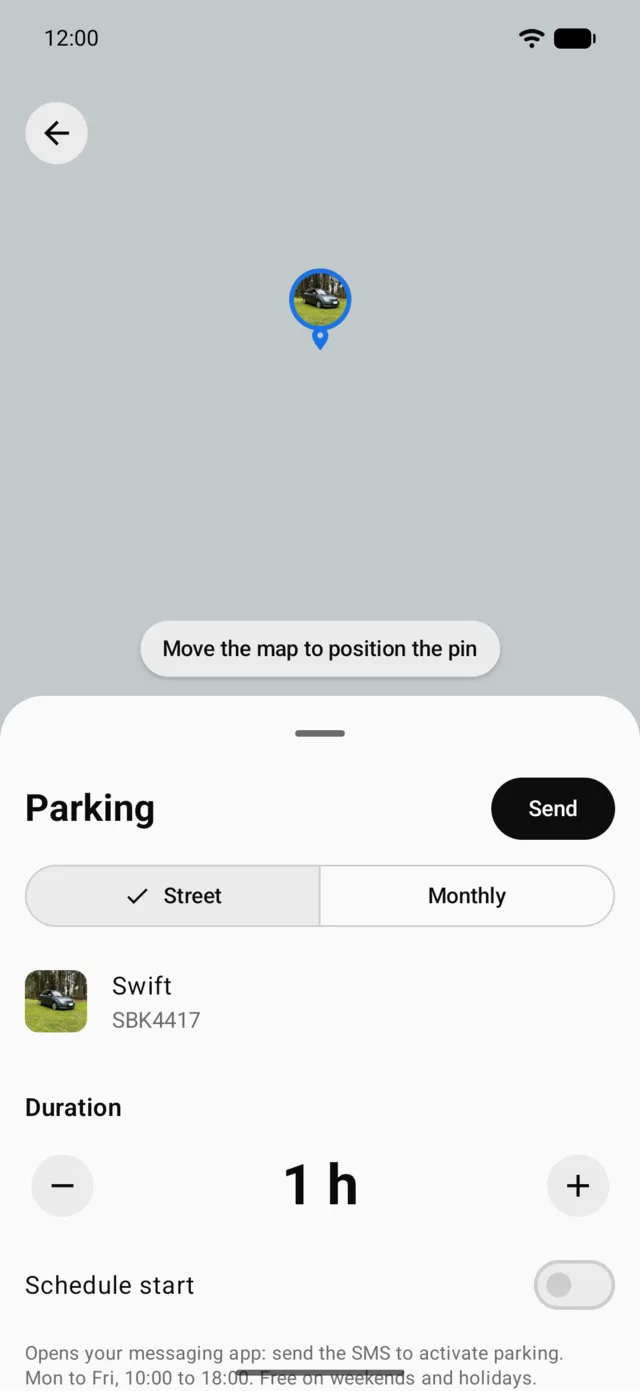
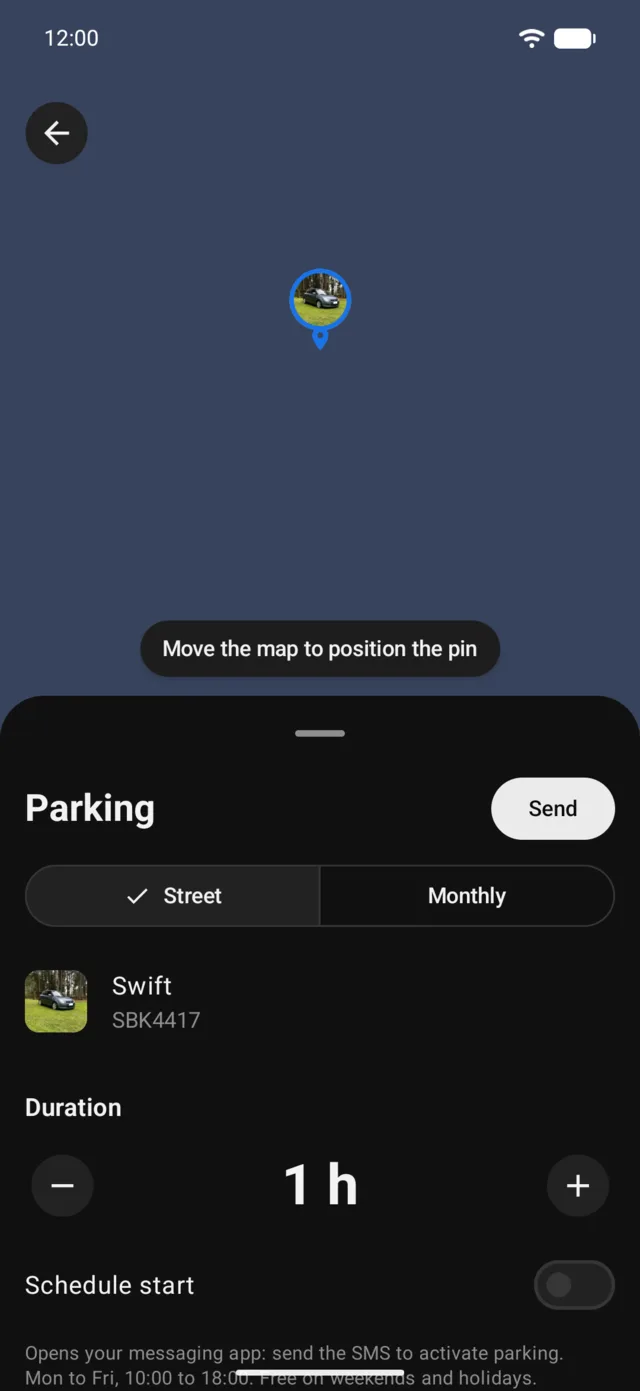
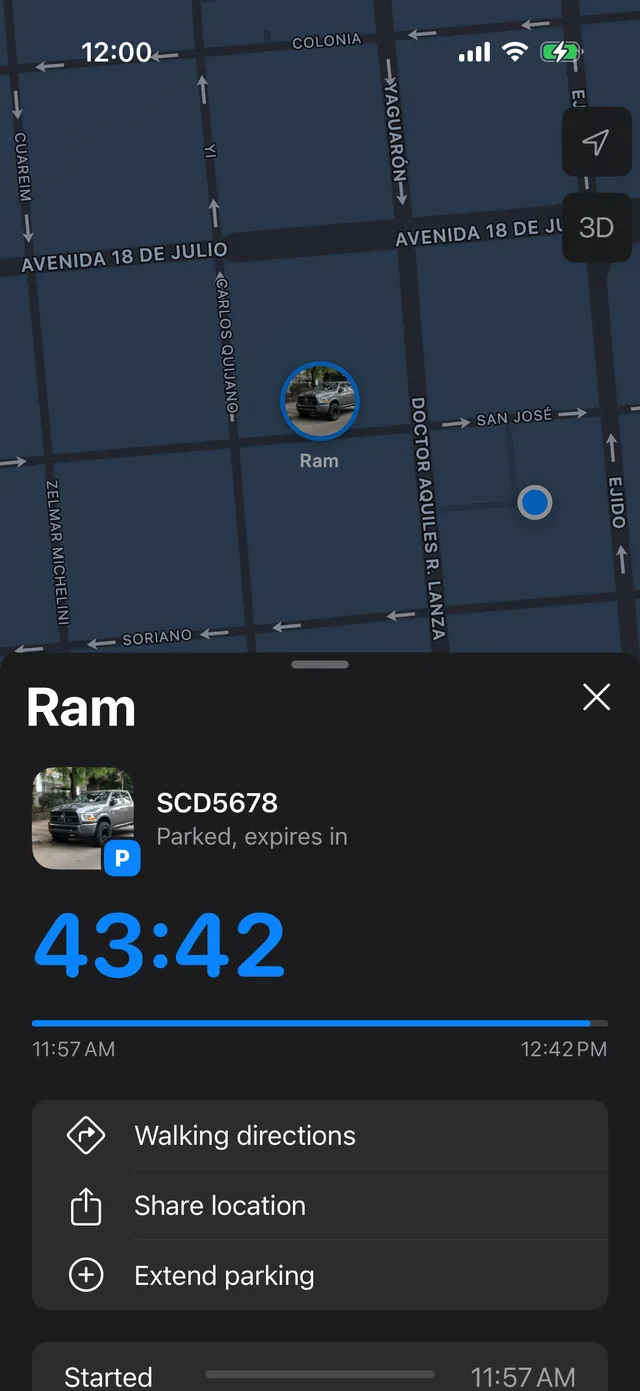
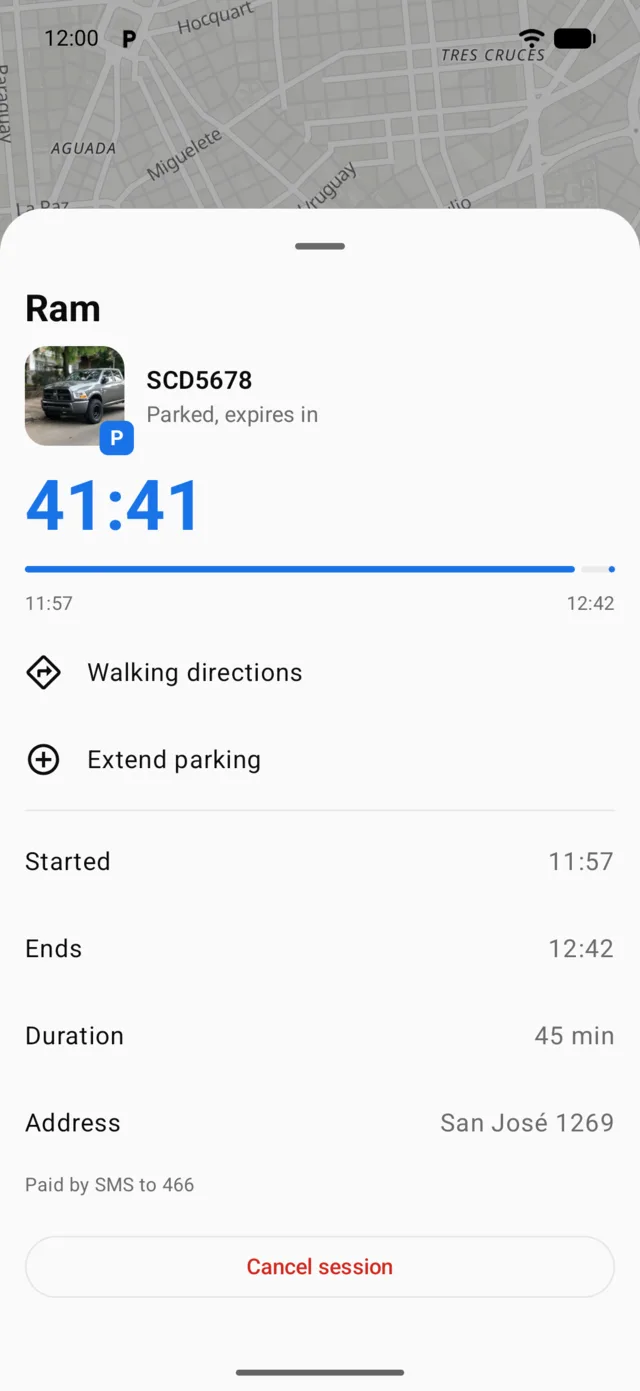
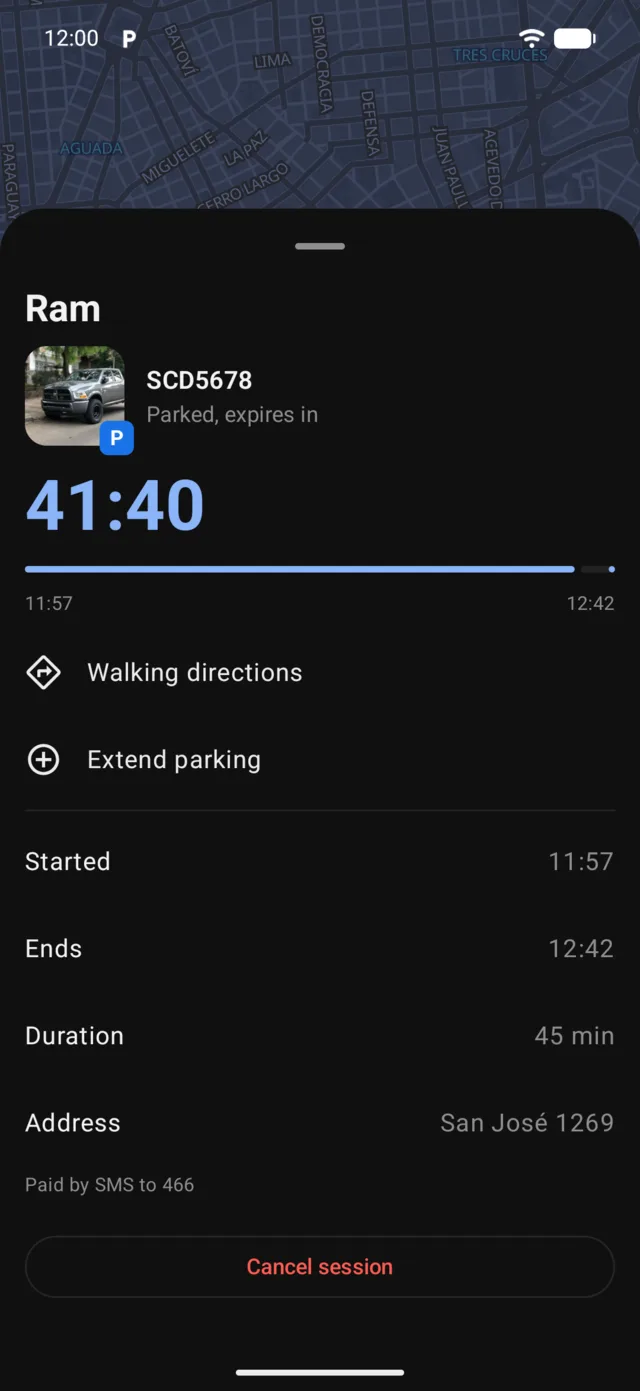
Pick the vehicle and how long, and GarageApp has the SMS to the city ready for you to send. The countdown sits on the Lock Screen, we remind you 10 minutes before it ends and the map takes you back to your car.
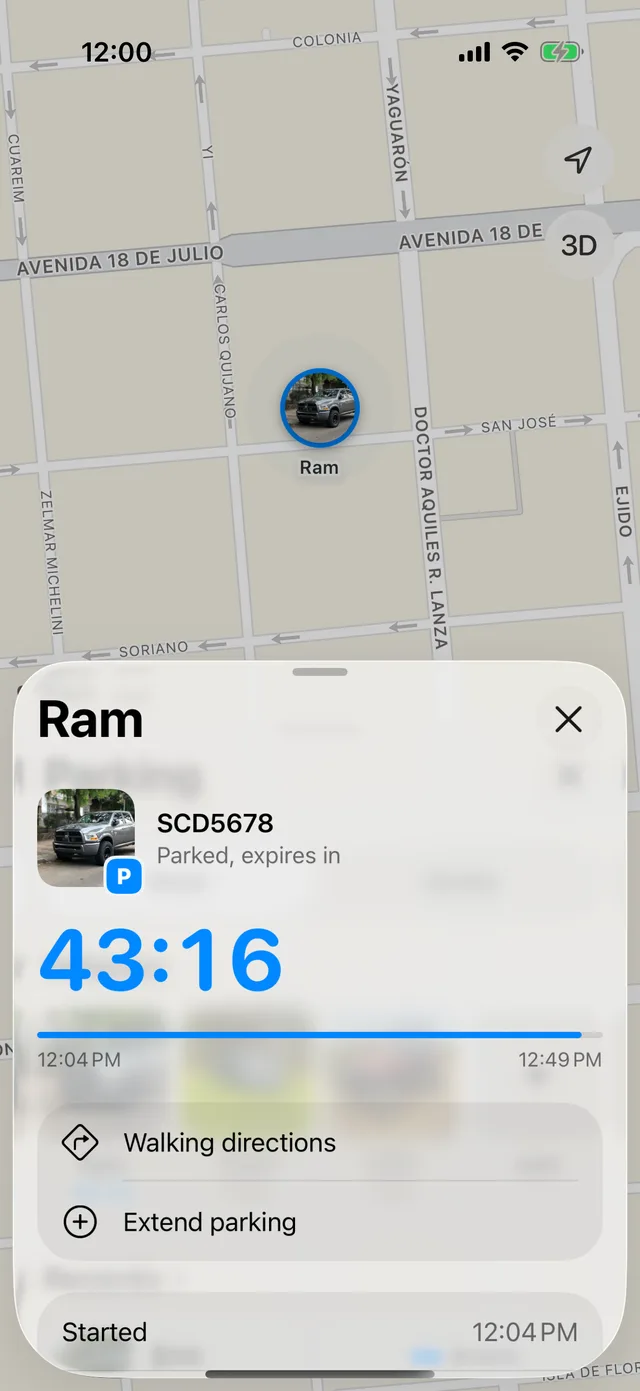
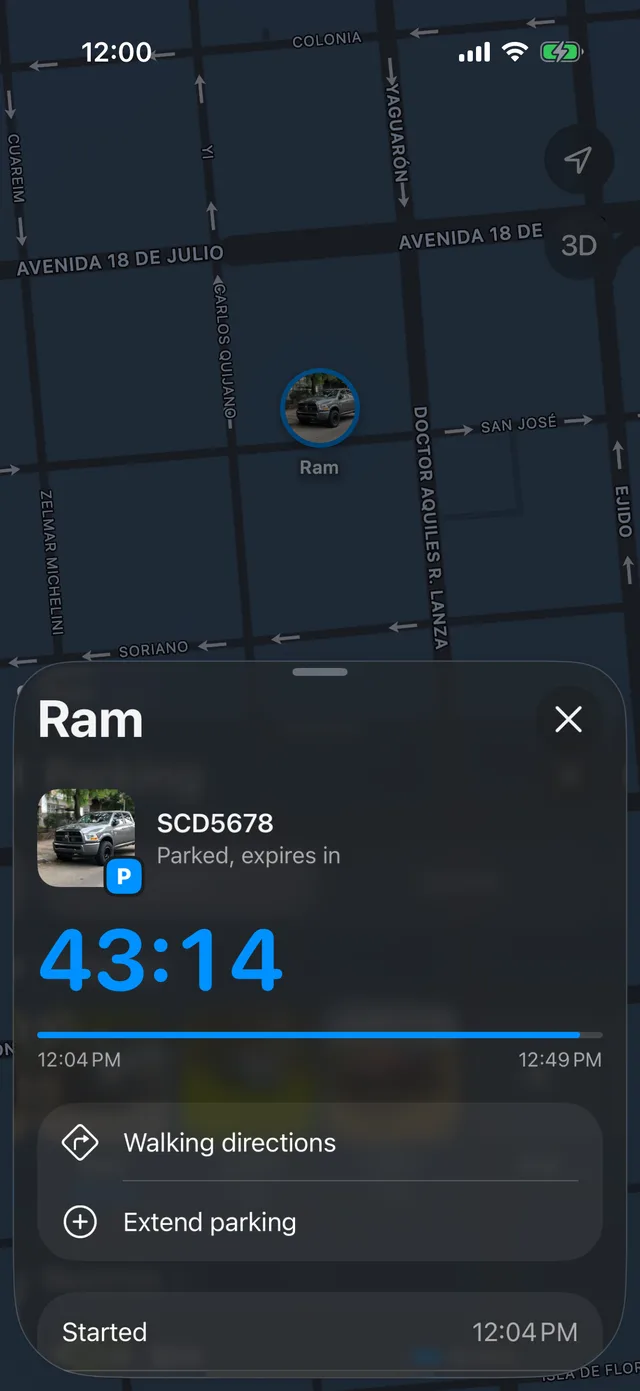
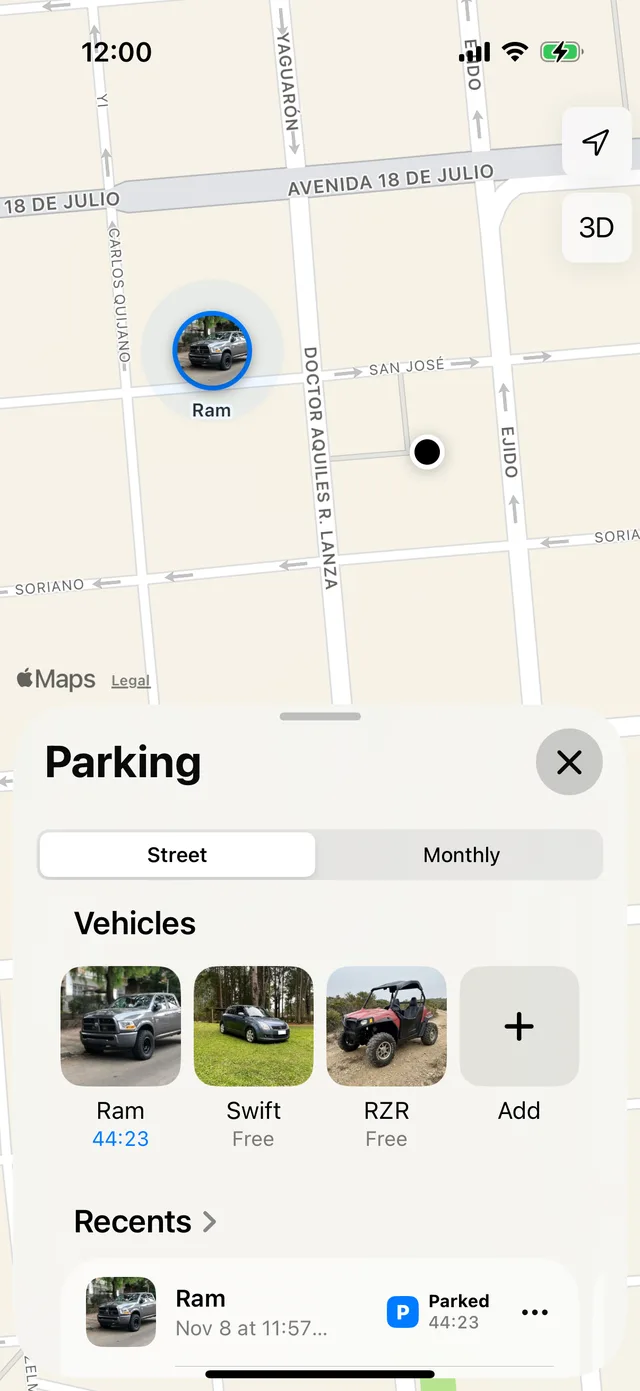
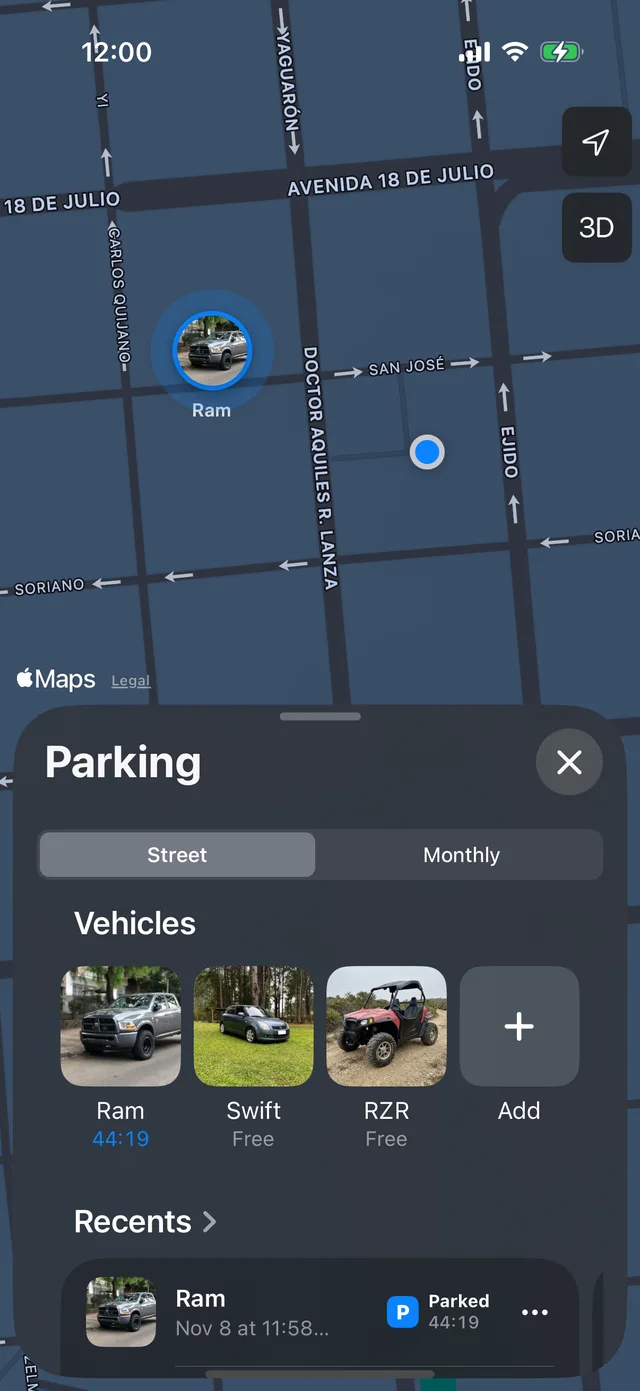
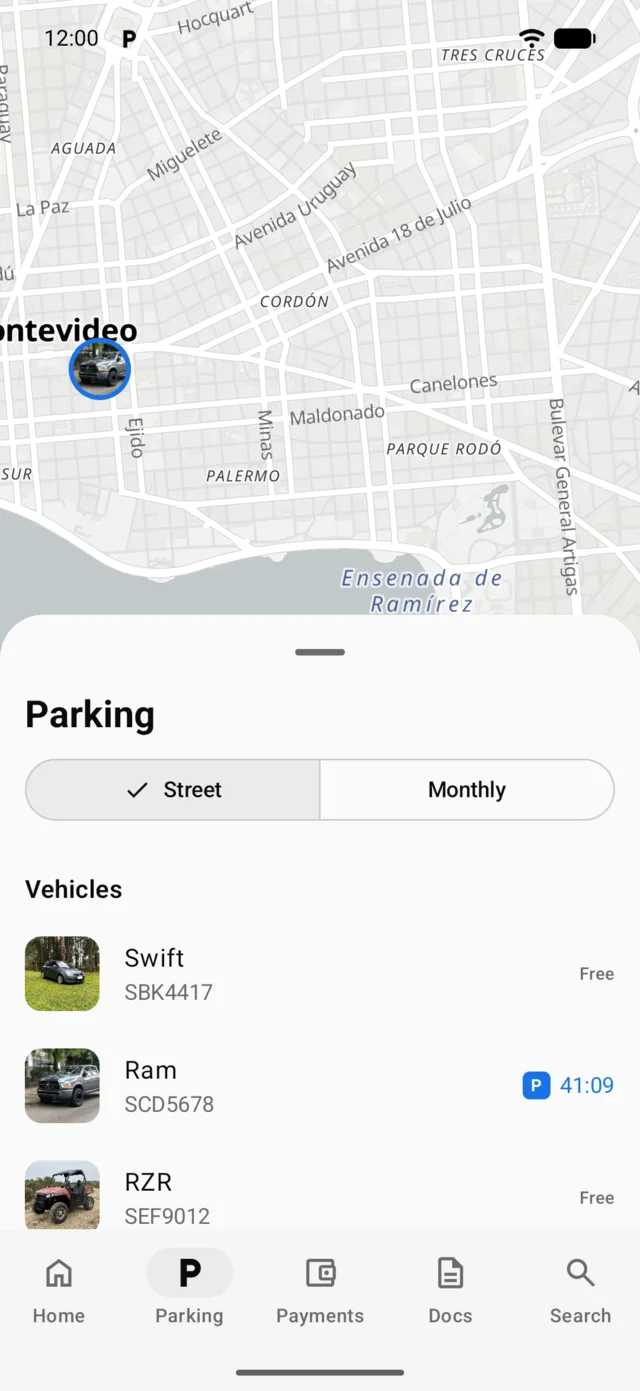
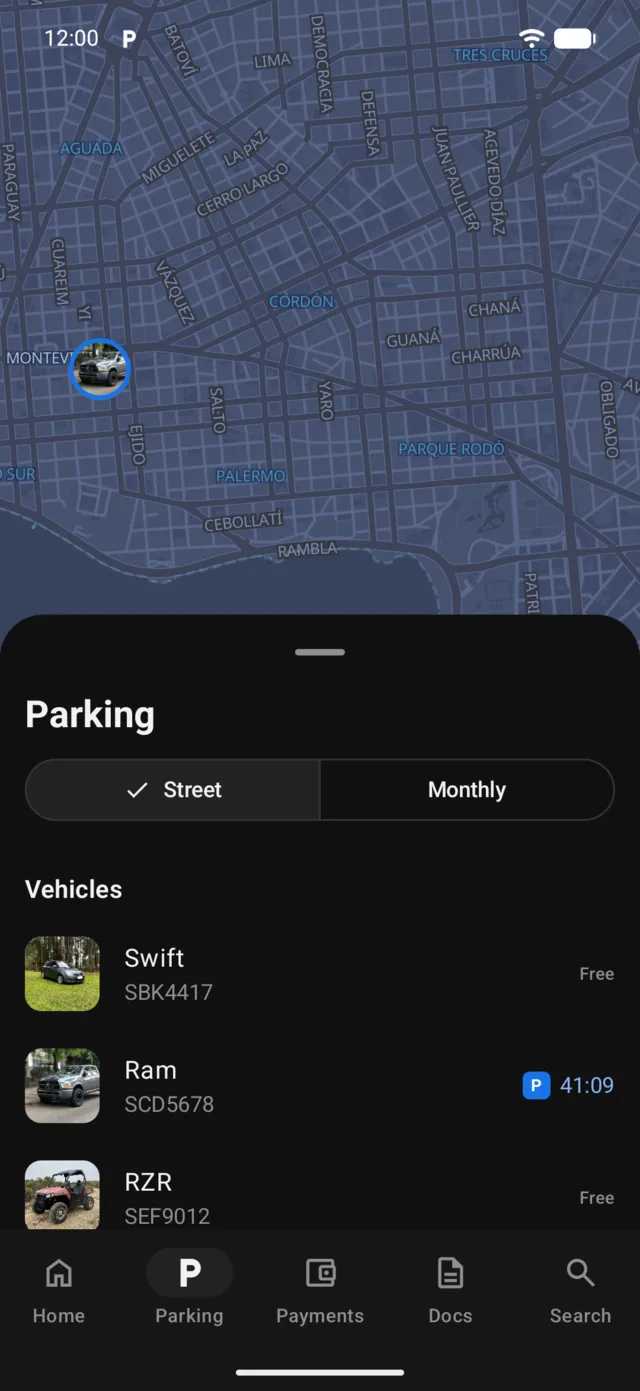
Start parking without knowing the number or the codes.
Mark where you left it on the map and set the duration, and parking starts with that city’s number: Montevideo, Canelones, Pando or Florida. If you’ll get there later, schedule it to start by itself. Outside the paid zones, the app keeps where the car is until you end it.
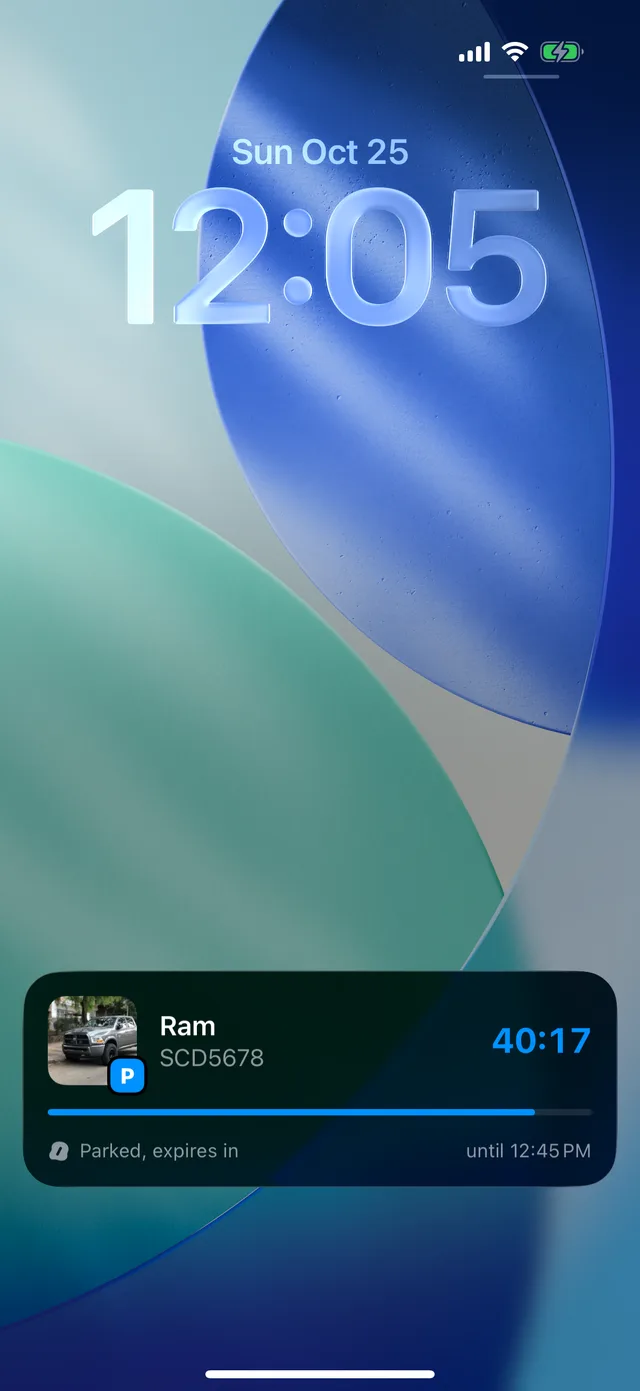
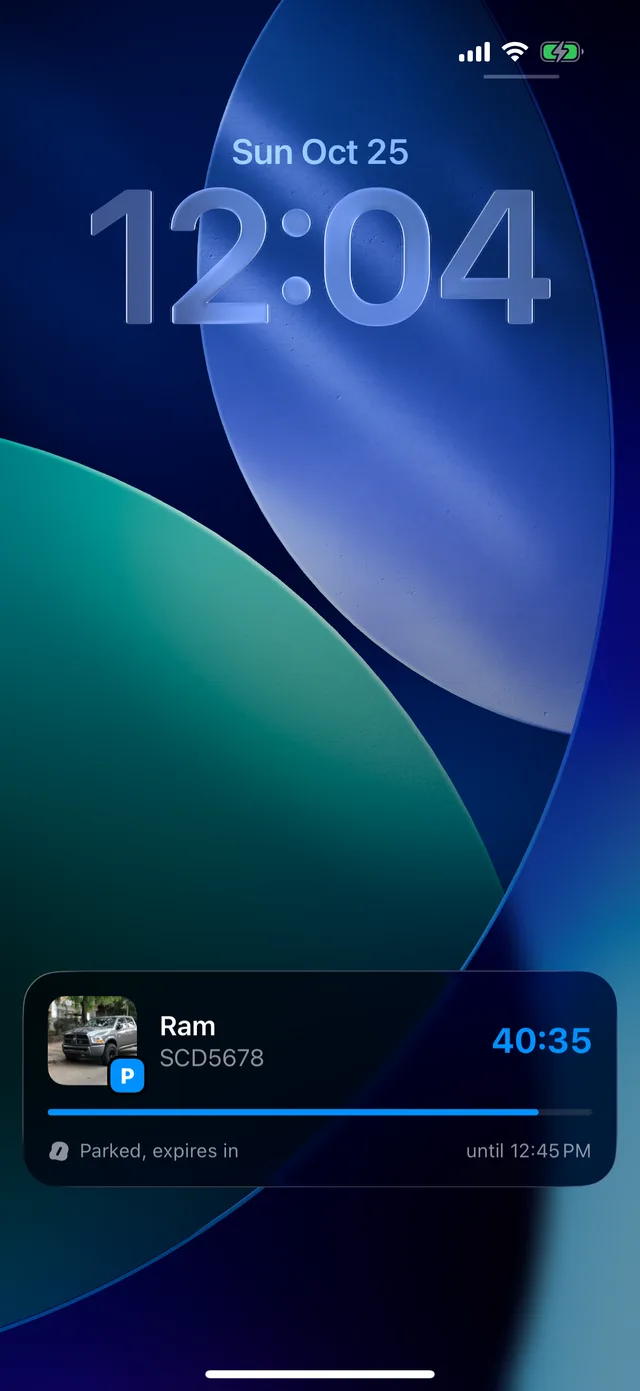
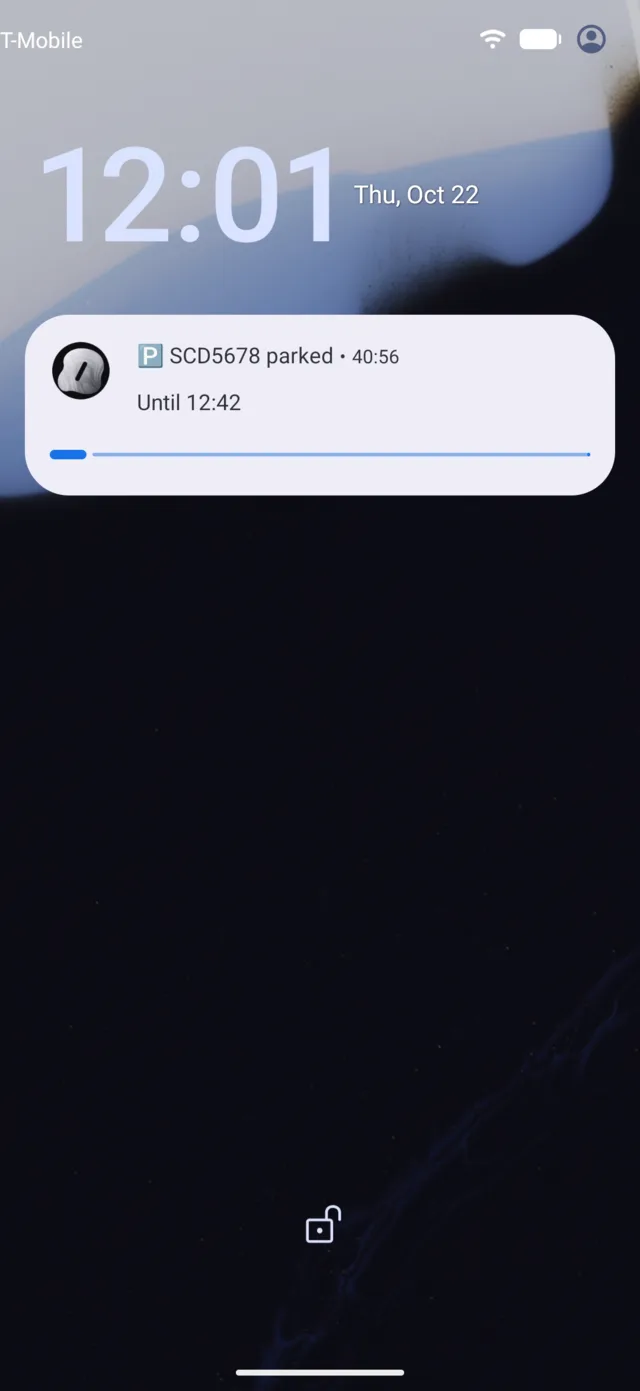
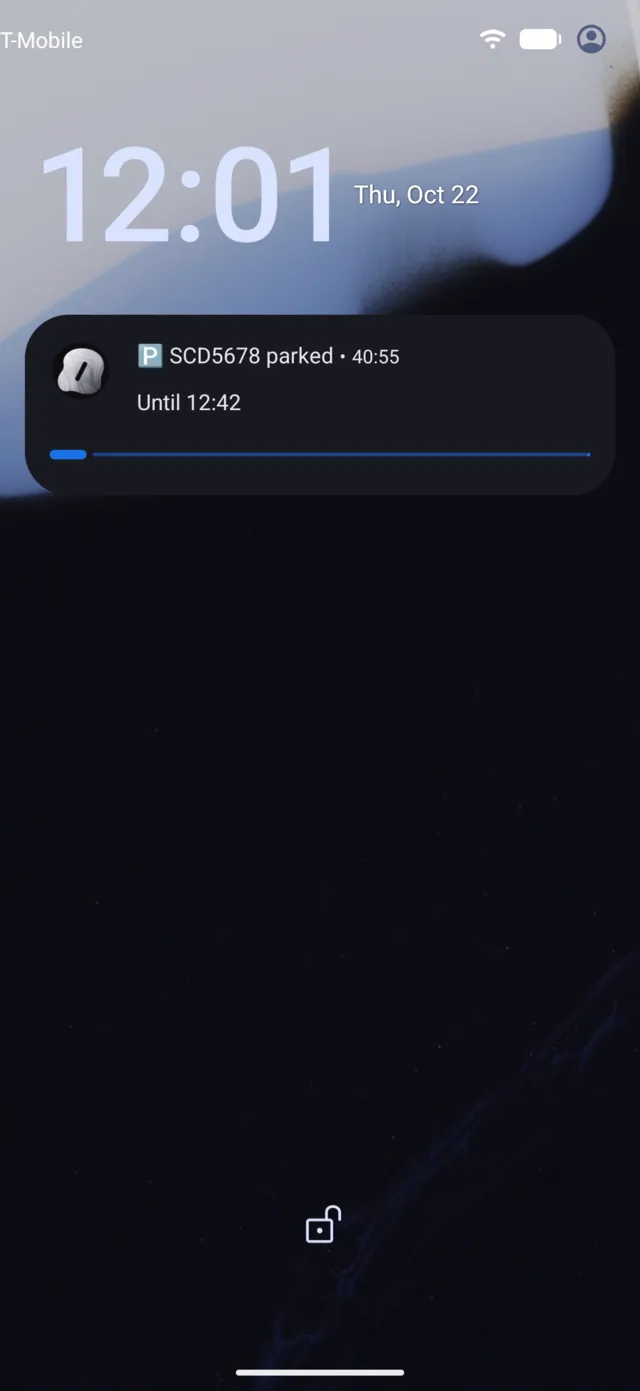
The countdown, on the Lock Screen and in the Dynamic Island.
You see the time left without opening the app. We remind you 10 minutes before it ends, so you can extend it without rushing.

GarageAppnow
Parking expiring soon
SCD5678: 10 minutes left.
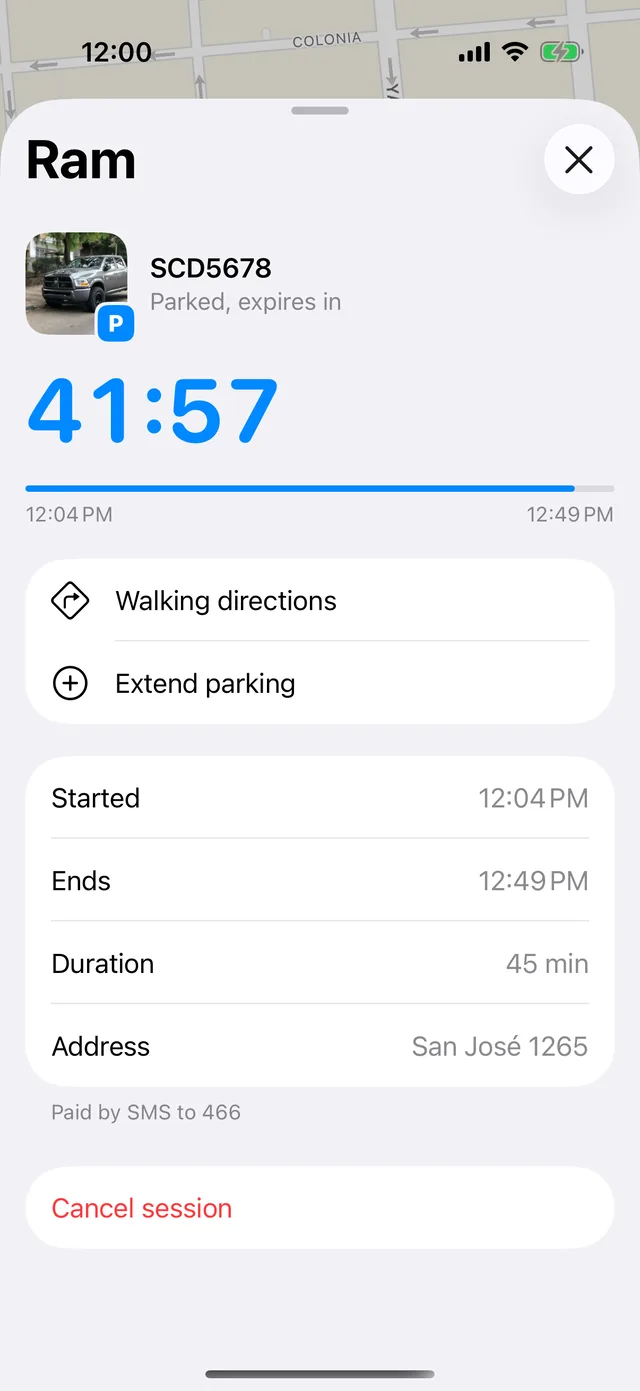
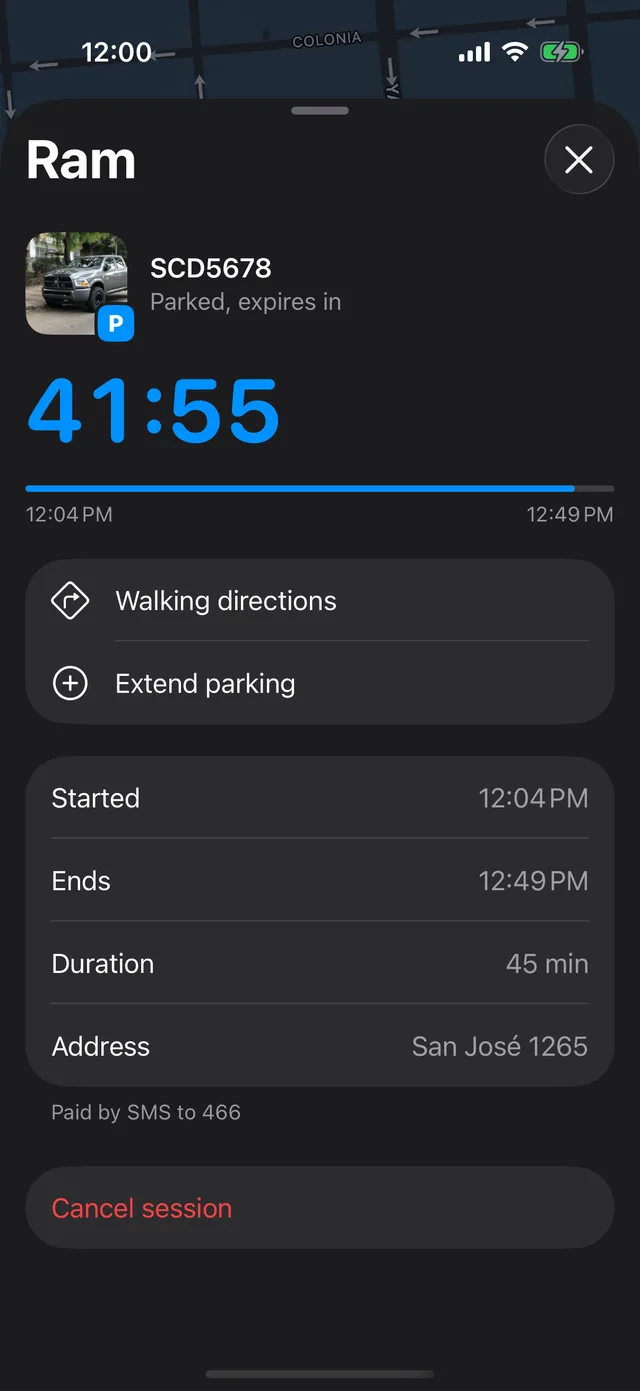
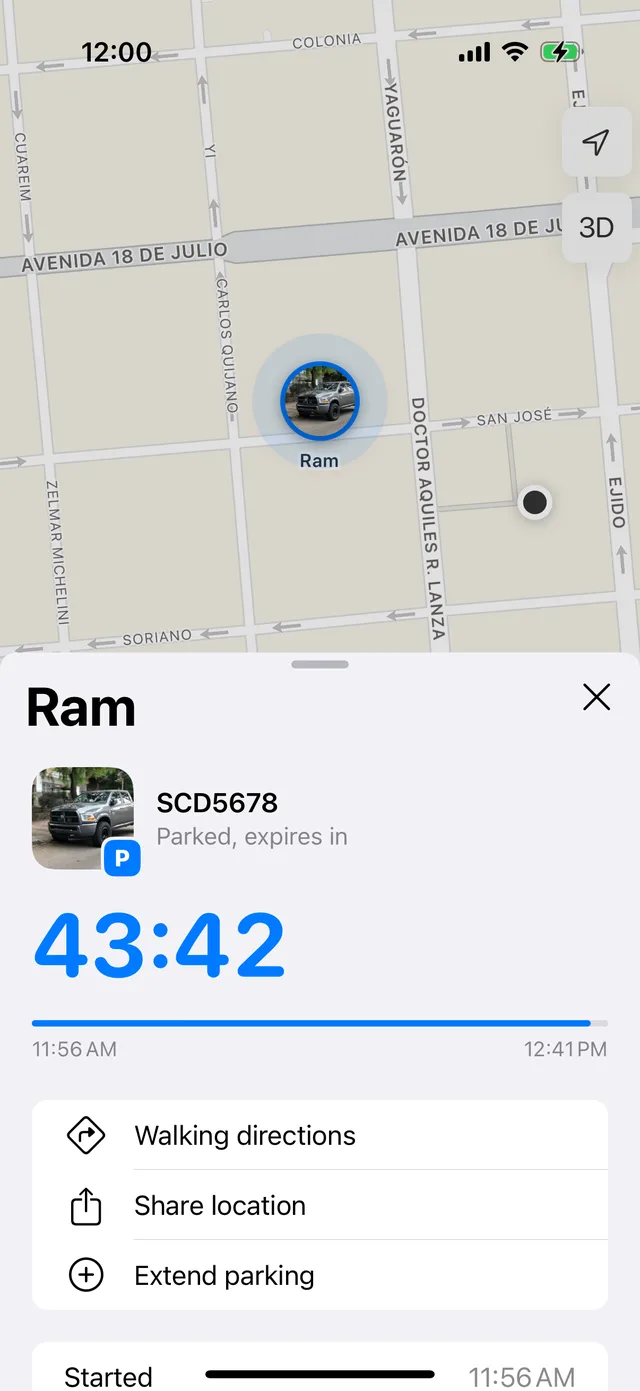
Walk back to your car.
We keep where you left it. One tap and the map walks you to the exact spot.
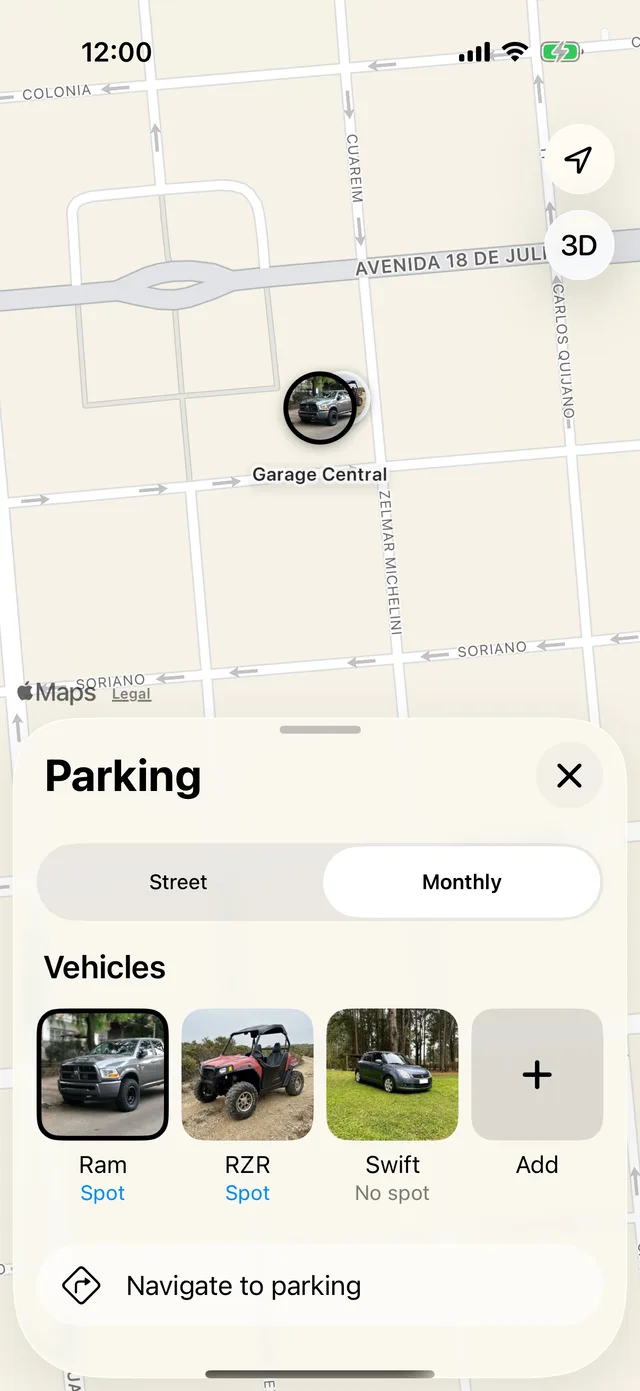
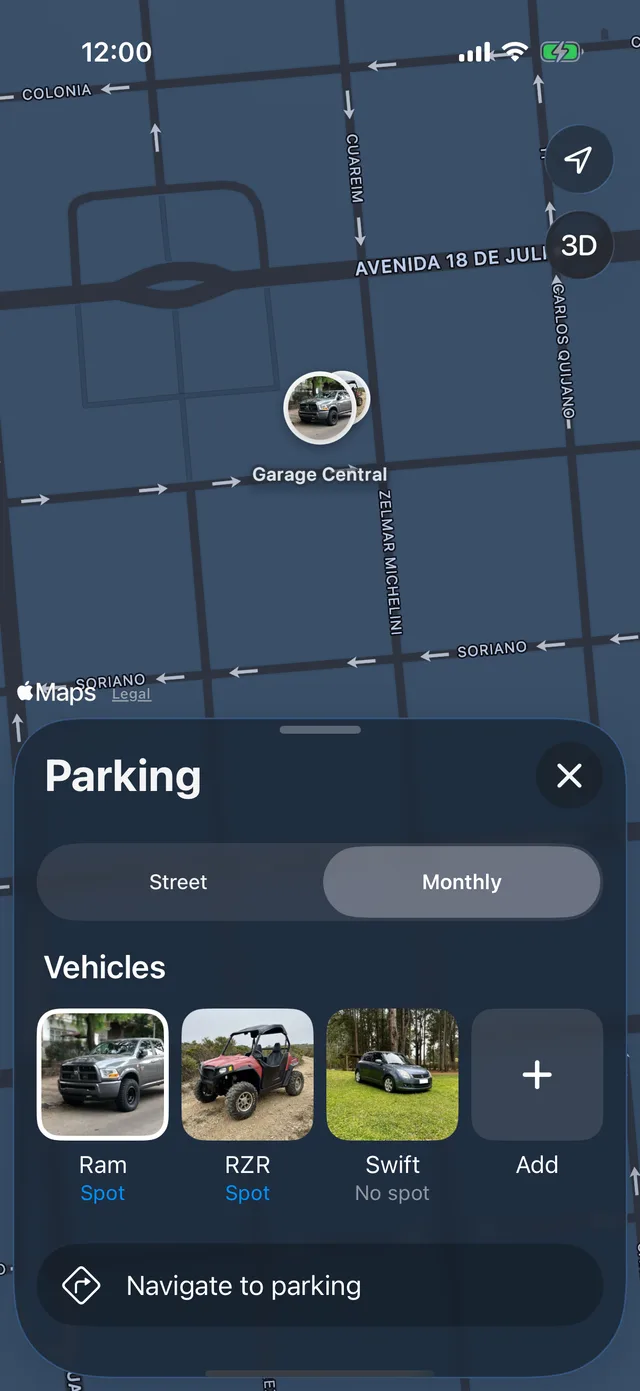
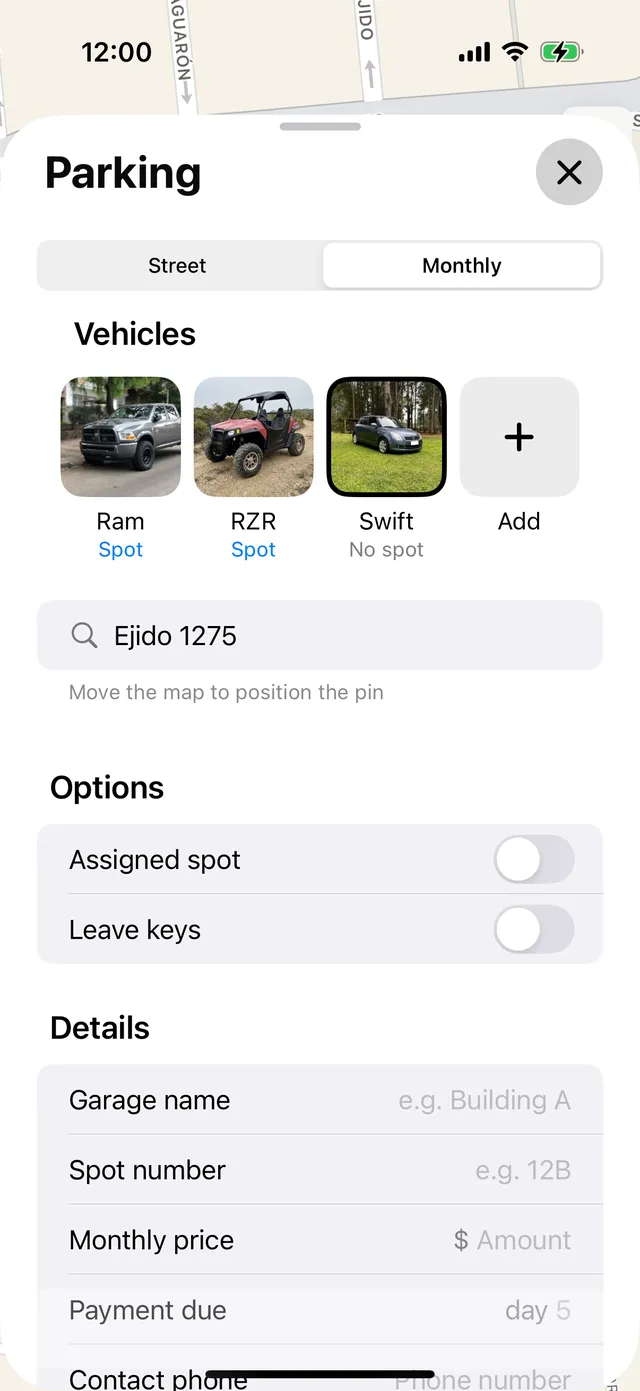
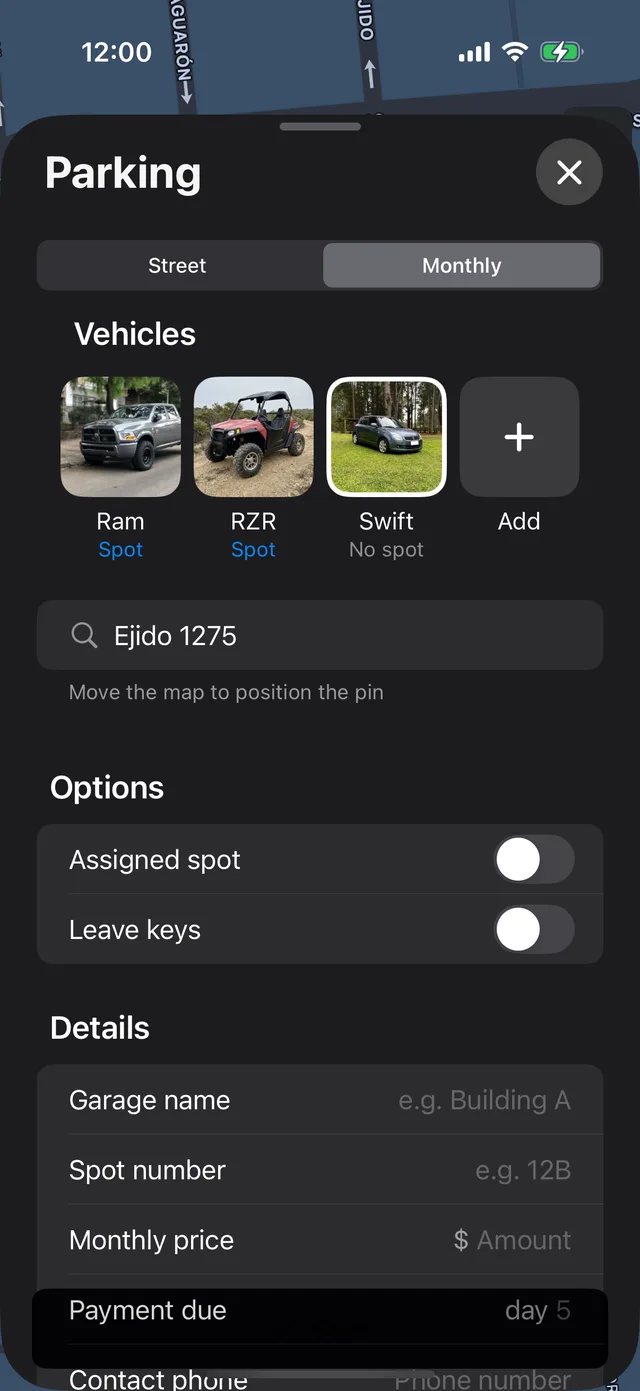
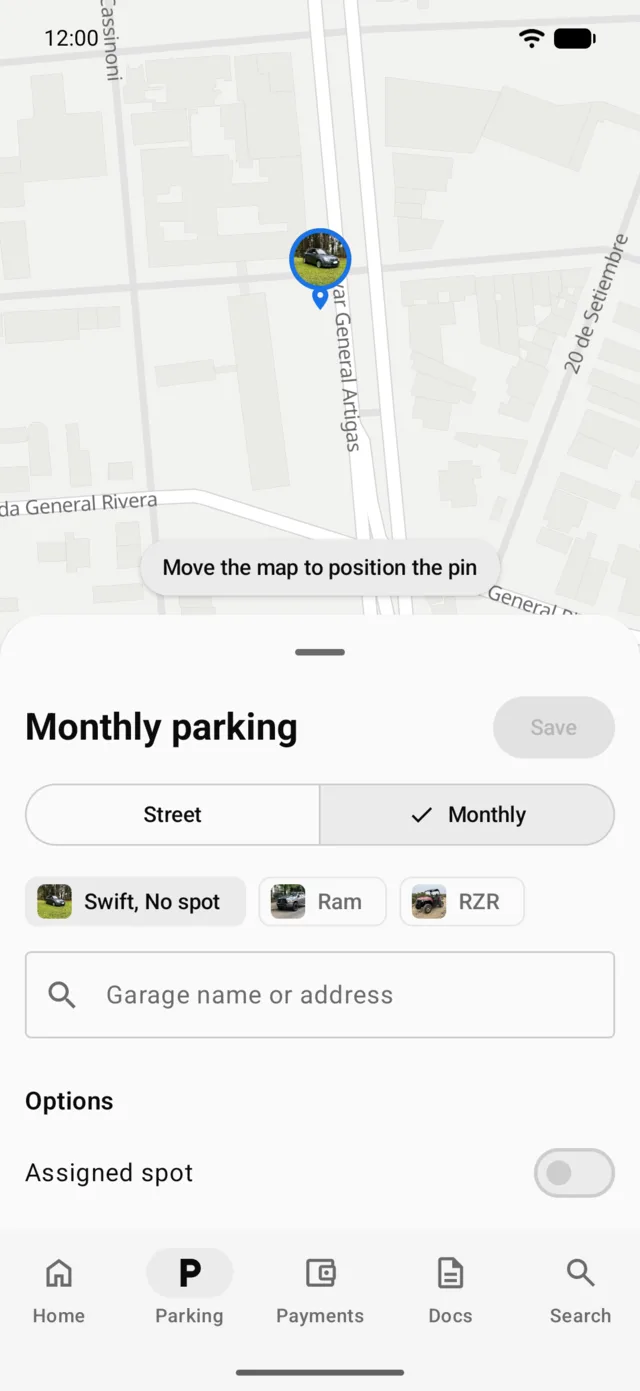
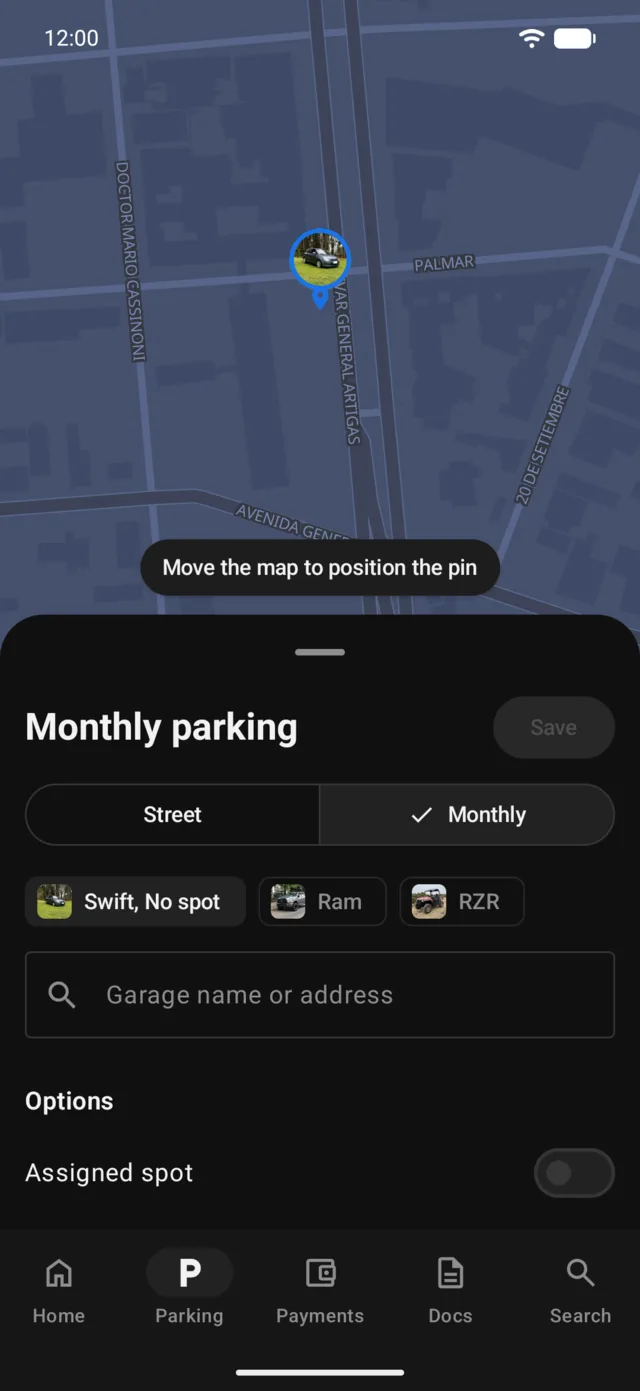
Your monthly spot, with a pending payment every month.
Save the spot with its price and payment day, and every month shows up in Payments. Tap Navigate to parking for driving directions.
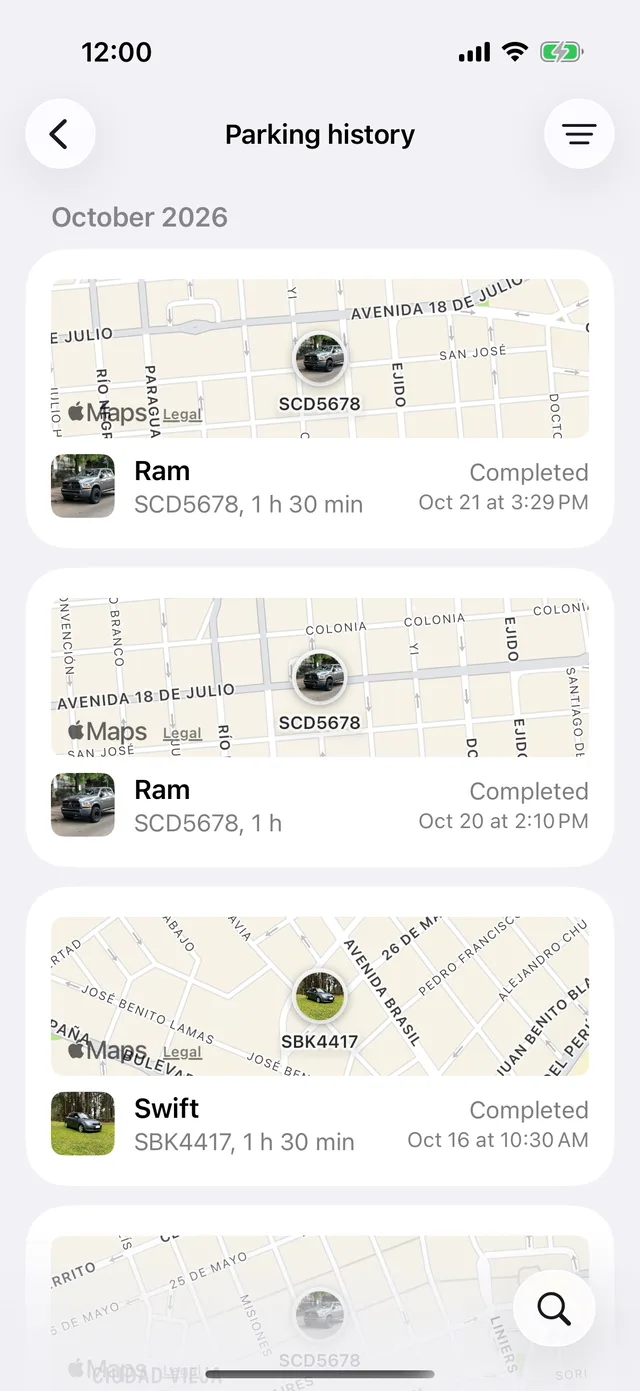
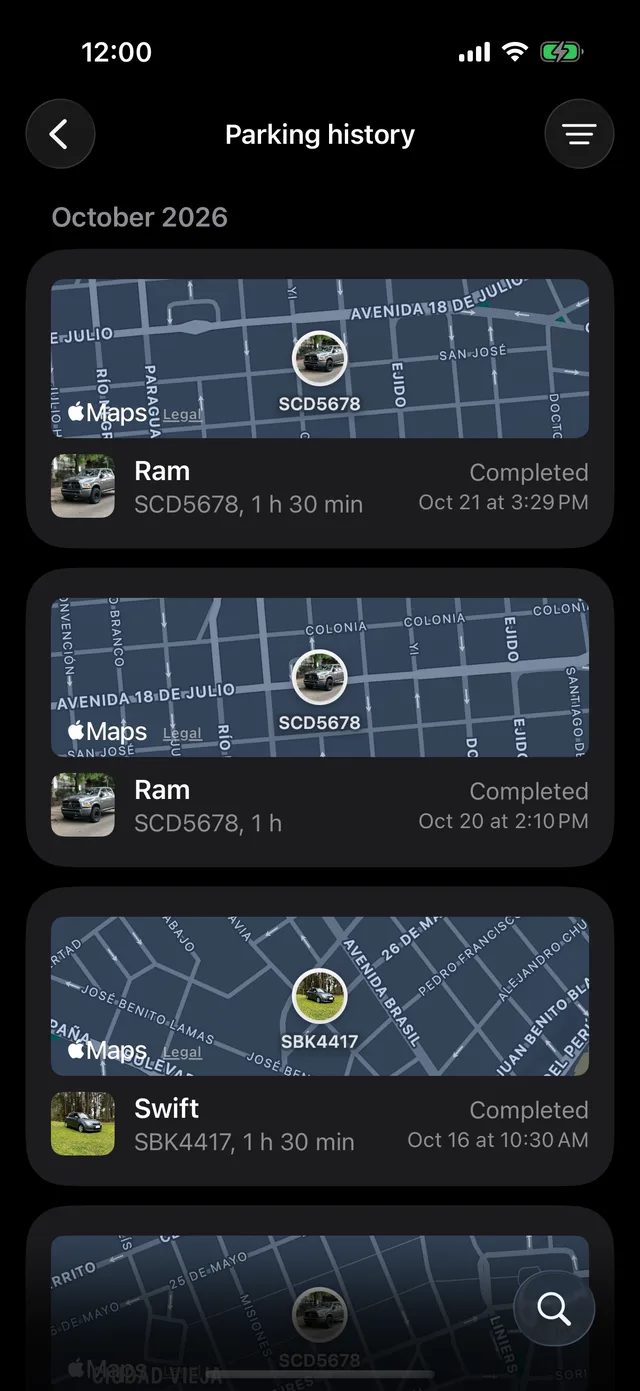
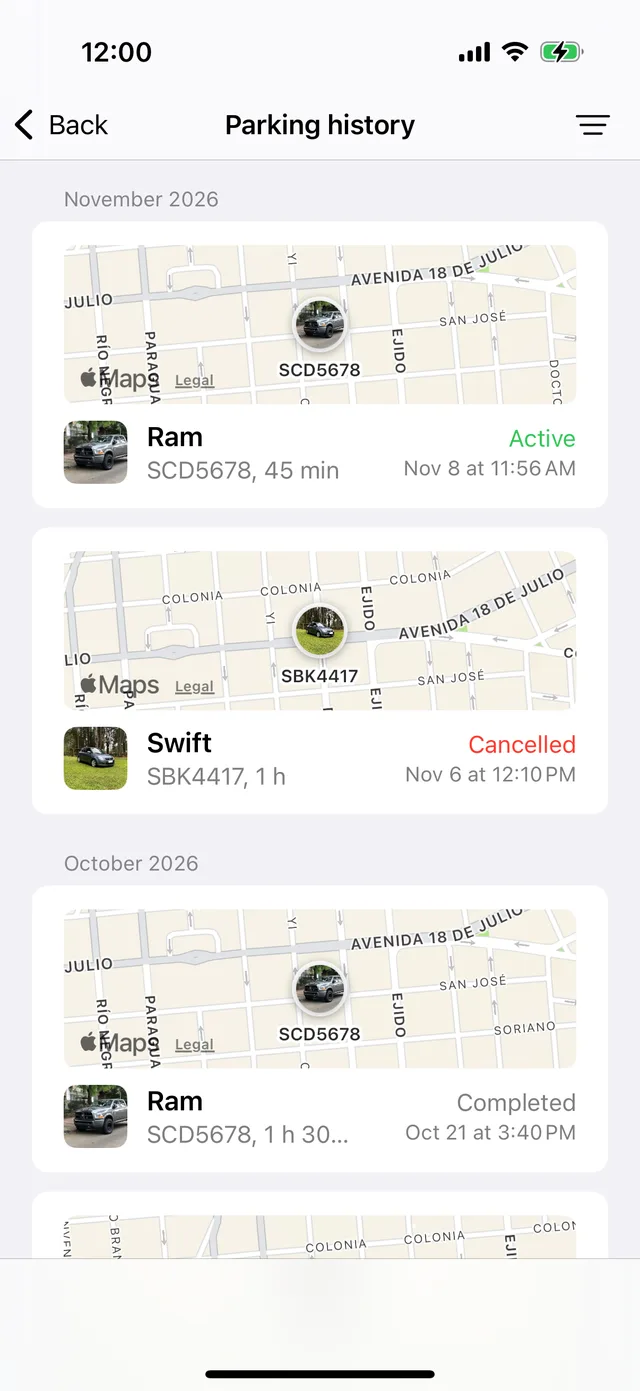
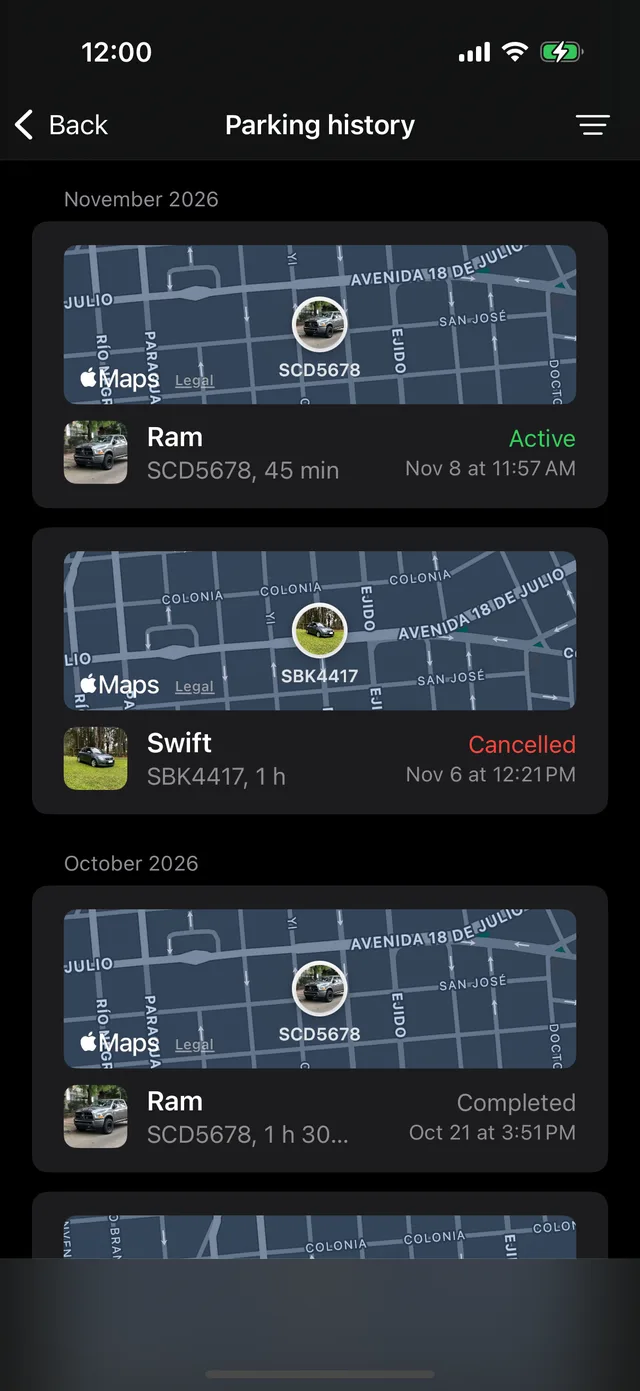
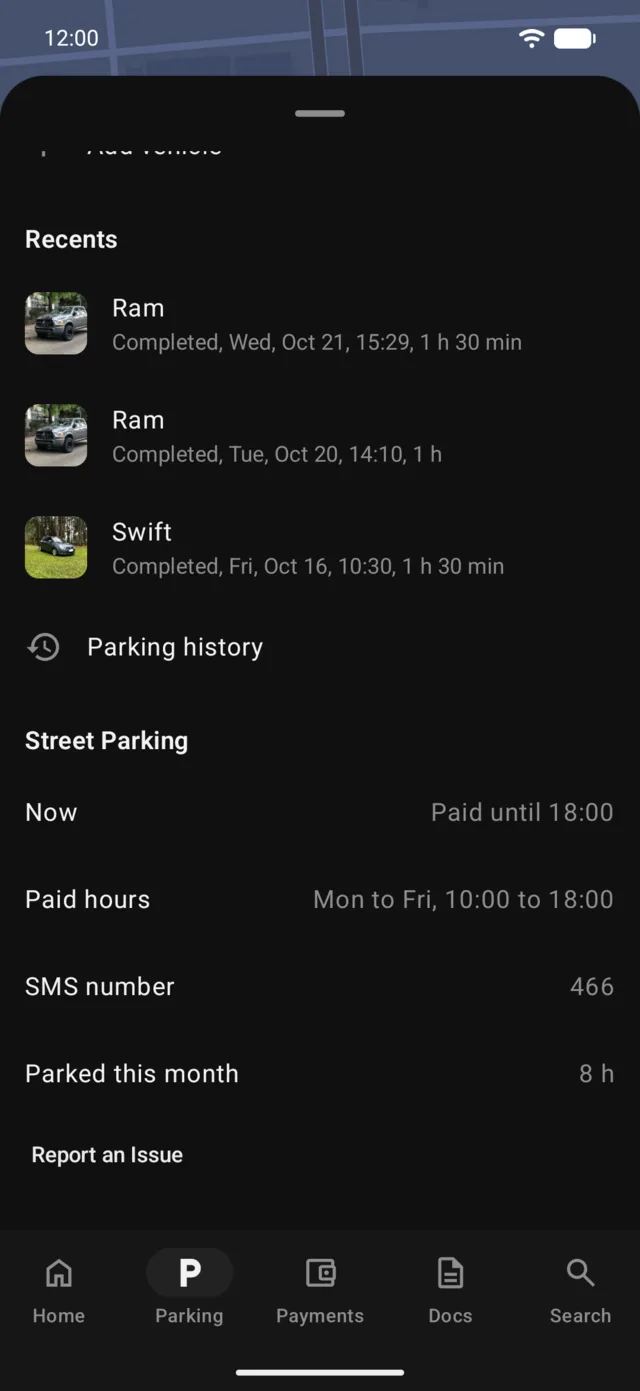
Your parking history, with each session’s map.
Where you parked, when and for how long, month by month. Search by vehicle or plate.
Related tools
GarageApp for iPhone and Android.
Free for up to 2 vehicles, with street parking, monthly spots and history.
Free for up to 2 vehicles.