
See what you spend
Each vehicle’s cost on its page, and reports for all of them by month or year.
On each vehicle
Open the vehicle and scroll down: Annual is what it has cost this year and Monthly est. what it costs you per month. If several people log expenses, Member spending shows how much each one put in.
Reports
- On Home, tap your account button.
- Tap Reports.
- Choose Month or Year: on the iPhone, at the top of Filter & sort; on Android, in the tabs at the top. At the bottom, move between periods with the arrows.
- To see only one category, tap Filter & sort at the top right and pick it. All shows them all again.
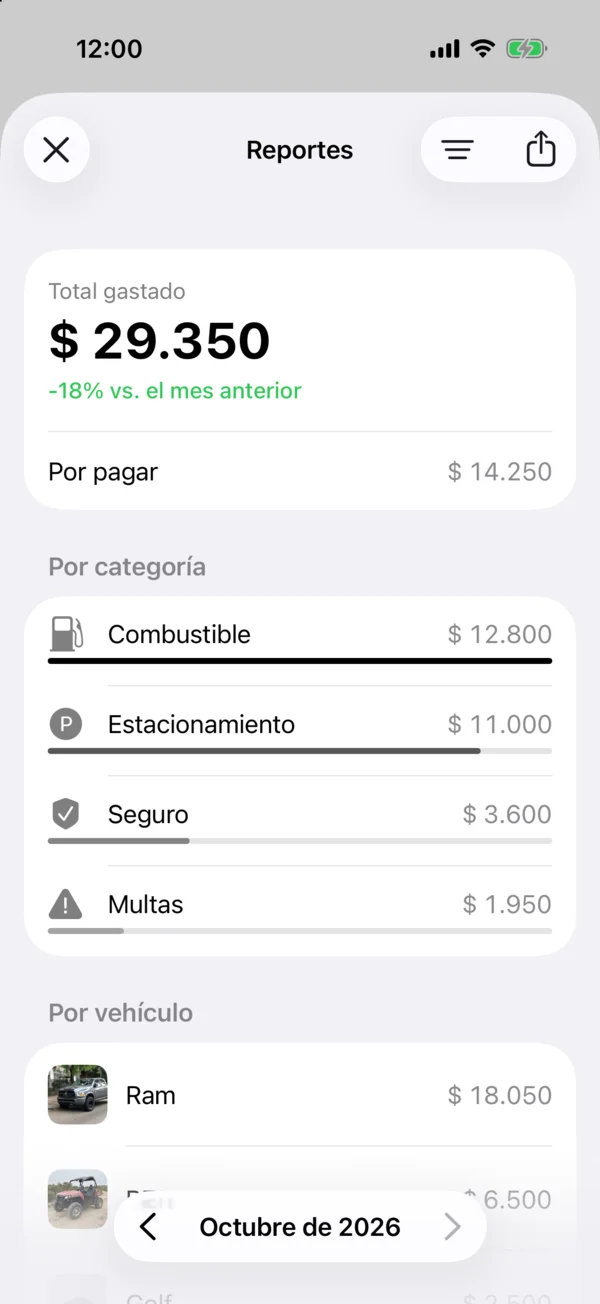
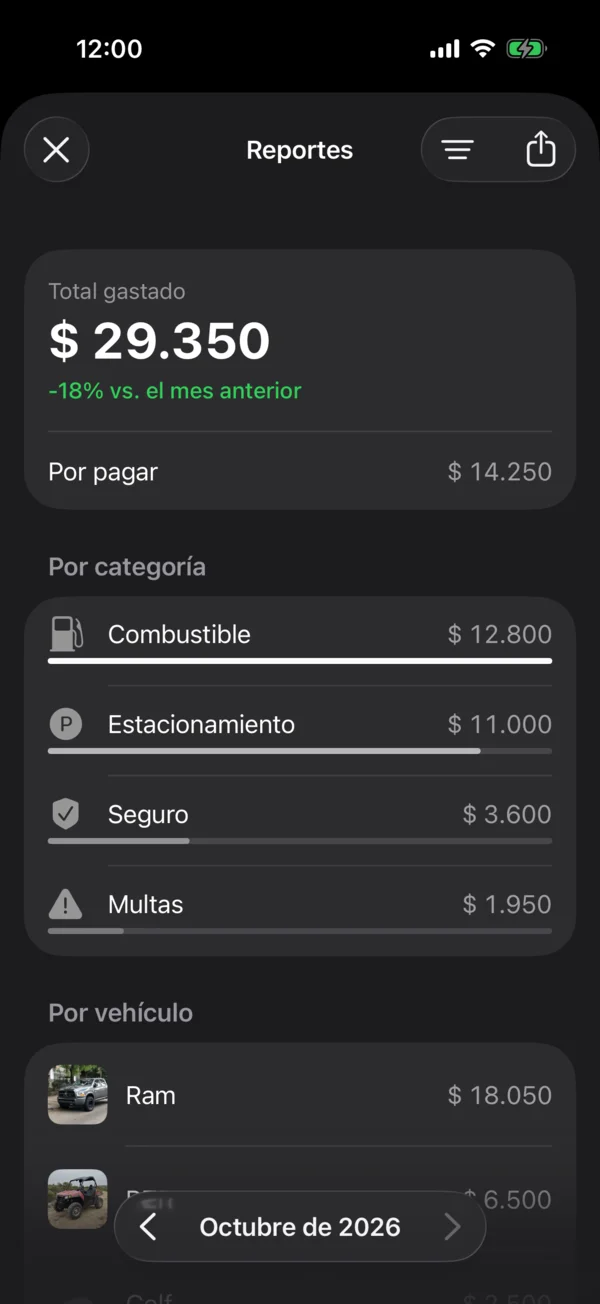
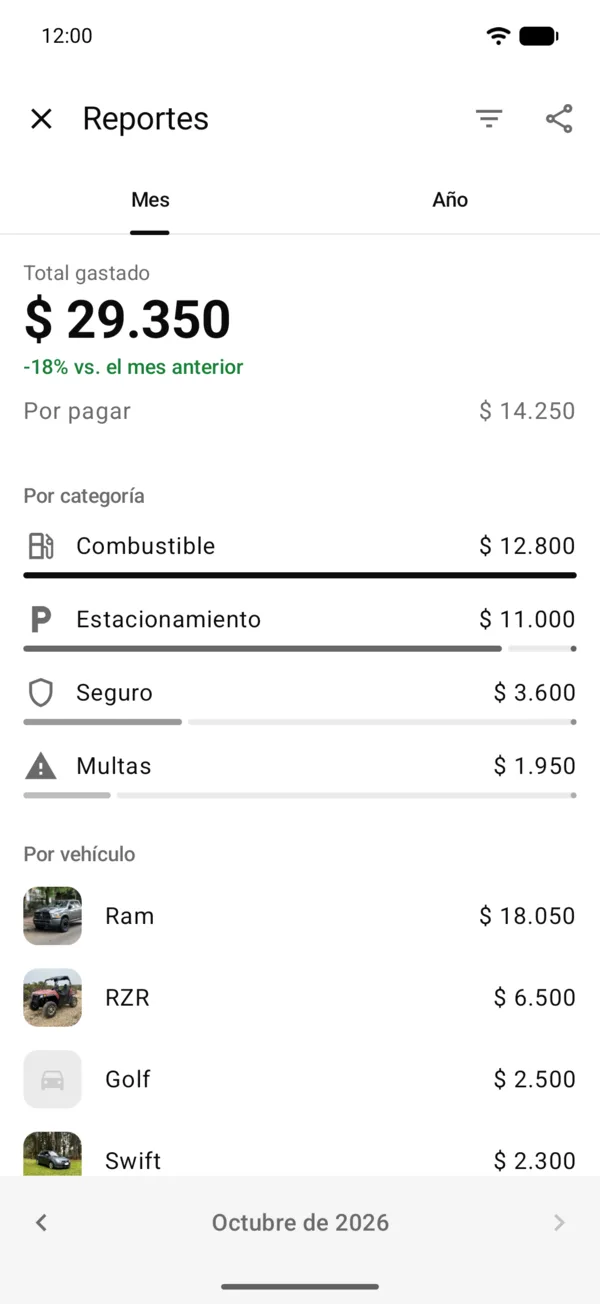
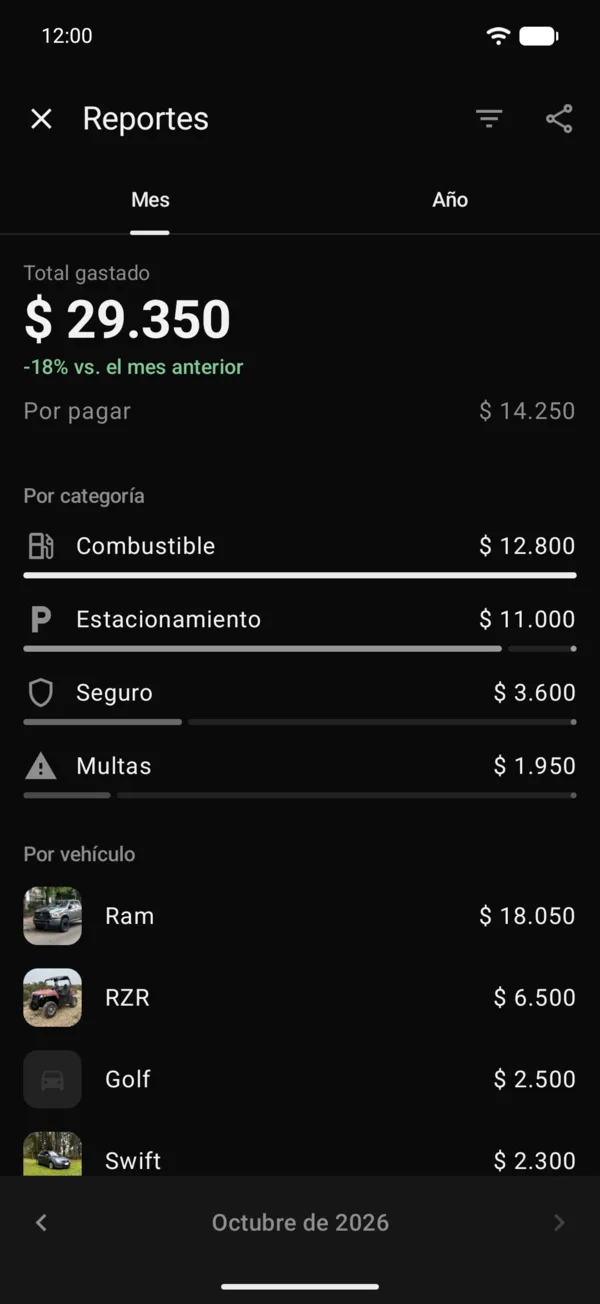
At the top is Total spent, compared with the previous period, and under it Upcoming: everything you haven’t paid yet, from any period. Then come By category, each with its bar, By vehicle, with each one’s photo, Last 6 months, Annual projections and Annual cost, two cards you move between by swiping sideways, and Insights.
You can also open Reports from Your month, at the end of Home.
Reports are on some plans. If you see Fleet analytics with a lock, you can see how to upgrade from there.
On the web
On the web, reports are in your account, under Reports. In a phone’s browser, Month and Year sit above the report, with the period and its arrows below, and Filter & sort in the top bar. On a computer they’re in Reports, in the sidebar, with Month and Year next to the title, and Annual projections and Annual cost side by side.
Related tools
More in Costs and reports
Didn’t find what you were looking for? Write to [email protected] and we’ll get back to you.