
Choose which notifications you get
Turn each kind of alert on or off: parking, due dates, insurance, license, service, prices, payments and fines.
- On Home, tap your account button.
- Tap Notifications.
- Turn on Enable all notifications, or only the ones you want:
- Parking alerts: when parking is about to expire, and when it has.
- Due dates: payments coming due.
- Insurance policy expiry.
- Driver’s license expiry.
- Vehicle maintenance: scheduled services and the yearly service.
- Wishlist alerts: price changes, and items no longer for sale or back (Pro and up).
- Payments added by others: when someone you share a vehicle with records a payment.
- New fines.
- System notifications: for example, the result of transfers and claims.
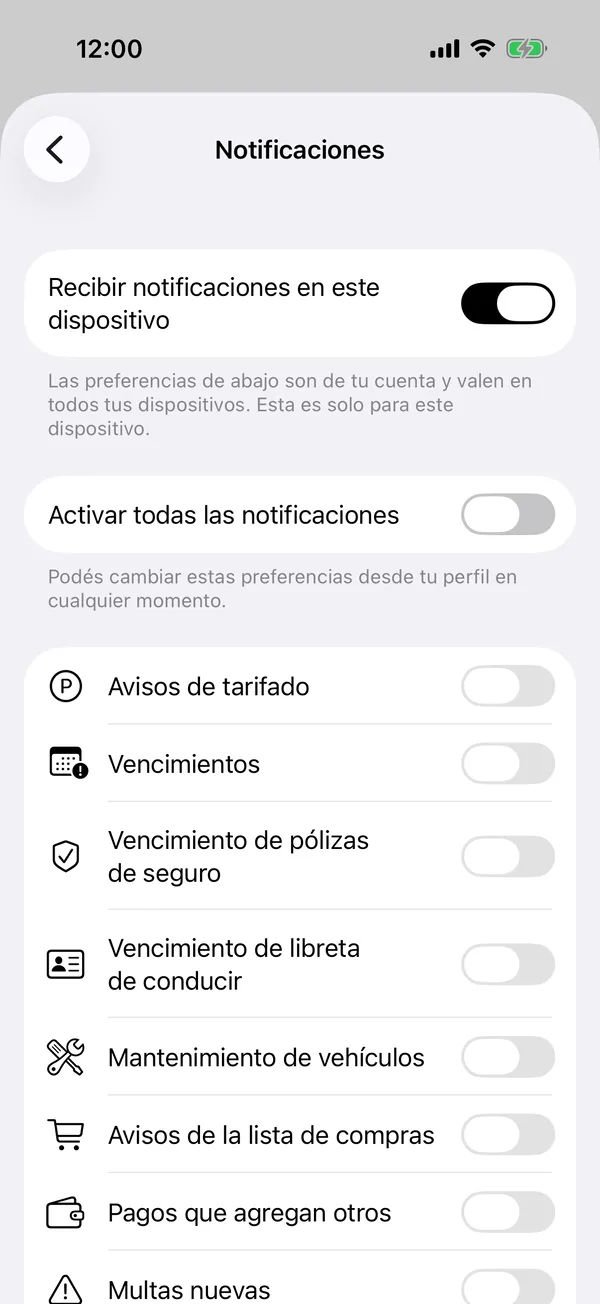
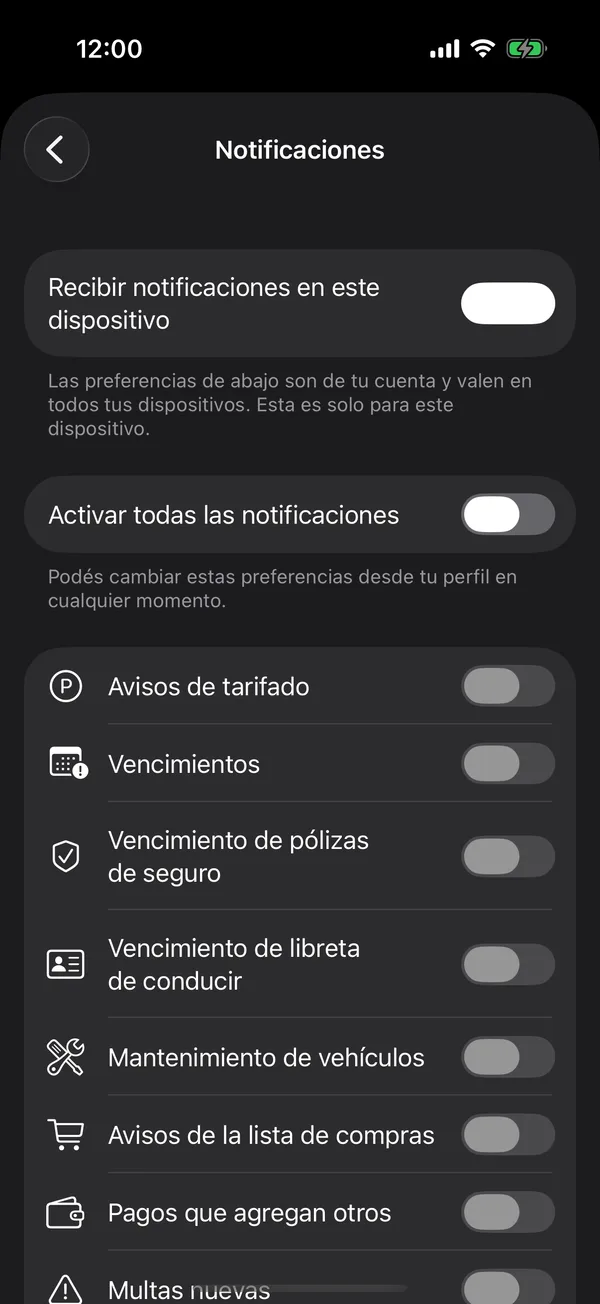
Each change is saved at once and applies on all your devices. At the very top, Receive notifications on this device turns them on or off on this phone only.
On a new device
The first time you sign in on a phone, if your account already has notifications on, the app asks for permission right away. If you never turned them on, the Notifications screen appears once on Home: Enable all notifications asks for permission. If you said no before, it appears once with Open Settings.
If they don’t arrive
- Check that Receive notifications on this device is on.
- If Allow notifications appears, tap it and accept the phone’s permission.
- If it says Notifications blocked, tap Open Settings and turn on notifications for GarageApp.
- Tap Send a test notification to check that they arrive.
On the web
The web has the same screen, in your account. The preferences are your account’s; Receive notifications on this device is turned on in each browser. The first time you sign in on a browser, Home offers Allow notifications once, or Choose to open the screen. See Install the web app and get its notifications.
More in Notifications
Didn’t find what you were looking for? Write to [email protected] and we’ll get back to you.