
Record a payment or a fill-up
Log any vehicle expense: fuel, maintenance, parking, fine, debt, insurance or tax.
- On Payments, tap + (Record payment). You can also tap + on Home, then Payment or fuel, or + on the vehicle’s page, then Record payment.
- Type the Amount and change the Currency if needed.
- If you came from Payments or Home, choose the Vehicle.
- Choose the Category: Fuel, Maintenance, Parking, Fine, Debt, Insurance or Tax.
- Add a Description if you like.
- Under Status, choose Paid (with its Paid on date) or Pending (with its Due date).
- Tap Save.
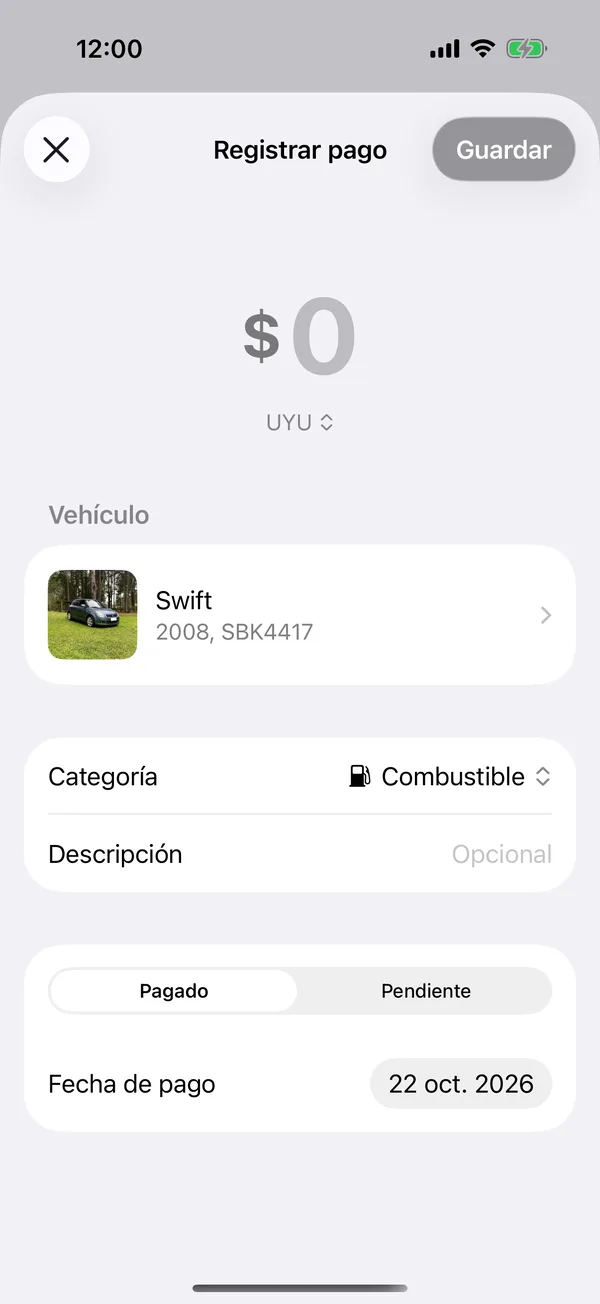
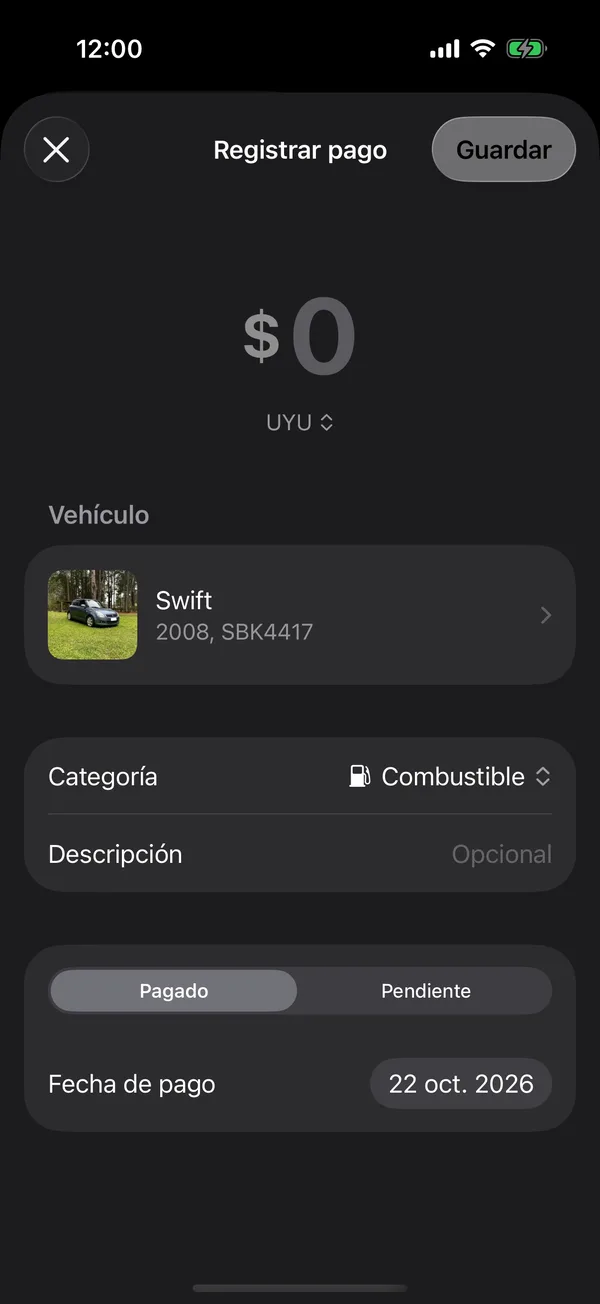
A Paid payment goes to the Archive; a Pending one shows under Pending. If its Paid on date is in the future, the payment stays under Pending, in Upcoming, until that day, and moves to the Archive on its own that day.
Electric vehicles show Charge instead of Fuel.
If you’re a Holder on a vehicle, you can record the fuel you put in.
The currency each payment starts in is set under Main currency. See Currency and distance.
On the web
On a computer, Record payment is at the top right of Payments and of each vehicle’s payments. On Home, it’s inside Add.
Related tools
More in Payments
Didn’t find what you were looking for? Write to [email protected] and we’ll get back to you.