
Mark as paid, edit or delete a payment
One at a time or several at once.
Mark a payment as paid
- Tap the payment under Pending.
- Under Status, choose Paid and check the Paid on date.
- Tap Save.
Mark several at once
- Open the vehicle and tap Payments, or stay on the Payments tab.
- On the iPhone, tap Filter & sort and, at the end of the menu, Select. On Android, tap More (⋮), then Select; the top shows how many payments you picked and the actions are at the bottom.
- Tap the payments to mark, or Select All.
- Tap Mark as Paid. They’re paid with today’s date.
- Tap Done.
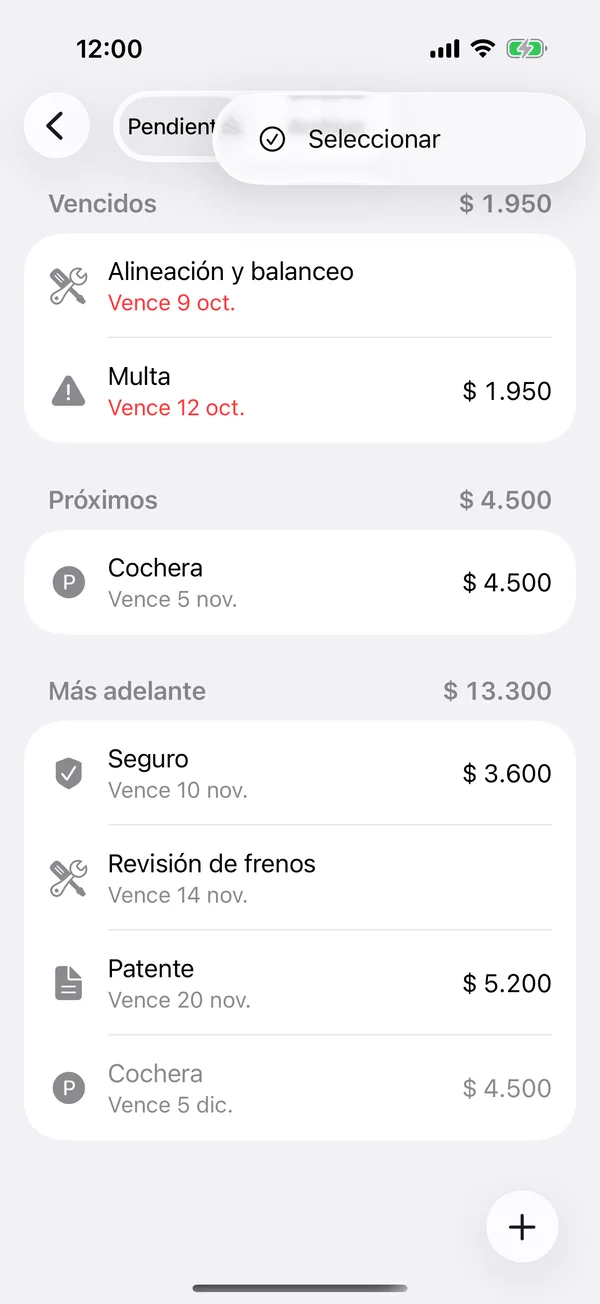
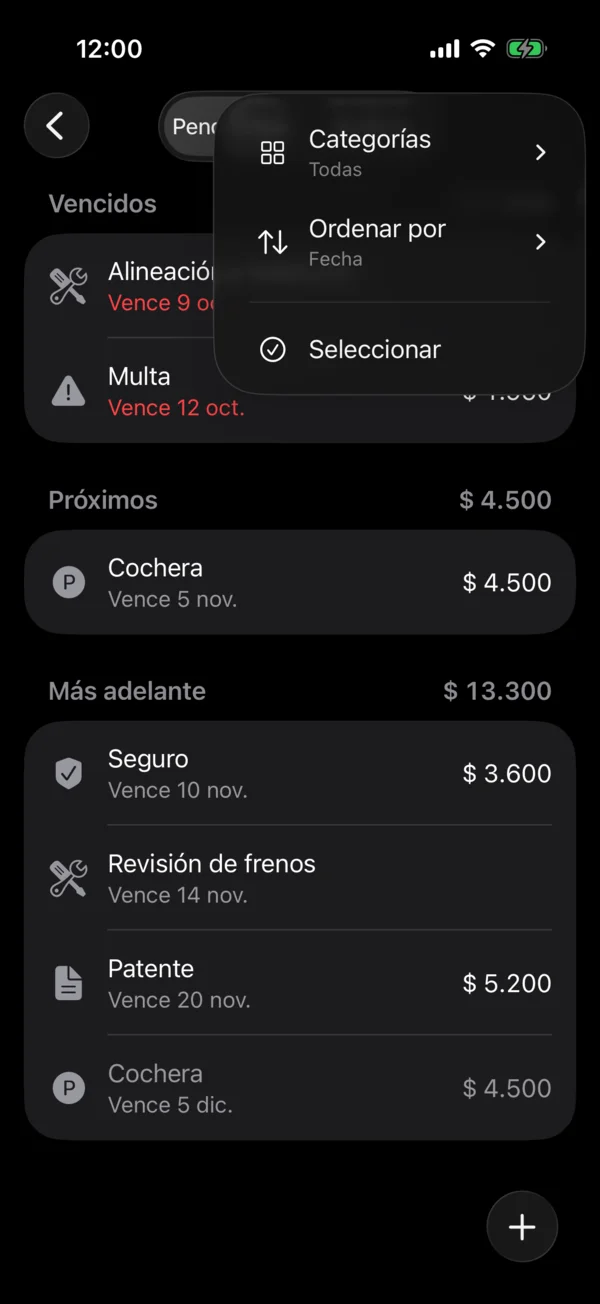
Edit or delete
- Tap the payment to open Edit payment, change what you need and tap Save.
- To delete it, open it and tap Delete payment, or swipe it right in the vehicle’s payments. Confirm with Delete.
If an insurance policy or a parking spot is shared between vehicles, marking one vehicle’s payment marks it on the others too.
Pending services are finished from Service. See Schedule the next service.
On the web
Instead of swiping, each payment has its ⋯ menu with Edit and Delete. Select is in the same More (⋯) menu at the top. On a computer, while you select, Select All, Mark as Paid, Delete and Cancel stay at the top.
More in Payments
Didn’t find what you were looking for? Write to [email protected] and we’ll get back to you.