
Schedule the next service and mark it done
Schedule it by date or by mileage and we remind you before.
Schedule by date
- On Service, tap + (Schedule service).
- Type the Service and pick a future Date.
- Under Notify, choose when you want the reminder: Same day, 1 day before, 3 days before, 7 days before, 14 days before or 30 days before.
- Tap Save.
Take it to the shop
Tap a service that isn’t in the shop yet for its options: call its workshop or message it by WhatsApp or Email, Directions to its address, Start, Mark as done, Edit and Delete. Directions opens Maps, Google Maps or Waze, whichever you choose, with the driving route. The workshop is the service’s contact: see Your workshops and the official service.
When you leave it at the shop, tap Start on its row. It’s marked In shop and the button then says Finish.
Mark as done
- If the service is in the shop, tap Finish or the row. If not, tap the service, then Mark as done. Mark as done opens.
- Check the Date and fill in the Odometer at service.
- If you like, log the Cost and Paid on. The cost is recorded as a Maintenance payment.
- Under Next at, type the mileage for the next one.
- Tap the confirm button.
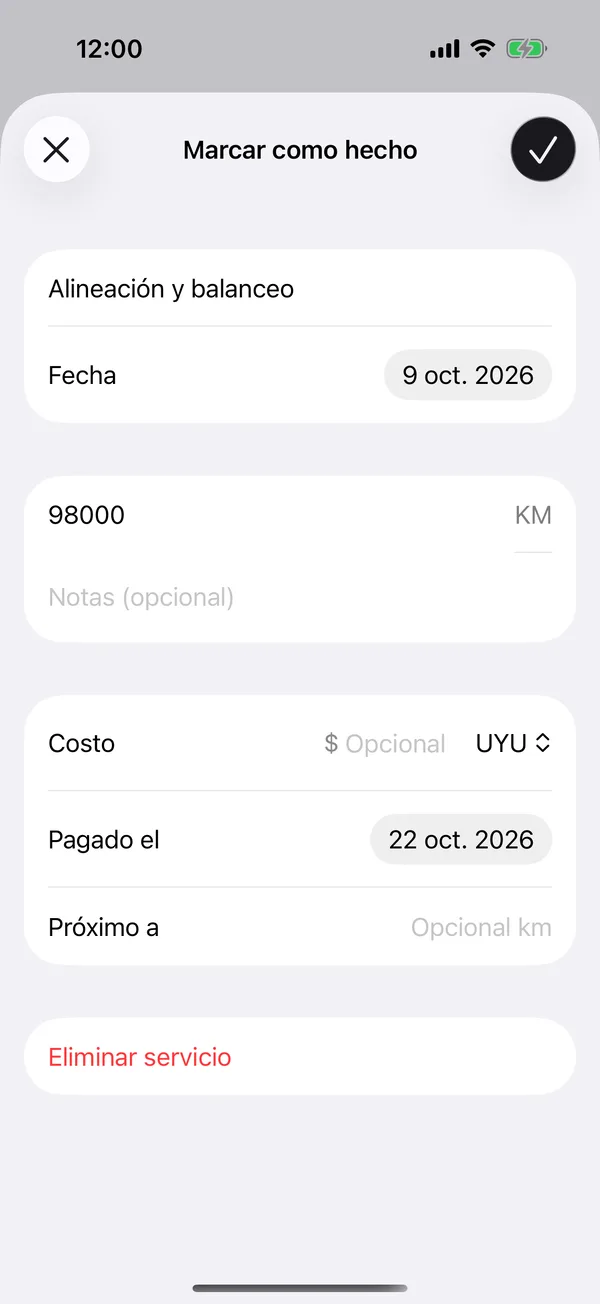
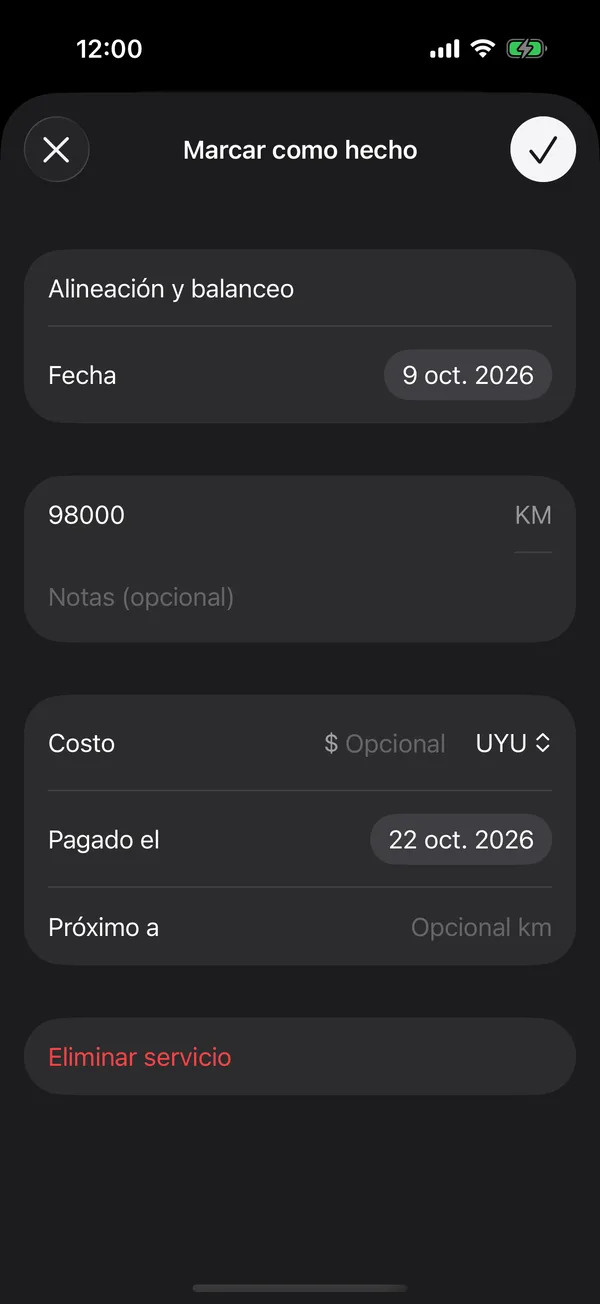
The service moves to Past, and Next service with the mileage shows at the top of the list. If you started it by mistake, its menu has Undo.
All of this also works from the vehicle’s page, under Upcoming services, and on the web, with each service’s ⋯ menu.
If a year goes by since the last service and none is scheduled, we remind you too. These reminders are turned on with Vehicle maintenance in notifications.
More in Service and wishlist
Didn’t find what you were looking for? Write to [email protected] and we’ll get back to you.