
Your workshops and the official service
Keep your mechanic and workshops on each vehicle, and its brand’s official service in Uruguay one tap away.
On each vehicle’s Services tab, at the top, is Contacts: your workshops with their name, specialty, phone and address. One contact can serve several vehicles.
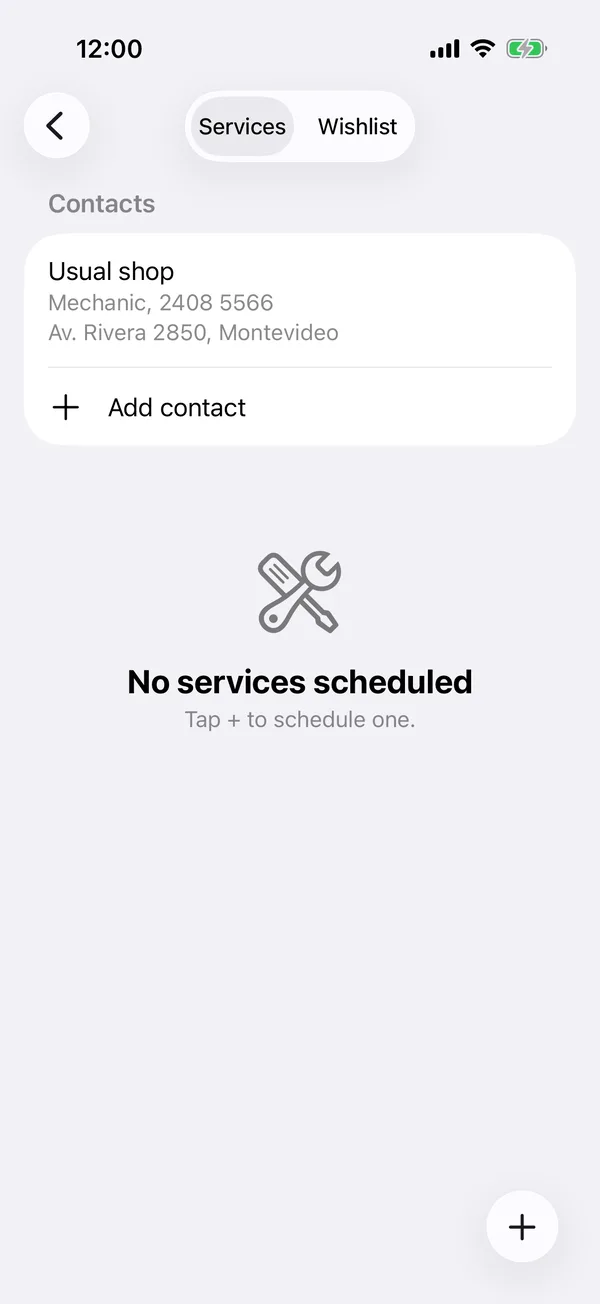
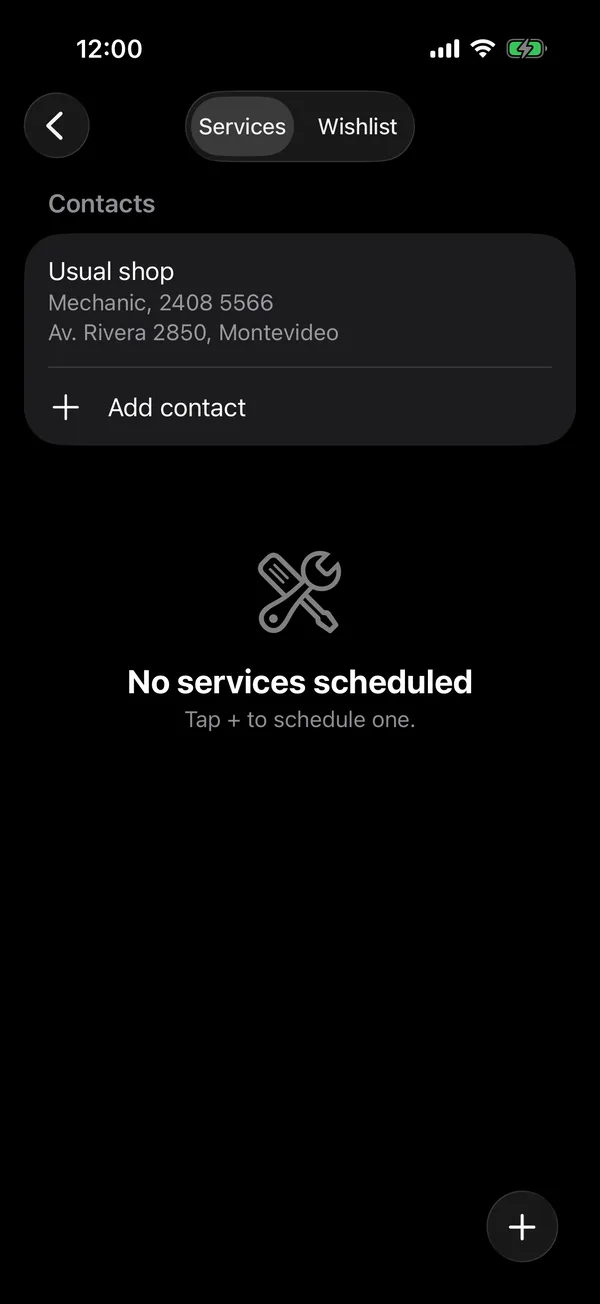
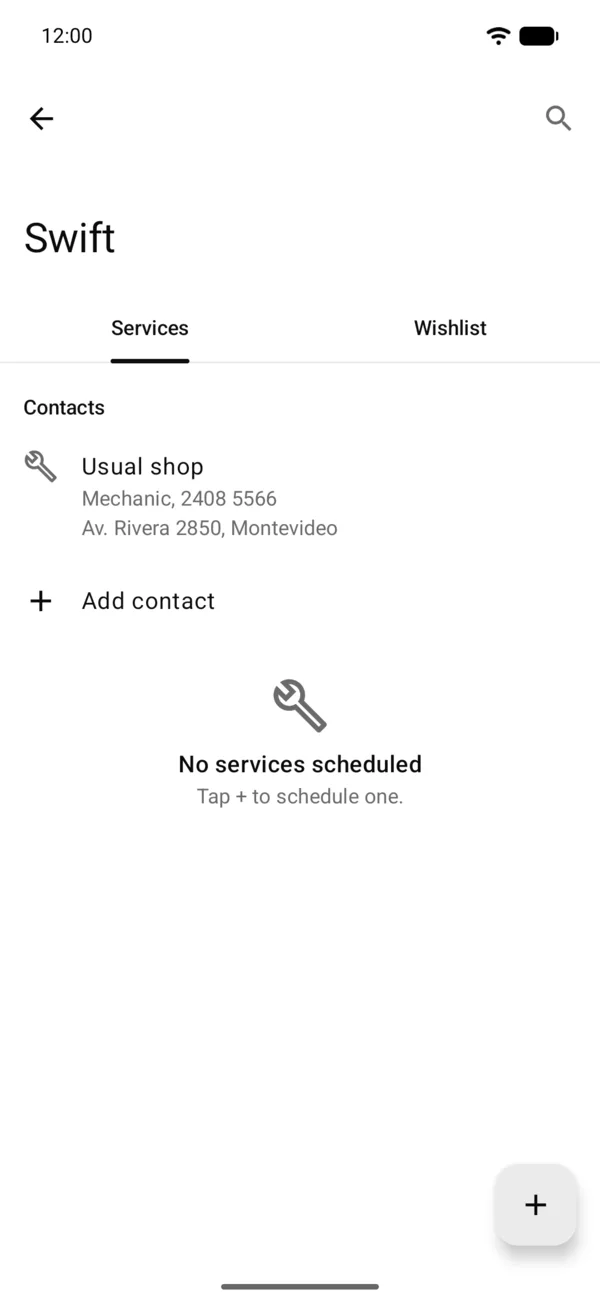
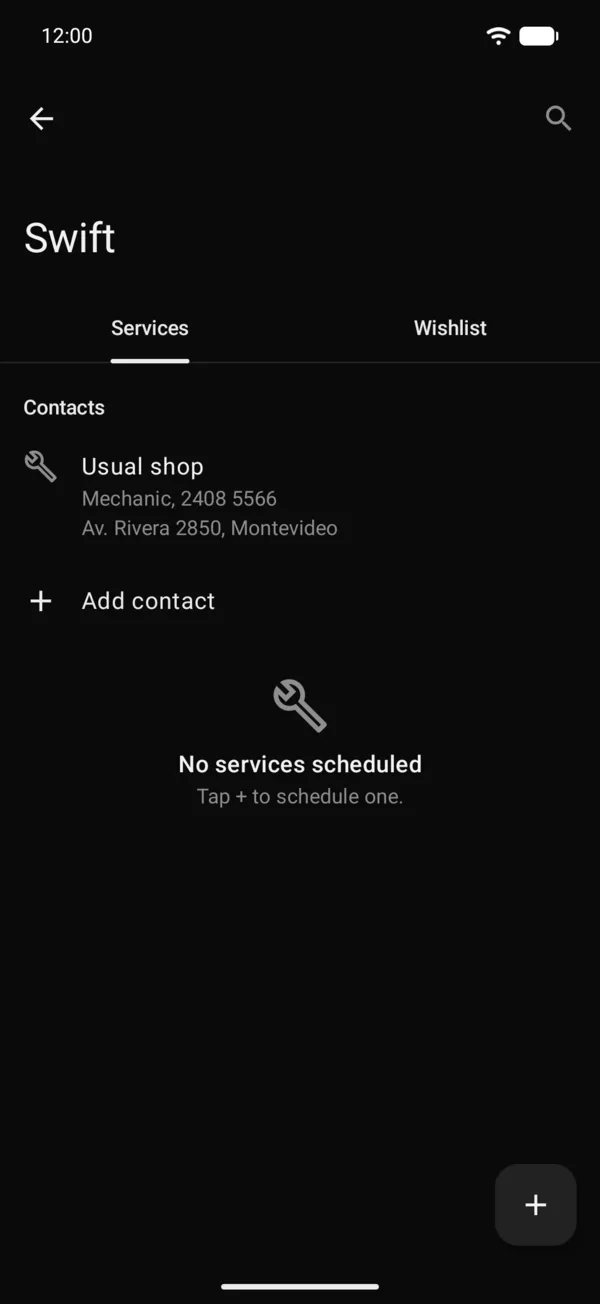
Add a contact
- Open the vehicle, tap Services and, under Contacts, tap Add contact.
- Choose Choose from your contacts to bring it from your phone’s address book, Enter manually, or From my service contacts to add one you already saved for another vehicle. The vehicle brand’s official service is there too.
- Enter the Name and choose the Specialty: Mechanic, Electrician, Body shop, Fabricator, Official service, Car wash, Upholstery, Car audio or Other.
- Under Phones, each number has its Label (Workshop, Sales, Office, Mobile or another) and, on the same line, the WhatsApp button: turn it on for the numbers that use it. For another number, tap Add phone.
- If you like, add the Email, a Booking link and the Address: search for it or tap Pick on map.
- Under Vehicles, turn on the vehicles it shows on, and tap Save.
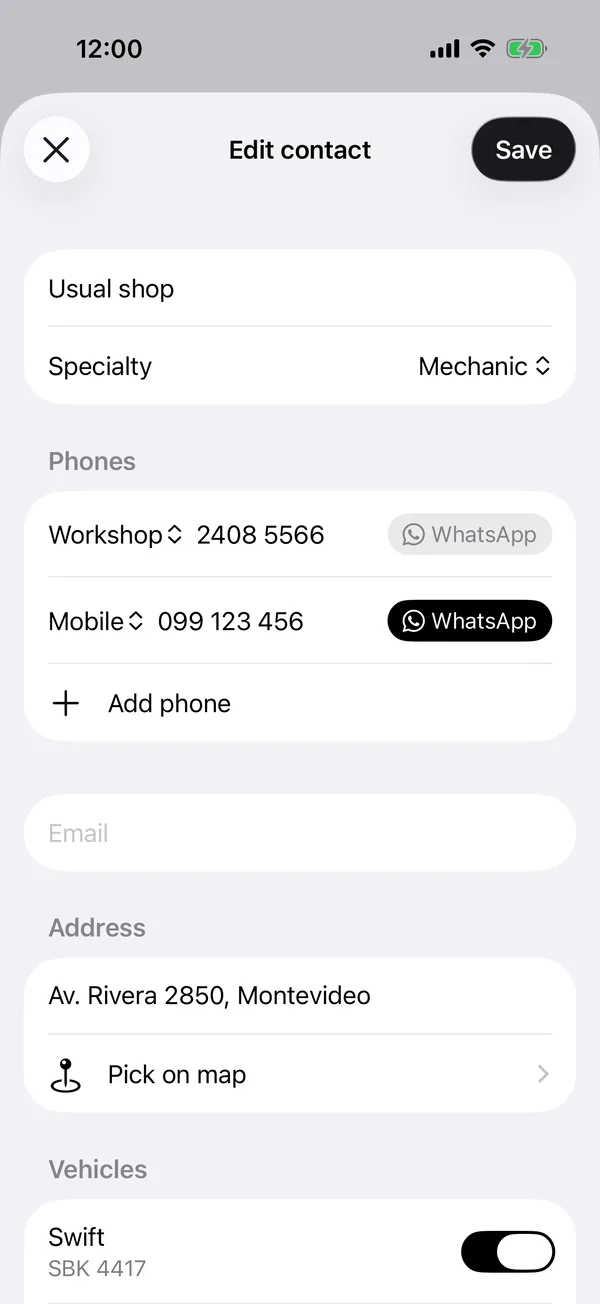
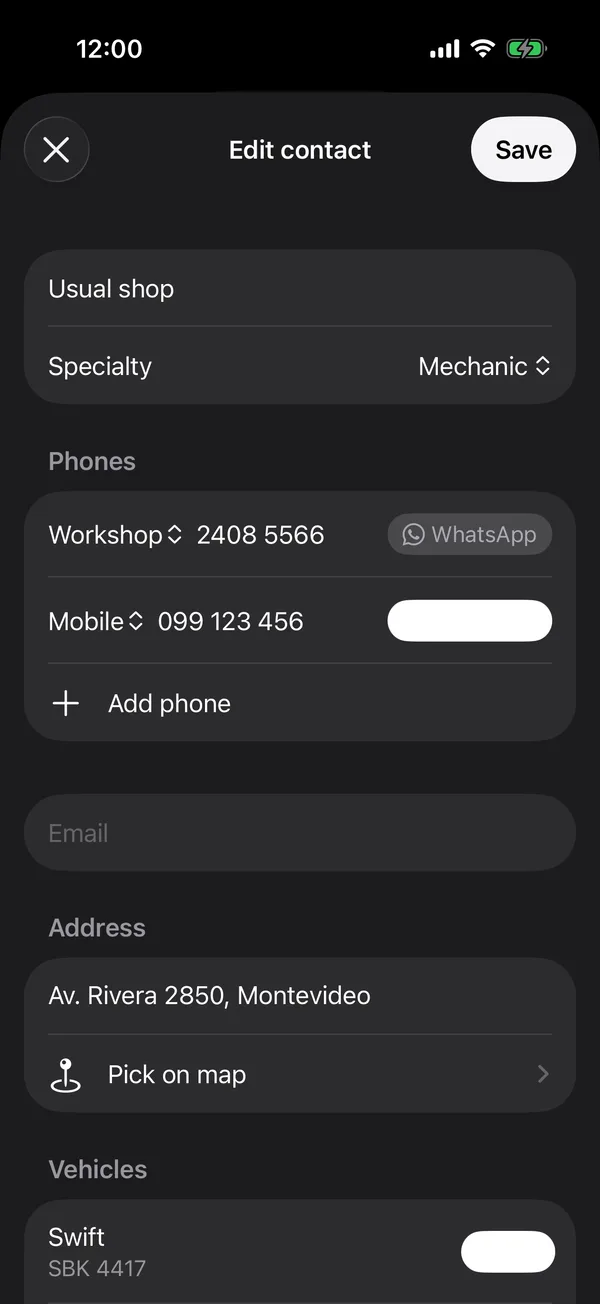
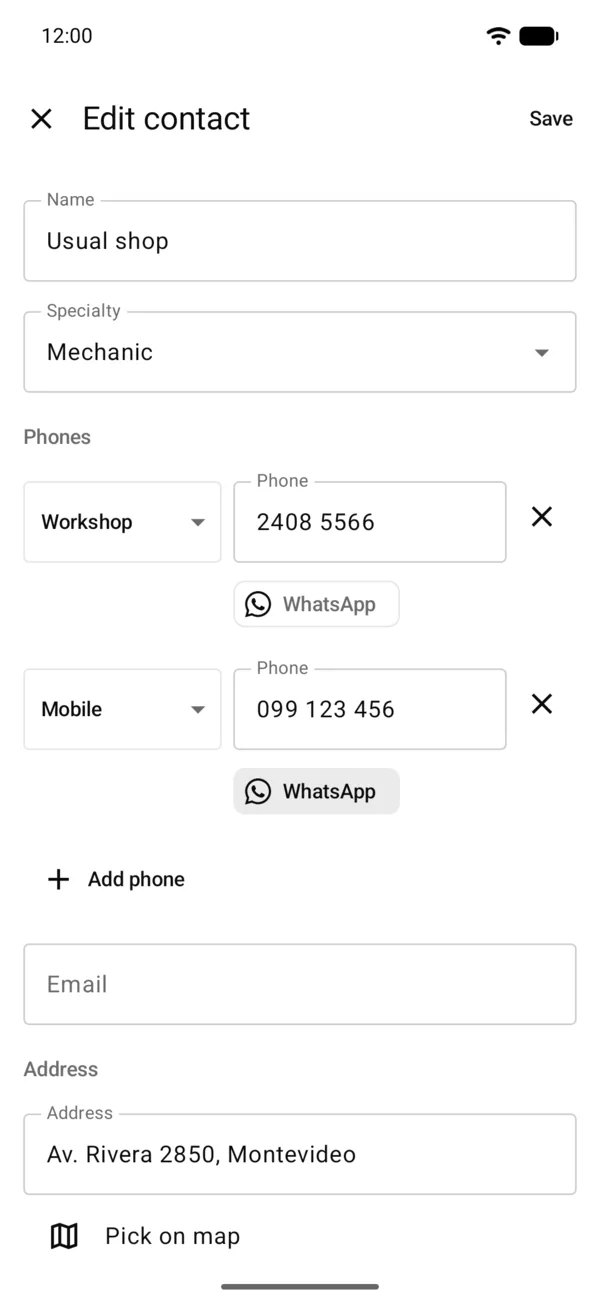
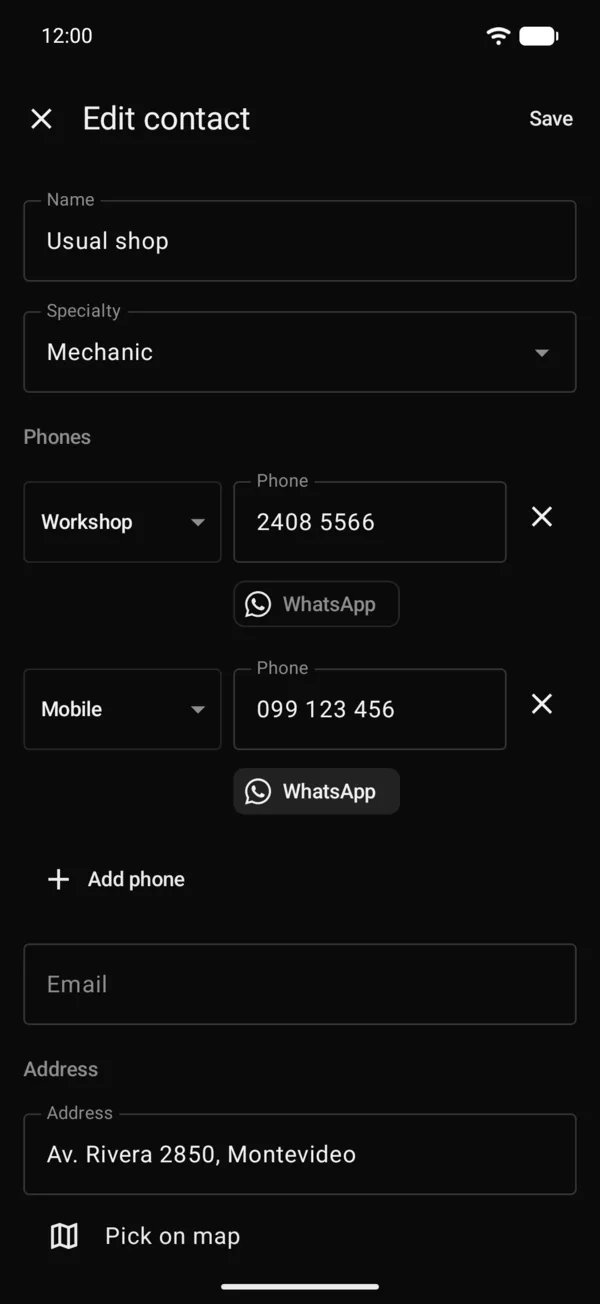
On the web, you type the contact in or choose one you already saved.
Call, message or go there
Tap a contact. With only one way to reach it, that one opens right away; with several, choose Call, WhatsApp (only on numbers that have it turned on), Email, Book online or Open in Maps. WhatsApp and email open with the message written: "Hi, I’d like to book a service for my" and the vehicle.
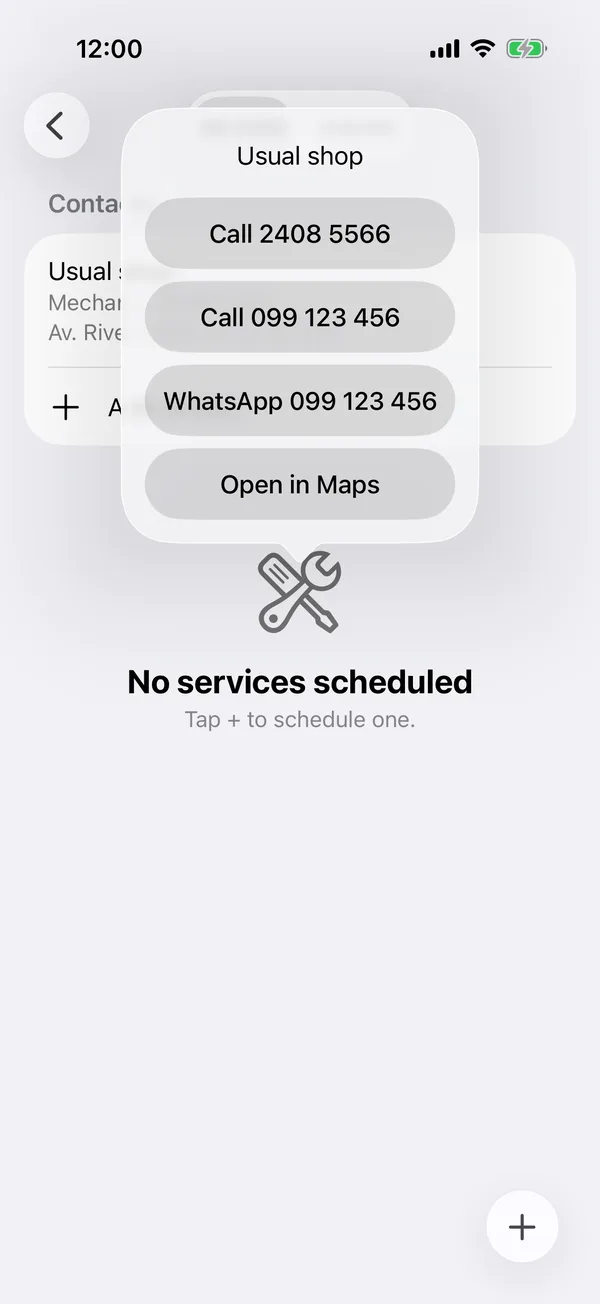
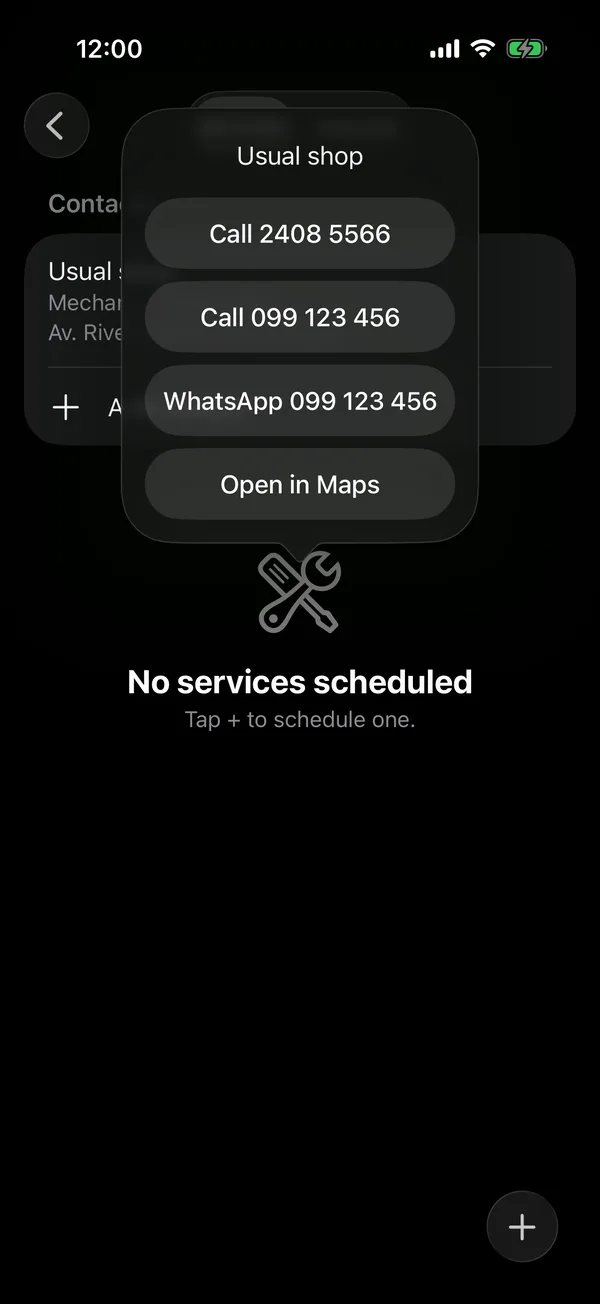
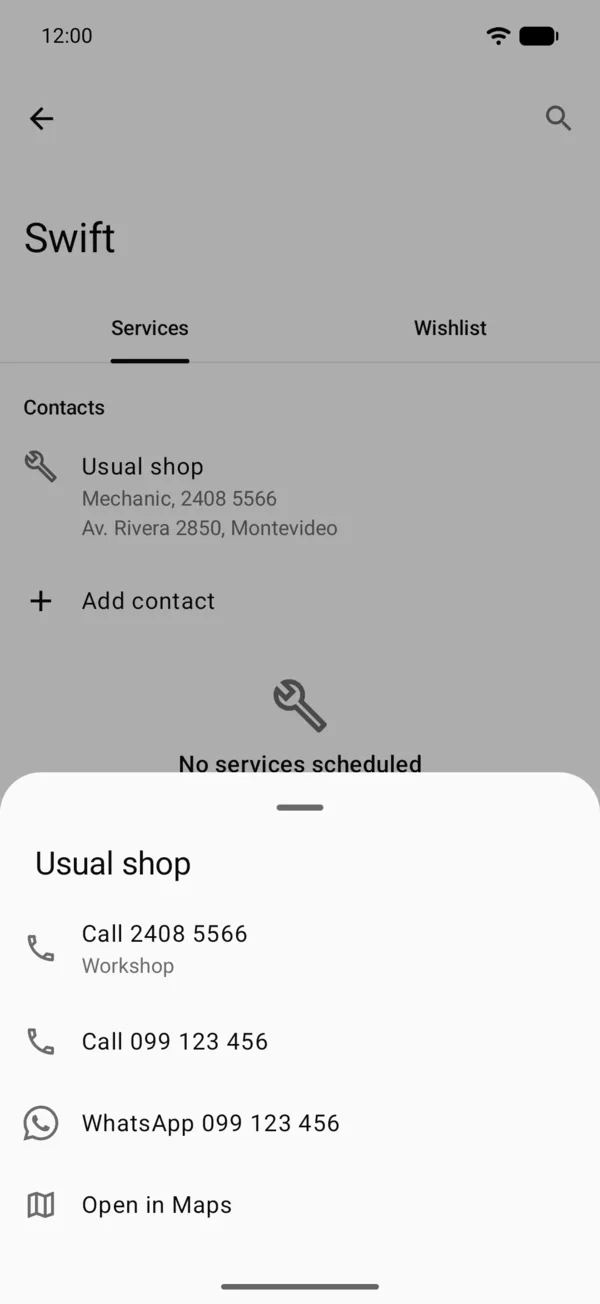
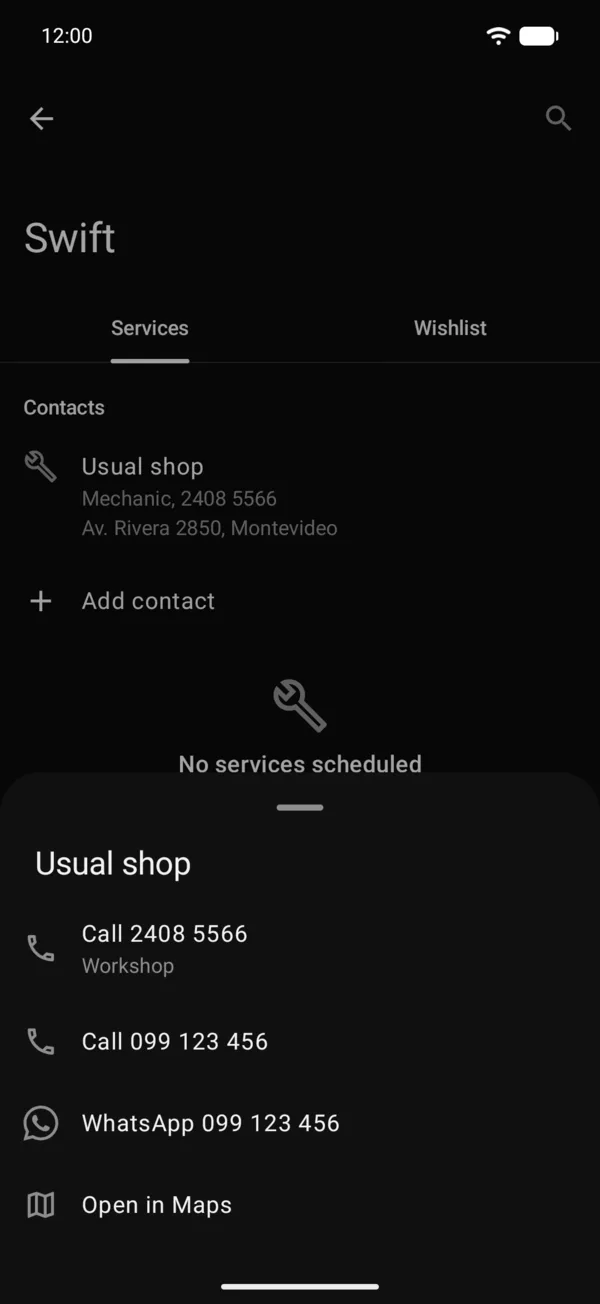
To change it, press and hold it and choose Edit, Remove from this vehicle or Delete contact. You can also swipe it left to remove it from the vehicle.
To change it, press and hold it and choose Edit, Remove from this vehicle or Delete contact. You can also swipe it left to edit it, or right to remove it from the vehicle.
Delete contact removes it from every vehicle it serves.
Each service’s contact
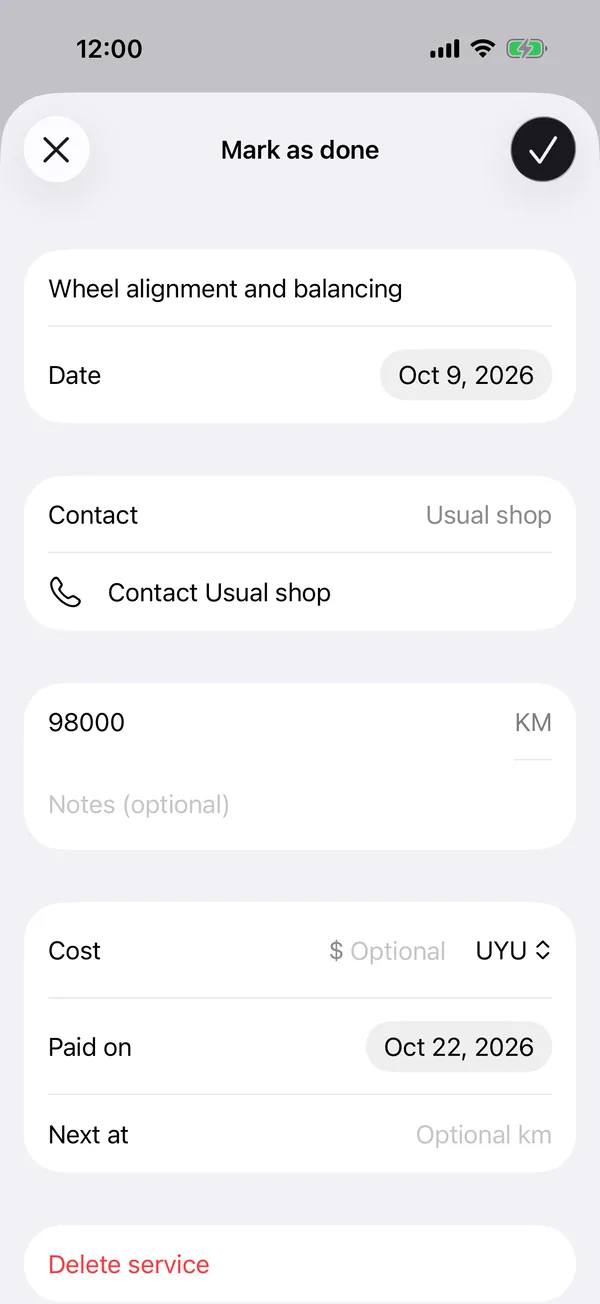
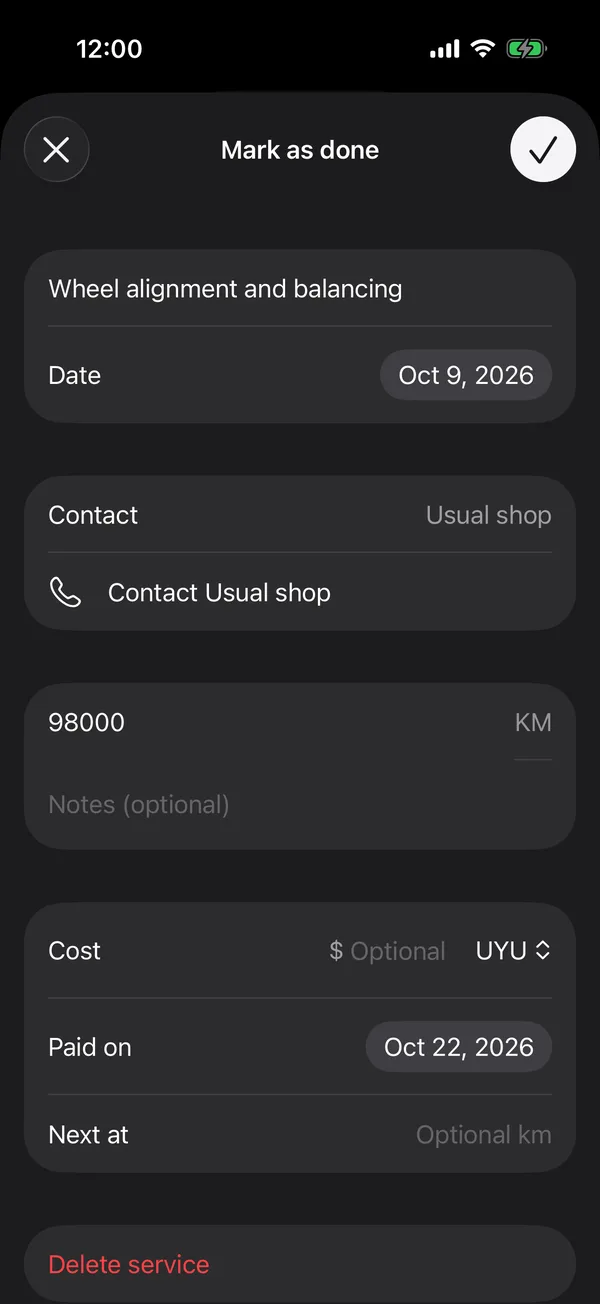
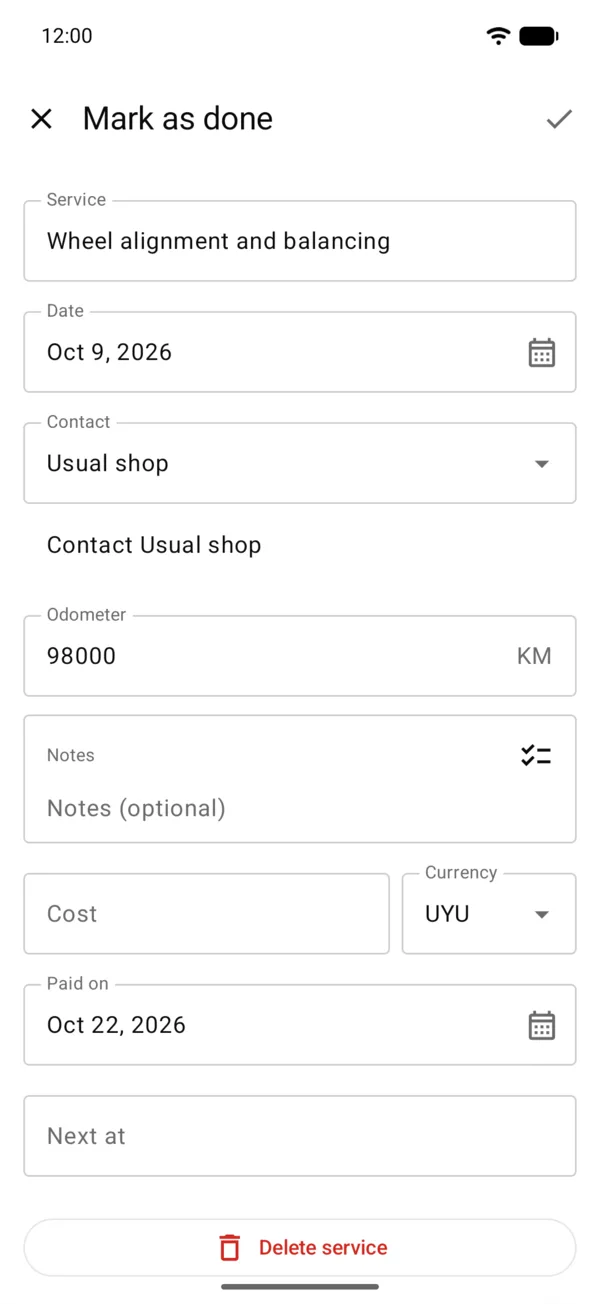
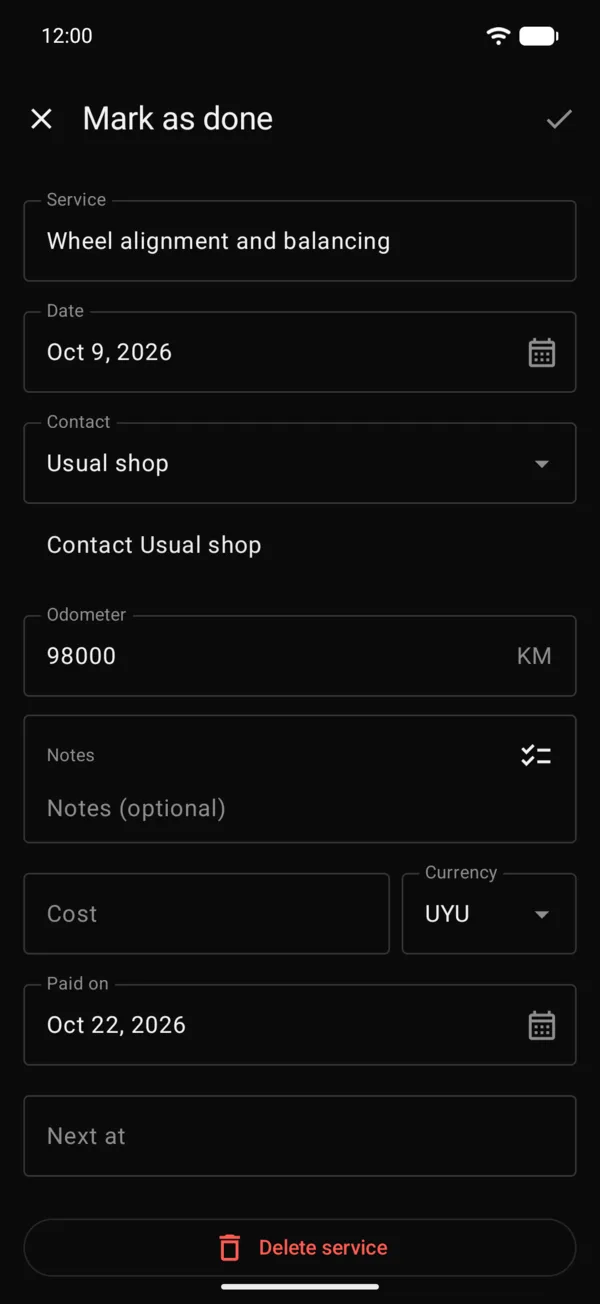
Each service has its Contact: choose one of the vehicle’s contacts, an official shop of its brand or None. Its name shows in the list of services, and in the service, Contact and the name calls or messages it. A new service suggests the contact of the latest similar one.
The brand’s official service
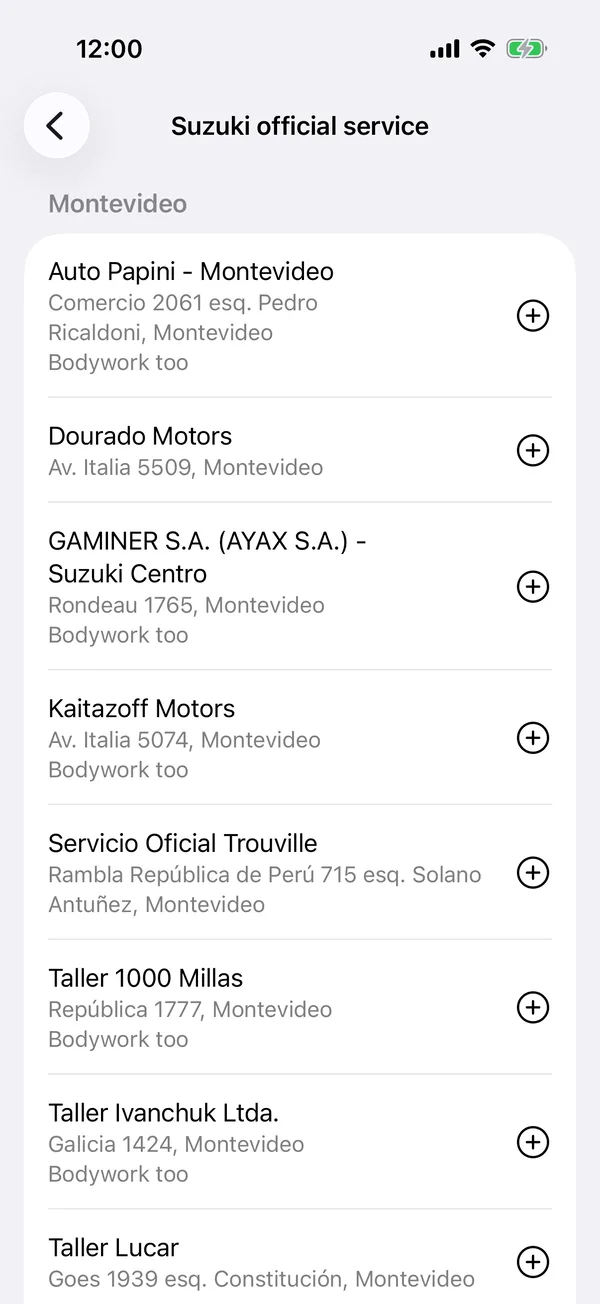
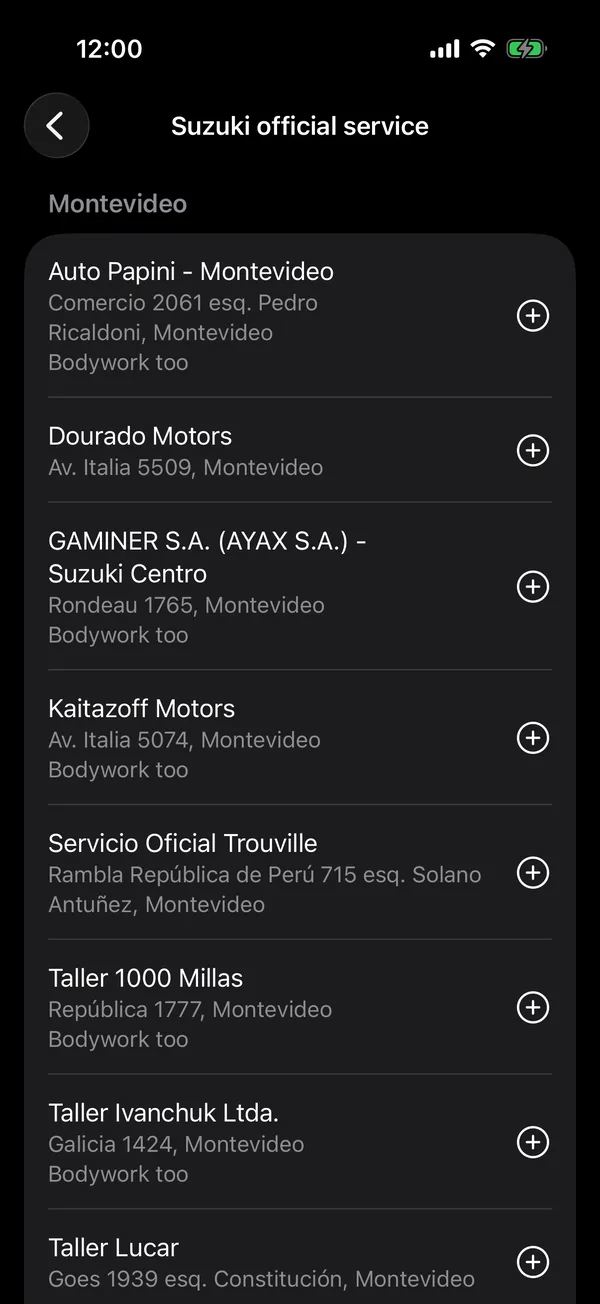
official service with the vehicle’s brand lists that brand’s official workshops in Uruguay, for any model, those in your department first. While the vehicle has no contacts it shows under Contacts; after that, inside Add contact. Tap a shop to call or message it, or the button beside it to Add to my contacts. See all and the number opens the full list, by department, with Add all.
Suggest a workshop
If your workshop is a business, turn on Suggest this shop to other users in its contact. We review it before anyone sees it, and a personal number is never shared unless you choose to. Turning it off withdraws the suggestion.
Service contacts are added and changed by the vehicle’s owner and admins, and by whoever keeps its maintenance. See also Schedule the next service and mark it done.
More in Service and wishlist
Didn’t find what you were looking for? Write to [email protected] and we’ll get back to you.