
Share the wishlist
Send a link so anyone can see the list in their browser, without the app or an account.
- On the Wishlist, tap More (⋯ on iPhone, ⋮ on Android) at the top right.
- Tap Share list.
- Choose how to send it: Messages, WhatsApp, email or copy the link.
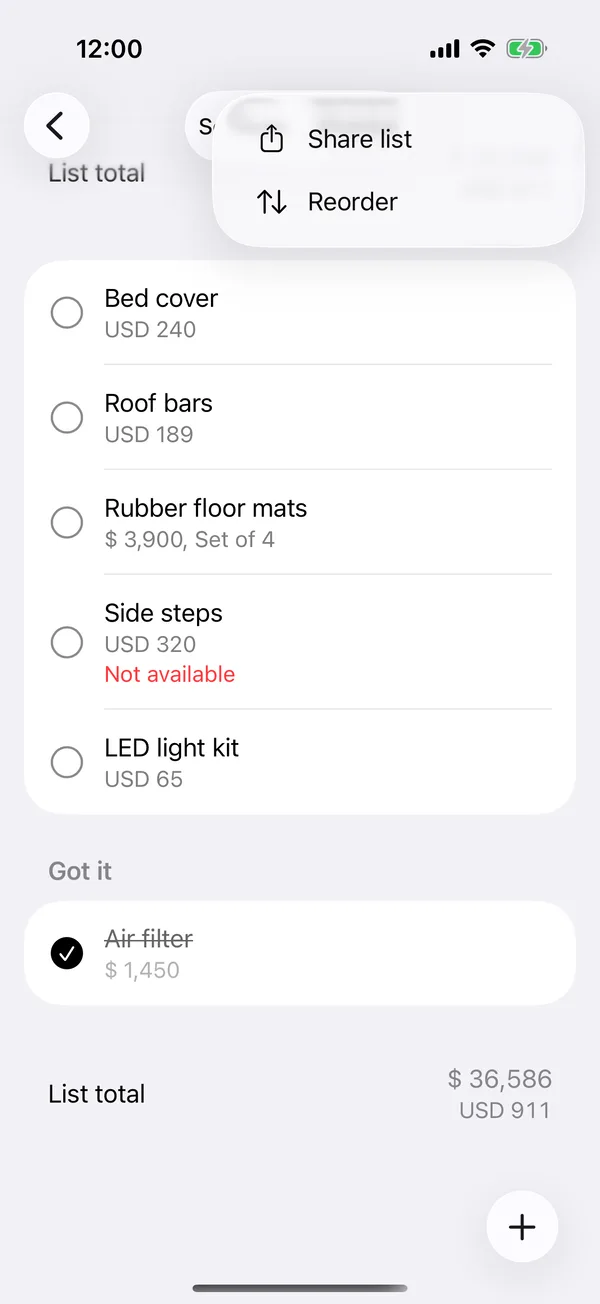
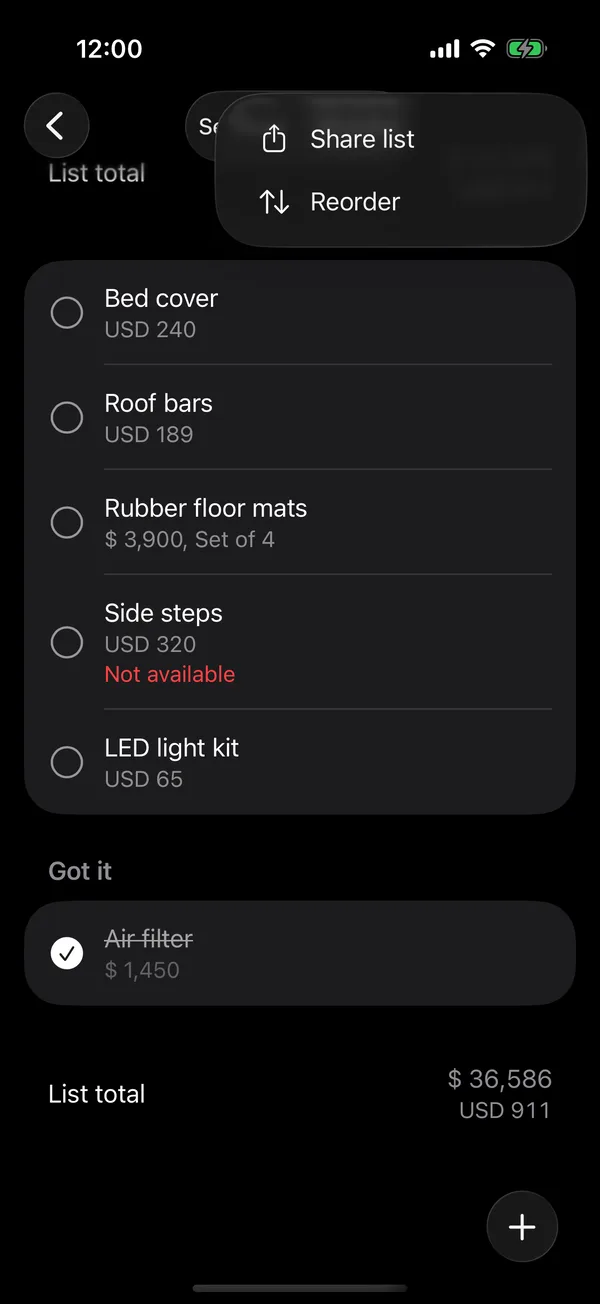
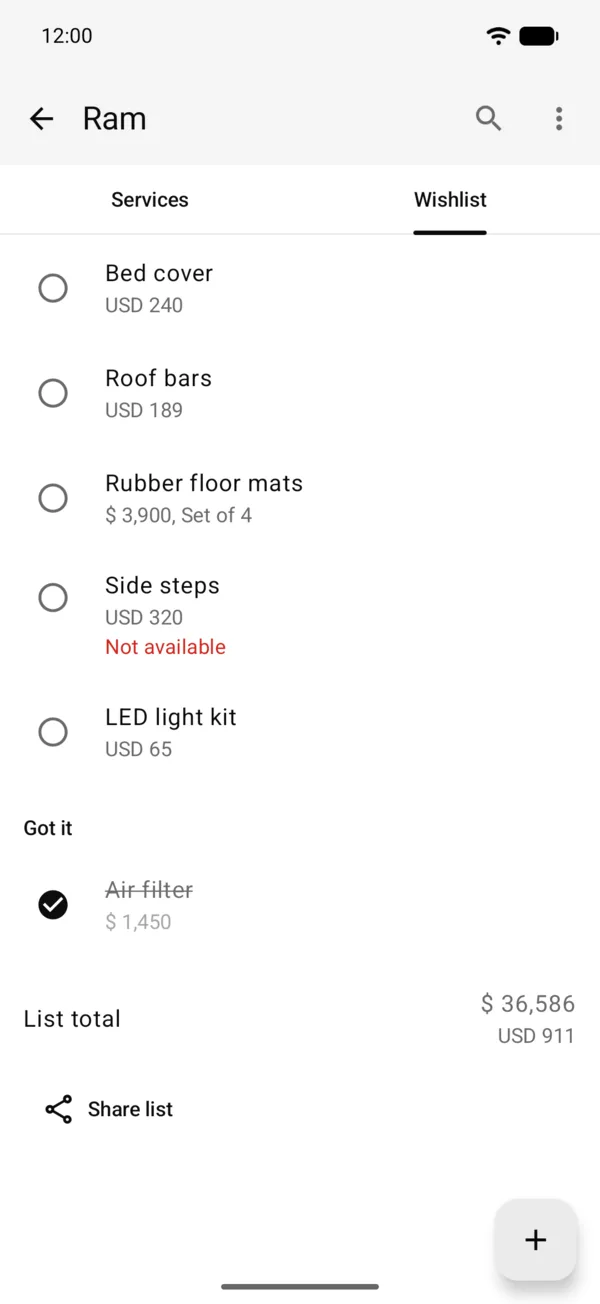
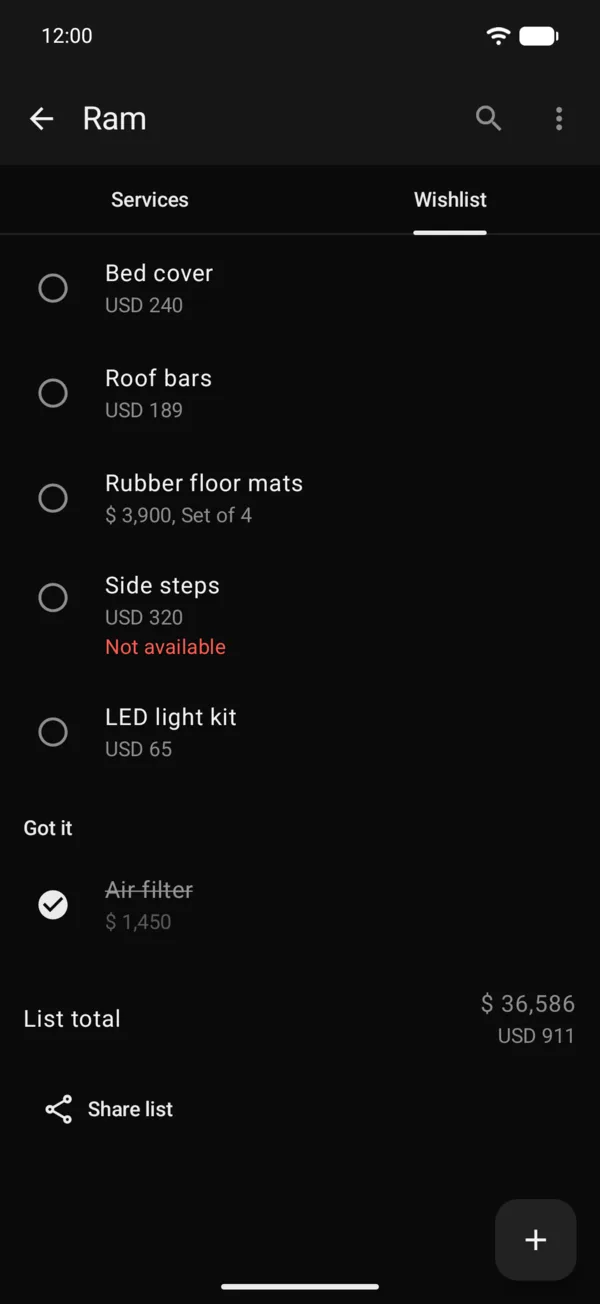
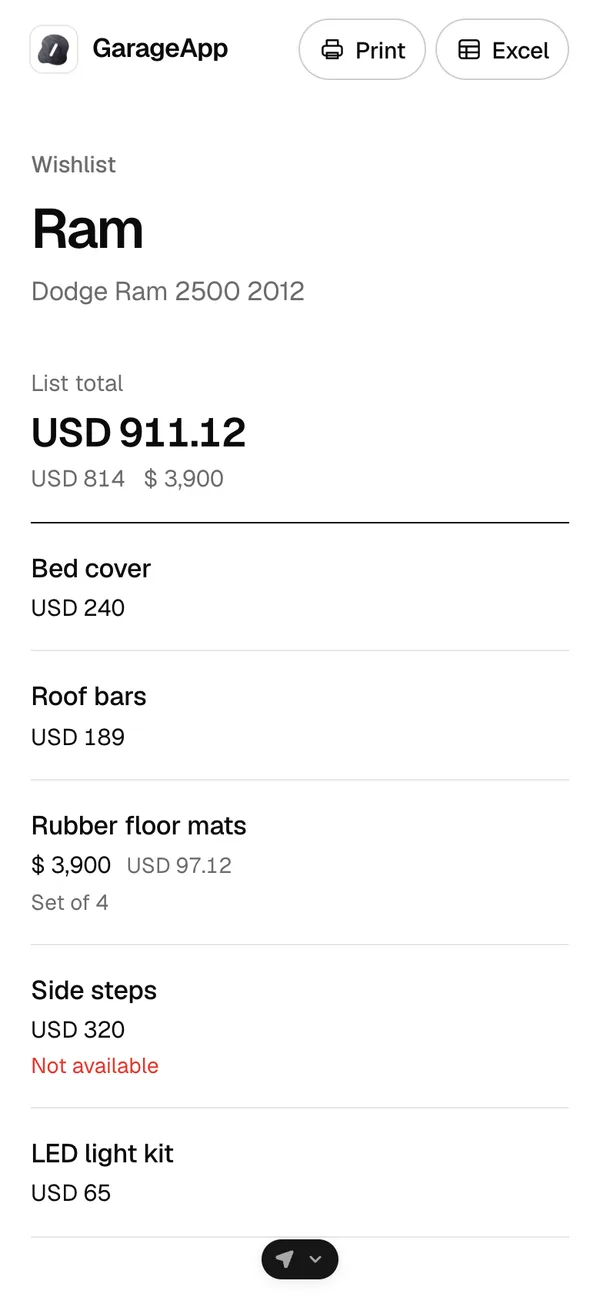
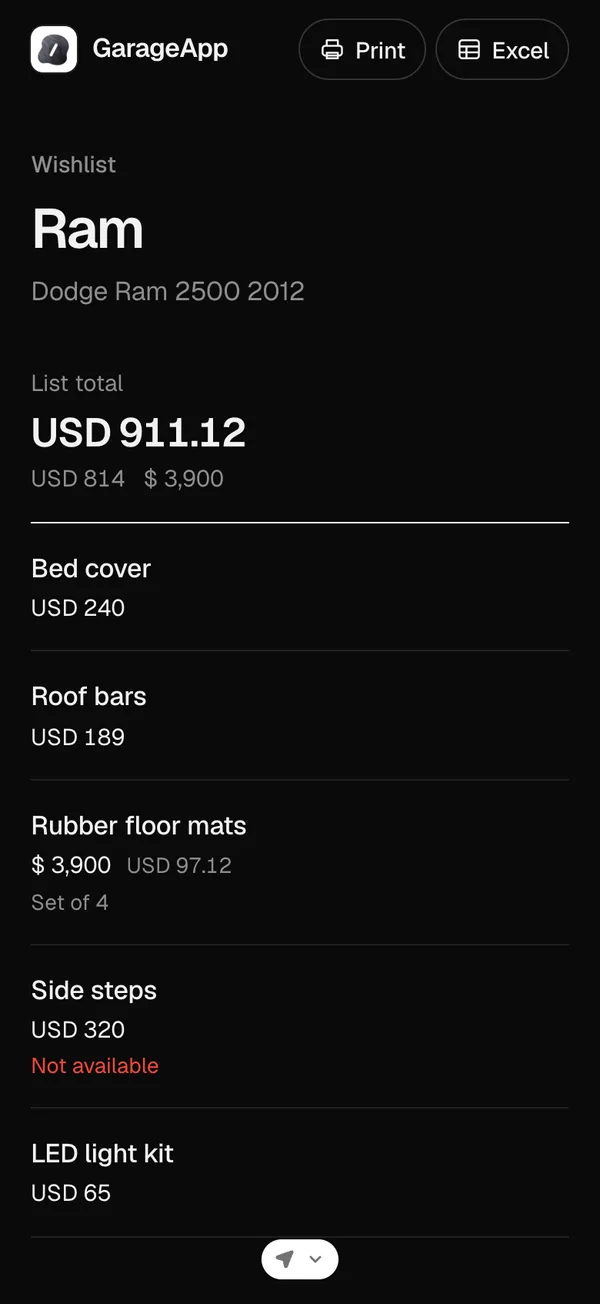
Whoever opens the link sees the vehicle, the total, each item with its picture, store and price, and what’s already been got. They can tap Print to print the list or save it as a PDF, for example to take to the parts store.
The list they see is always the current one: if you add or delete items, the link shows the changes. To stop sharing it, turn its link off in your account, under Privacy & Access, Public links. Items you hid don’t appear: see Use the wishlist.
Export to Excel
On the link’s page, tap Excel, next to Print. A spreadsheet downloads with a row per item: a checkbox to tick it off, the picture, the link, the item, the description, the date it was added, the currency and the price. It has only what’s left to get, without hidden items. The link to all your lists has a sheet per vehicle.
More in Service and wishlist
Didn’t find what you were looking for? Write to [email protected] and we’ll get back to you.