
Log a service
Each service with its date, mileage, notes and cost. The cost goes to your payments.
- Open the vehicle and tap Service (or the Service tile).
- Tap + (Schedule service).
- Under Service, type what was done, for example “Oil change”.
- Choose the Date and, if you like, the odometer and Notes.
- Tap Save.
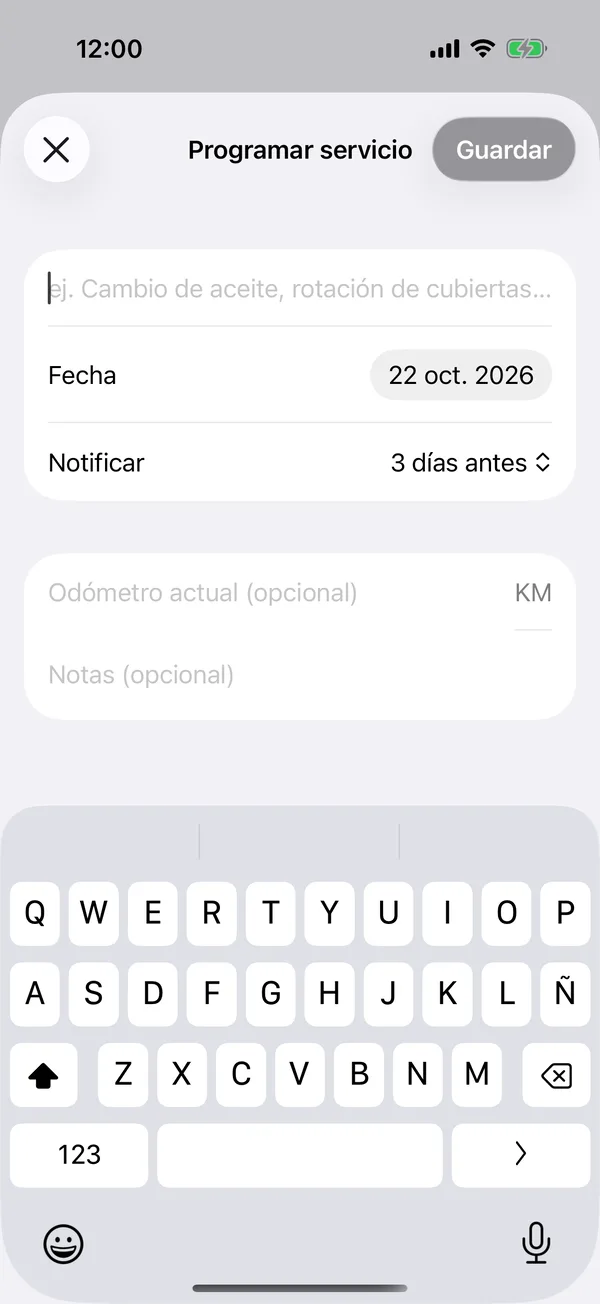
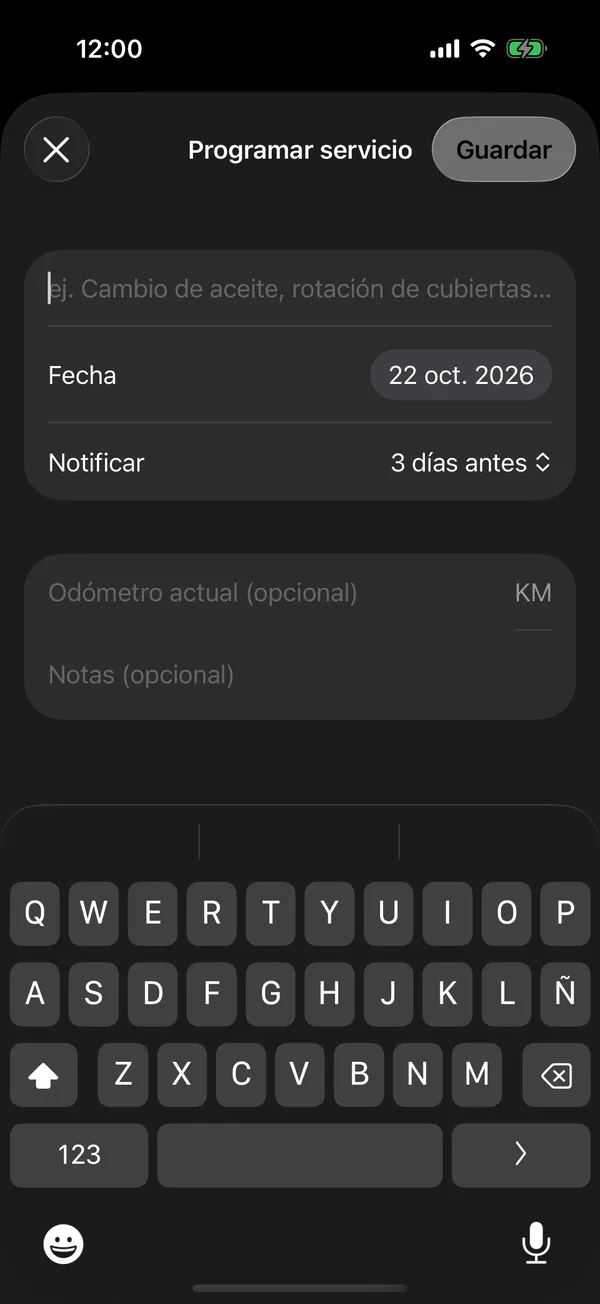
To mark it done and log its cost, tap it in the list. See Schedule the next service.
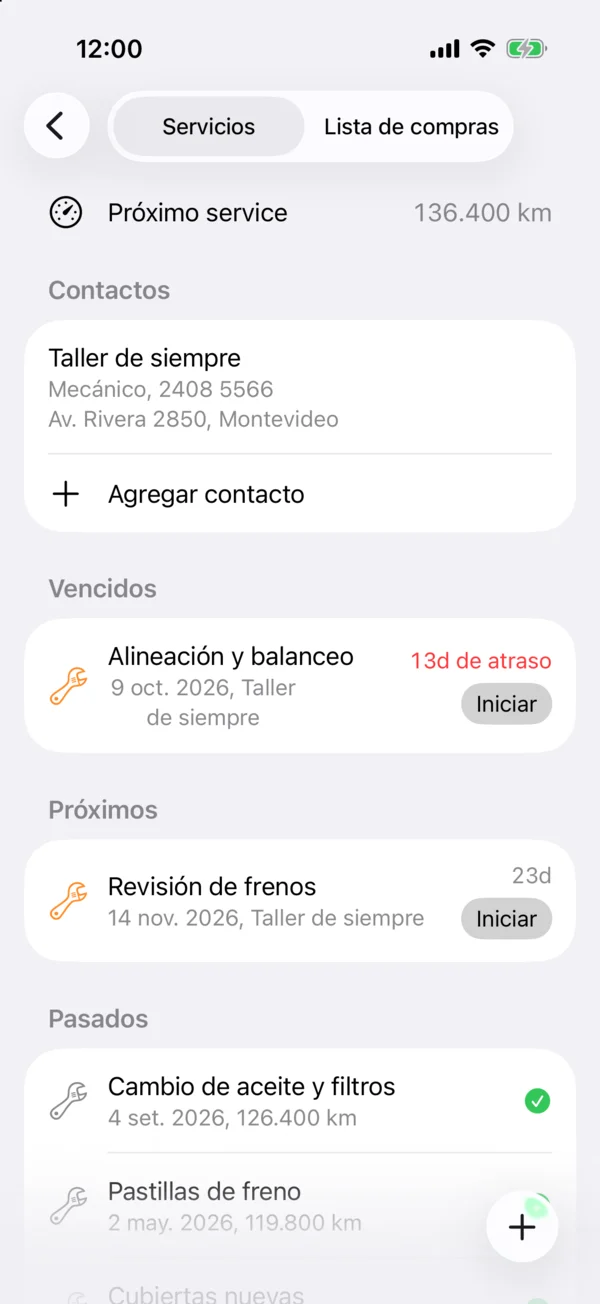
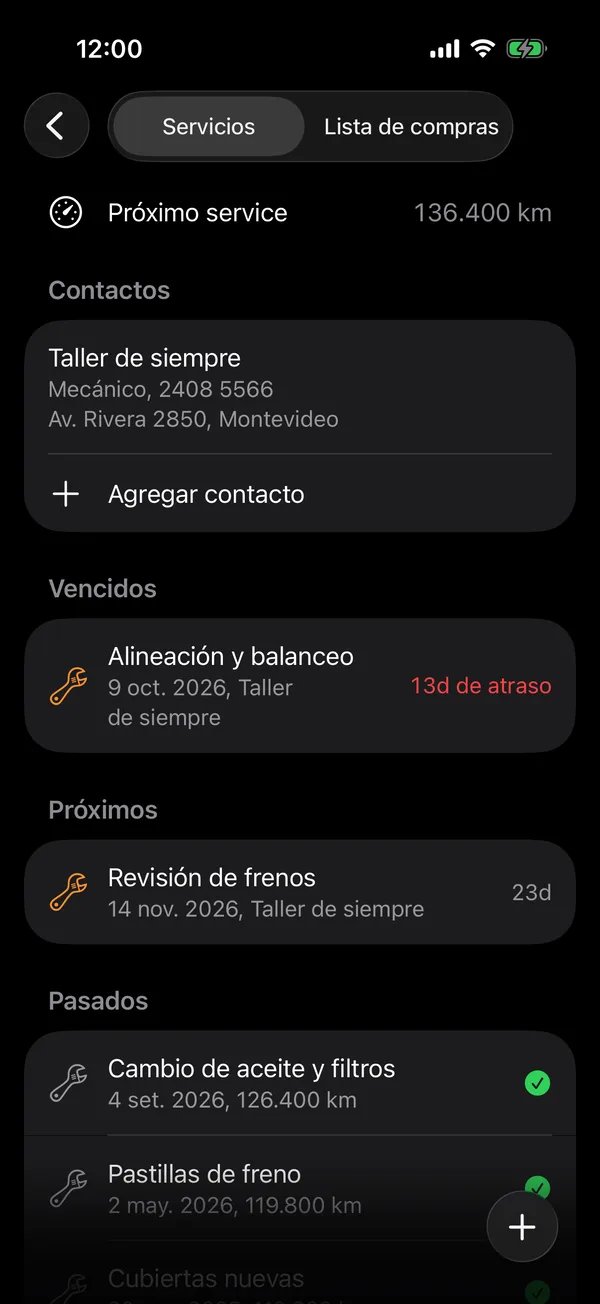
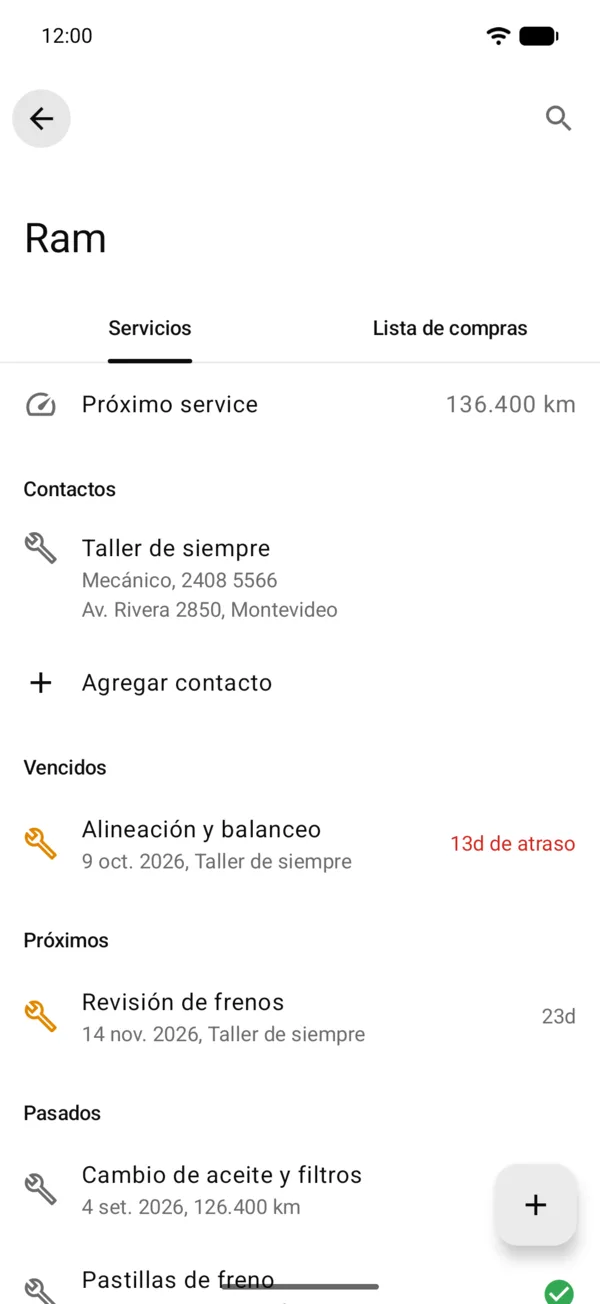
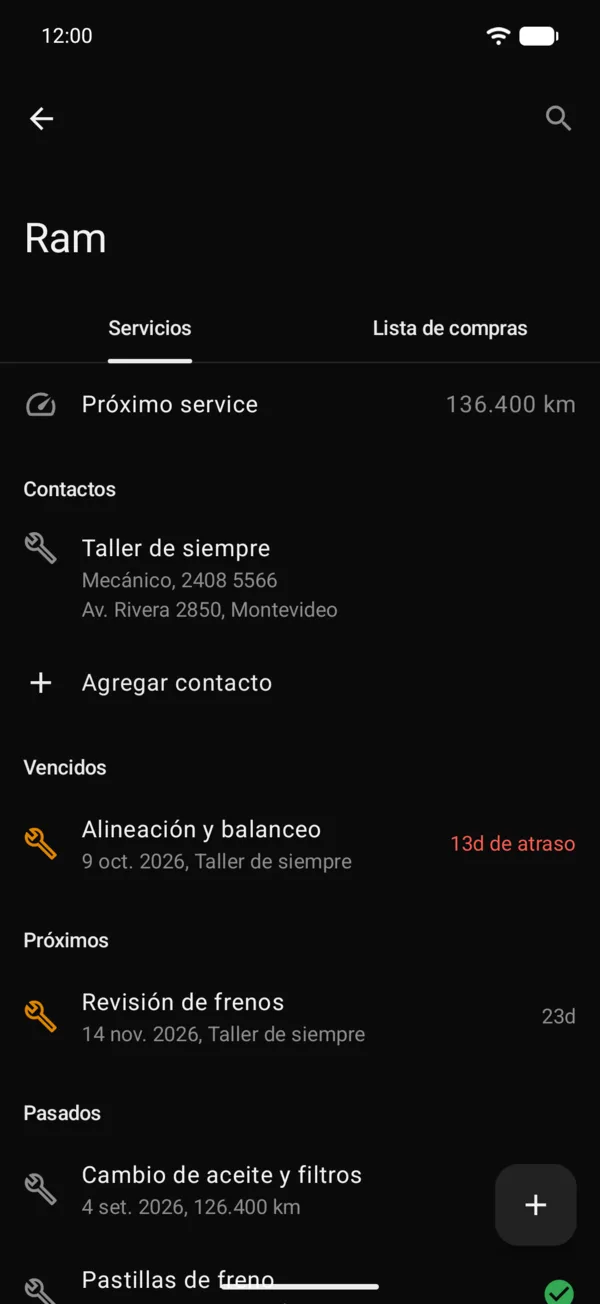
The list shows Overdue, the upcoming ones and Past. Each pending service has a button: Start marks it In shop, and in the shop it says Finish, which opens Mark as done. Swipe a service left to Edit or Start it, or right to Delete it.
The services due soon also show on the vehicle’s page, under Upcoming services, with the same buttons.
Above the list are your Contacts and the vehicle brand’s official service: see Your workshops and the official service.
For the services of all your vehicles, open your account and tap Maintenance history.
Only the owner and admins see and log a vehicle’s services.
On the web
On a computer, Schedule service is at the top right of the vehicle’s Service. Maintenance, in the sidebar, gathers the services of all your vehicles in a table, with Search and Filter & sort at the top right.
More in Service and wishlist
Didn’t find what you were looking for? Write to [email protected] and we’ll get back to you.