
Use the wishlist
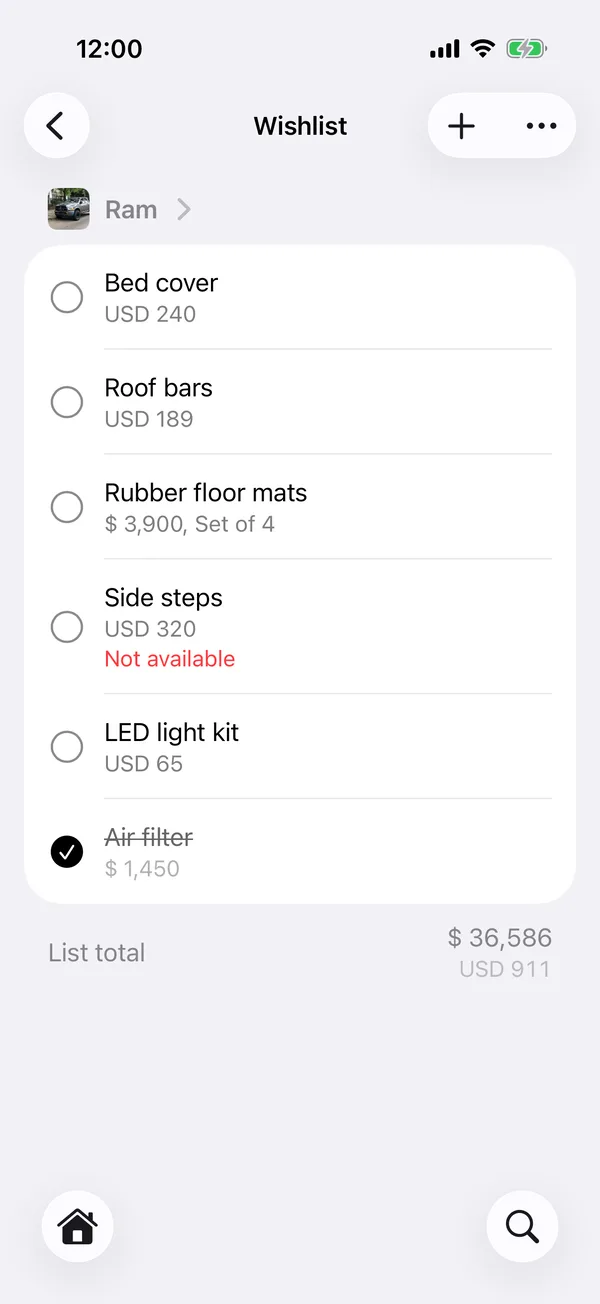
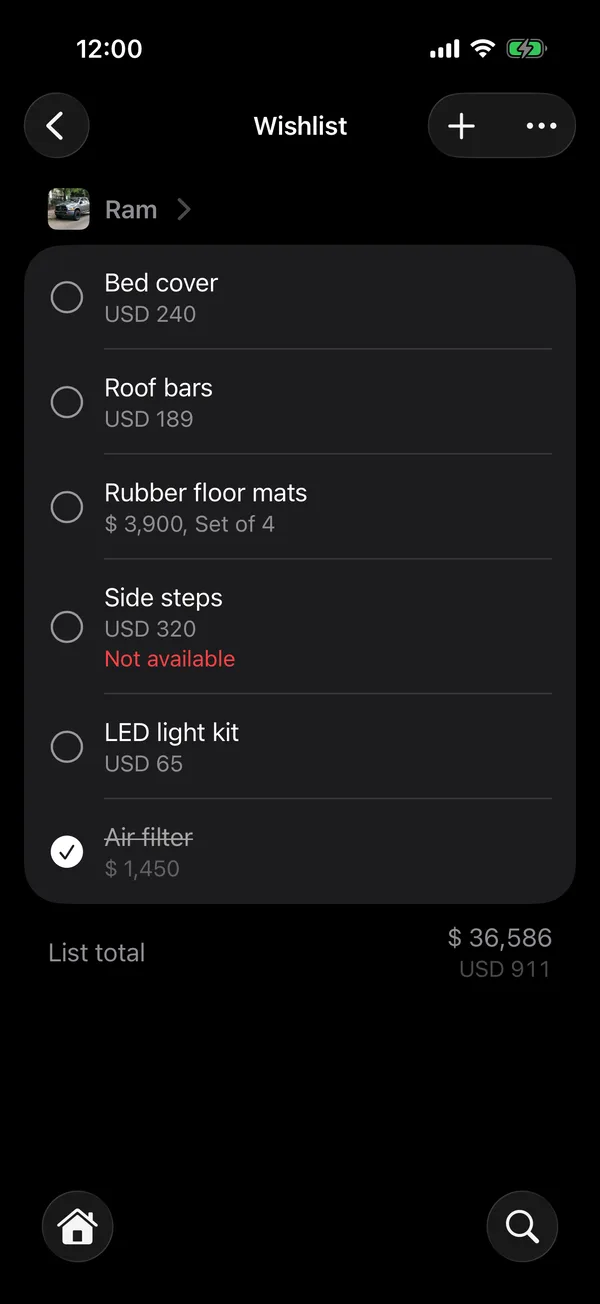
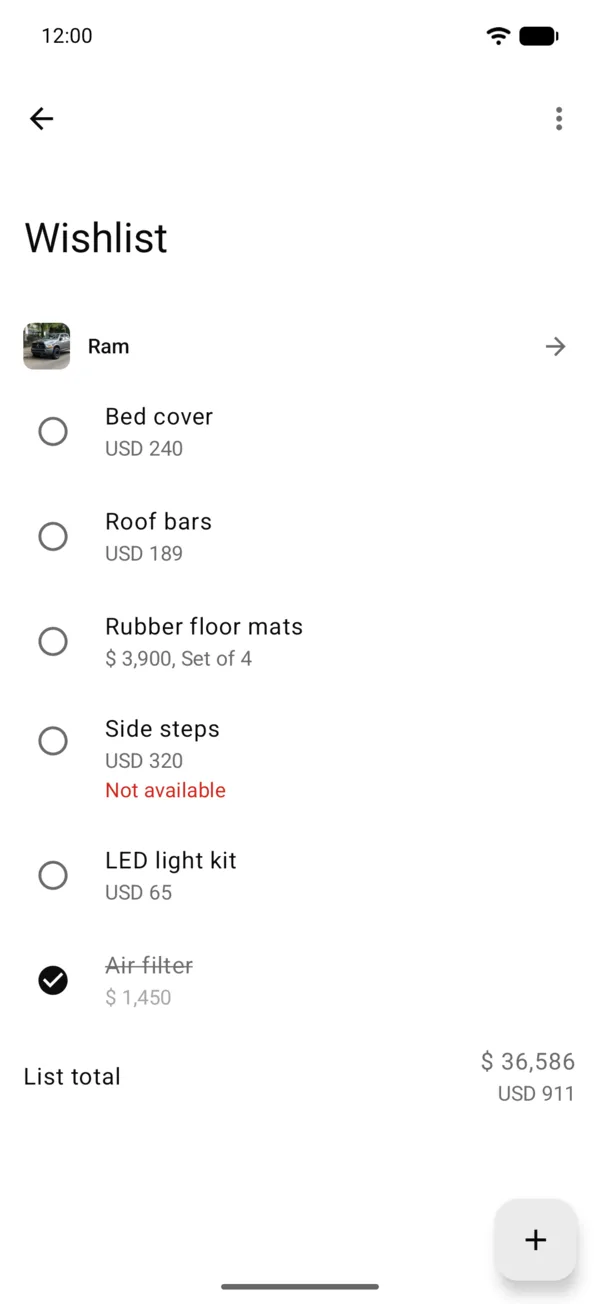
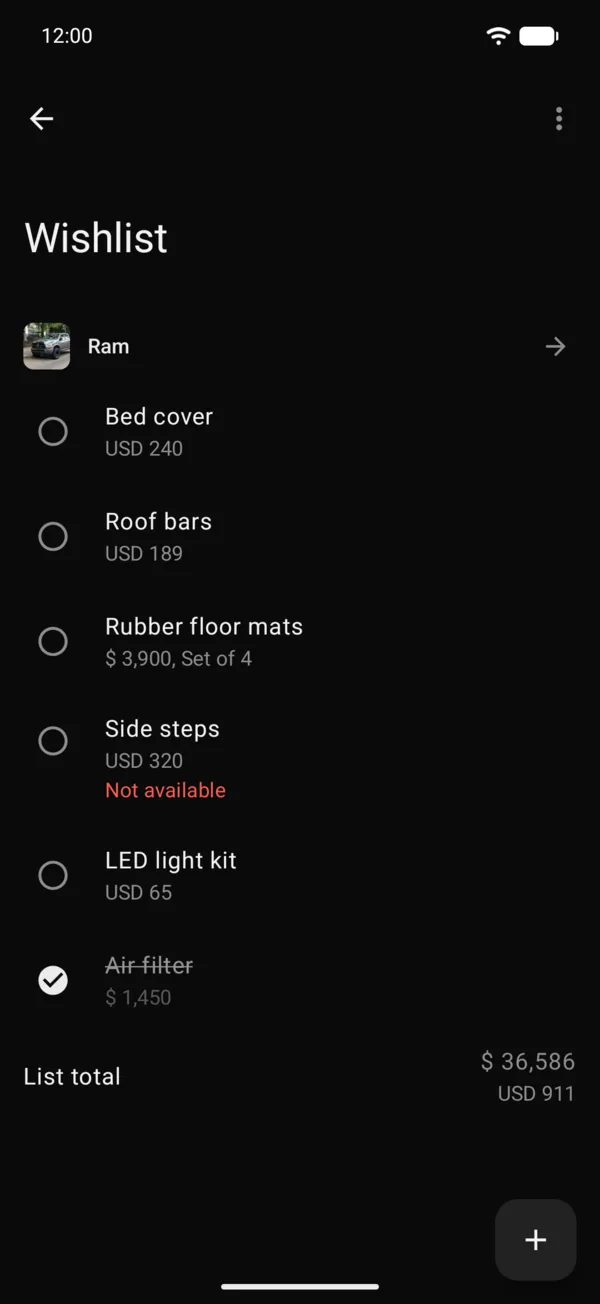
Note the parts and accessories you want to buy, with their link, picture and price.
- Open the vehicle, tap Service and choose Wishlist at the top.
- Tap +, then New item.
- Paste the product’s link in URL: the app fills in the title, the picture and the price when the page shares them.
- Check the Title, the Price and the currency, and add Notes if you like.
- Tap Add item.
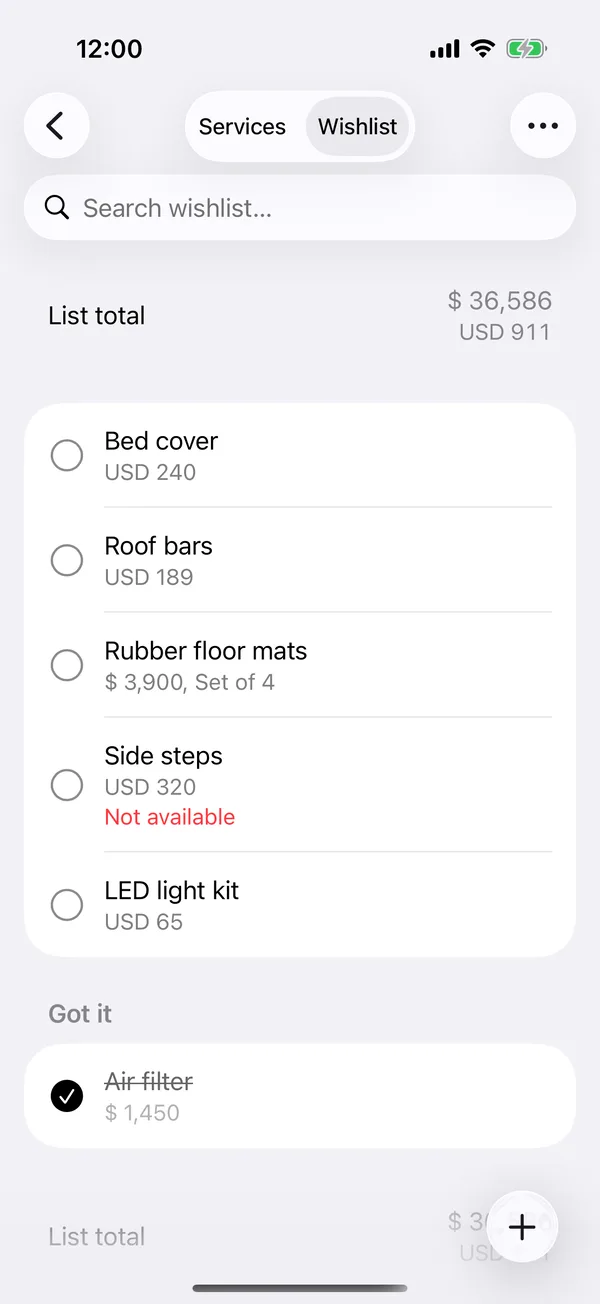
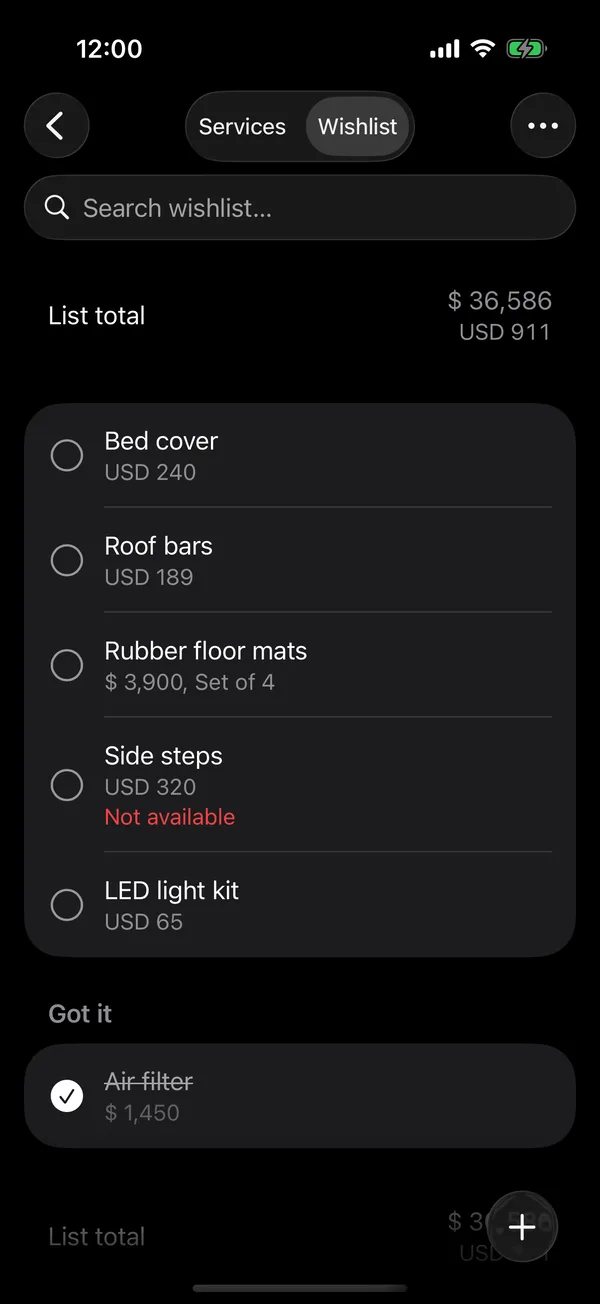
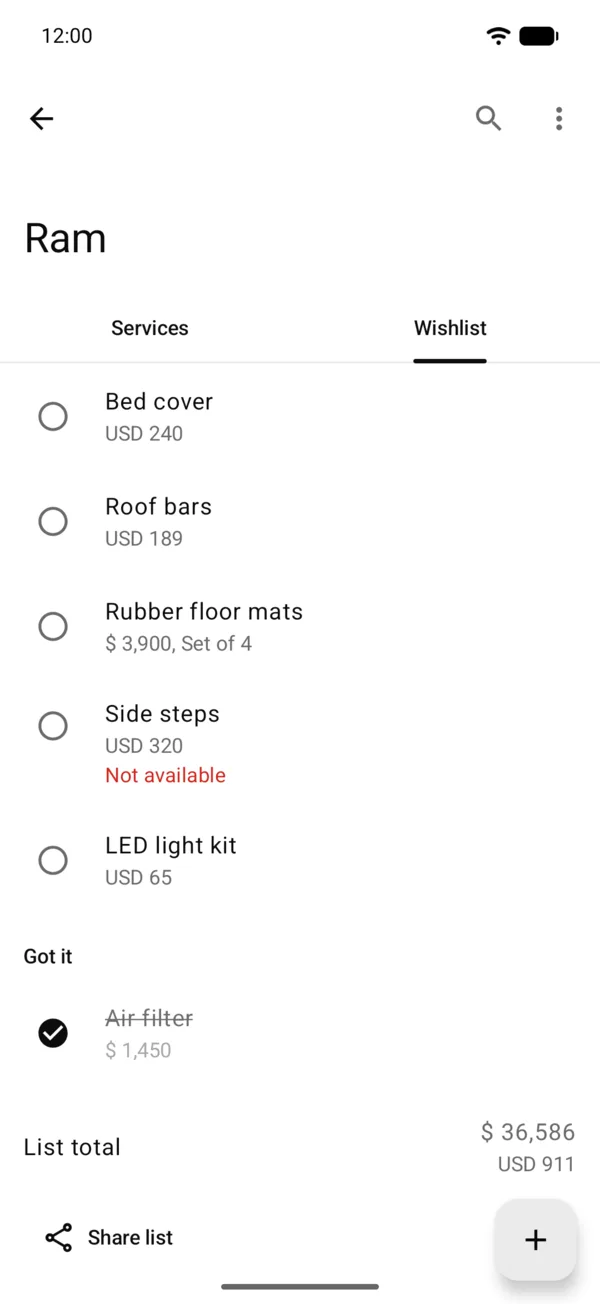
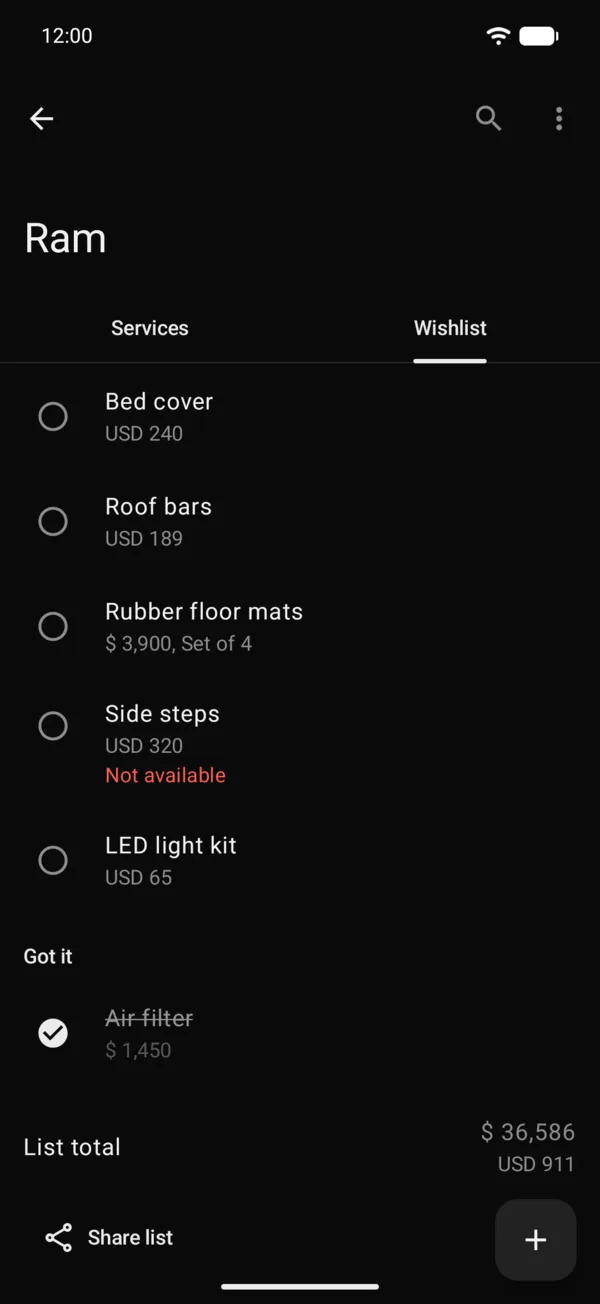
The List total adds up what’s left to buy as one amount in your main currency: prices in another currency are converted at today’s rate. If your main currency isn’t the dollar, the same total in dollars goes under it.
When you buy it
Tap the item’s circle. It moves to Got it and, if it has a price, it’s recorded as a Maintenance payment. Tap the circle again to undo it.
To change the order, tap More (⋯), then Reorder.
Hide an item
- Press and hold the item.
- Tap Hide.
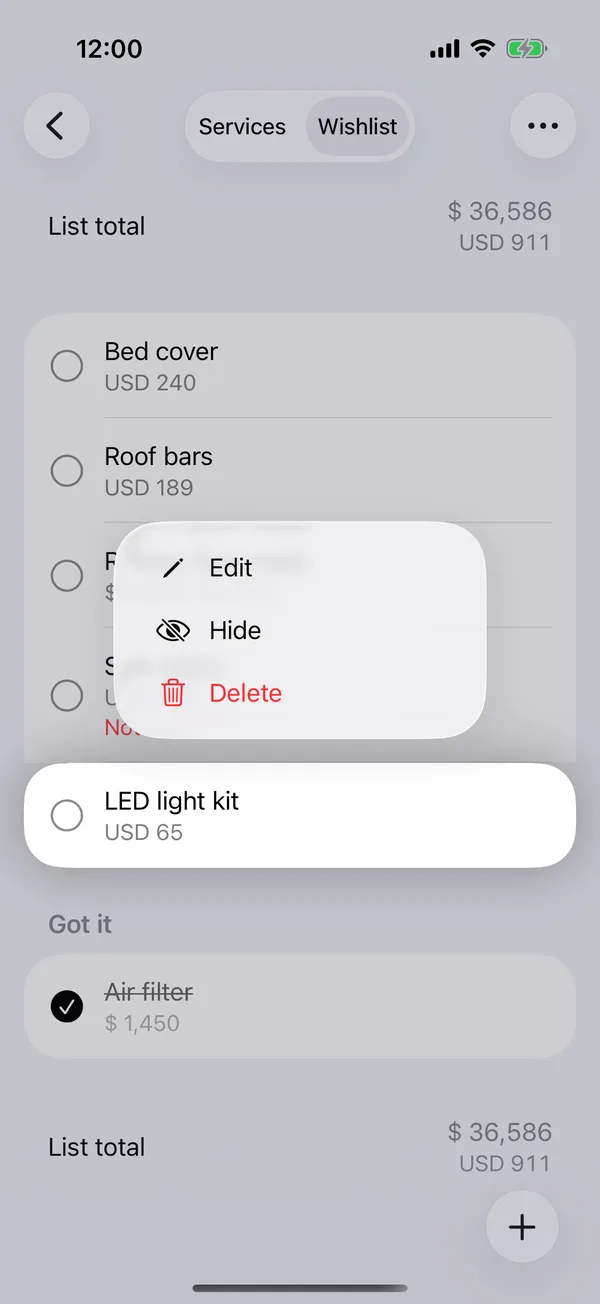
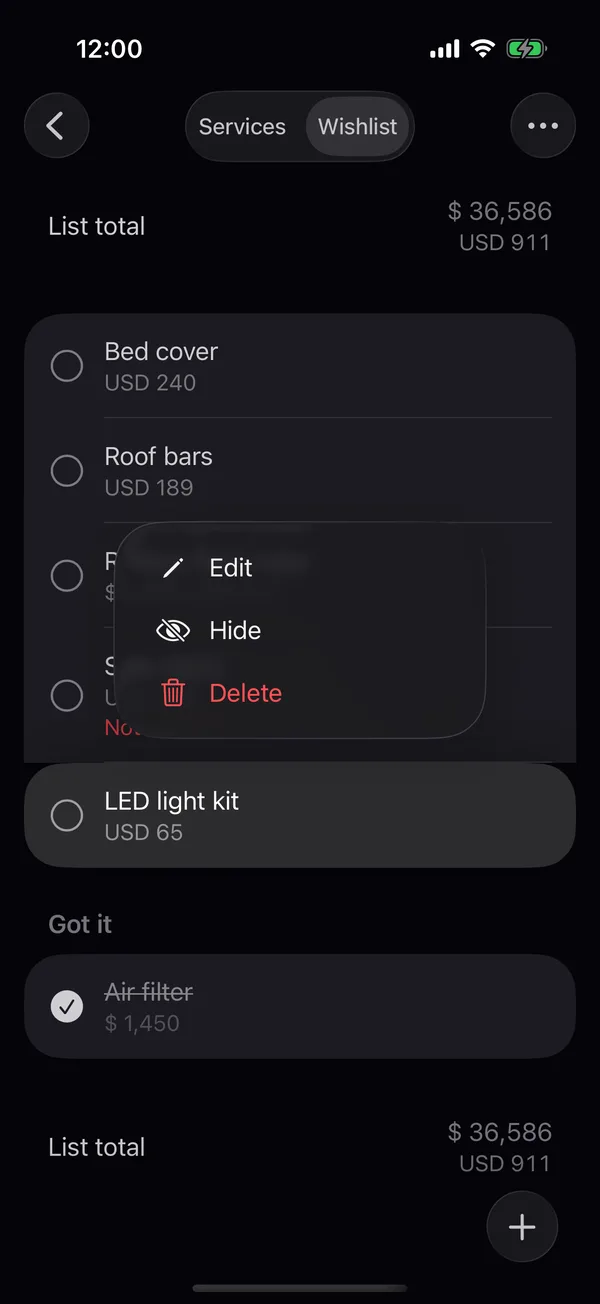
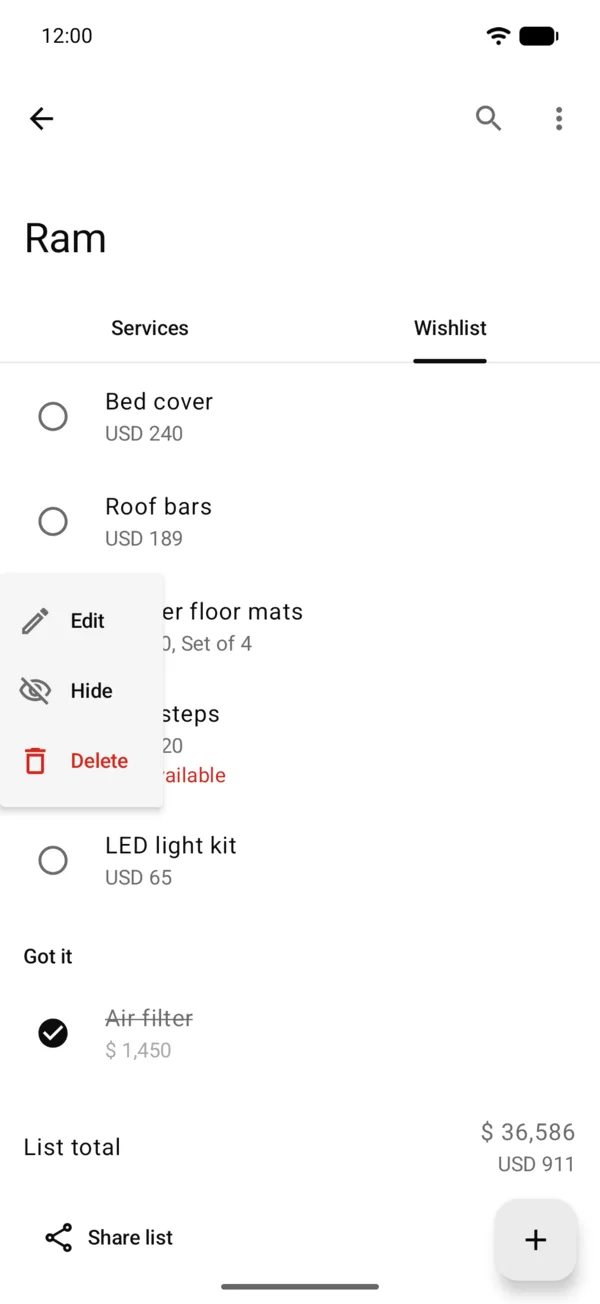
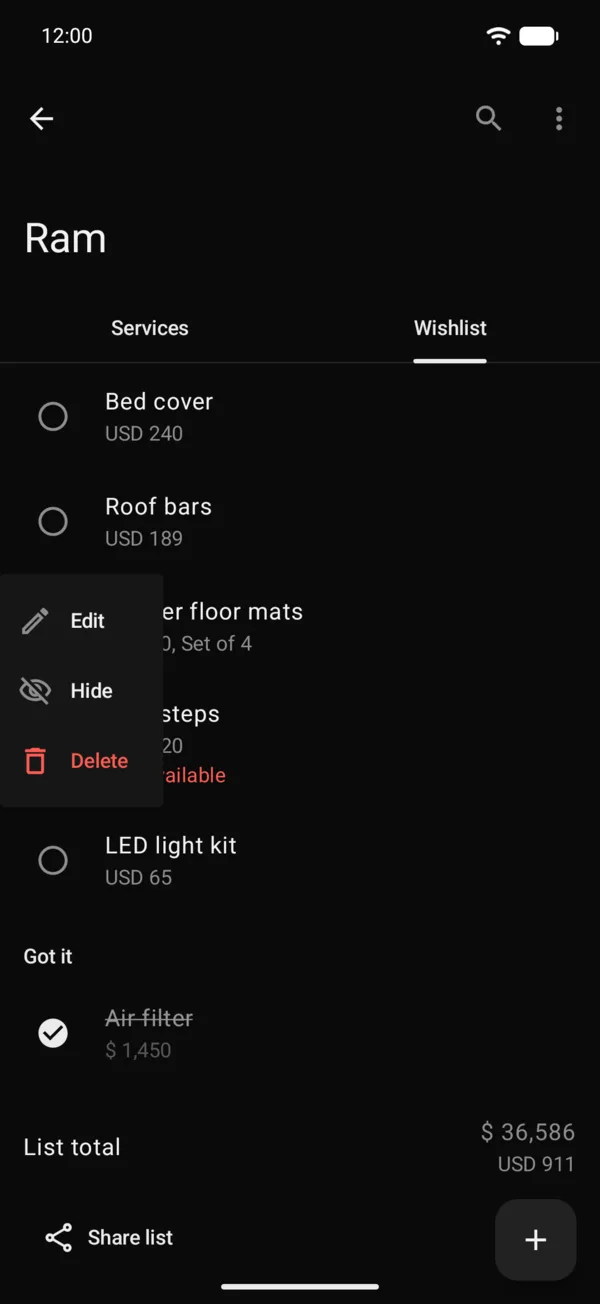
The item turns grey, with the eye crossed out, and works like the others, but shared links and the Excel file leave it out. To show it again, press and hold it and tap Show.
Hiding it on the vehicle’s list hides it on the page with all your lists too. Hiding it on that page keeps it in view on the vehicle’s list; Show there shows it on both.
All your lists
On Home, above Your vehicles, the Wishlist section has a card for each vehicle with something to get: its photo, its name, how many items are left and their total, also in dollars. Swipe sideways to see the others and tap one to open that list. Tap the Wishlist title to see them all together: each vehicle’s list under its name, with each list’s total and the total of all lists. Tap a vehicle’s name to open its list.
To send them together, tap More (⋯) and then Share all lists. Whoever gets the link sees what’s left to buy for each vehicle, without the app or an account. It includes the vehicles you own or are an admin of.
The wishlist is on every plan: with Starter, up to 3 items per vehicle and 3 new ones every 12 hours; with Pro, no cap per vehicle and up to 5 new ones every 12 hours; with Fleet and Dealership, no limits. At the limit, the app offers to upgrade your plan. Everyone with access to the vehicle sees it; the owner and admins edit it.
On the web
The web’s wishlist is the same, with + and then New item or Find in stores. On a computer, Wishlist in the sidebar gathers the items of all your vehicles, with each vehicle’s total and the whole list’s. At the top right are Search, Find in stores and New item, and beside the list you see the List total, what’s still To get and what’s Not available; if you hid something, also the Visible total, which is what the link shows, and the Hidden items. On a phone, the same page opens from Home, with Share all lists in the menu (⋮) at the top. On a computer, Share all lists is the share button in the bar.
More in Service and wishlist
Didn’t find what you were looking for? Write to [email protected] and we’ll get back to you.