
Driving mode: what it is and how to open it
A card on Home when the car is connected, and a screen with big buttons for parking, documents and more.
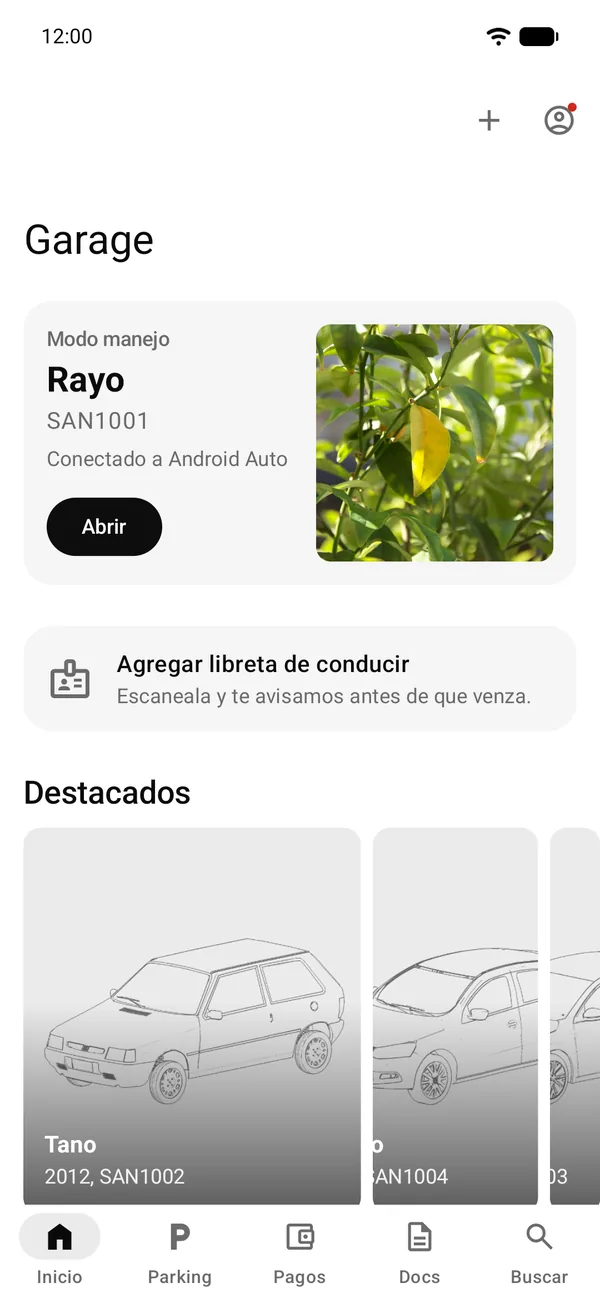
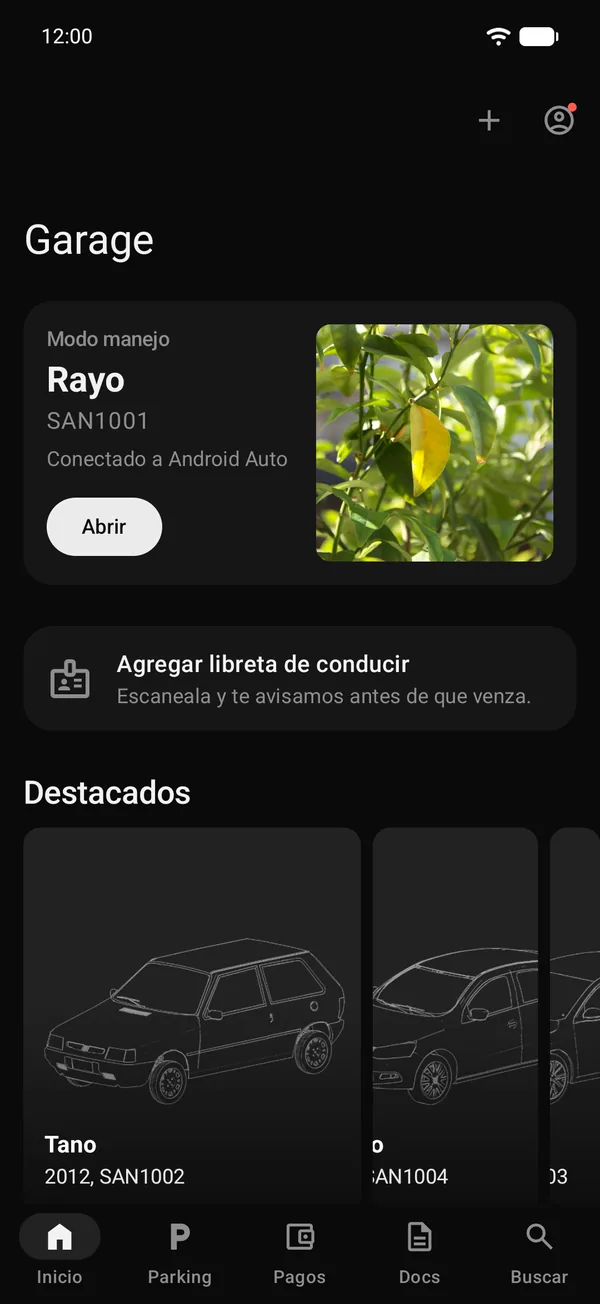
Driving mode is a screen with big buttons for what you use when driving or parking. You open it from a card that appears on Home when the phone is connected to the car. It is on the iPhone and on Android; the web can’t tell whether you are in the car, so it doesn’t have it.
When the card appears
- On Android: when the phone connects to Android Auto or to the car’s Bluetooth.
- On the iPhone: with GarageApp open and the phone’s sound playing through the car, by CarPlay or the car stereo’s Bluetooth. If it’s a Bluetooth device GarageApp doesn’t recognize as a car, Home asks once Is «name» your car’s stereo?: Yes, it’s my car takes it as your car, and with No it doesn’t ask again.
Open it
- On Home, tap the Driving mode card, with your vehicle and its plate.
- If you have more than one vehicle, the first time GarageApp asks Which vehicle are you driving?. Turn on Remember for that car and it doesn’t ask again.
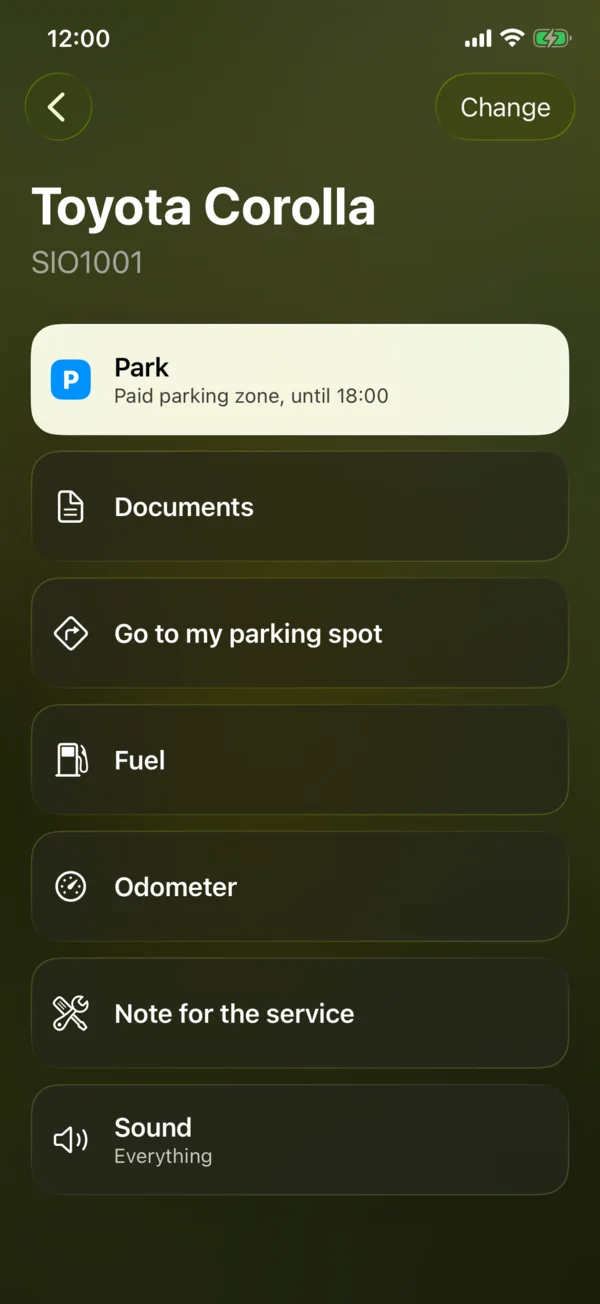
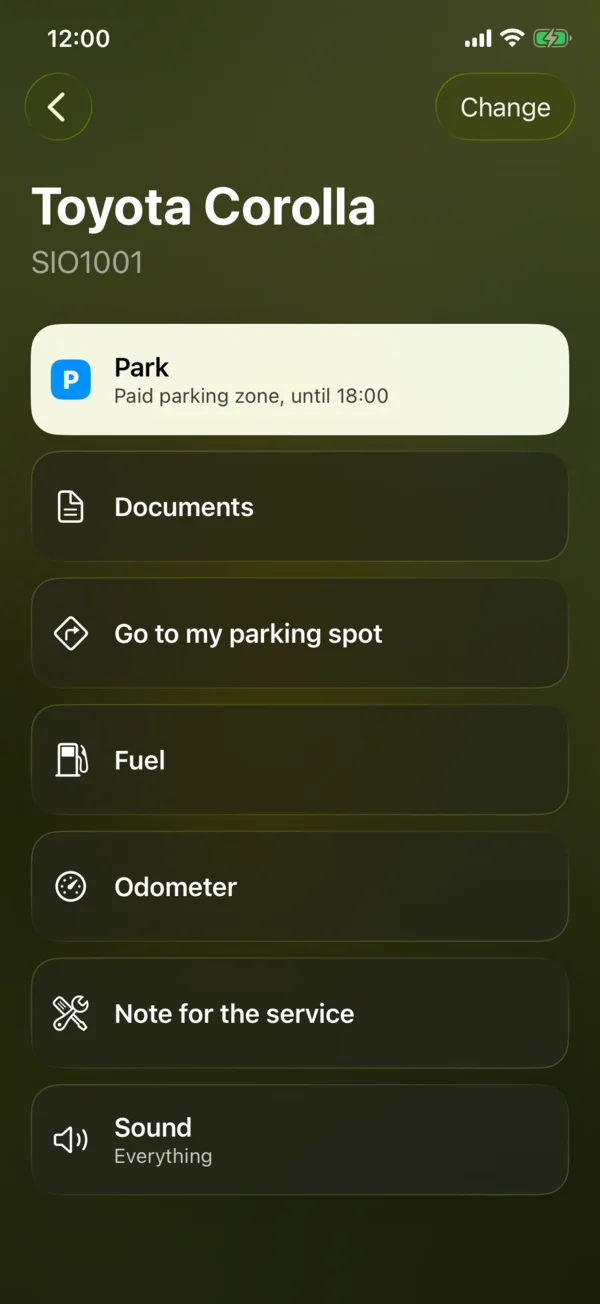
- To change the vehicle, tap Change, at the top right.
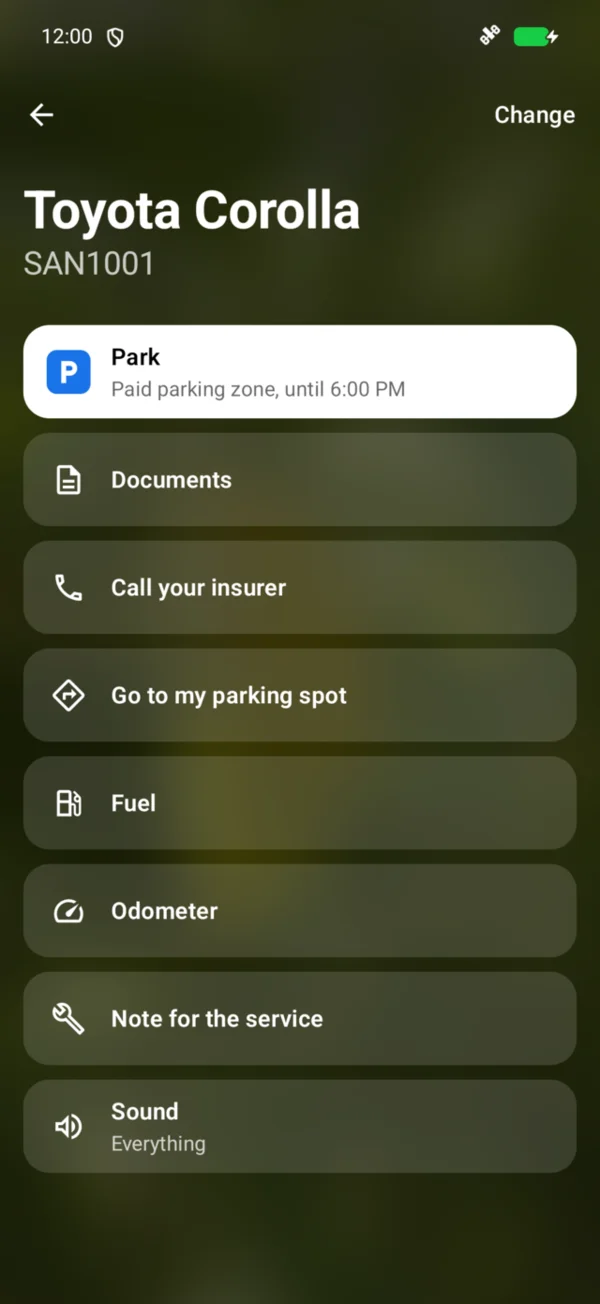
The map
If the car has no CarPlay or Android Auto, Driving mode is a map with the speed cameras and reports on the road, and its buttons stay in a panel. See The Driving mode map and its notices.
The buttons
- Park: opens the form to park that vehicle on the street. Inside a paid parking zone it says until what time you pay. See Park from the car.
- Documents: the vehicle’s registration, the insurance and your driver’s license, ready to show.
- Call your insurer: calls the insurer of the vehicle’s policy. It doesn’t appear if the vehicle has no policy or we don’t have its insurer’s phone.
- Go to my parking spot: on iPhone, GarageApp’s navigation takes you to the spot, on the phone or on CarPlay; if it finds no route, it opens the last maps app you used or, failing that, Waze, Google Maps or Maps. On Android it opens the phone’s navigation. It doesn’t appear if the vehicle has no spot.
- Fuel: opens a new fuel payment for the vehicle.
- Odometer: saves the odometer reading. See Save the car’s odometer reading. Only people who can edit the vehicle see it.
- Note for the service: leaves a line to check at the next service. See Add something for the next service.
- Sound: what you hear while driving. See Driving mode settings.
The widget
The iPhone has the Garage widget, which grows: the small one has shortcuts to GarageApp, Parking, Docs and Payments; the medium and large ones show a vehicle, with its next service, the button to park and shortcuts to the parking spot, the documents and more, and once parked, how much time is left with Extend and End; the large one adds what is Coming up. On the Lock Screen there are two smaller ones. When you edit it you choose the Vehicle: The one I’m driving follows Driving mode’s.
Android has a widget that also grows, with the vehicle, its parking and what comes next. When you add it you choose the vehicle, and you change it by pressing and holding it.
You add them like any widget, from the home screen.
Turn it off
In Driving mode settings you turn off the mode, and the parking spot question too.
More in Driving mode
Didn’t find what you were looking for? Write to [email protected] and we’ll get back to you.