
Park from the car
With CarPlay or Android Auto you choose the time on the car screen and send the SMS from your phone. When the trip ends, the car stays parked where you left it.
With Android Auto, the car screen has Park, Spot, Documents and Odometer, and your vehicle with the date of its next service. Street parking is paid by SMS, and you always do that step on the phone.
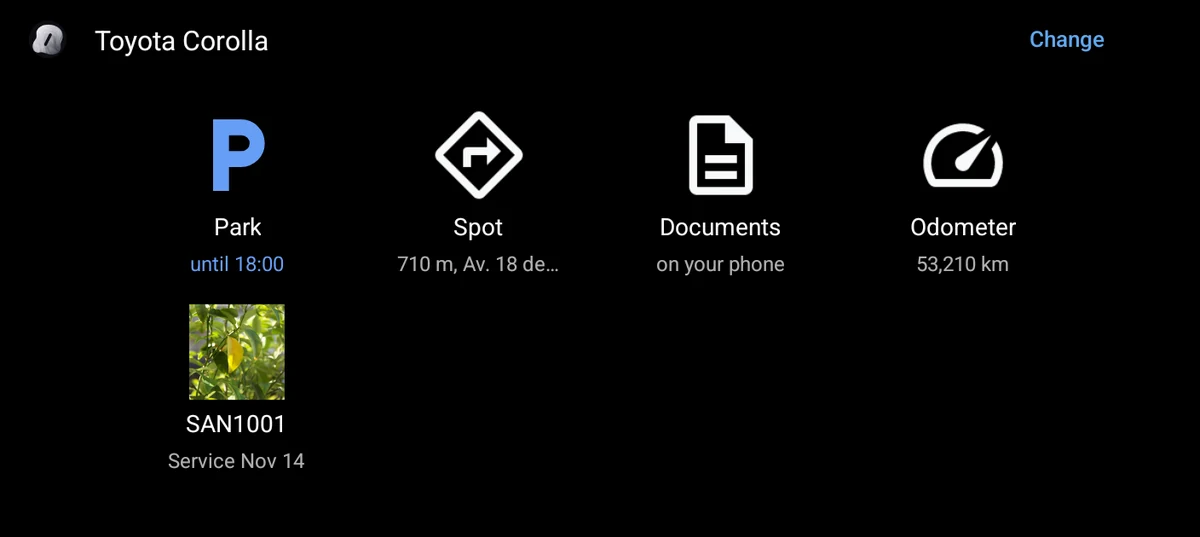
Paid street parking
- On the car screen, tap Park. If you have more than one vehicle, it first asks Which vehicle are you driving?.
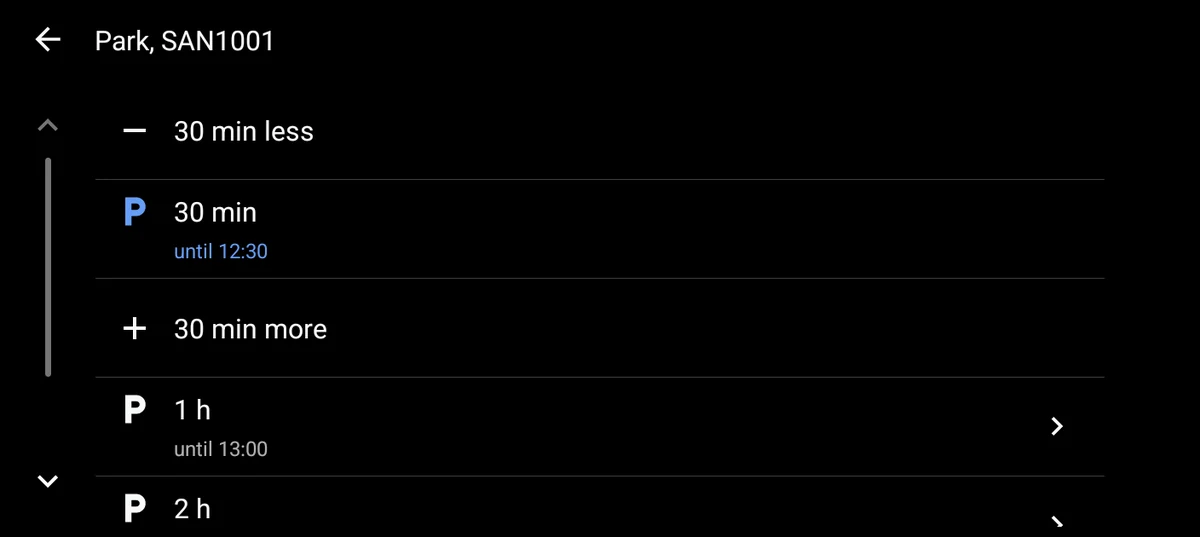
- Choose the duration. 30 min less and 30 min more adjust it, and below are 1 h, 2 h and Until paid hours end, each with the time it ends.
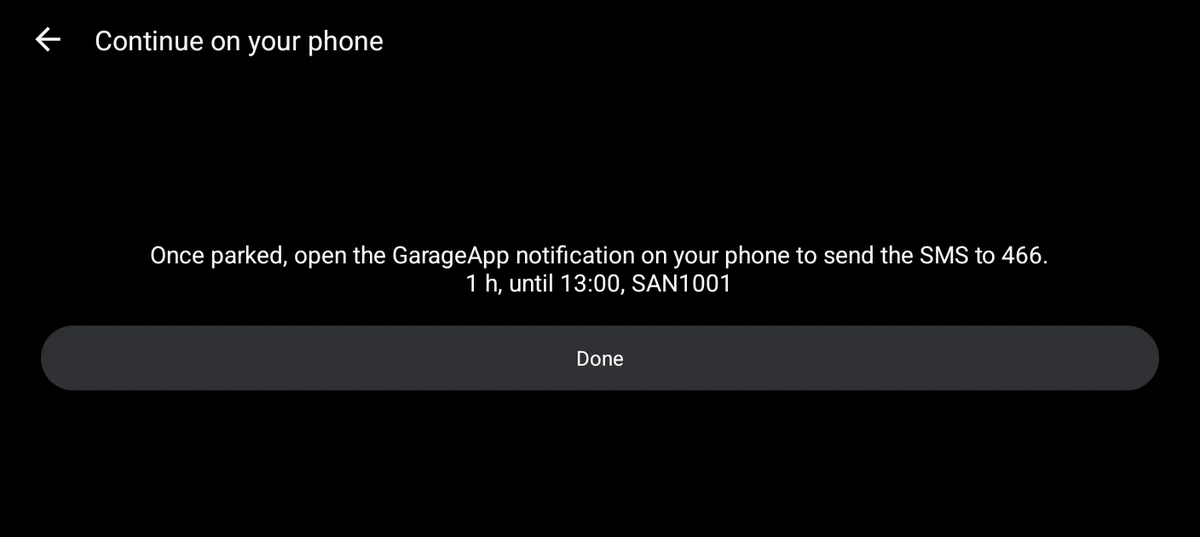
- Tap the duration you want. The screen says Continue on your phone and shows the number the SMS goes to.
- On the phone, tap the Send the parking SMS notification. The SMS opens already written.
- Send the SMS.
- Go back to GarageApp: it asks whether you sent the SMS. Confirm and the countdown starts.
Android Auto only lets the SMS open on the phone while the car is parked. That is why the last step is on the phone.
After parking
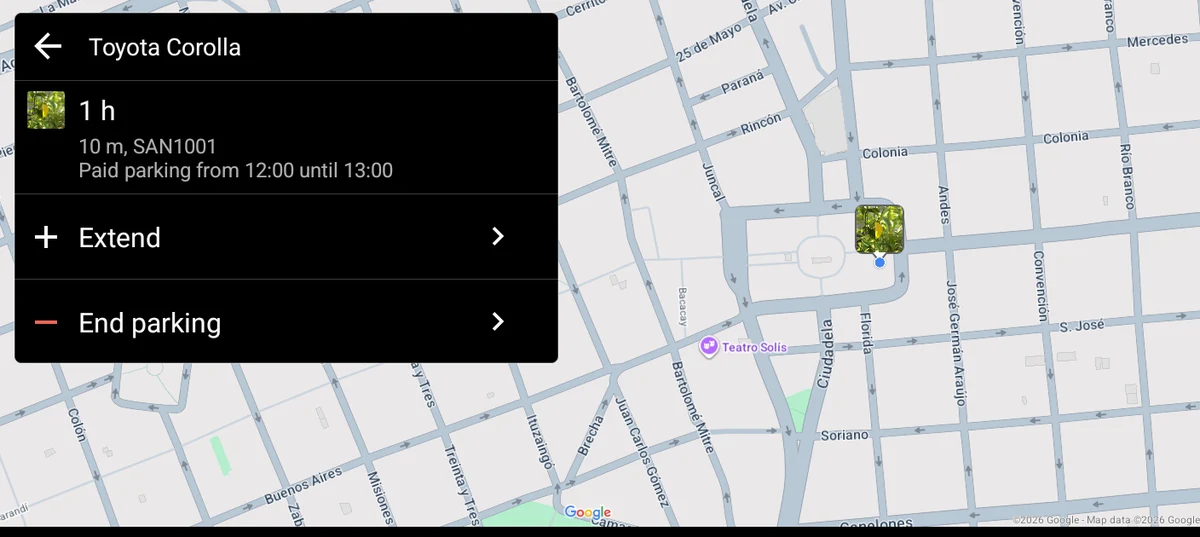
On the home screen, the P shows the time gone as a ring, and at the top right + extends and ✕ ends. The car screen shows the time left, with Extend and End parking, and the map with where you left the car. Extending or ending paid parking with an SMS also continues on the phone, as when you start.
Odometer
Tap Odometer, type the reading (with the car parked) or say it, and tap Save with your number. It stays on the vehicle, in your profile's unit.
Outside the zones
Each paid parking zone has its own number and hours, those in Start street parking. Outside the zones there is nothing to pay by SMS: Park leaves the car parked with one tap on the car screen.
On the iPhone
With CarPlay it works the same: Park, the P, is at the bottom right of the map and in Utilities, you pick the duration and send the SMS from the iPhone with GarageApp’s notice. Without CarPlay, Park is in Driving mode and in the widget, and opens the same form as always: see Start street parking.
When the trip ends
When you disconnect from CarPlay or Android Auto (on Android, also from the car’s Bluetooth), GarageApp leaves the vehicle parked where the phone was, with nothing paid. It doesn’t when the vehicle is already parked or is within 100 meters of its parking spot.
- You get a notice with the vehicle, such as Corolla parked. Tap it and Driving mode walks you back to the car; on Android, with the Uruguay map downloaded (see The Driving mode map and its notices).
- In a paid zone, during its hours, the vehicle’s P turns red and the notice has Pay for parking, which opens the form from Start street parking with the place already set. Once you confirm the SMS, the time starts.
- Outside paid zones, the notice goes after 30 minutes and the car stays parked on the Parking map.
- Once you drive it again, it is no longer parked.
On iPhone, Driving mode’s notice on the Lock Screen turns into the parked car, with Pay for parking in a paid zone, Walking directions, Share location and End parking.
More in Driving mode
Didn’t find what you were looking for? Write to [email protected] and we’ll get back to you.