
Start street parking
Pick the vehicle, mark where you left it, choose how long, and send the SMS from Messages.
Street parking in Montevideo is paid by SMS. GarageApp writes the message for you and keeps track of the time.
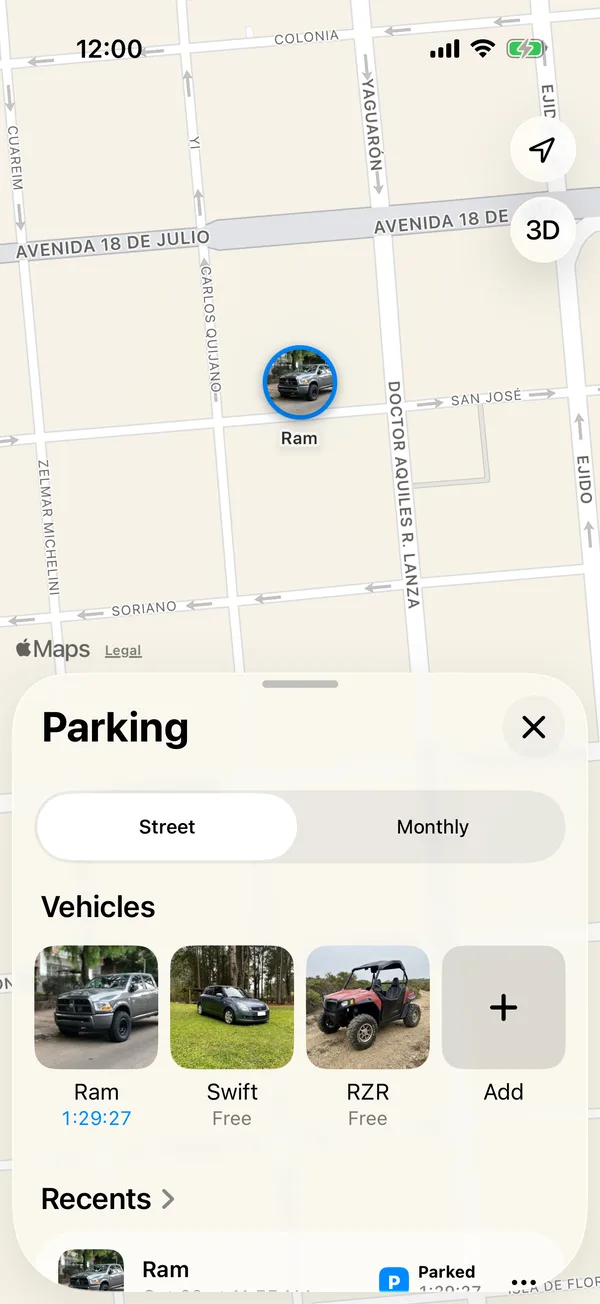
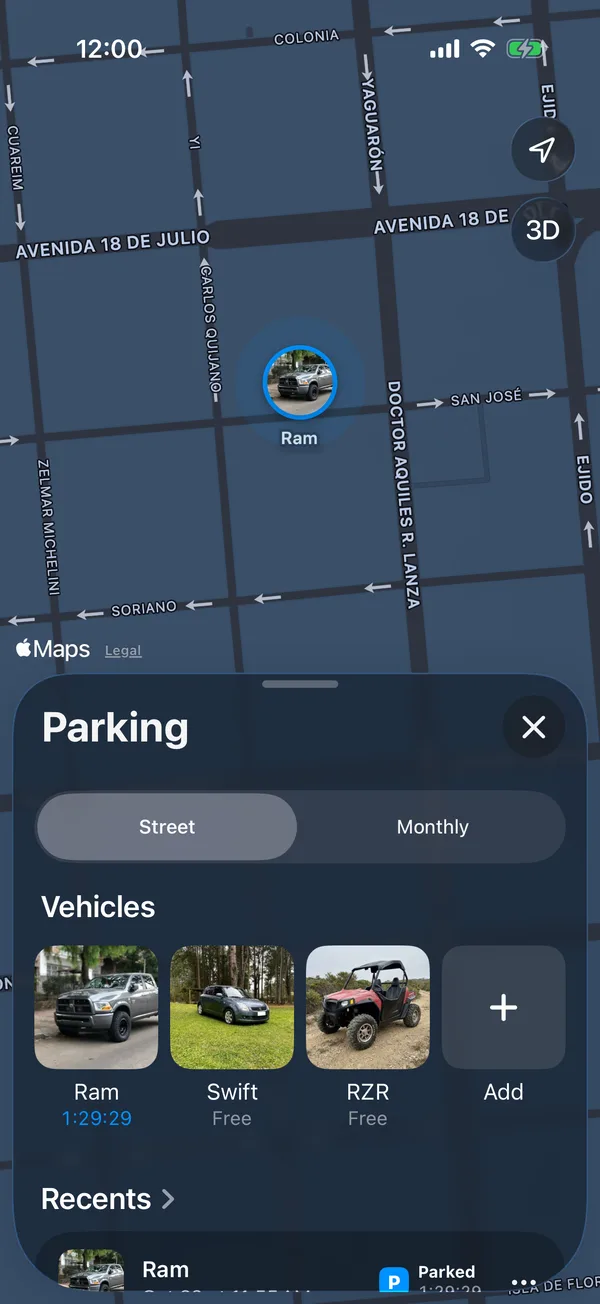
- Tap the Parking tab. Street has to be selected at the top.
- Under Vehicles, tap the vehicle you’re parking.
- Move the map until the pin is where you left the vehicle.
- Under Duration, tap + to add time or the minus button to take it away.
- Tap Send SMS to park.
- Messages opens with the SMS ready. Tap send.
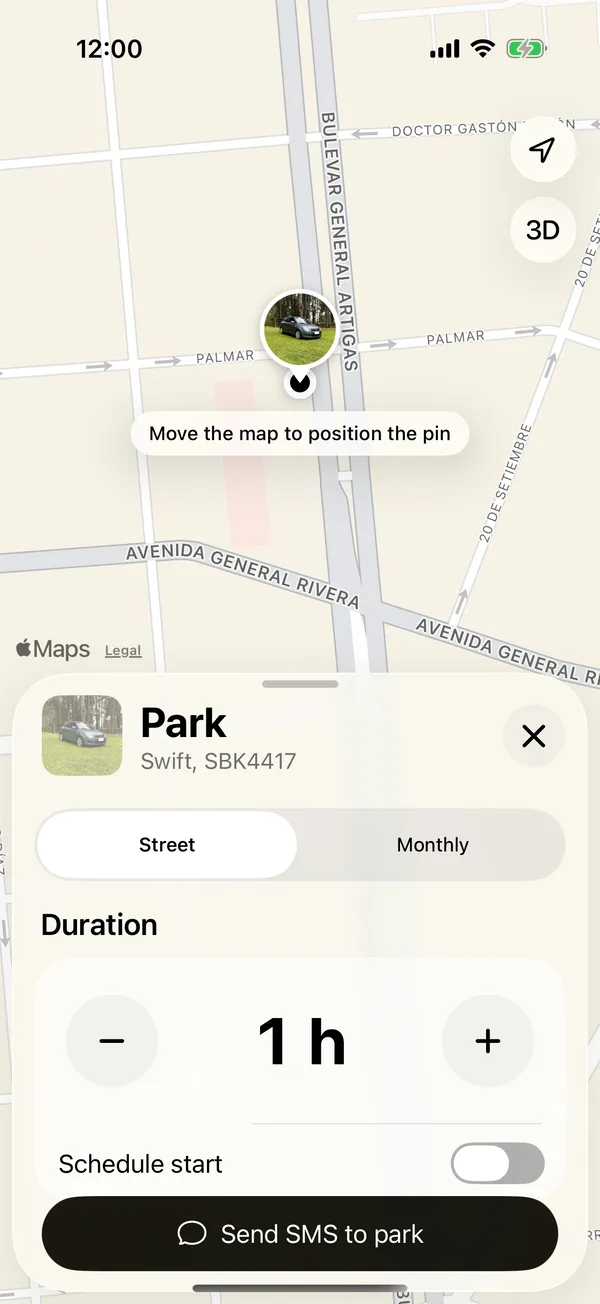
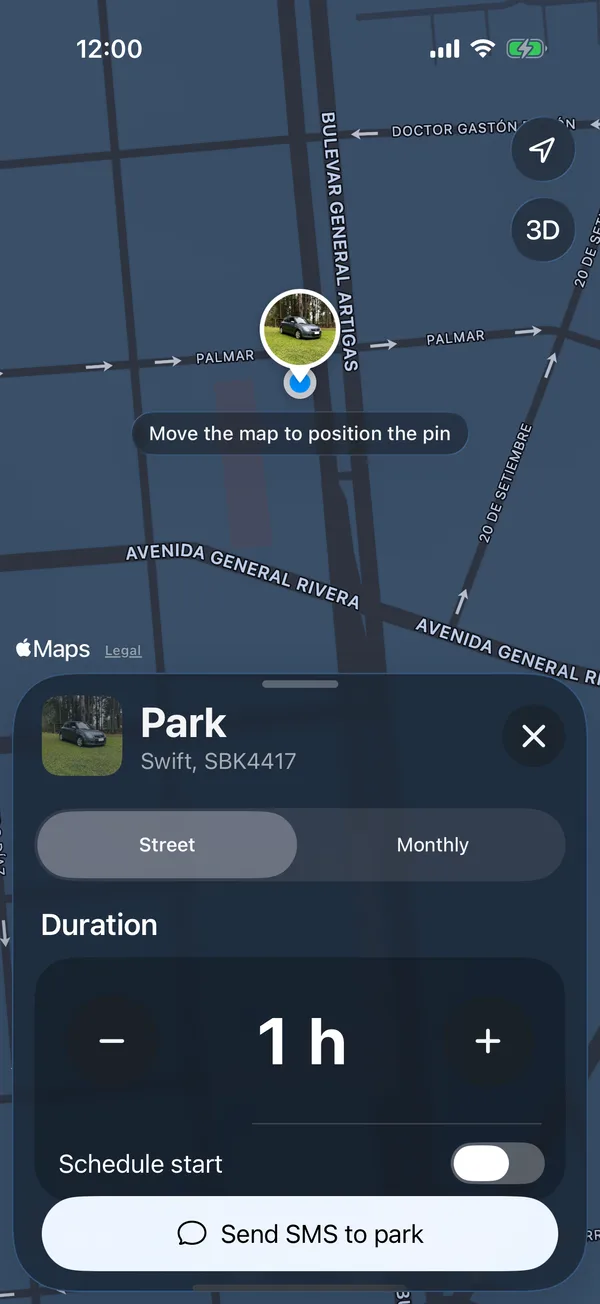
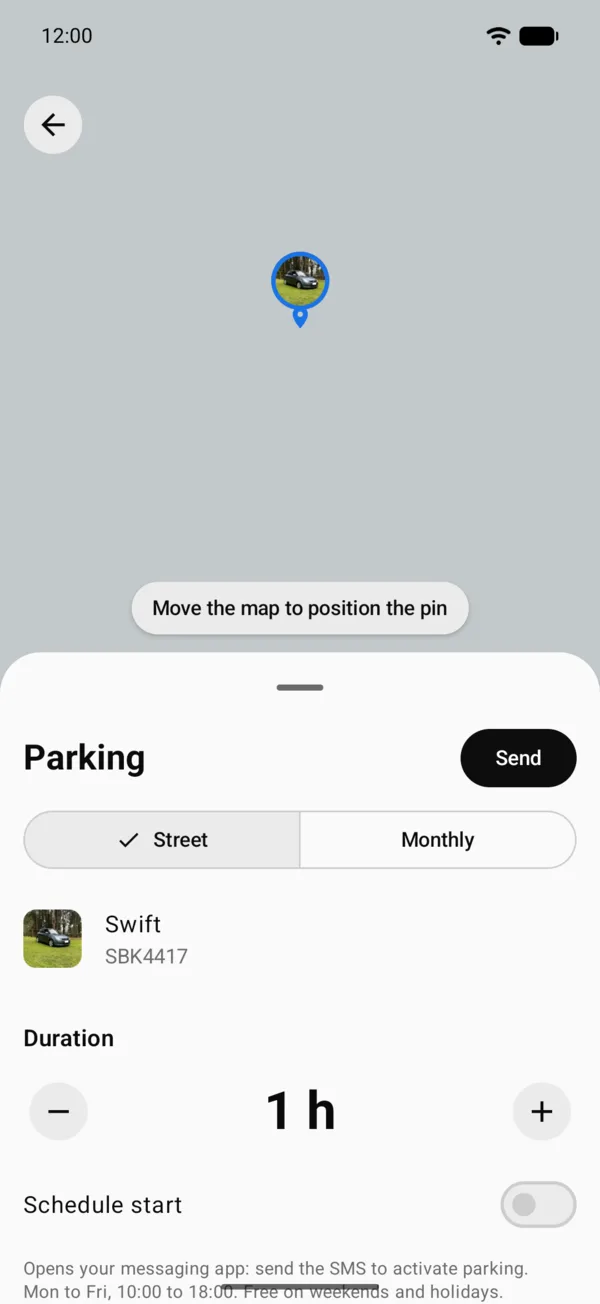
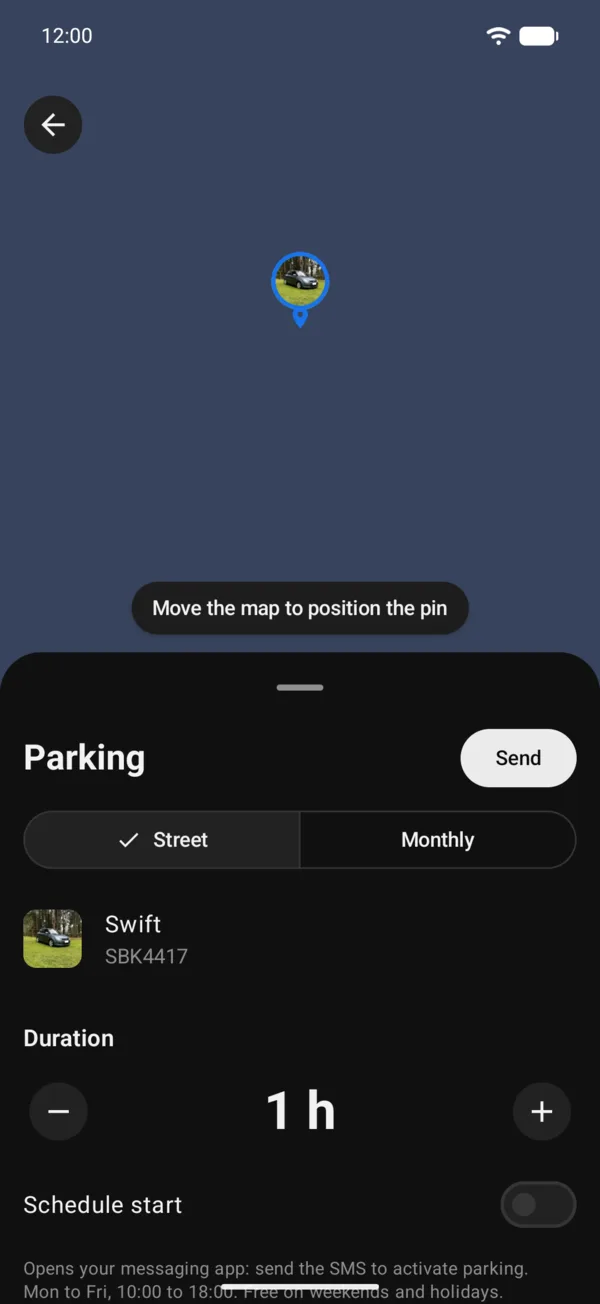
The countdown starts only once the SMS is sent: the vehicle shows on the map, under Parked on Home, and on the Lock Screen. If you cancel in Messages, nothing starts.
Keep in mind
- The vehicle needs a plate to park.
- The first time, the app asks for your location to put the pin where you are.
- Outside paid hours, on weekends and holidays, the app tells you before you send.
- You can have several vehicles parked at once.
- We remind you 10 minutes before your time runs out.
On the web
On the web’s Parking tab, tap Send SMS to park, choose the Vehicle, place the pin and the Duration, and tap Send. Messages opens with the SMS ready, so you use it from your phone. As the browser can’t tell whether the message went out, the web asks Did you send the SMS?: tap Yes, I sent it to start the countdown, or No, cancel. The same when you extend and when you end.
What you park on one device shows up right away on the others. See Syncing.
Related tools
More in Street and monthly parking
Didn’t find what you were looking for? Write to [email protected] and we’ll get back to you.