
Parking on the Lock Screen
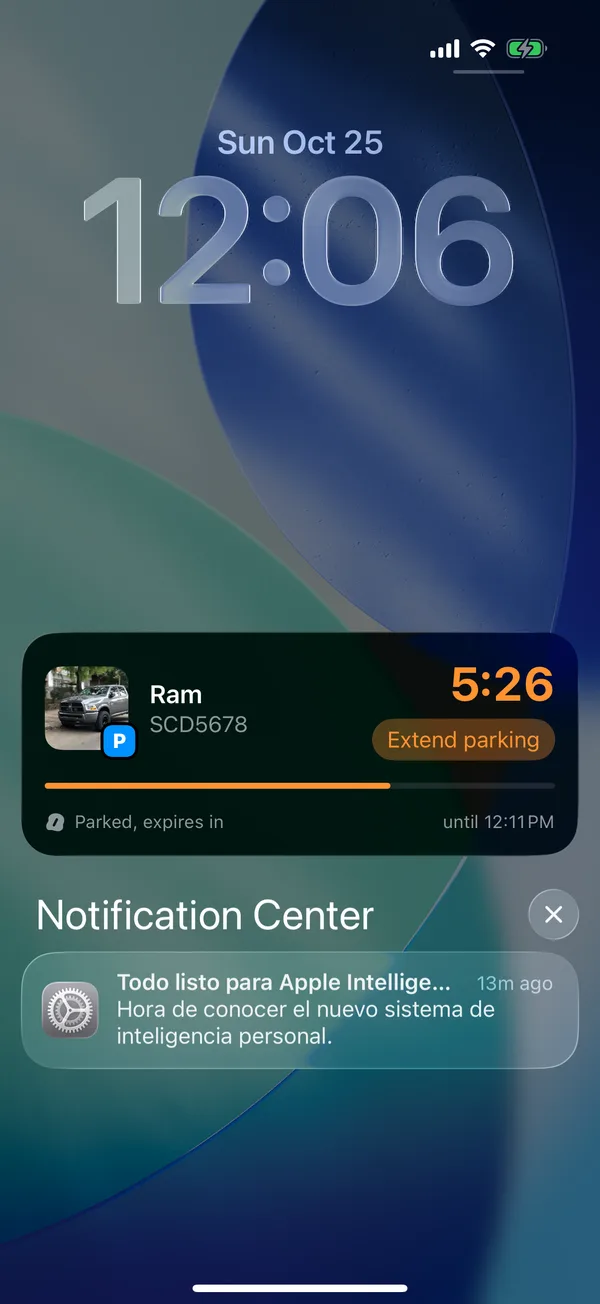
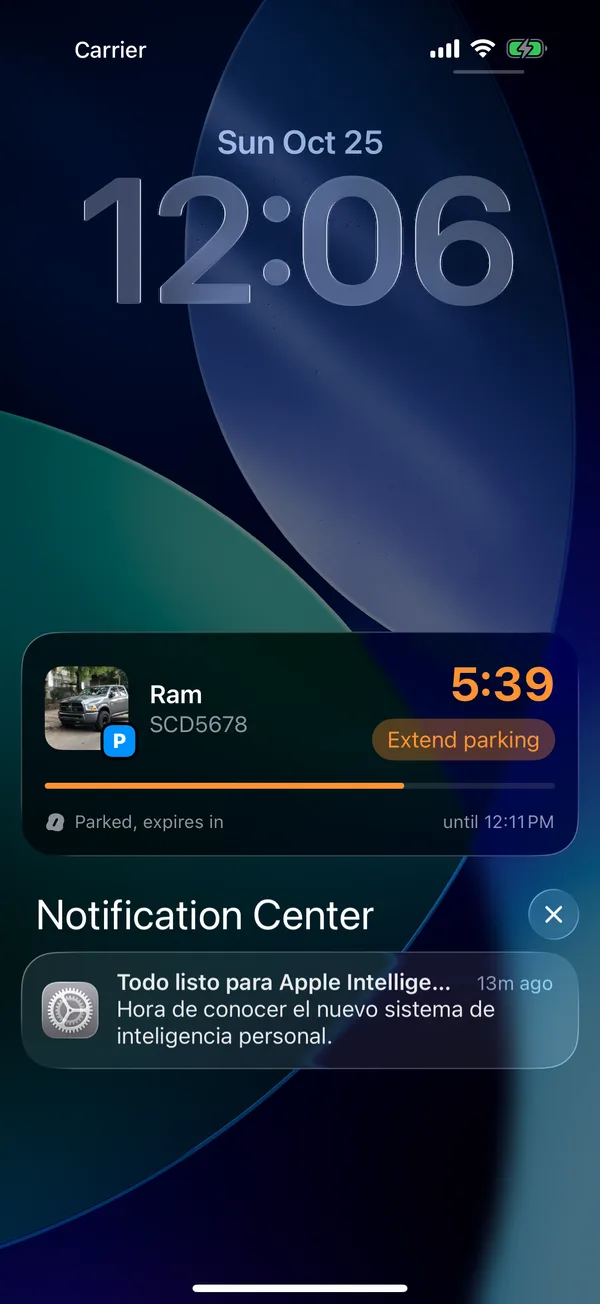
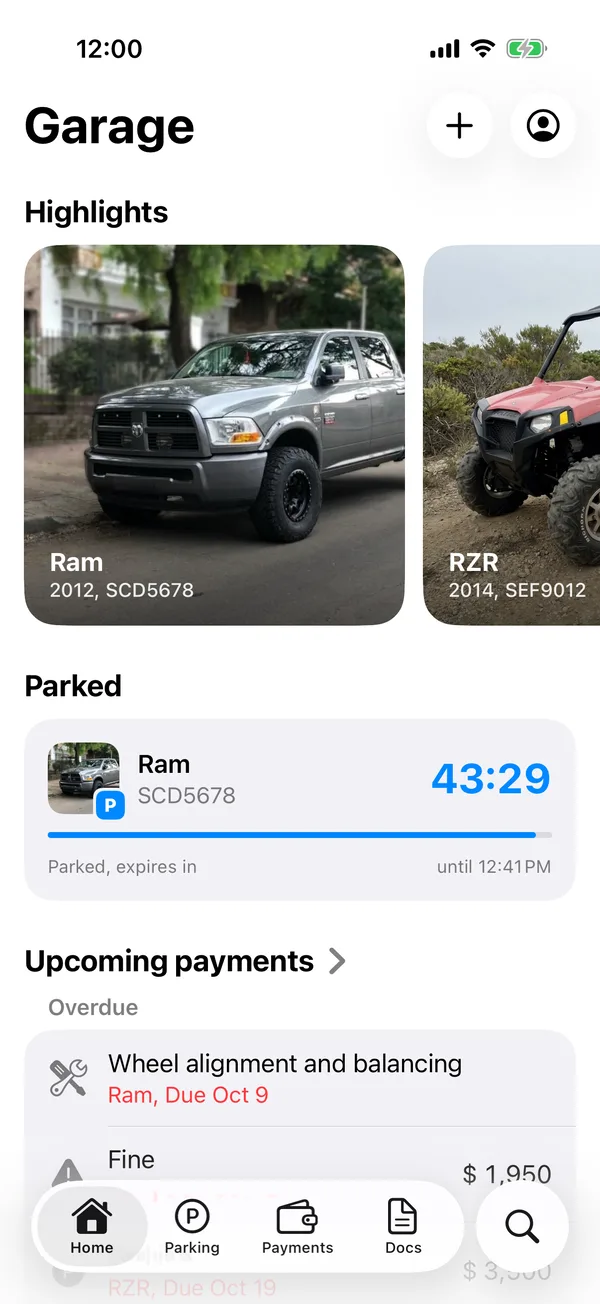
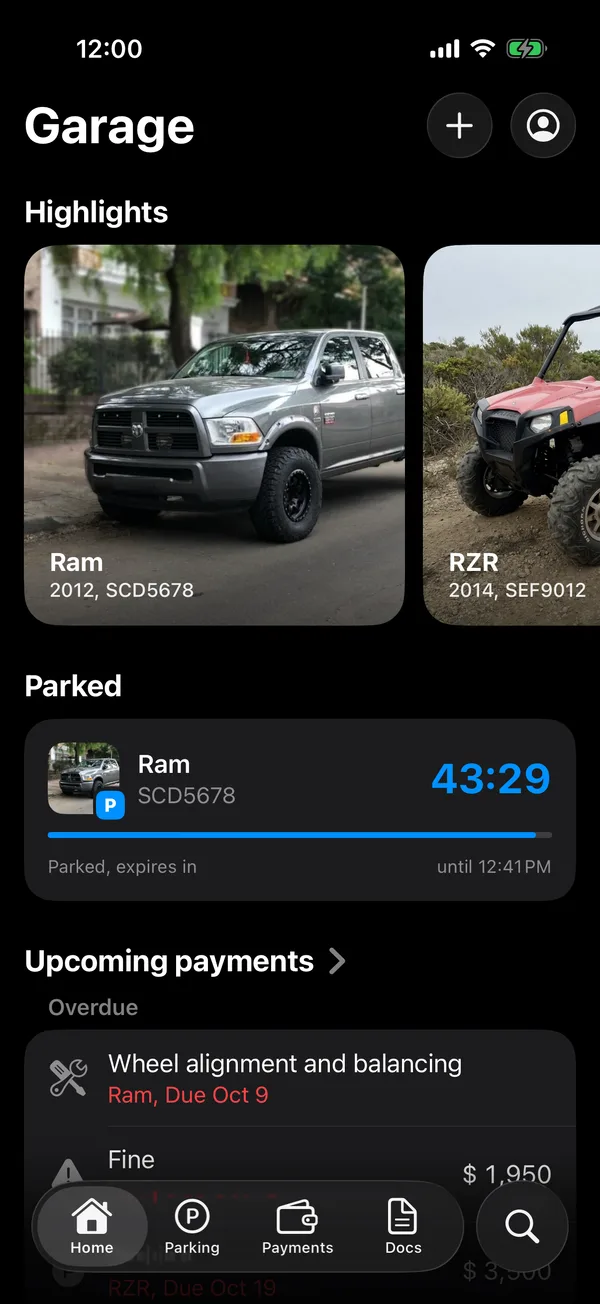
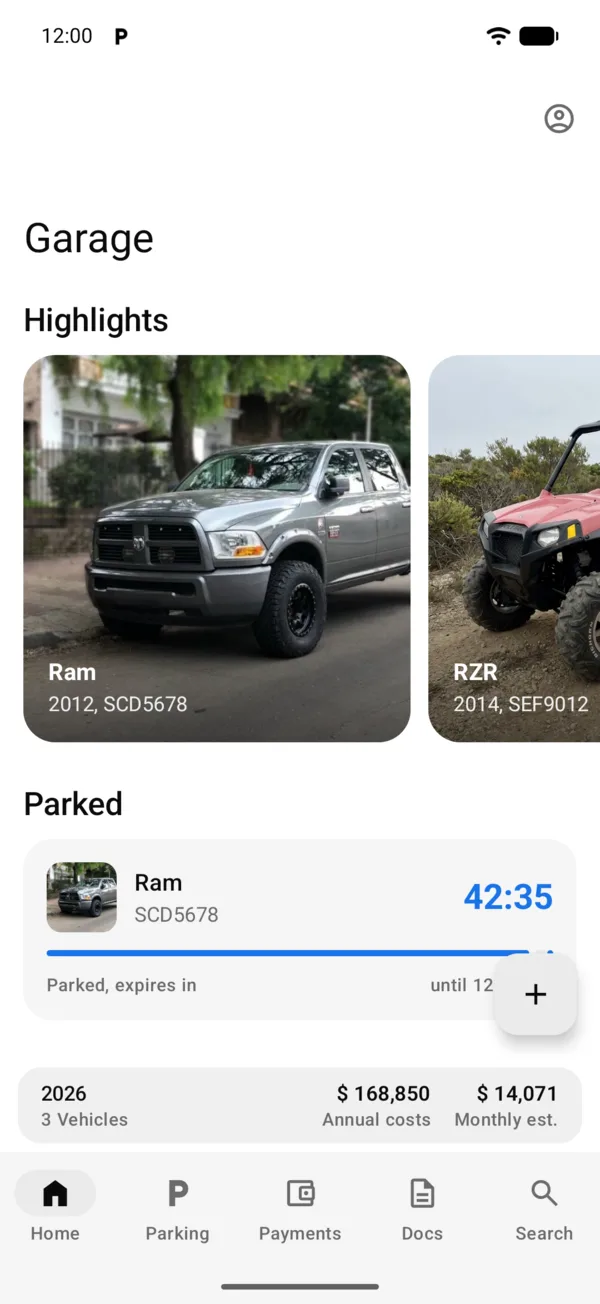
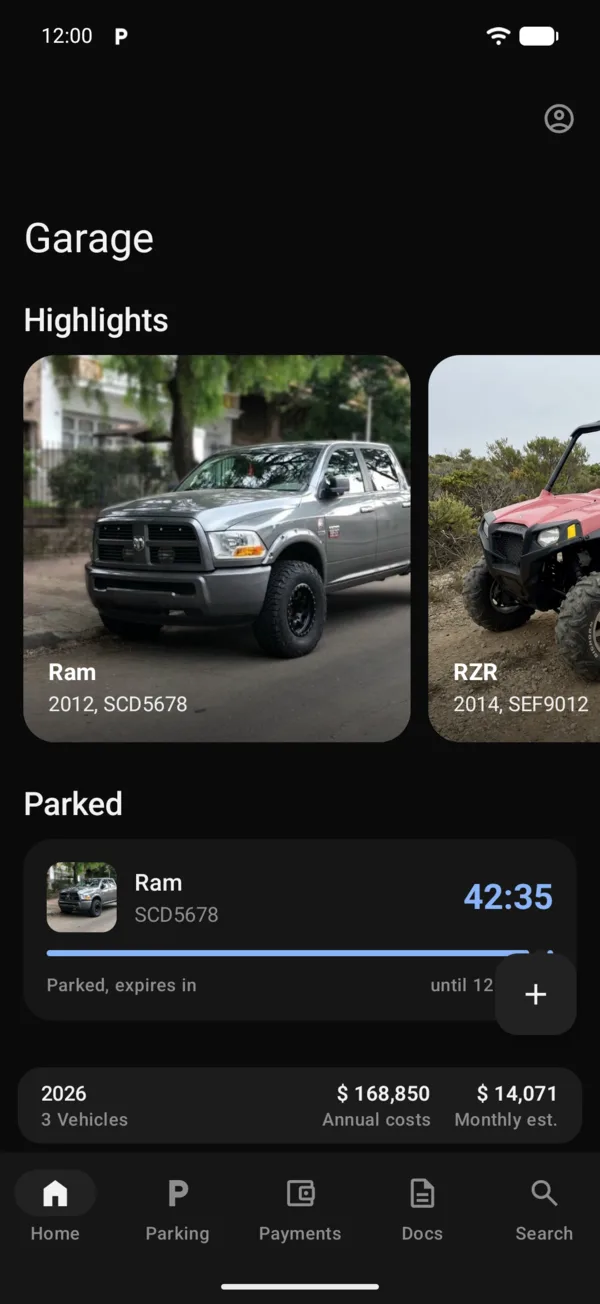
The countdown shows on the Lock Screen while you’re parked and changes colour when time is short.
When parking starts, it appears on the Lock Screen on its own: the vehicle’s photo, its plate, the time left and until when. On iPhones with the Dynamic Island it also shows at the top while you use other apps; press and hold it to see it larger.
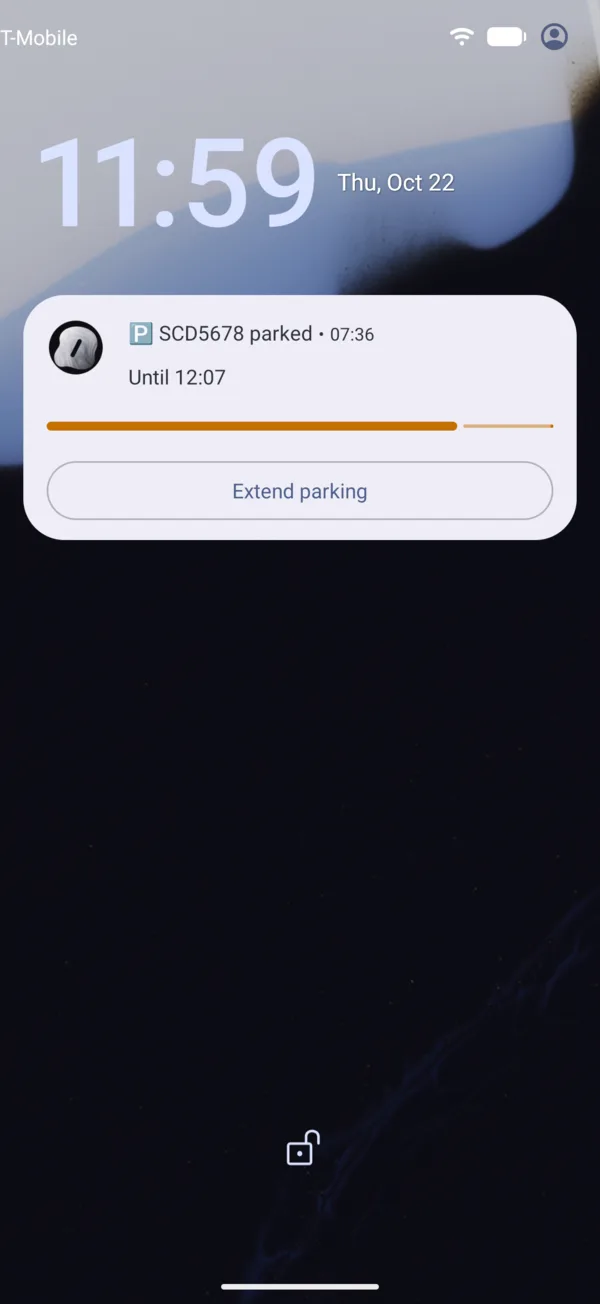
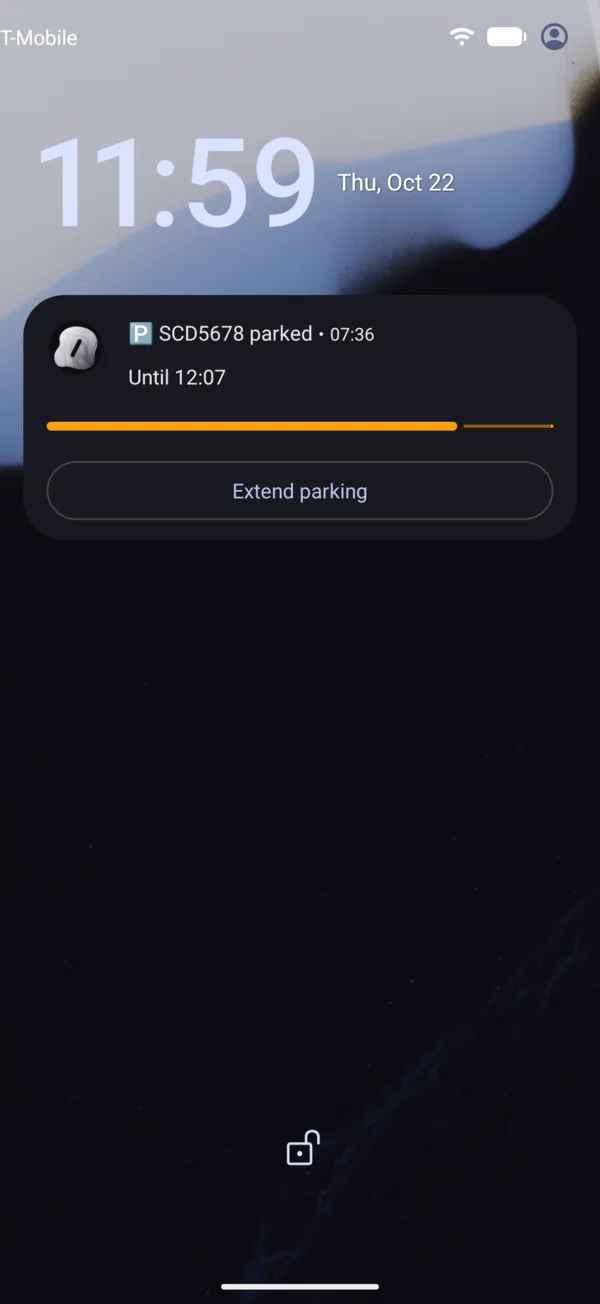
When parking starts, an ongoing notification appears on the lock screen and at the top, in your notifications: the plate, the time left and until when, with a bar that moves along.
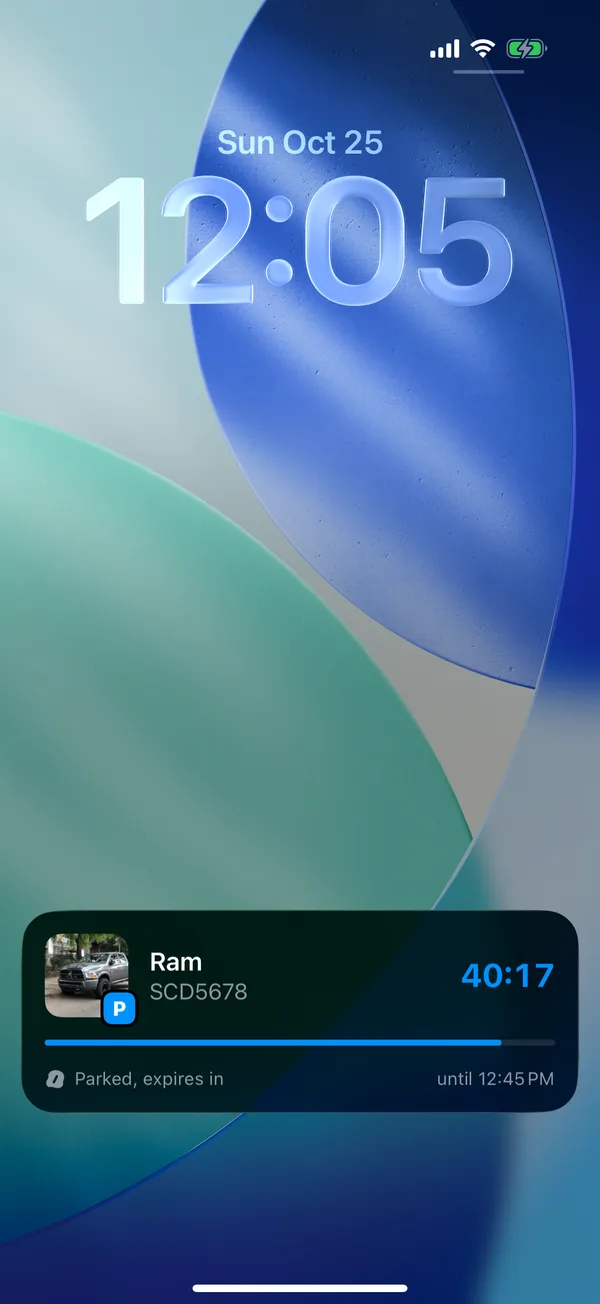
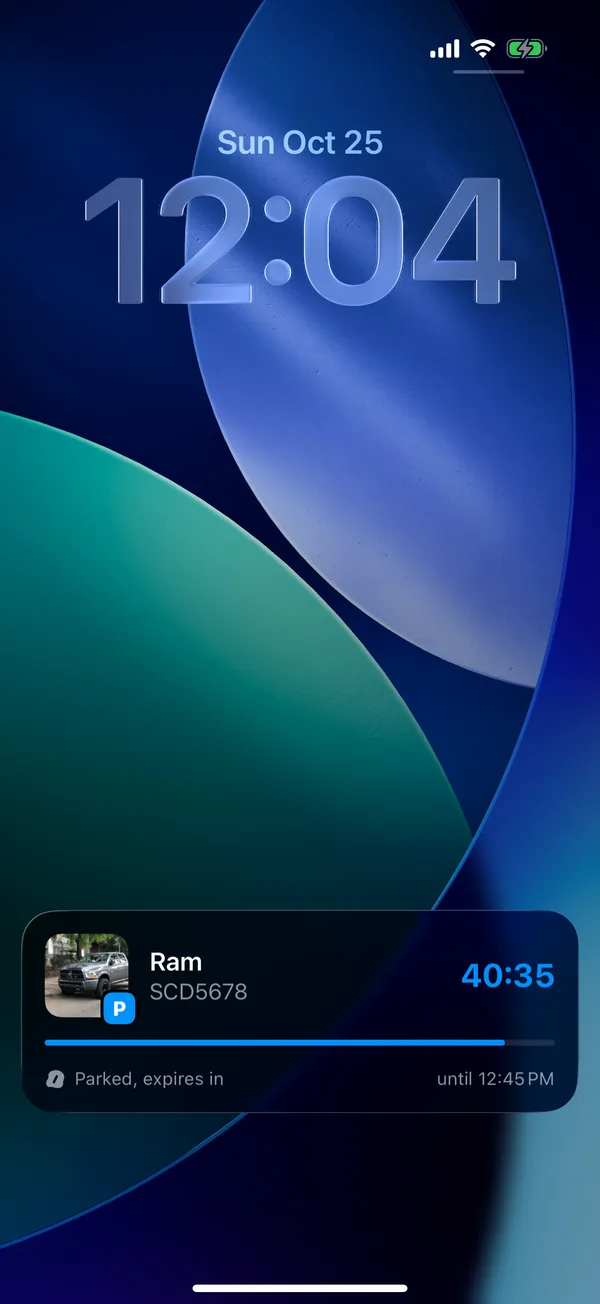
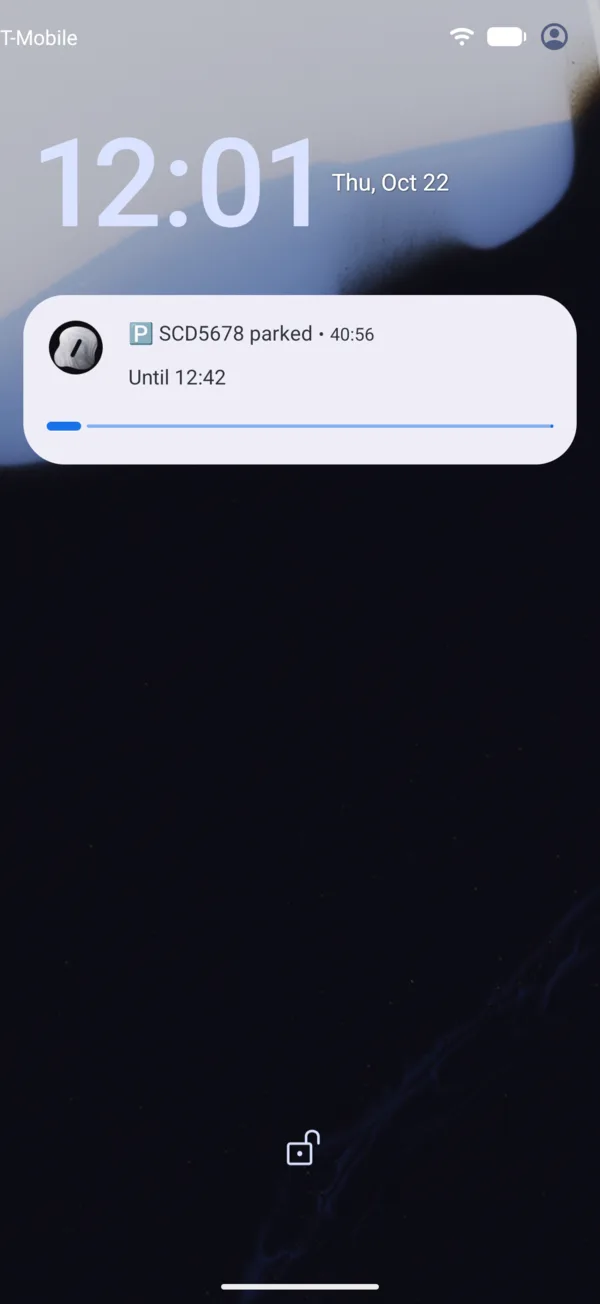
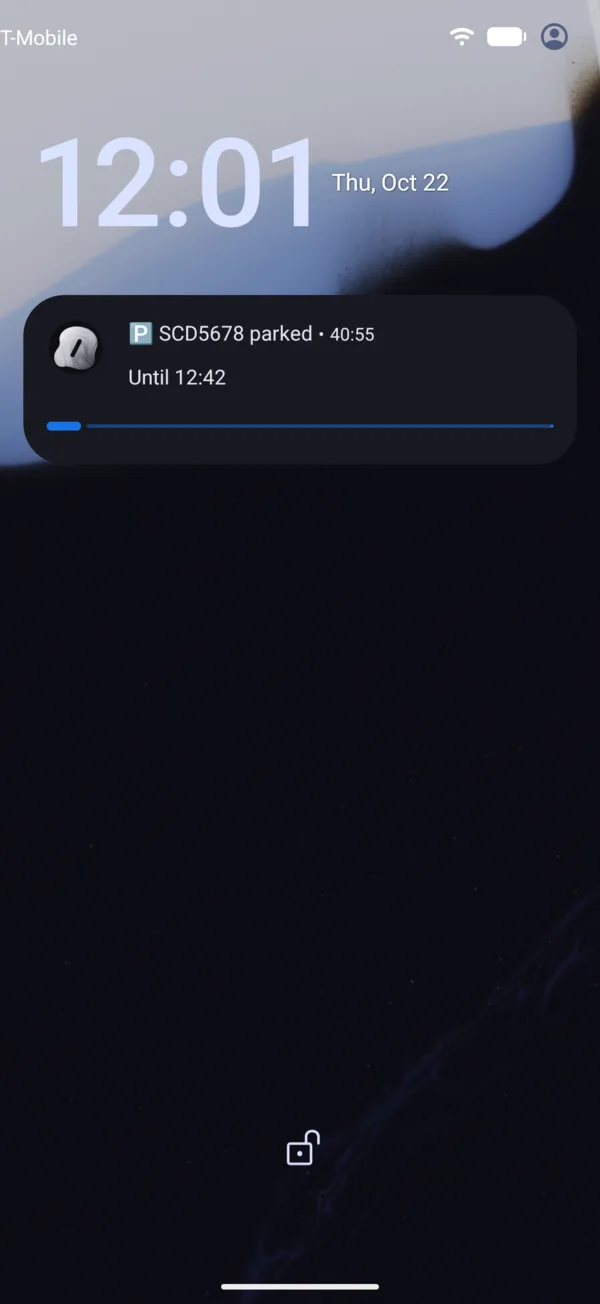
- The time shows in blue. Under 10 minutes it turns orange and Extend parking appears; under 5, red.
- Extend parking opens GarageApp on Extend for that vehicle. You send the SMS yourself, as always.
- If you scheduled the start, it shows in grey with the time it starts, and starts counting on its own.
- Tap it to open the parked vehicle in GarageApp.
- It updates when you extend. It goes away when you send the stop SMS.
- When time runs out it says Parking expired.
If it doesn’t appear
Check that Live Activities are allowed for GarageApp in the iPhone’s Settings. If they’re off, the app shows a notification with the end time instead.
Check that GarageApp’s notifications are allowed in the phone’s Settings, under Apps, GarageApp, Notifications, with Parked now on.
The “expiring soon” reminders are turned on with Parking alerts. See Choose which notifications you get.
On the web
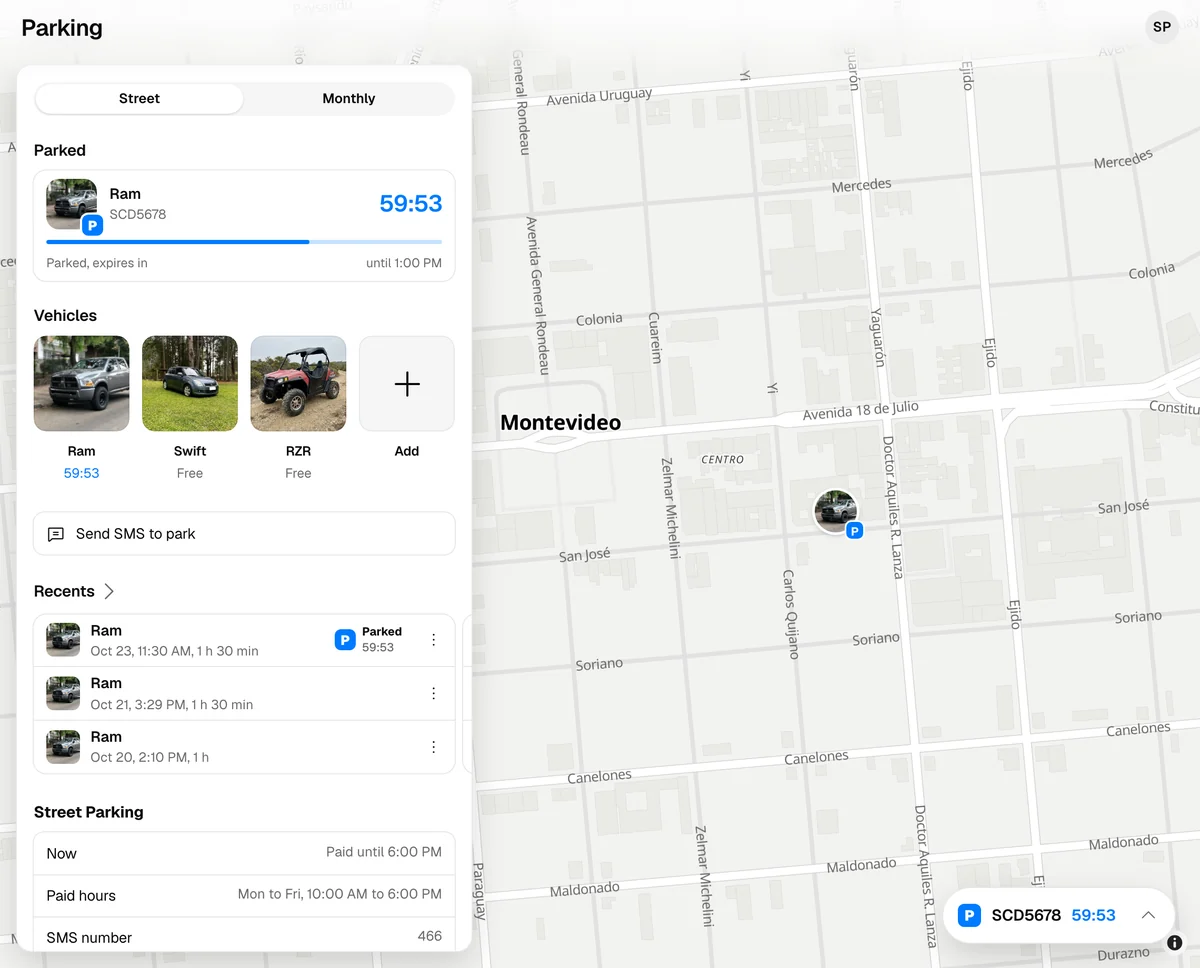
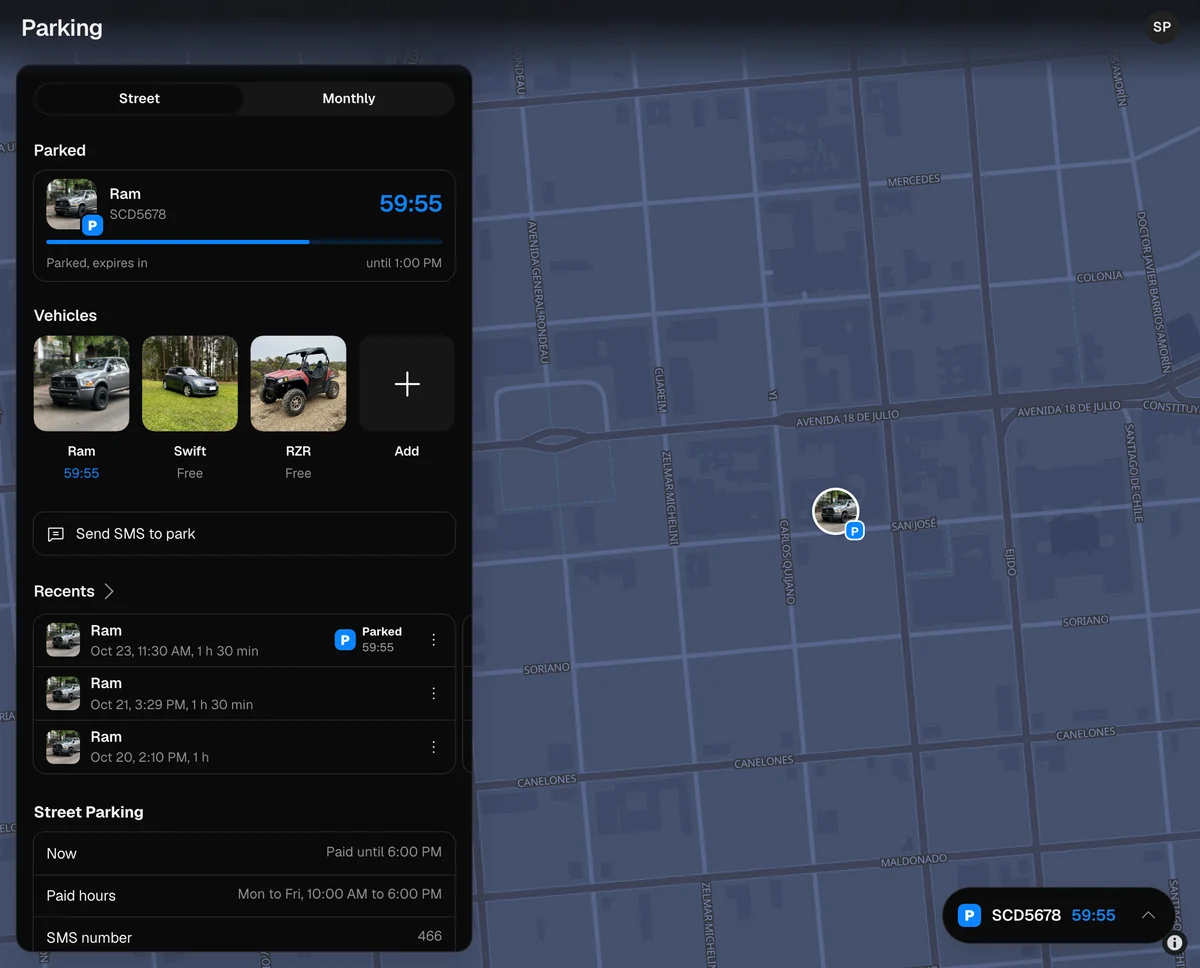
The web has no countdown on the Lock Screen: the time left shows on Home, under Parked, and on the Parking tab. On a computer, what’s parked floats at the bottom right.
More in Street and monthly parking
Didn’t find what you were looking for? Write to [email protected] and we’ll get back to you.