
Lock the app with Face ID
Require Face ID or Touch ID to open GarageApp.
- On Home, tap your account button.
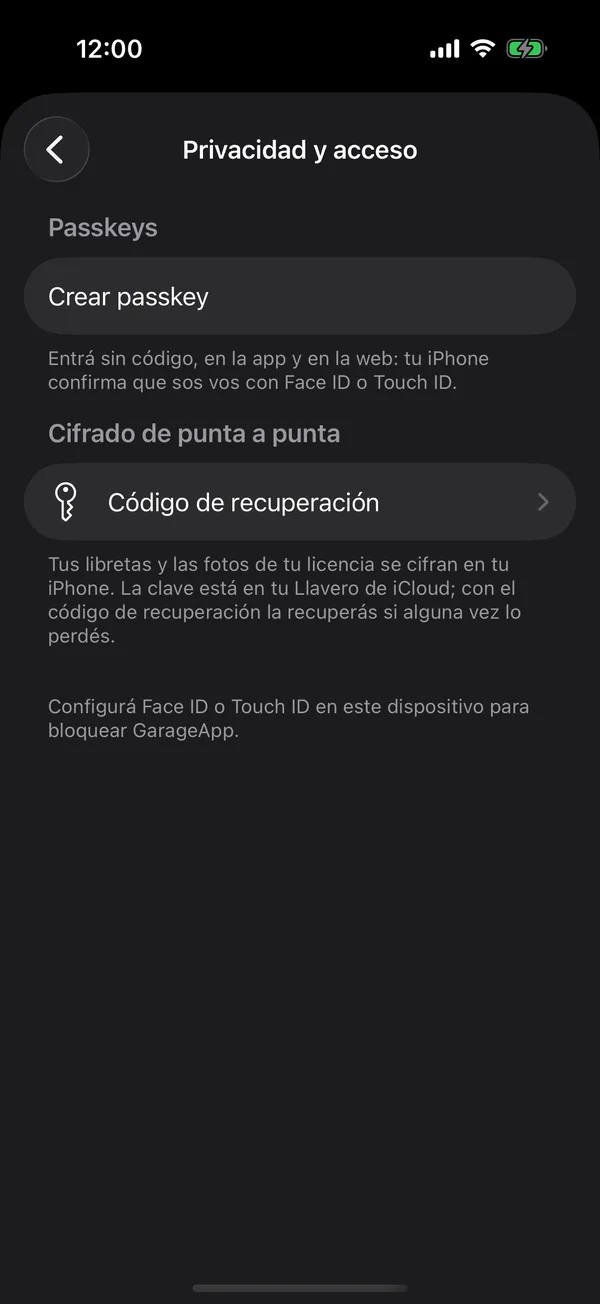
- Tap Privacy & Access.
- Turn on Unlock using Face ID and confirm with your face.
- Under Auto-lock, choose when to ask again: Immediately, After 1 minute, After 5 minutes or Never.
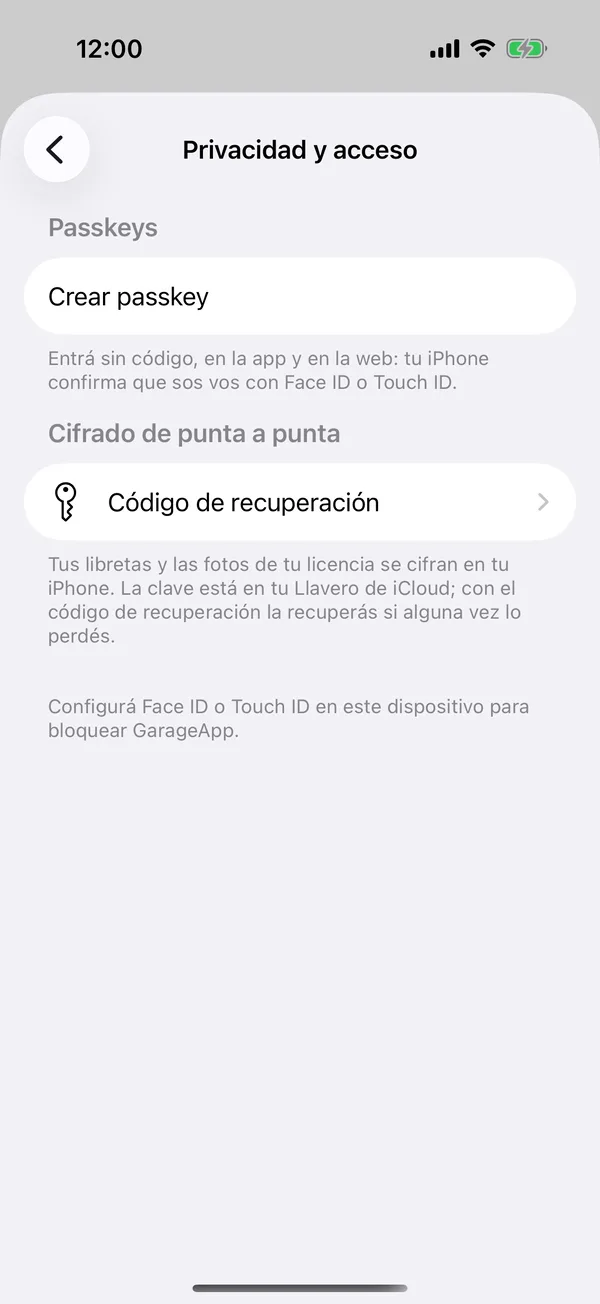
If Face ID fails, tap Unlock to try again or use your iPhone’s passcode. If you can’t get in, Sign out and Contact support appear.
If you don’t see the option, set up Face ID or Touch ID on the iPhone first.
On Android, the option names what your phone has, for example Unlock using your fingerprint, and works the same, with Auto-lock. If it doesn’t show, set up your fingerprint or face unlock on the phone first.
On the web
In the web’s Privacy & Access, the option names what your device has: Touch ID, Windows Hello or your fingerprint. If there’s none, tap Unlock using a passcode and choose a 6-digit code. The code stays in that browser only: if you forget it, sign out and sign in again.
More in Account and settings
Didn’t find what you were looking for? Write to [email protected] and we’ll get back to you.