
Edit your name, username or photo
Your name and photo are what the people you share vehicles with see.
- On Home, tap your account button.
- Tap your name (or Complete your profile). Account opens.
- Under Personal information, tap Full name or Username and type. It’s saved when you leave the field.
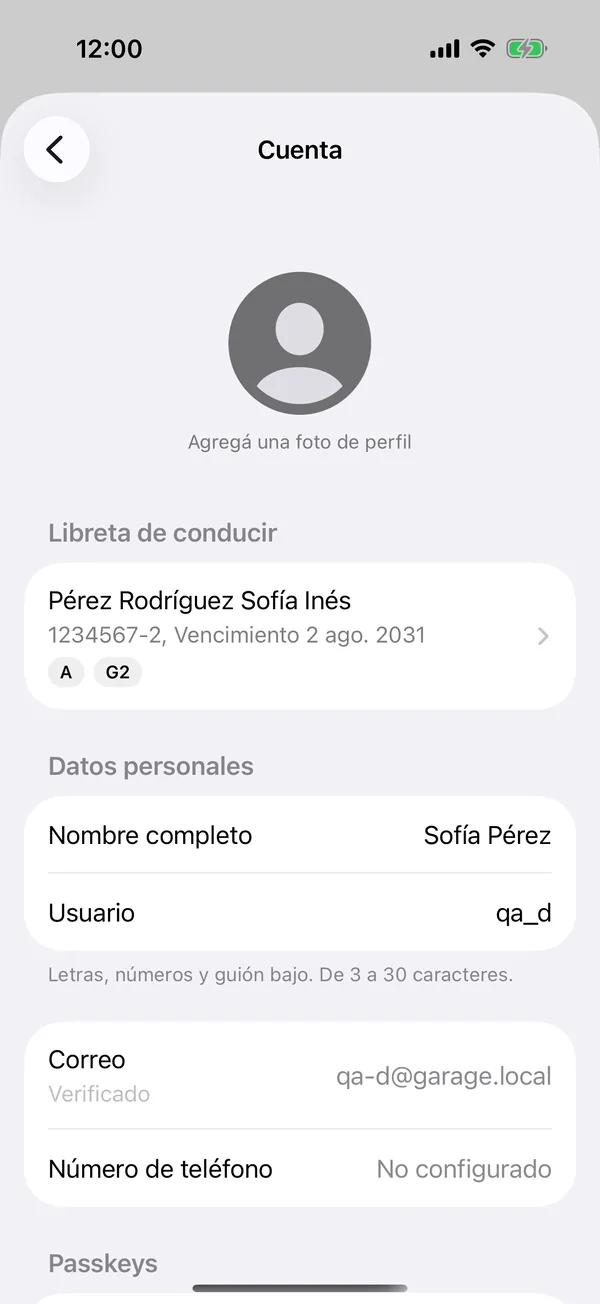
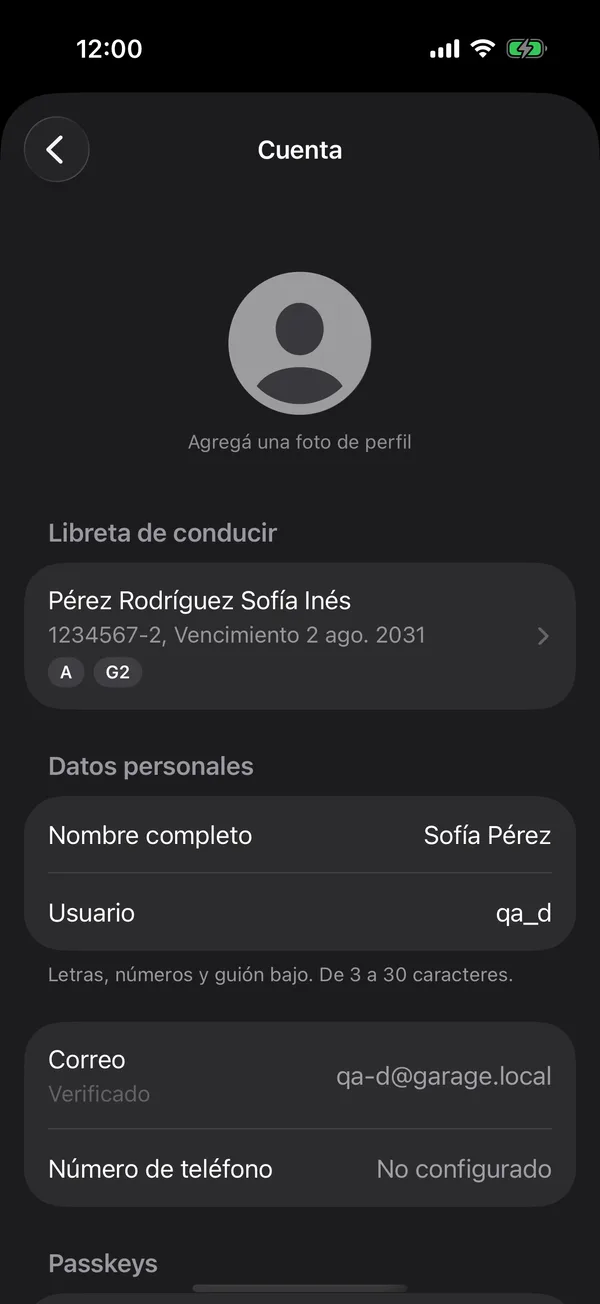
Your Username is how people find you to invite you: letters, numbers and underscores.
Your photo
- Tap the photo at the top.
- Tap Choose from library and adjust the crop.
- Tap Choose.
To take it off, tap the photo, then Remove photo.
Invite someone to GarageApp
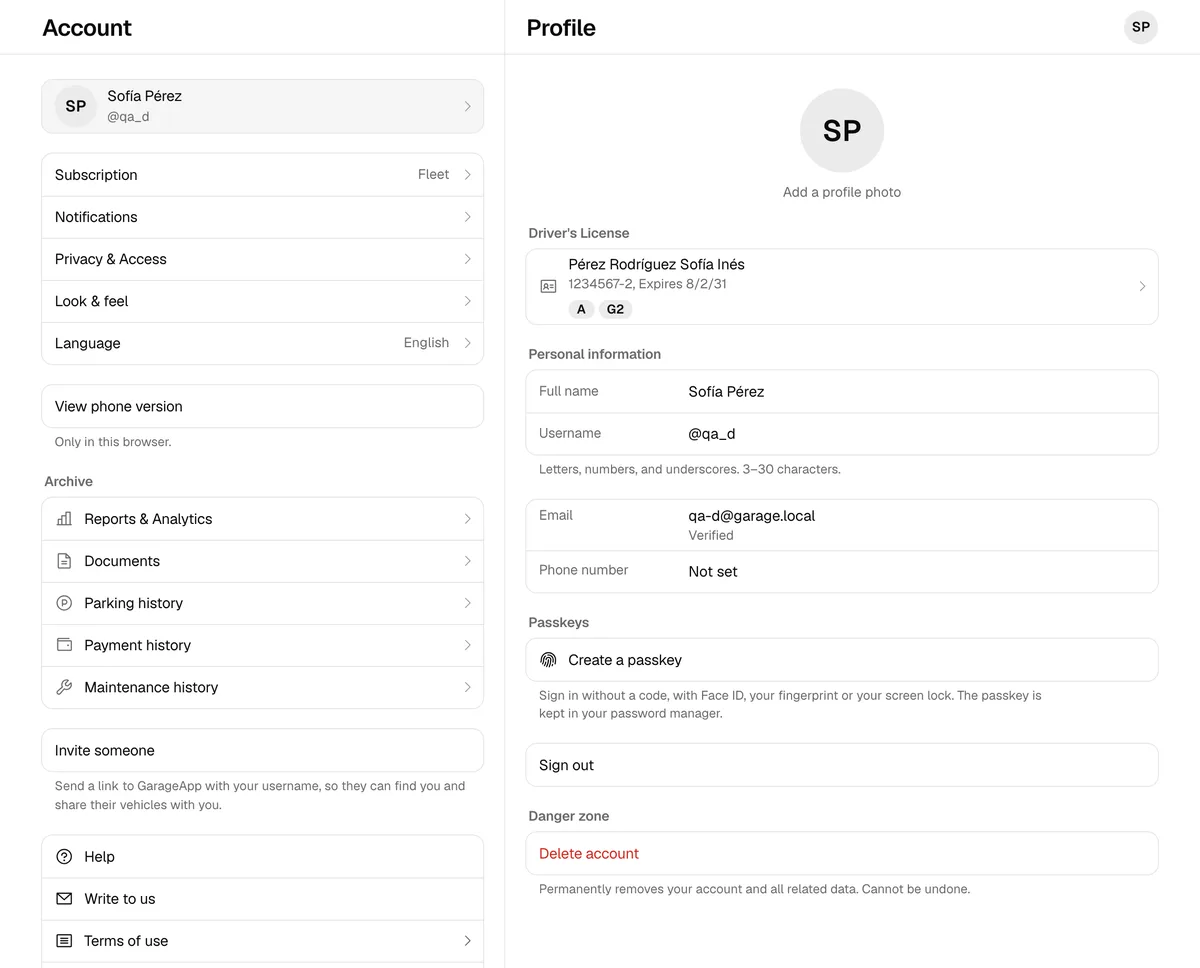
In your account, Invite someone sends a link to GarageApp with your username, so they can find you and share their vehicles with you.
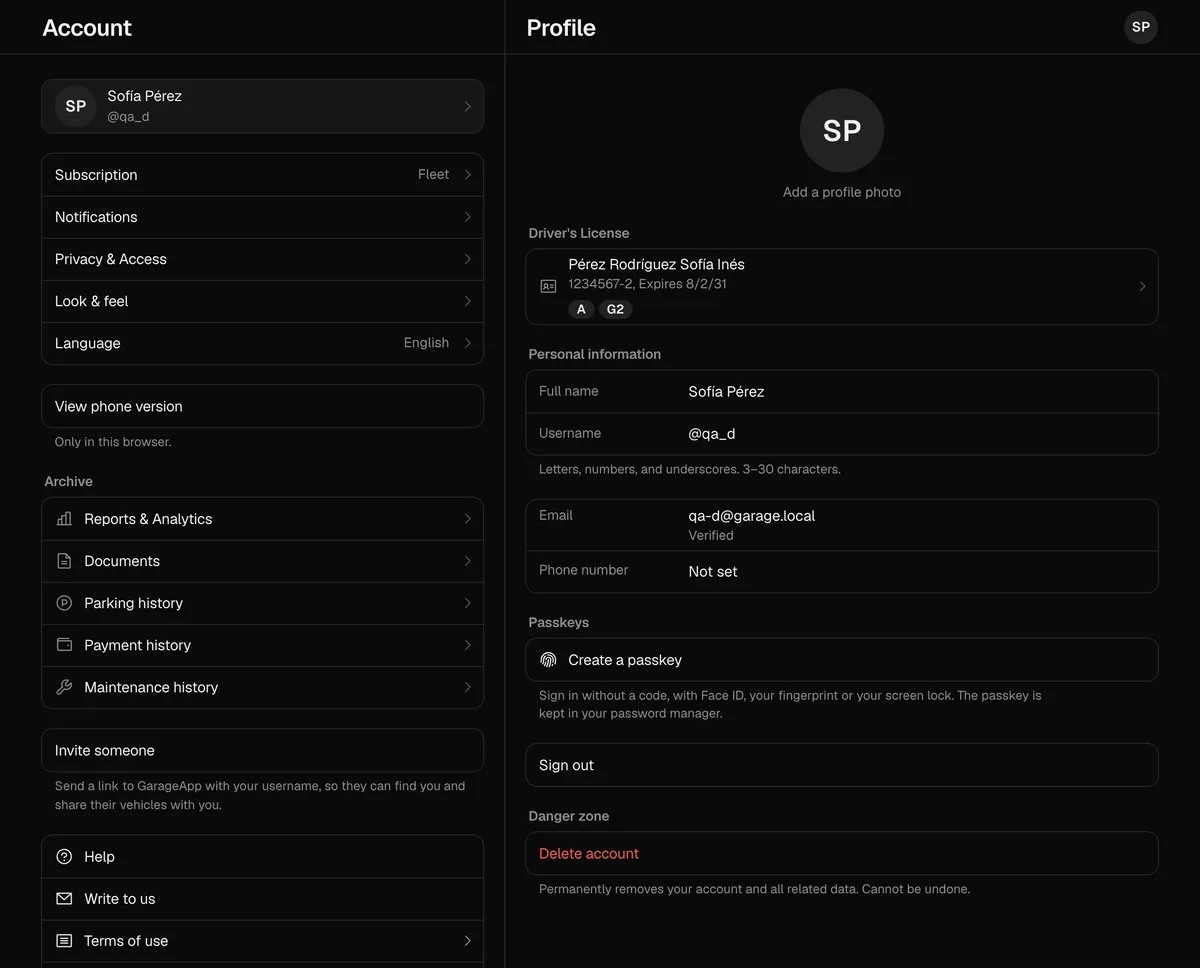
On the web, your name and username are in your account, when you tap your name, under Personal information.
More in Account and settings
Didn’t find what you were looking for? Write to [email protected] and we’ll get back to you.