
Use GarageApp on the web
At app.garageapp.dev, with the same account, on a computer or a phone. It comes with Pro, Fleet and Dealership.
The web is GarageApp in your browser. It has the same vehicles, payments, documents, service and street parking, and the buttons have the same names as in the phone app: each guide’s steps work on the web too.
- Open app.garageapp.dev in your browser.
- Sign in as in the app: Continue with Apple, Continue with a passkey or your email and Send code.
- Type the 6-digit code you receive and tap Verify.
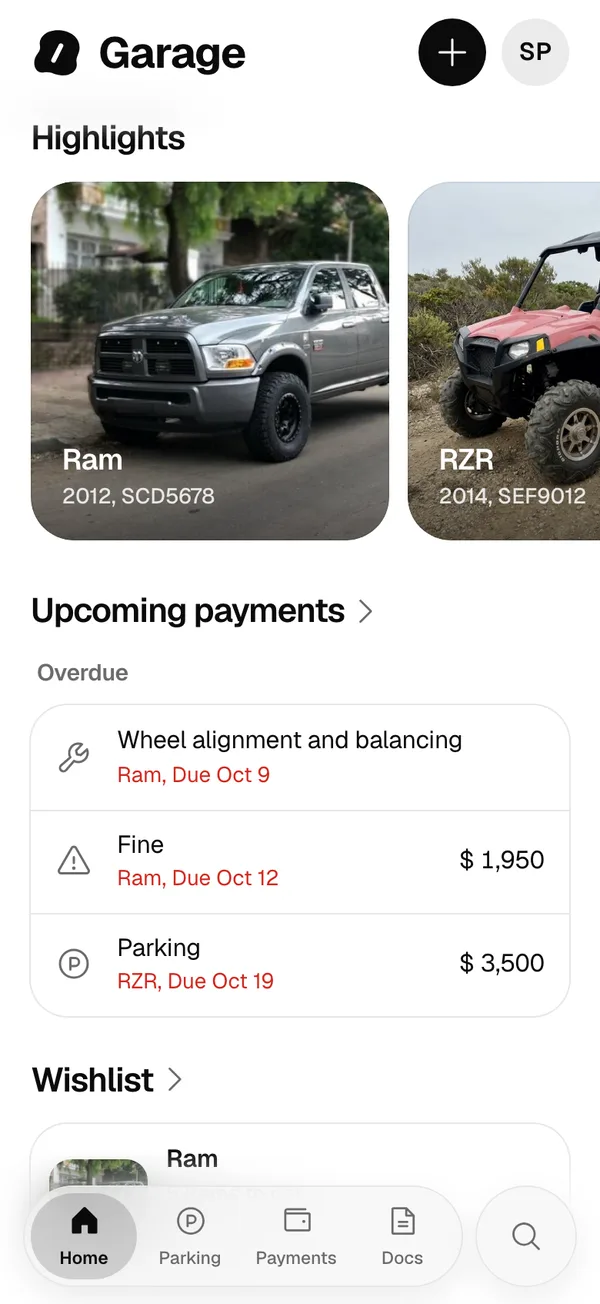
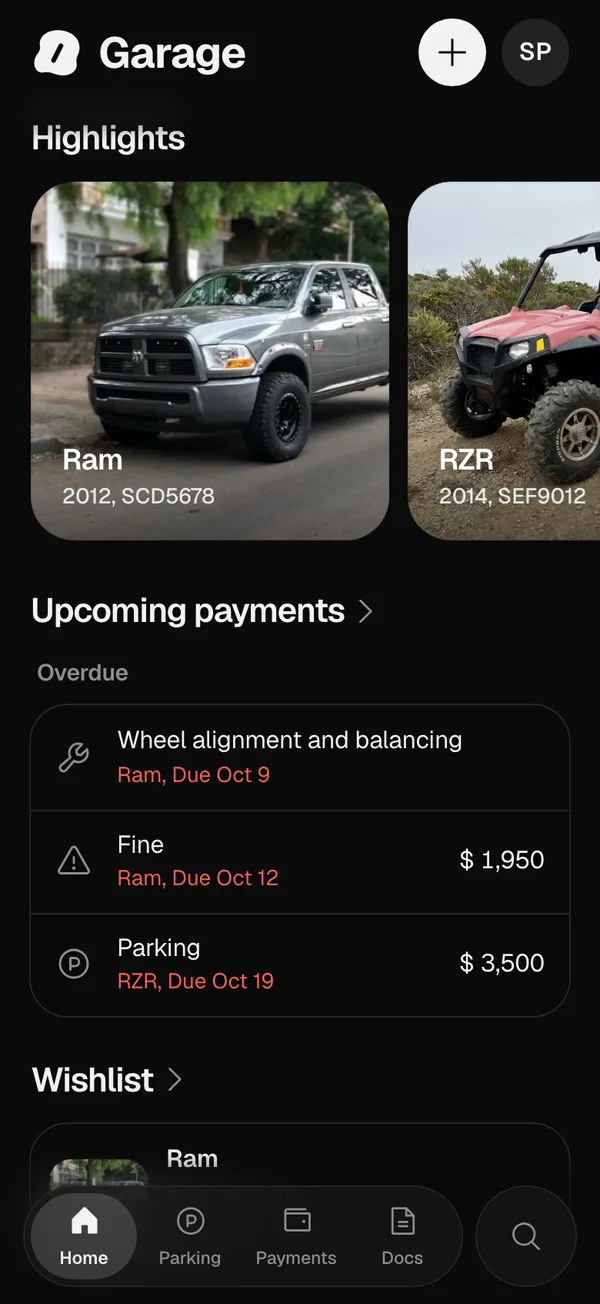
The first time you sign in with a new account, Before you start shows the Terms of Use and the Privacy Policy.
Which plan
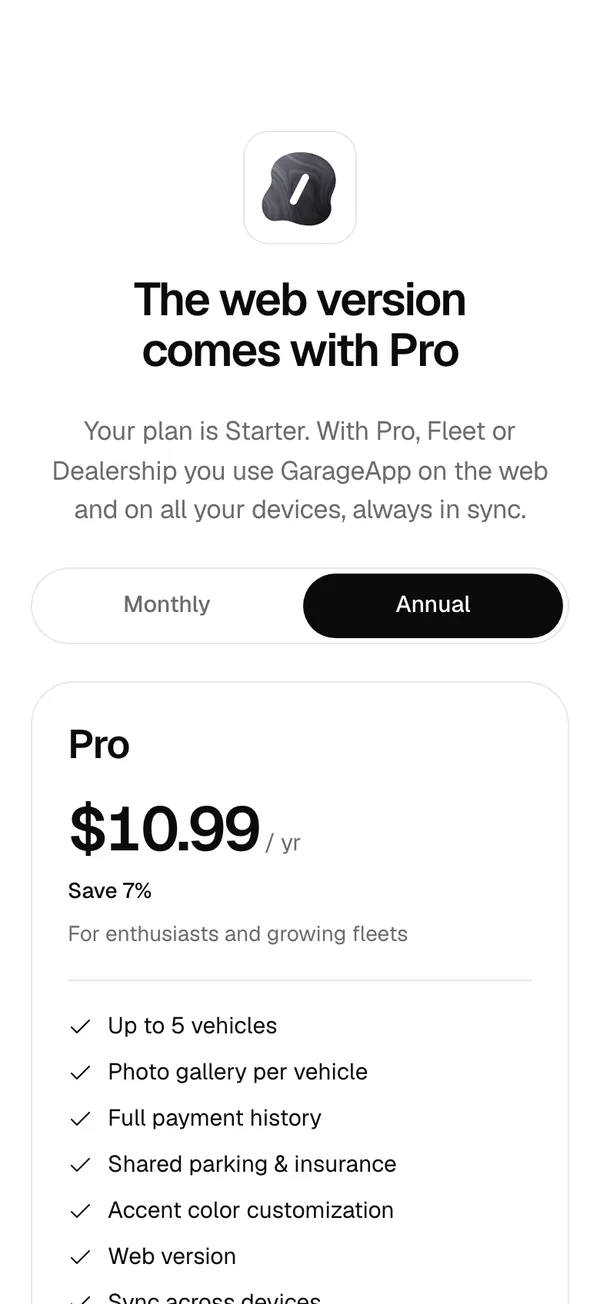
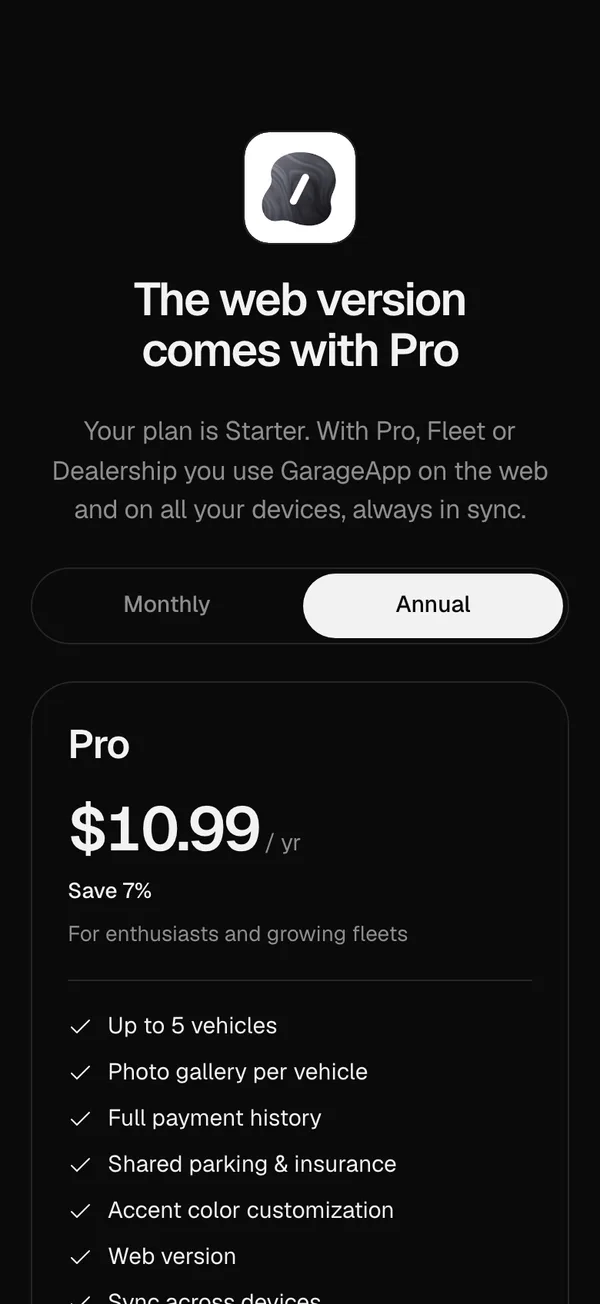
The web comes with Pro, Fleet and Dealership. With Starter, you see The web version comes with Pro with the plans: you can upgrade right there, or tap Go to the app to continue on your phone. See See or change your plan.
On a computer
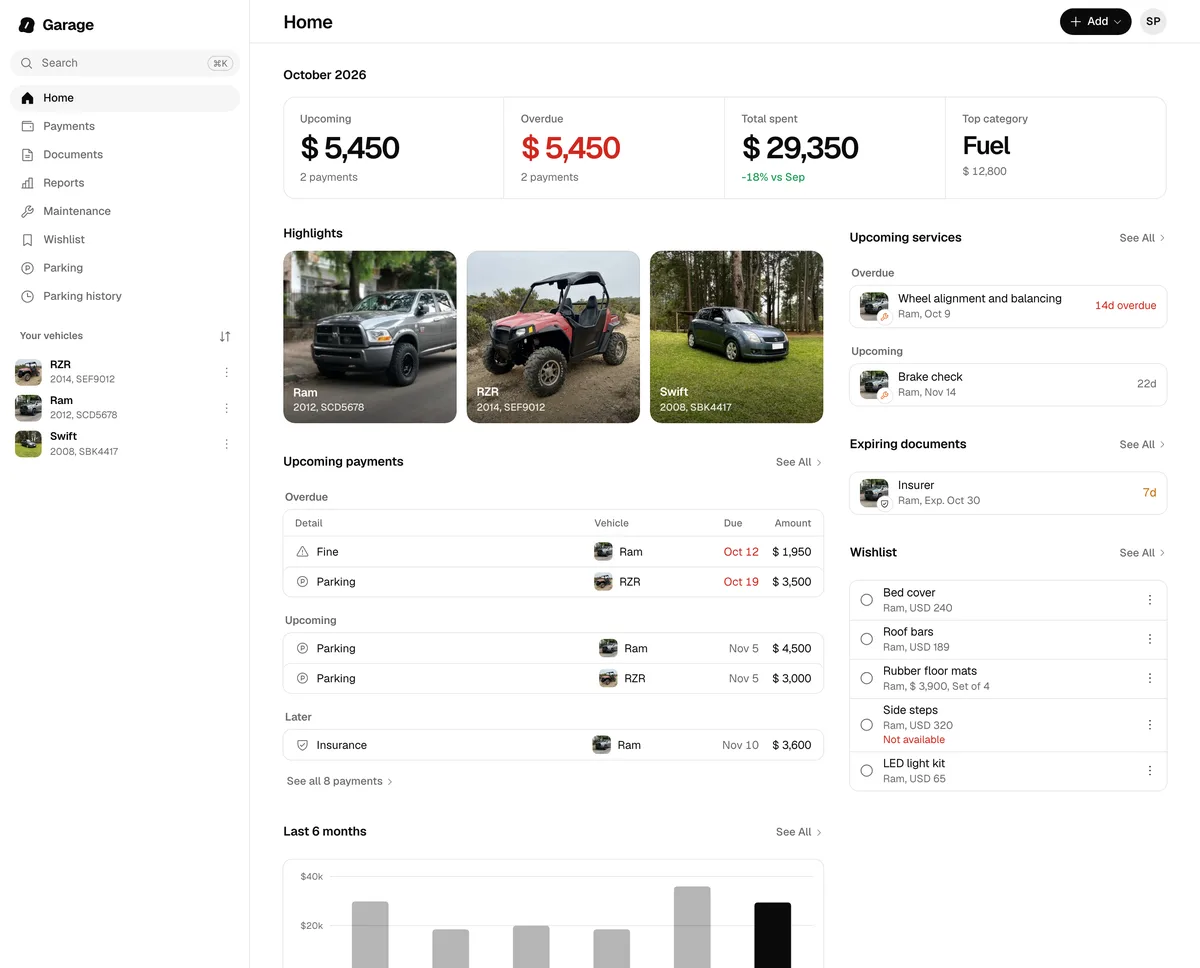
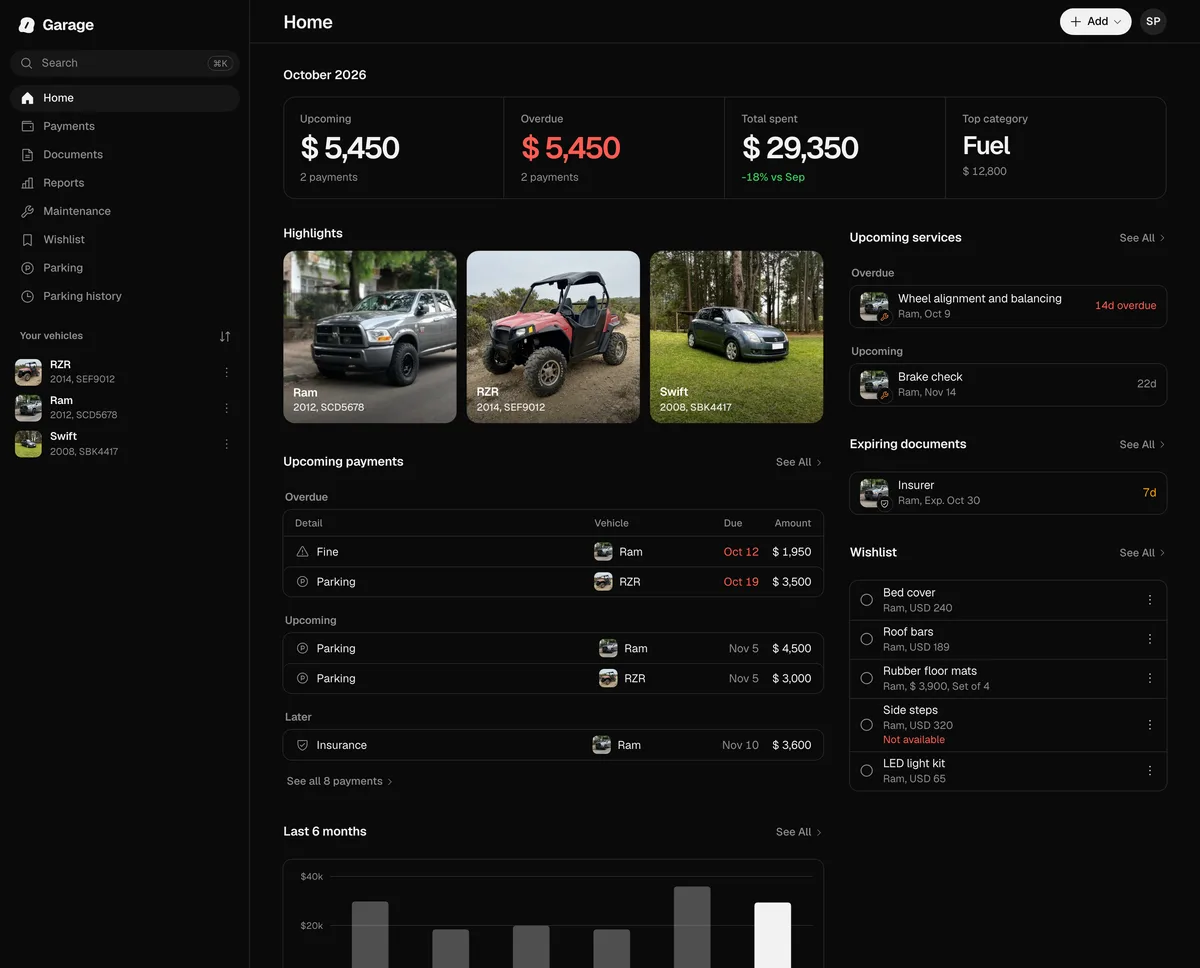
In a wide window, the tabs move to a sidebar with your vehicles, and Payments, Service and Documents show the list and the detail side by side. Each page shows its title at the top and, on the right, always in the same order: its buttons, such as Search, Filter & sort and More, then the main action by name, such as Record payment, Add document, New item or Add, and last your photo, which opens your account. Cmd+K (Ctrl+K on Windows) searches from any page, and a right click opens a row’s menu.
What the web does its own way
- Scanning: the registration card, the policy and the driver’s license are read in the browser, with the camera or from a photo. The QR code on the back of the license is read in browsers that read codes, such as Chrome.
- Street parking: Send opens Messages with the SMS ready, so you use it from your phone. As the browser can’t tell whether the message went out, the web asks Did you send the SMS?. Tap Yes, I sent it to start the countdown.
- Wishlist: Find in stores opens each store in another tab. Copy the product’s link and paste it in New item.
- Lock: the web uses what your device has, such as Touch ID, Windows Hello or your fingerprint, or a 6-digit code. See Lock the app with Face ID.
- Policies: in the viewer you can Download a policy’s document, and Share it if the browser allows it.
- Swiping: instead of swiping a row, open its ⋯ menu.
- New versions: when we publish a new version, the web shows A new version is available. Tap Update to load it, or What’s new to see what changed. It never reloads on its own.
What stays on the phone
Apple Wallet and Google Wallet, the countdown on the Lock Screen, adding products from other apps’ Share menu, your documents’ protection in screenshots, Redeem Code and Restore purchases belong to the iPhone and Android apps and aren’t on the web.
To continue on your phone from the web, tap Go to the app: on a phone it opens GarageApp, and on a computer it shows a QR code to scan with your phone’s camera.
More in The web and syncing
Didn’t find what you were looking for? Write to [email protected] and we’ll get back to you.