
Add your driver’s license to Apple Wallet or Google Wallet
Your name, ID number, categories with their dates and the back’s QR, in Wallet.
- Open your driver’s license: tap it on Documents.
- Tap the Add to Apple Wallet button under the card.
- On Apple’s sheet, tap Add.
- Open your driver’s license: tap it on Documents, then View.
- Tap the Add to Google Wallet button under the card.
- Confirm on the Google Wallet sheet.
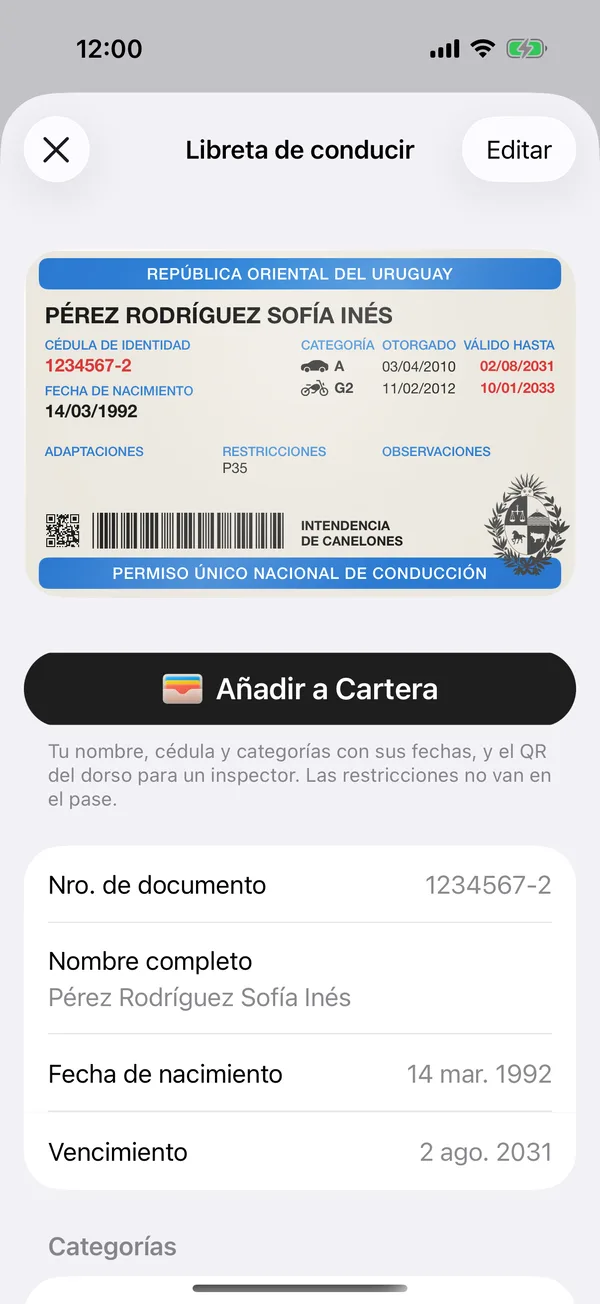
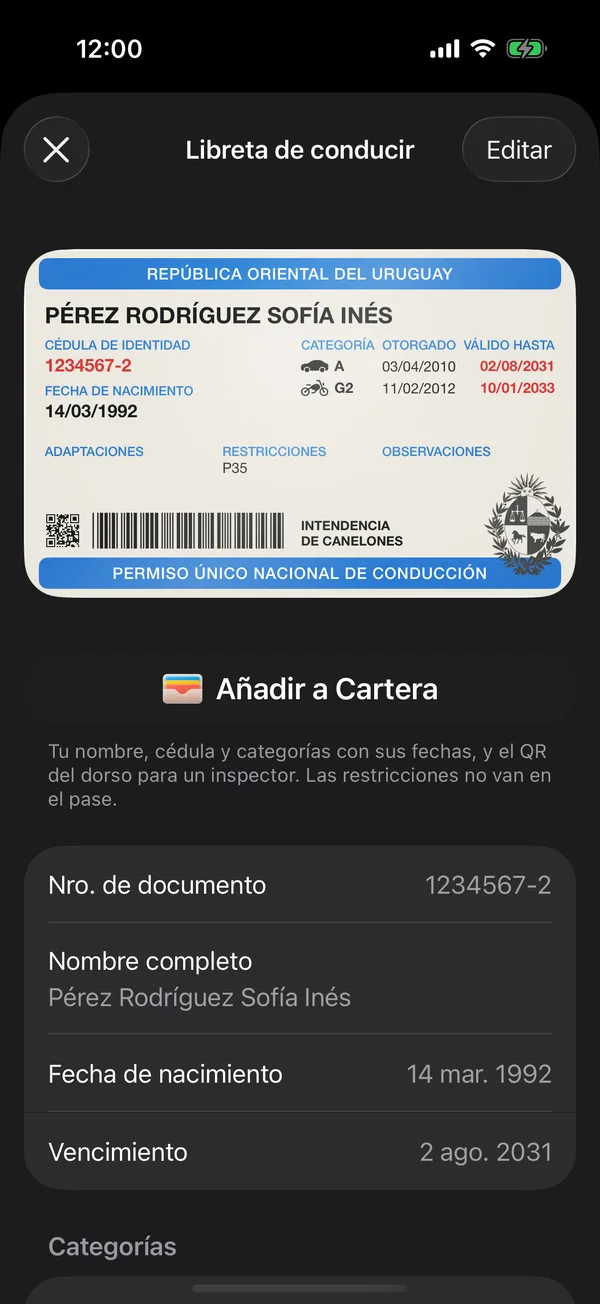
It’s also in the card’s menu on Documents: touch and hold it on the iPhone, or tap it on Android.
The pass holds your name, your ID number, the categories with their dates and the back’s QR for an inspector. The restrictions stay out of the pass.
The QR on the back
Without the QR on the back the pass isn’t valid, so the app first opens your license’s QR on the phone, and only then creates the pass.
- If it says Restore your documents’ key, this iPhone doesn’t have the key to your encrypted documents yet. Restore it with your recovery code or a passkey, and the license is added on its own. See End-to-end encryption.
- If it says Your license has no QR, tap Scan again and scan the back.
- If it says Restore your documents’ key, this phone doesn’t have the key to your encrypted documents yet. Restore it with your recovery code or a passkey, then tap Add to Google Wallet again. See End-to-end encryption.
- If it says Your license has no QR, tap Scan again and scan the back.
Once added, the button says View in Wallet.
Wallet is in the iPhone and Android apps; it doesn’t appear on the web.
Related tools
More in Documents
Didn’t find what you were looking for? Write to [email protected] and we’ll get back to you.