
Add your driver’s license
Scan the front and the back. Each category keeps its own expiry date and we remind you before it.
- On Home, tap Add your driver’s license. It’s also on Documents and in your account, under Driver’s License.
- Tap Scan license and scan the front. Then the app asks for the back. You can also add each side under Front and Back, with Take photo or Upload from photo library.
- On Review, check ID number, Full name, Date of birth and Expires.
- Under Categories, check each category with its date. If one is missing, tap Add category.
- If you like, fill in Department, Restrictions, Adaptations and Observations.
- Tap Save.
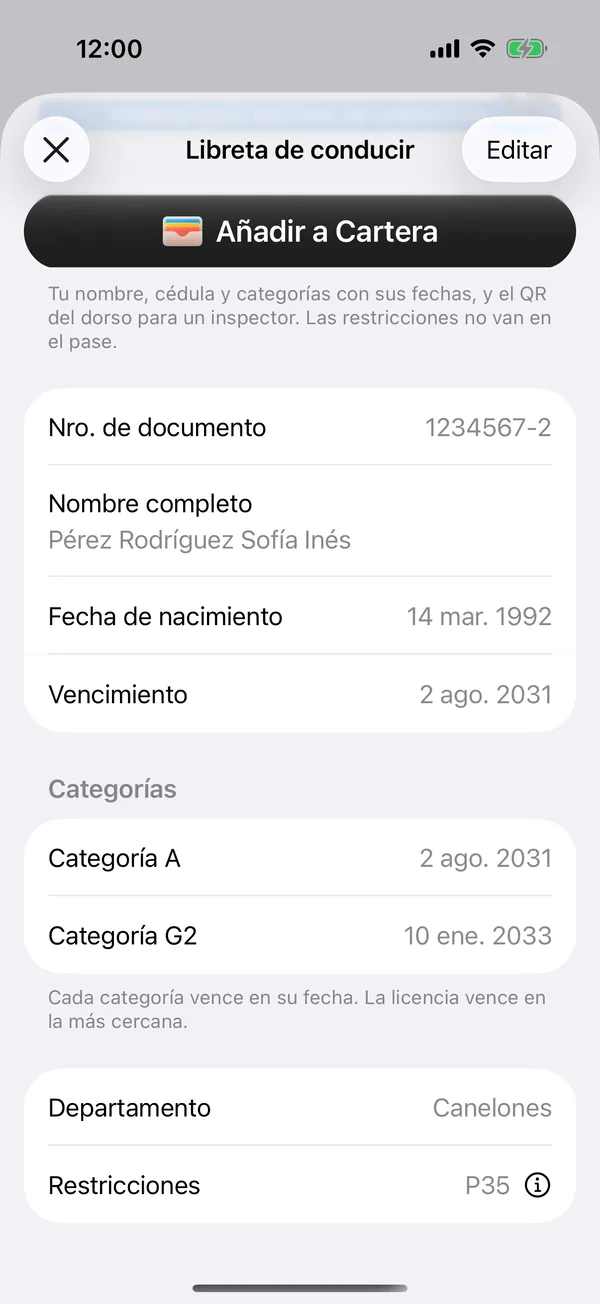
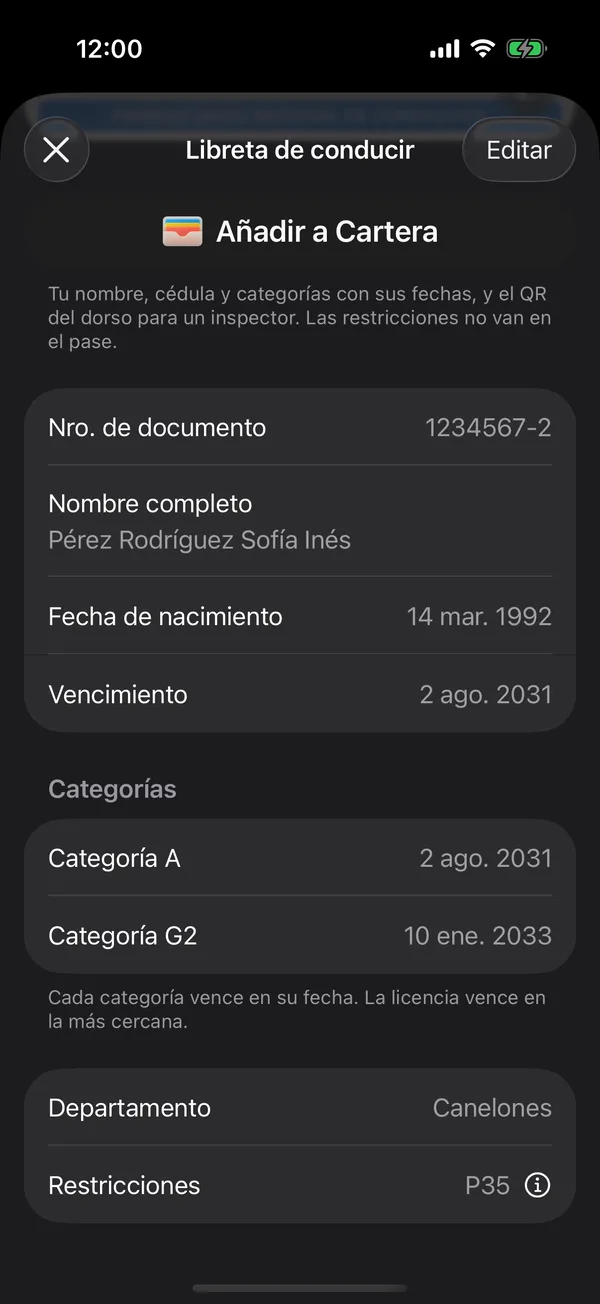
Your license is first on Documents. Each category is valid until its own date, and the license expires on the earliest one.
The codes and the QR
- If Restrictions has codes like P35, tap (i) to see What the codes mean.
- If the QR on the back was read, a small QR appears on the card. Tap it to open the Permit QR code large, at full brightness, for an inspector to scan.
Your license photos are encrypted on your phone before they’re uploaded: only you can see them. See End-to-end encryption.
We remind you before it expires. That alert is turned on with Driver’s license expiry in notifications.
On the web
On the web, the driver’s license is in your account. Scan license asks for the front and then the back, with the camera or from a photo, and they’re read in the browser. The QR code on the back is read in browsers that read codes, such as Chrome.
Related tools
More in Documents
Didn’t find what you were looking for? Write to [email protected] and we’ll get back to you.