
Add the registration card to Apple Wallet or Google Wallet
Show your vehicle’s registration card from Wallet, without opening the app, on iPhone or Android.
- Open the vehicle and tap More (⋯) at the top right.
- Tap Add to Apple Wallet.
- On Apple’s sheet, tap Add.
- Open the vehicle and tap More (⋮) at the top right.
- Tap Add to Google Wallet.
- Confirm on the Google Wallet sheet.
It’s also on the Documents tab: touch and hold the card on the iPhone, or tap it on Android, and choose Add to Apple Wallet or Add to Google Wallet.
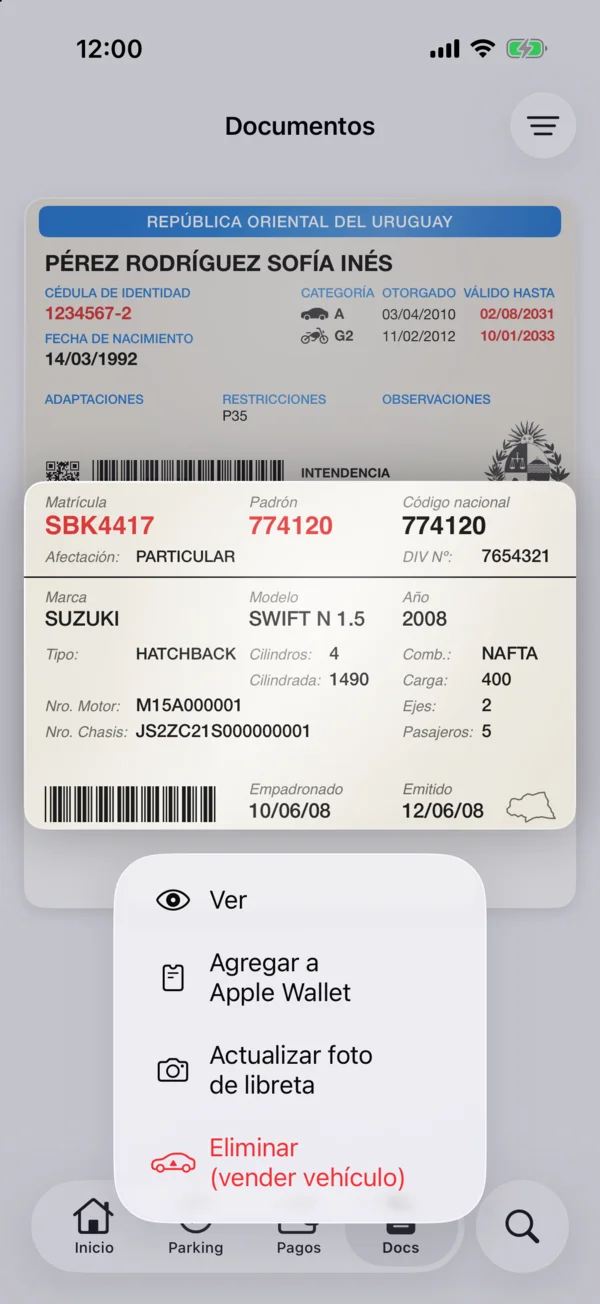
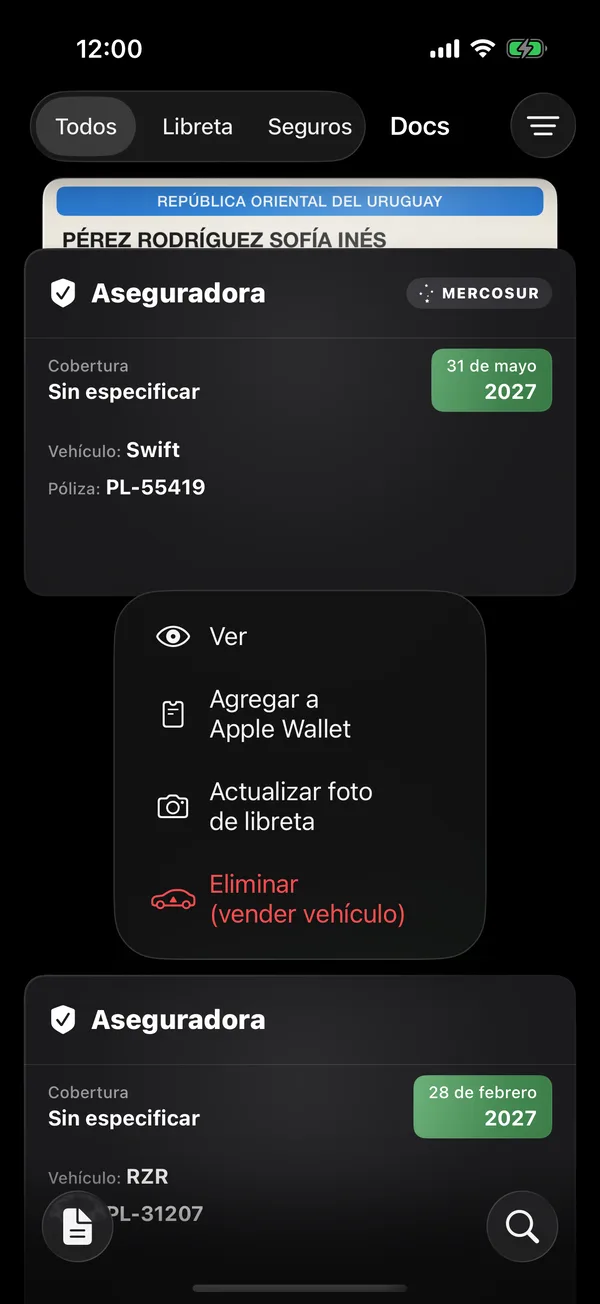
Once added, the option says View in Wallet and opens the card in Wallet.
The pass shows the same as the card in the app: only the owner and admins see the holder and their ID number.
If the app says Couldn’t create the pass, check your connection and try again.
Wallet is in the iPhone and Android apps; it doesn’t appear on the web.
Related tools
More in Documents
Didn’t find what you were looking for? Write to [email protected] and we’ll get back to you.