
The registration card
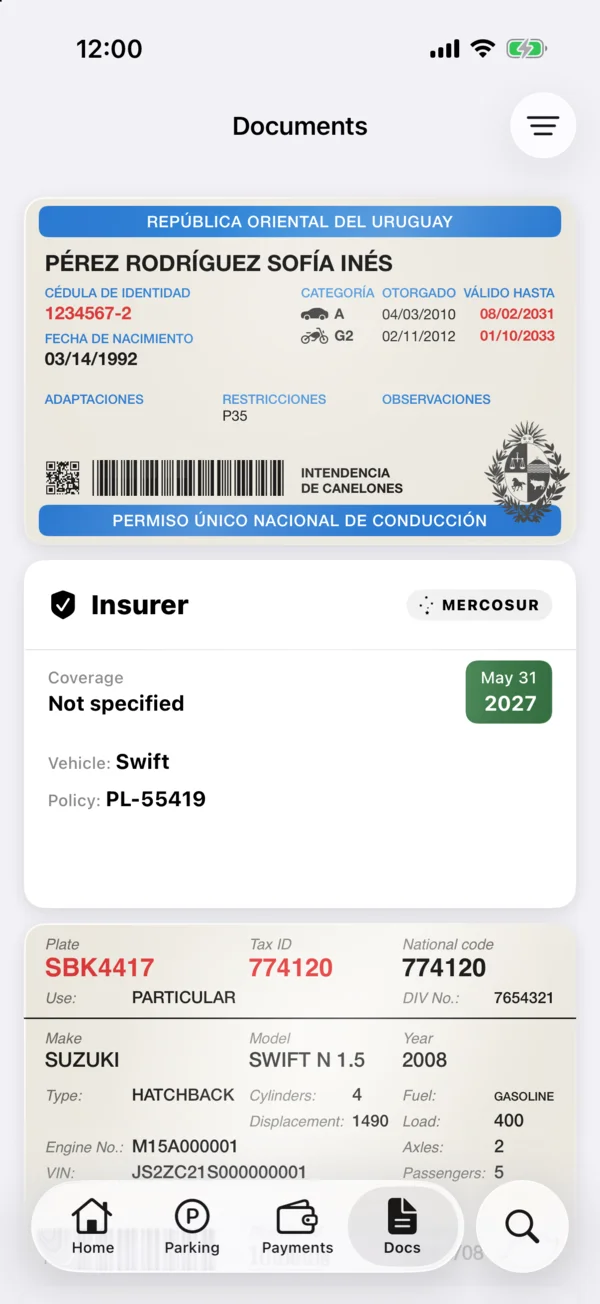
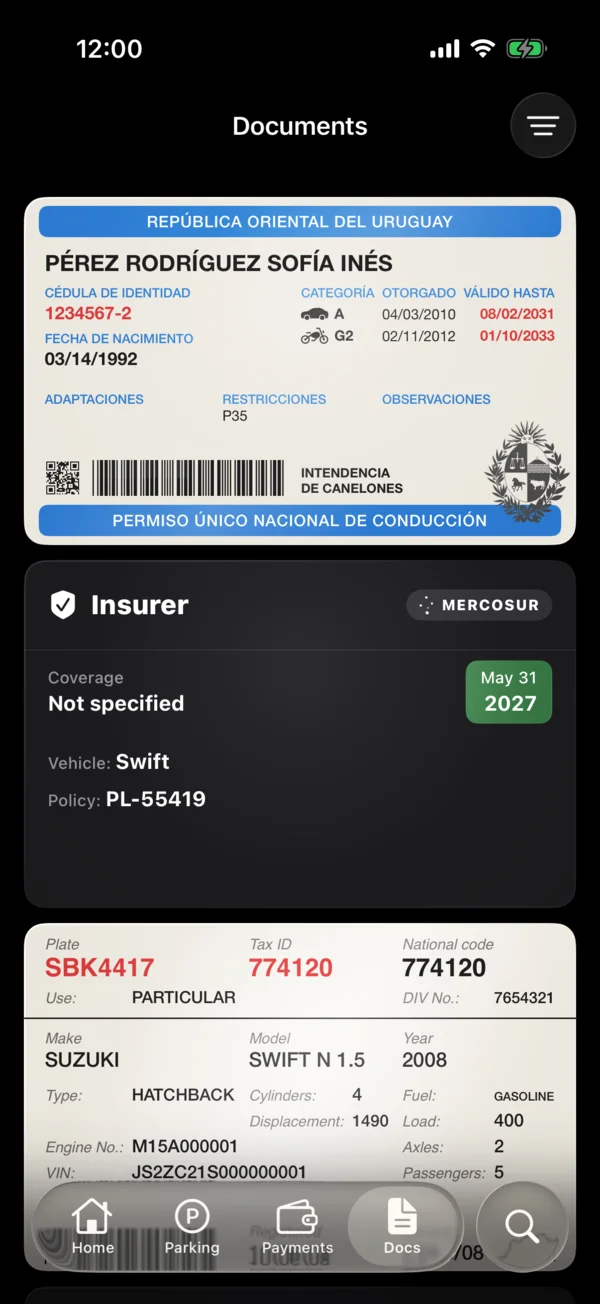
Your registration card (libreta de propiedad) is in the app just like the real one, with every value at hand.
Each vehicle’s registration card is saved when you add it by scanning it. See Add a vehicle.
- On the vehicle’s page, tap any value on the card to copy it.
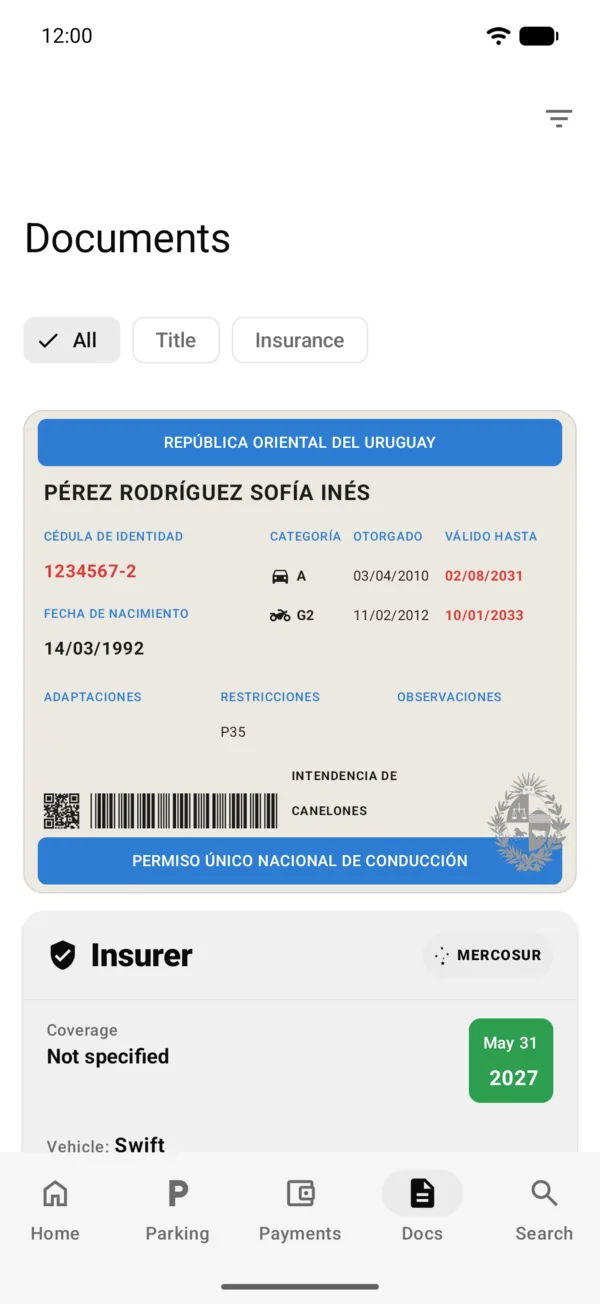
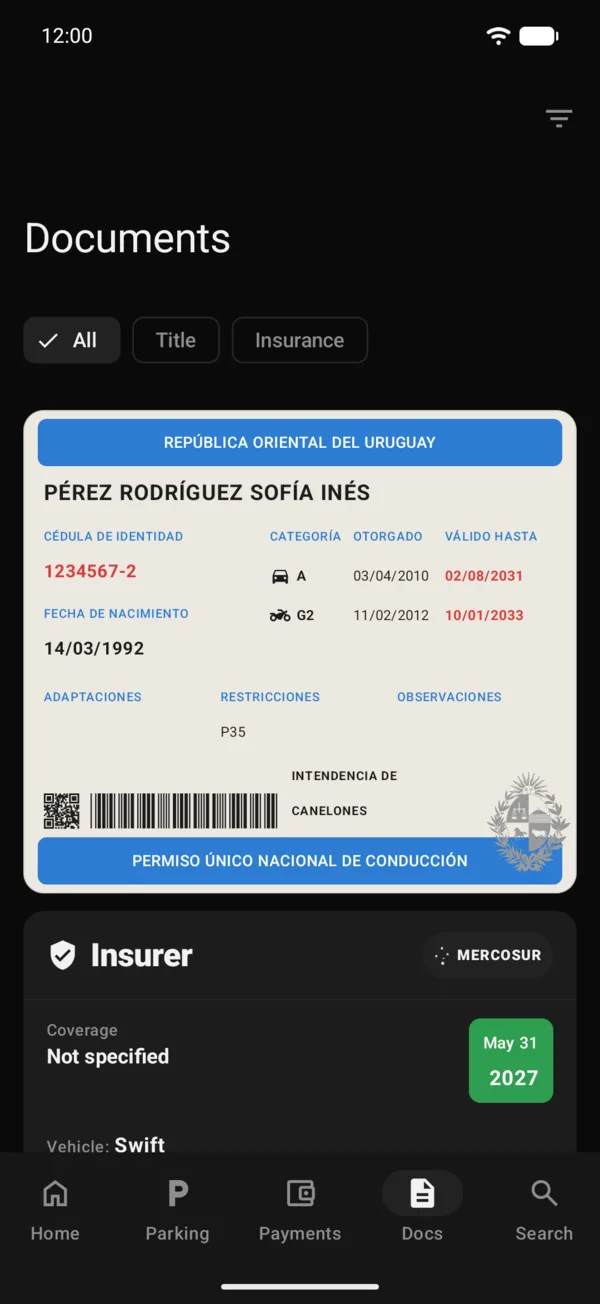
- The Documents tab has all your cards and policies, and your driver’s license. To see one kind only, on the iPhone tap Filter & sort and pick it under Types; on Android, choose All, Title or Insurance at the top.
- To see the scanned image, tap the card: on the iPhone it opens straight away, and on Android tap View in its menu.
Update the card’s photo
- On Documents, touch and hold the card on the iPhone, or tap it on Android.
- Tap Update registration photo and scan it again.
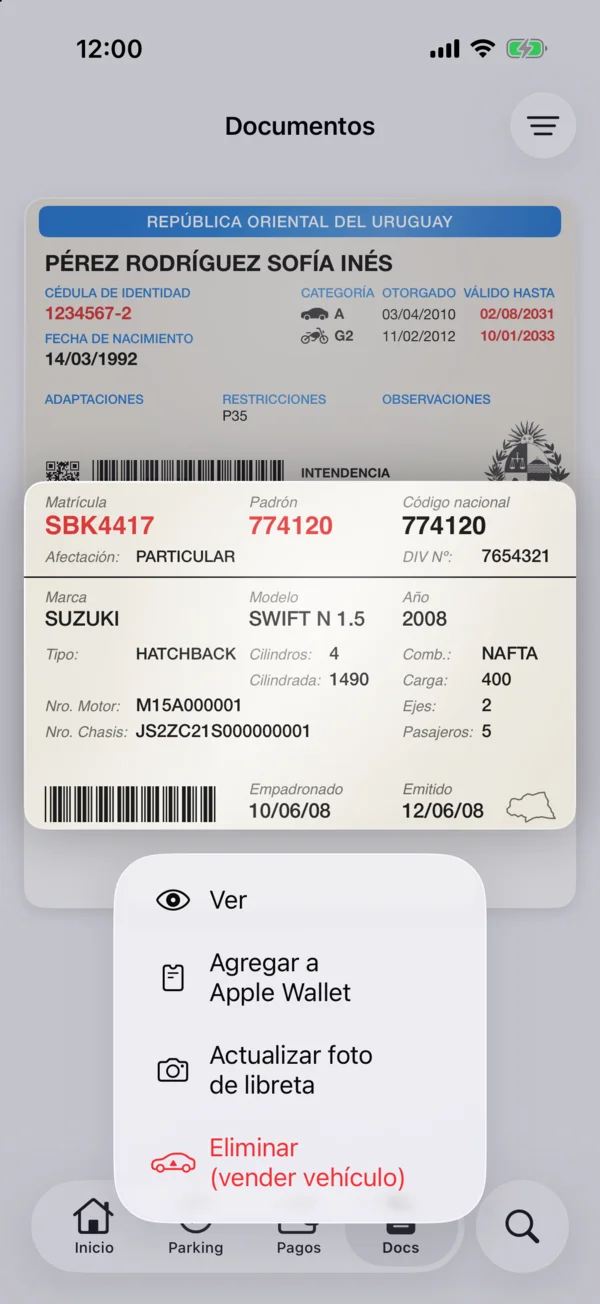
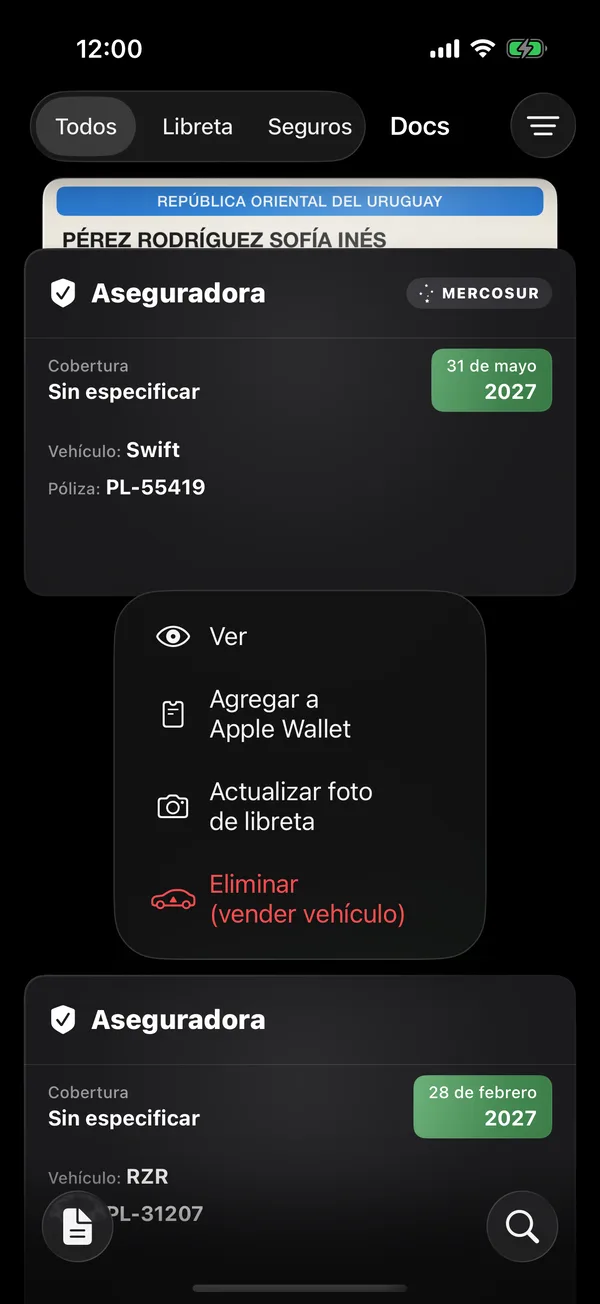
In a screenshot or screen recording, the registration card hides the registration number, national code, DIV, engine number, chassis and barcodes; the plate and the vehicle’s details show. On the driver’s license, the name, ID number, date of birth, printed details, QR code and barcode are hidden.
While a registration card’s scanned image or your driver’s license screen is open, Android won’t take screenshots or record the screen.
The web can’t prevent screenshots.
Each card’s menu
In Documents, tapping a card opens it. Touch and hold it for its actions, with View first:
In Documents, tapping a card opens its menu, with View first:
- On a registration card: View, Add to Apple Wallet (on Android, Add to Google Wallet), Update registration photo and Remove (sell vehicle).
- On a policy: View, Update policy and Delete policy.
- On your driver’s license: View, Add to Apple Wallet (on Android, Add to Google Wallet), Edit and Scan again.
Updating and deleting show only if you’re the vehicle’s owner or admin.
Filter & sort has Vehicles, on the iPhone also Types, and Sort by: Most recent, By expiry date, By plate, By brand, Newest year first and Oldest year first.
On the web
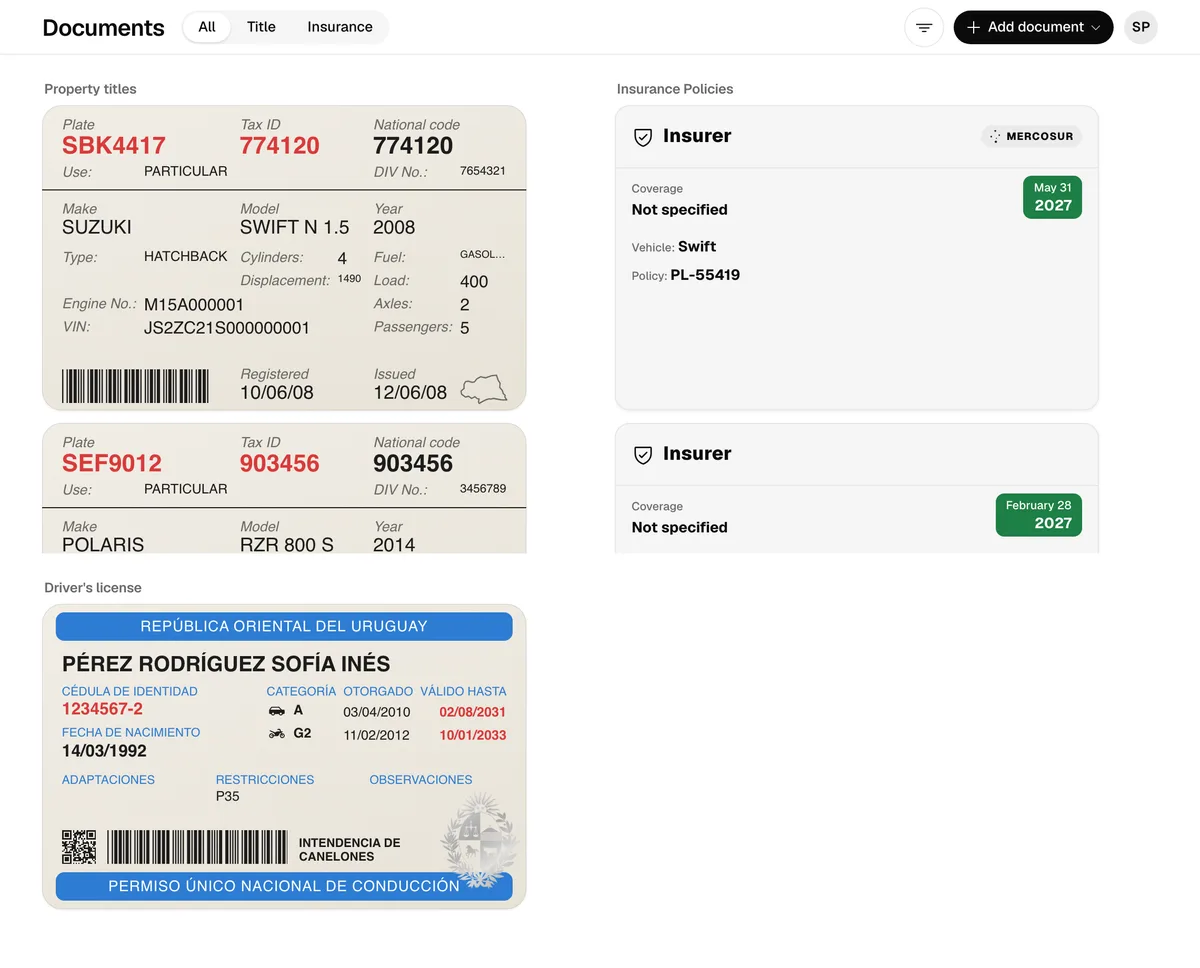
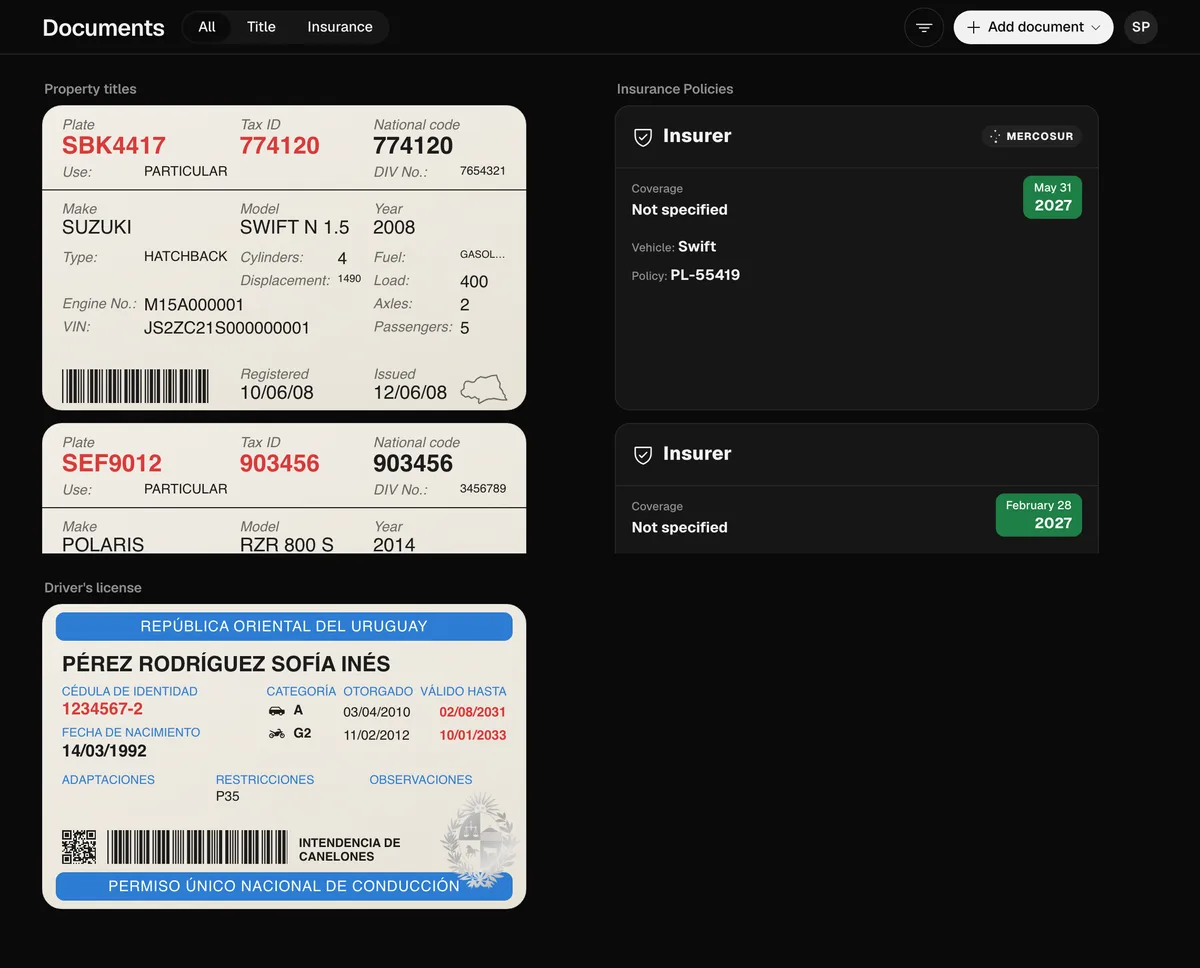
Tapping a card opens its menu, as on Android, without Wallet. On a computer, each kind of document has its own column, and Add document, at the top right, offers Policy, Driver’s license and Property title.
Related tools
More in Documents
Didn’t find what you were looking for? Write to [email protected] and we’ll get back to you.