
End-to-end encryption and your recovery code
Your registration cards and license photos are encrypted on your phone. Keep your code in case you change phones.
There’s nothing to turn on: it’s always on. The images of your registration cards and your license photos are encrypted on your iPhone before they’re uploaded. We can’t see them. The key is kept in your iCloud Keychain.
There’s nothing to turn on: it’s always on. The images of your registration cards and your license photos are encrypted on your phone before they’re uploaded. We can’t see them. The key is kept with your Google account.
Save your recovery code
- On Home, tap your account button.
- Tap Privacy & Access, then Recovery Code.
- Tap Show Recovery Code and confirm with Face ID or your iPhone’s passcode.
- Write it down, or tap Copy Code and keep it in a password manager.
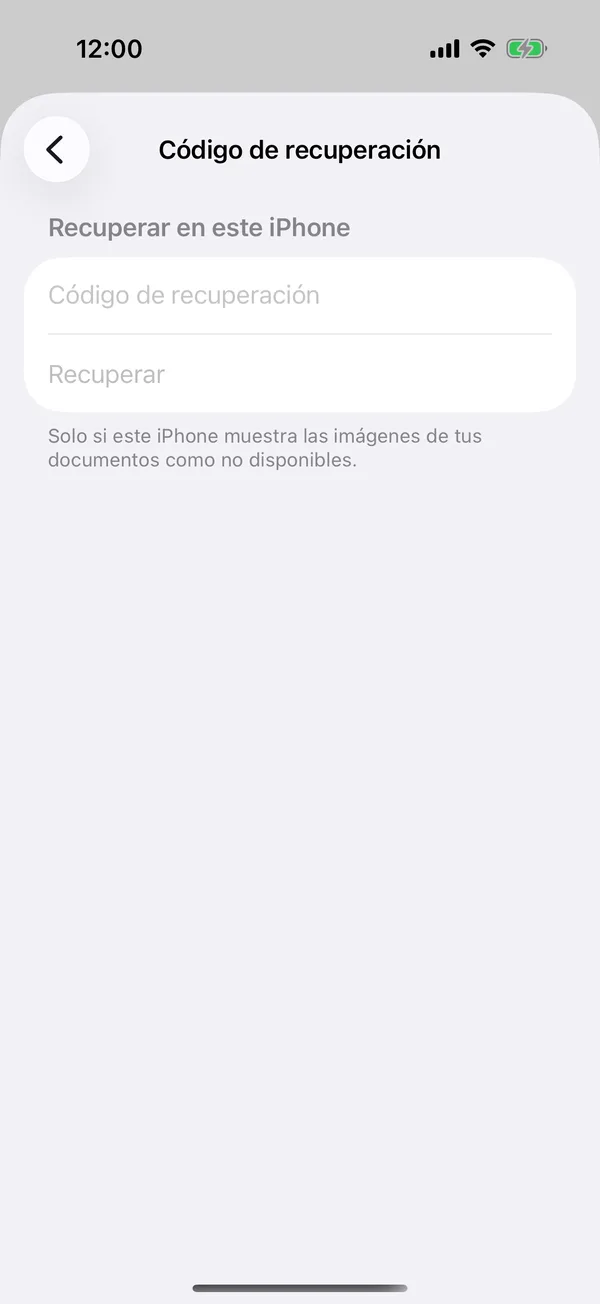
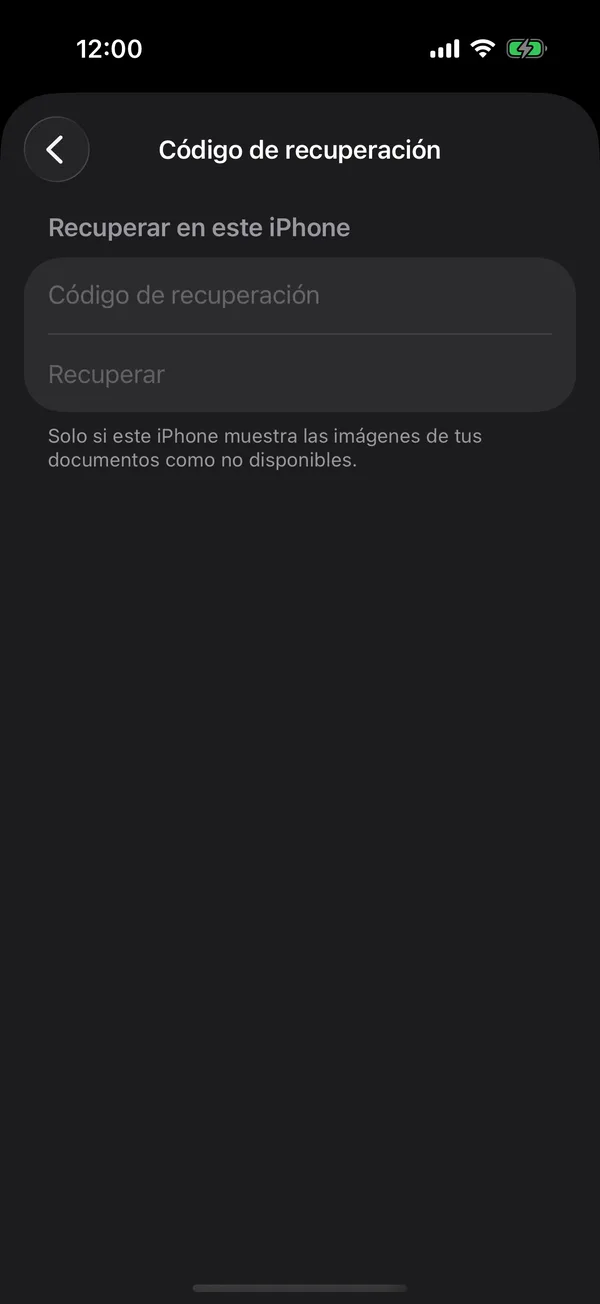
Anyone with this code and your account could open your documents. We don’t have it.
On a new phone
Usually the iCloud Keychain brings the key and there’s nothing to do. If an image says Encrypted image when you open it, this iPhone doesn’t have the key yet:
Usually your Google account brings the key and there’s nothing to do. If an image says Encrypted image when you open it, this phone doesn’t have the key yet:
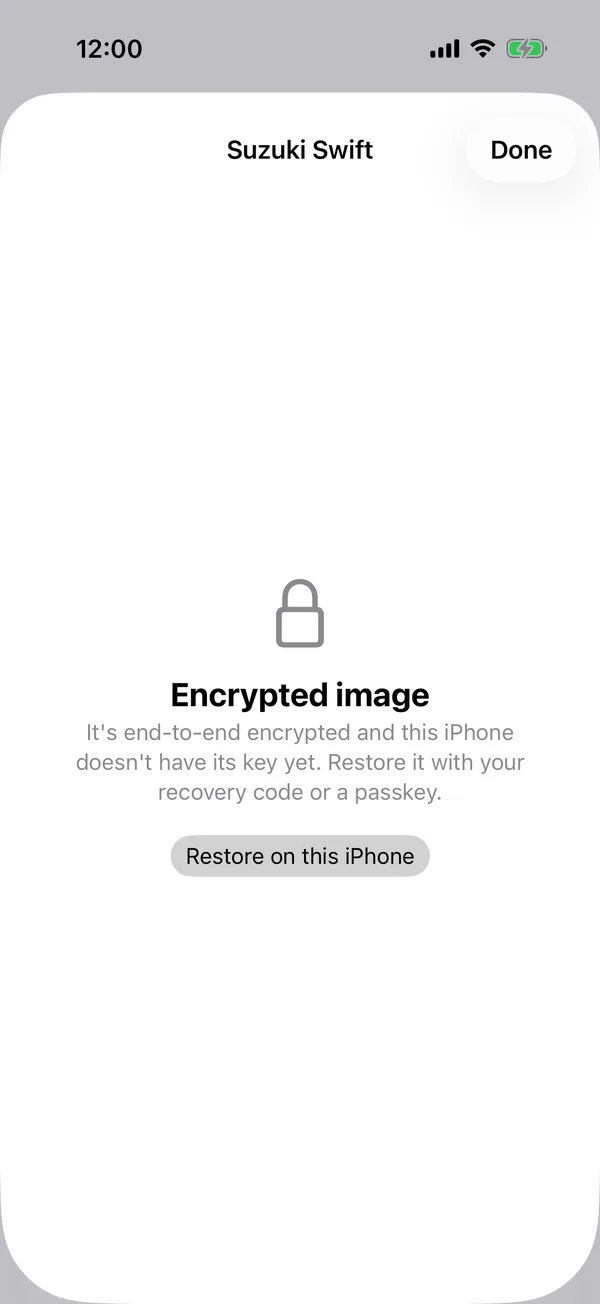
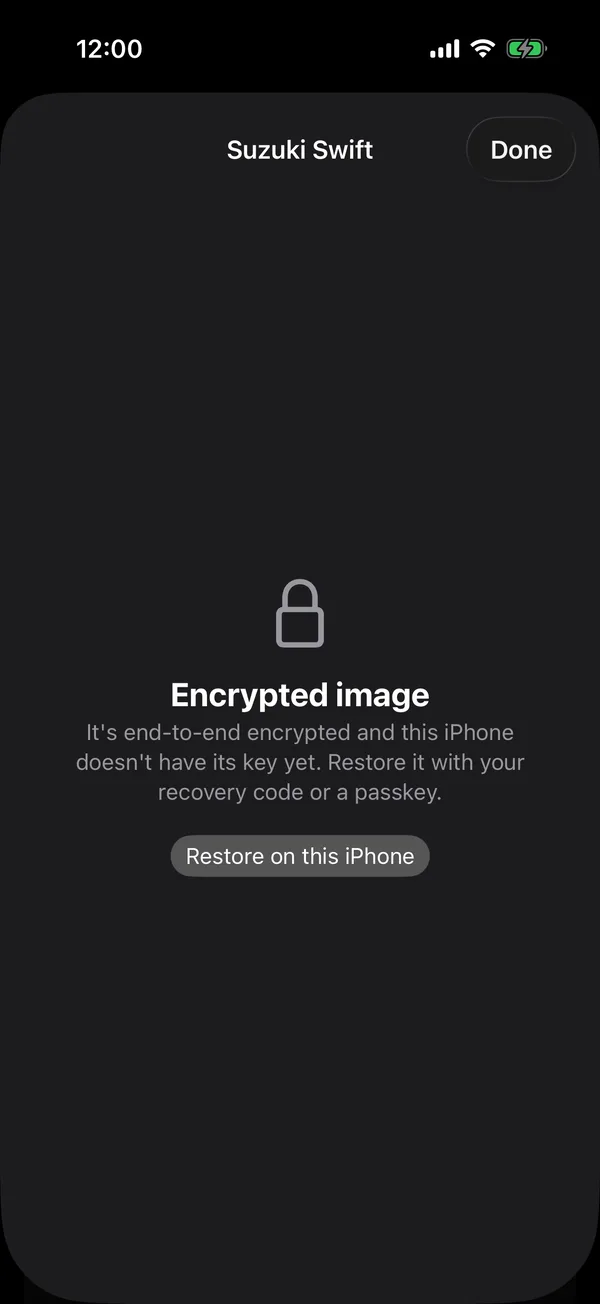
- Tap Restore on this iPhone right there, or open Privacy & Access, Recovery Code.
- Use your passkey with Restore with a passkey, or type your recovery code.
- Tap Restore. The image opens on its own.
- Tap Restore on this phone right there, or open Privacy & Access, Recovery Code.
- Under Restore on this phone, type your recovery code.
- Tap Restore. The image opens on its own.
The image isn’t lost: it stays encrypted until the phone has the key. If you have neither the passkey nor the code, scan the card again to keep it.
On the web
If an image says Encrypted image on the web, tap Restore in this browser or open Privacy & Access, Recovery Code and, under Restore in this browser, choose Restore with a passkey or Enter recovery code. If you sign in with a passkey, the key usually arrives on its own. See Sign in with a passkey.
More in Documents
Didn’t find what you were looking for? Write to [email protected] and we’ll get back to you.