
Sign in with a passkey
Sign in without a code, with Face ID, Touch ID or your fingerprint, in the app and on the web.
A passkey replaces the emailed code: your device confirms it’s you. It’s saved in your password manager, on the iPhone in the Passwords app.
Create a passkey
- On Home, tap your account button.
- Tap Privacy & Access. It’s also in Account, when you tap your name.
- Under Passkeys, tap Create Passkey and confirm with Face ID or Touch ID.
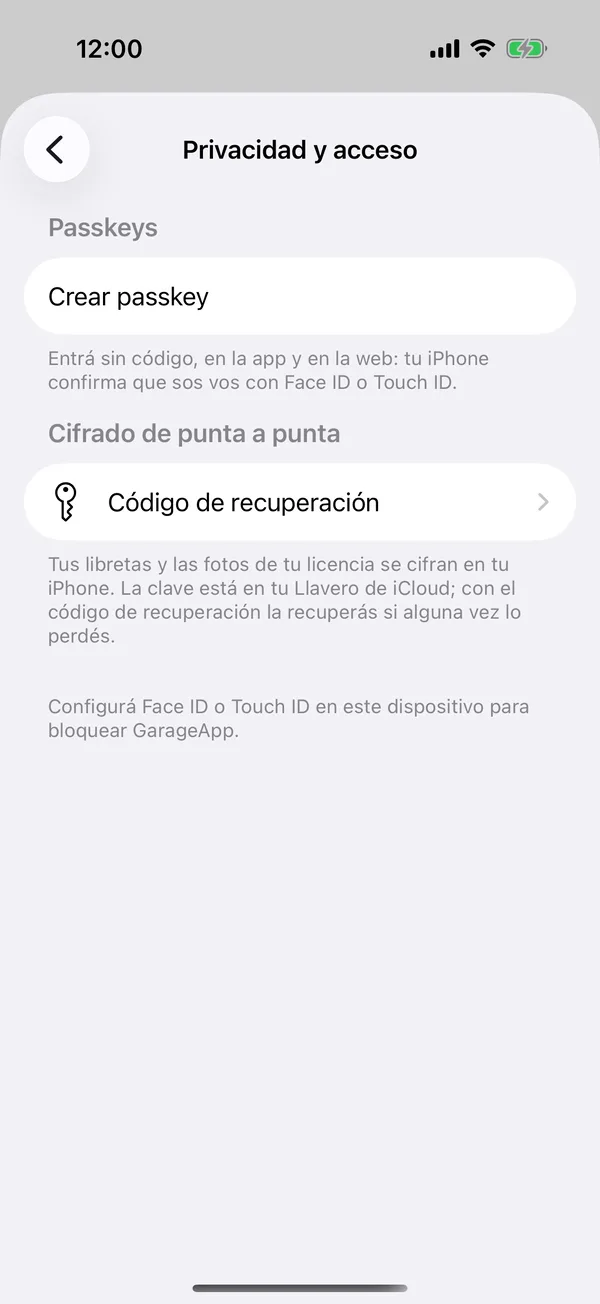
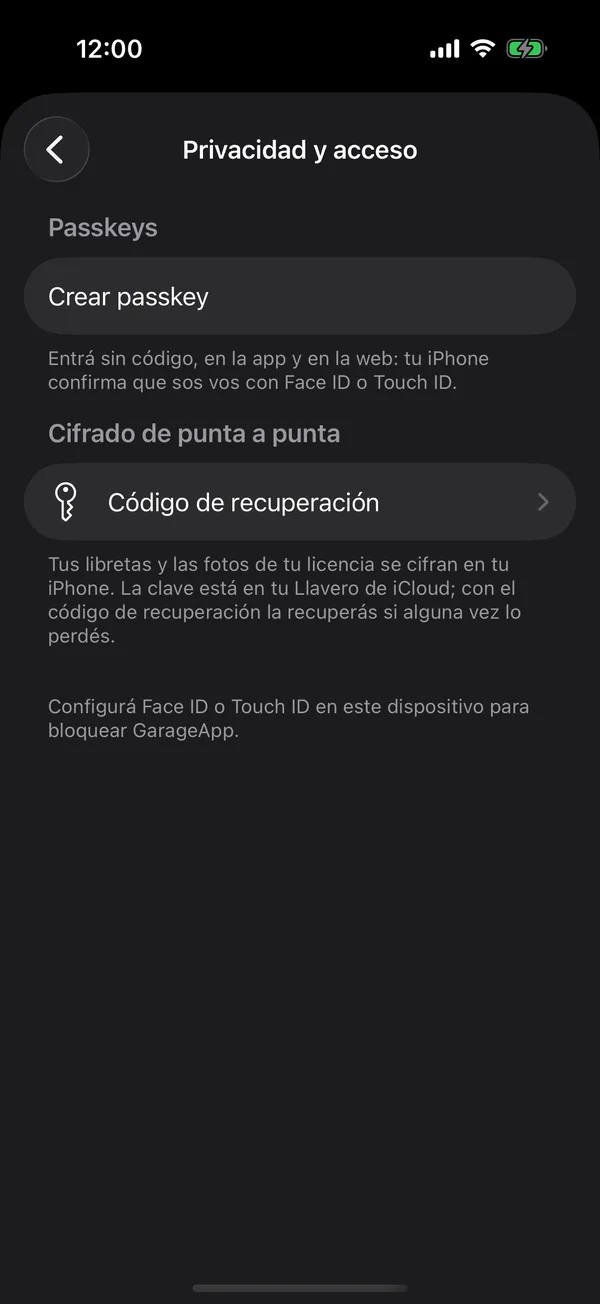
Each passkey shows its name, Created and the date, and when you last used it.
Sign in with the passkey
On the sign-in screen, tap Continue with a passkey and confirm. If the app says the passkey isn’t linked to an account yet, sign in with your email and create it from your account.
Rename or delete it
- Tap the passkey in the list.
- Choose Rename, or Delete and confirm.
Once deleted you can no longer sign in with it. Your device keeps it until you remove it in the Passwords app.
On the web
In Privacy & Access, tap Create a passkey. When you sign in with a passkey, the web also receives the key to your encrypted documents, so you open your registration cards without typing the recovery code, if your browser supports it. See End-to-end encryption.
More in Getting started
Didn’t find what you were looking for? Write to [email protected] and we’ll get back to you.