
Highlight and order your vehicles
Pick up to 3 favorites and, on a computer, the order of your vehicles. They apply on your phone and on the web.
Favorites
- On Home, under Your vehicles, swipe a vehicle to the right or touch and hold it.
- Tap Add to favorites.
You can have up to 3. Home’s first section is then called Favourites and shows those. To take one off, tap Remove from favorites.
Order by hand
The order is chosen on a computer, on the web in a wide window, under Your vehicles in the sidebar:
- Drag a vehicle with the mouse to where you want it.
- Or use Alt with the up or down arrow on a vehicle.
- Or click Reorder, the arrows icon next to Your vehicles, move them with Move up and Move down and click Done.
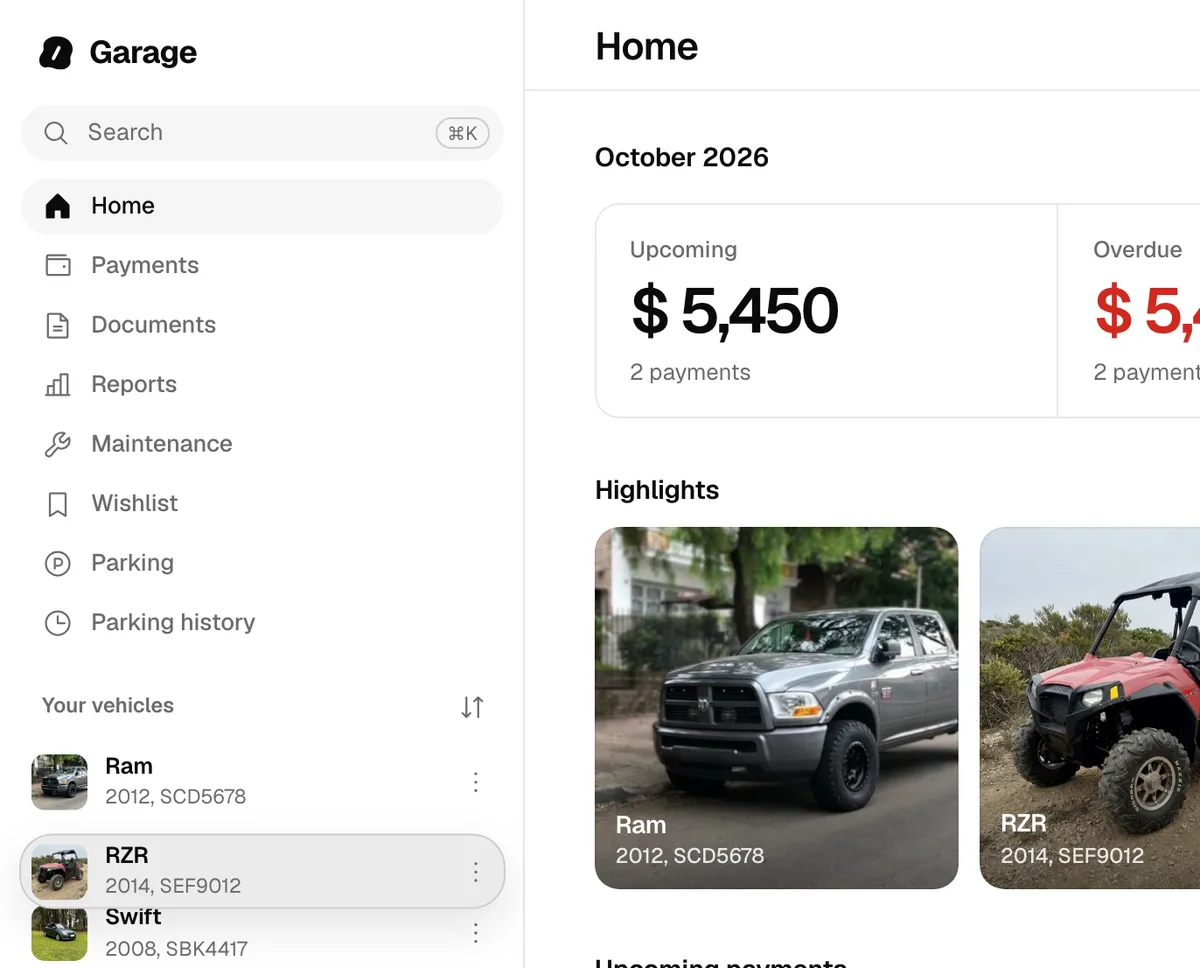
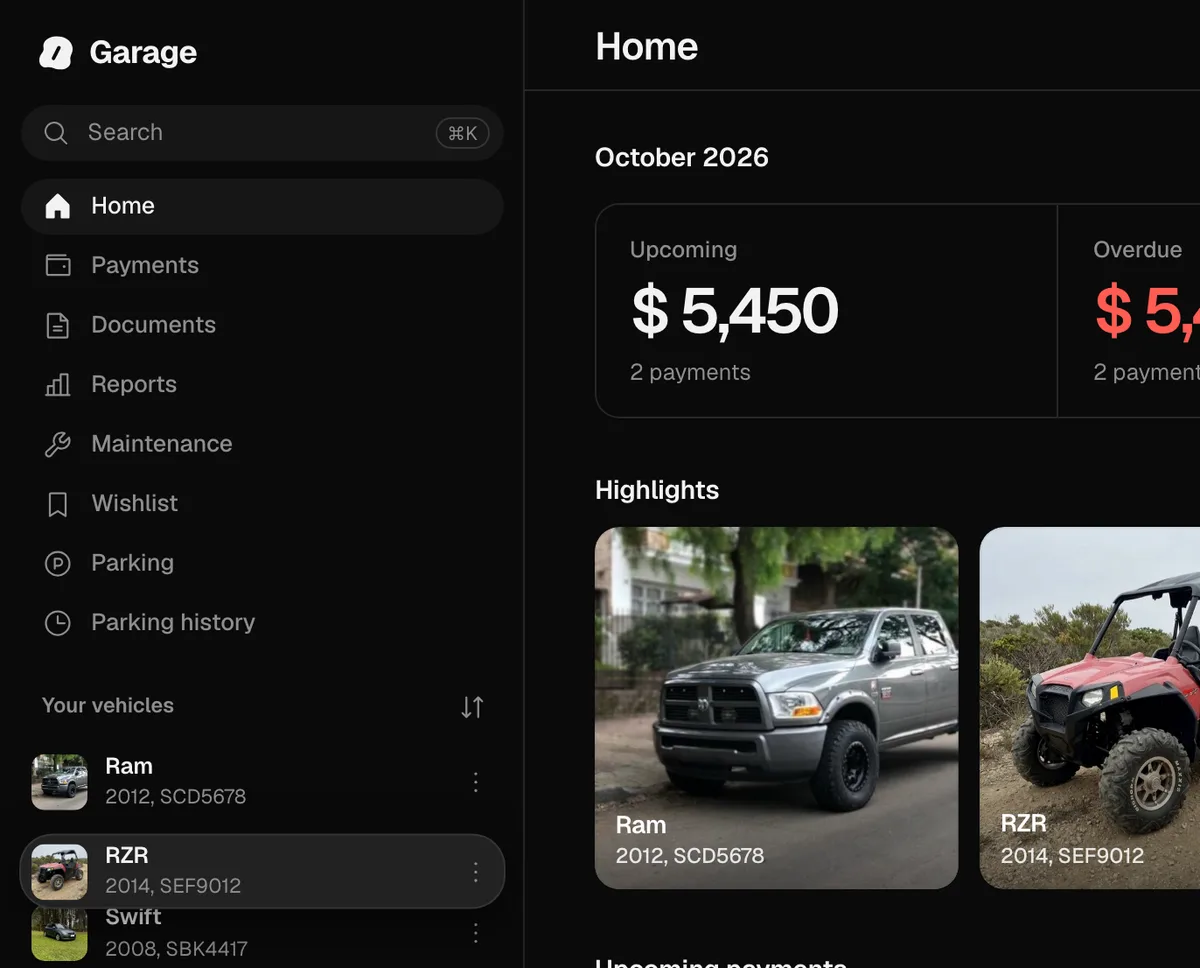
The order is saved to your account and every app follows it: Your vehicles, the Home sections and the pickers and filters of Payments, Service, Documents, Parking and Tax and fines, on iPhone, Android and the web. New vehicles go at the end. On a phone, in the app or on the web, the order is followed but not changed.
On the web
- For a favorite, open the vehicle’s ⋯ menu under Your vehicles and tap Add to favorites.
Favorites and the order are the same on your phone and on the web.
More in Getting started
Didn’t find what you were looking for? Write to [email protected] and we’ll get back to you.