
The vehicle page
Everything about a vehicle in one place: registration, tax, fines, insurance, parking, fuel, service, payments and its public link.
Tap a vehicle on Home to open its page.
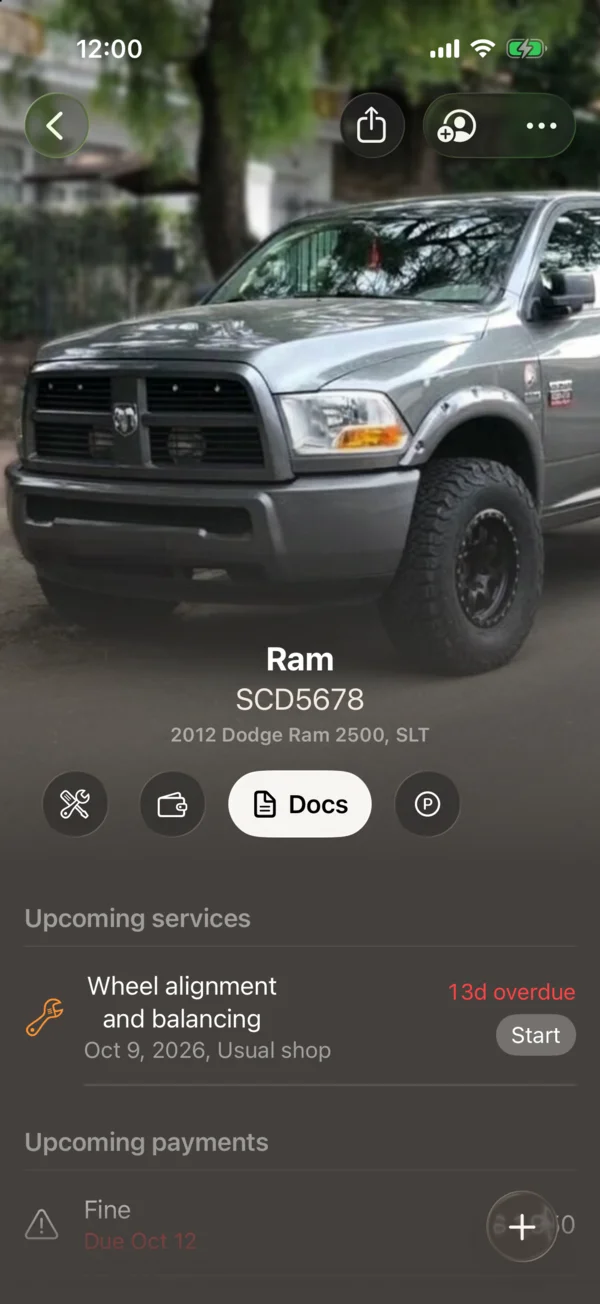
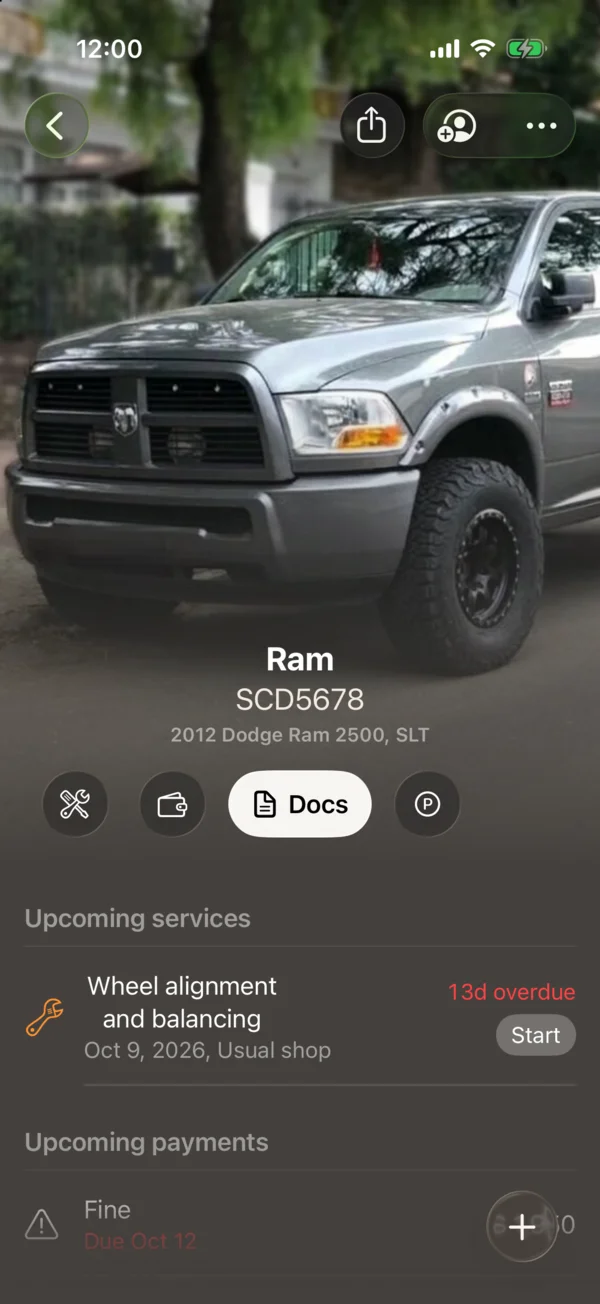
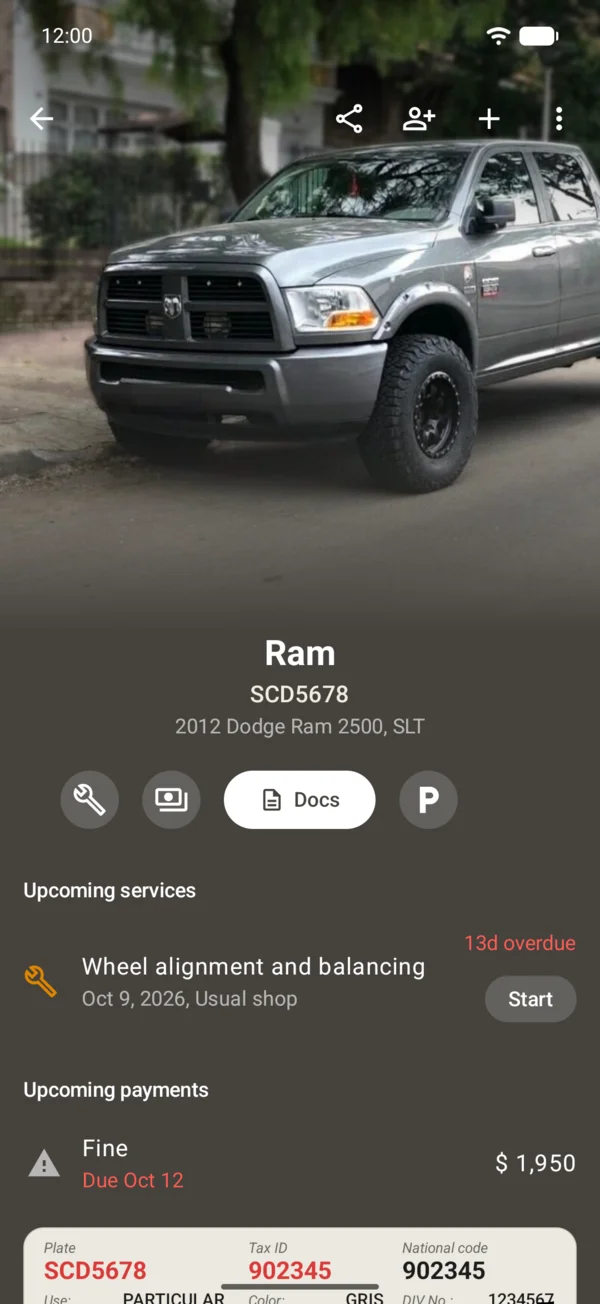
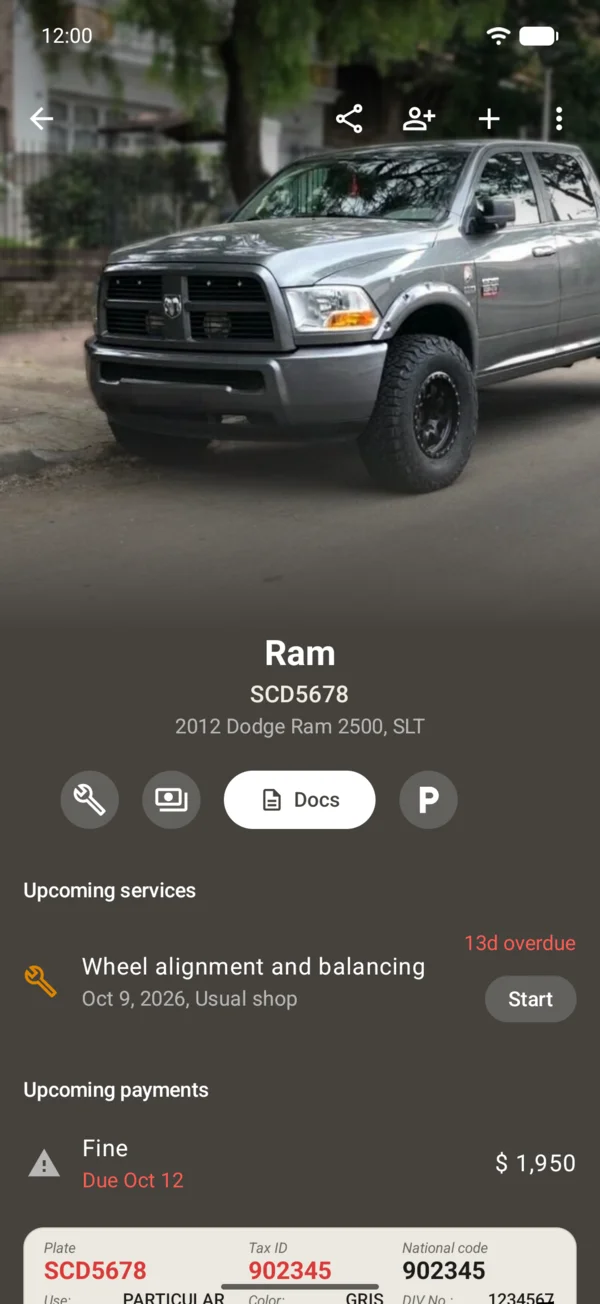
At the top
- The photo, the name, the plate and a line with year, type and fuel. With several photos, tap the left or right side of the photo to step through them.
- A row of buttons: Service, Payments, Docs and the parking one. While the vehicle is parked, that button shows the time left.
- At the top right, Share vehicle, with its public link; the button for the people you share it with; and More (⋯ on iPhone, ⋮ on Android), with Edit, Transfer ownership and Add to Apple Wallet (on Android, Add to Google Wallet).
If you have more than one vehicle, swipe the page left to go to the next one in Your vehicles, or right to go back to the previous one. From the last one you go to the first.
Further down
- Upcoming services: the service that’s in the shop, then the overdue ones and those due soon, three at most; if none is due soon, the next one. Start puts it in the shop and Finish opens Mark as done. Tap a service that isn’t in the shop yet to call or message its workshop, get Directions or edit it. See Schedule the next service and mark it done.
- Upcoming payments: the payments due soon for this vehicle.
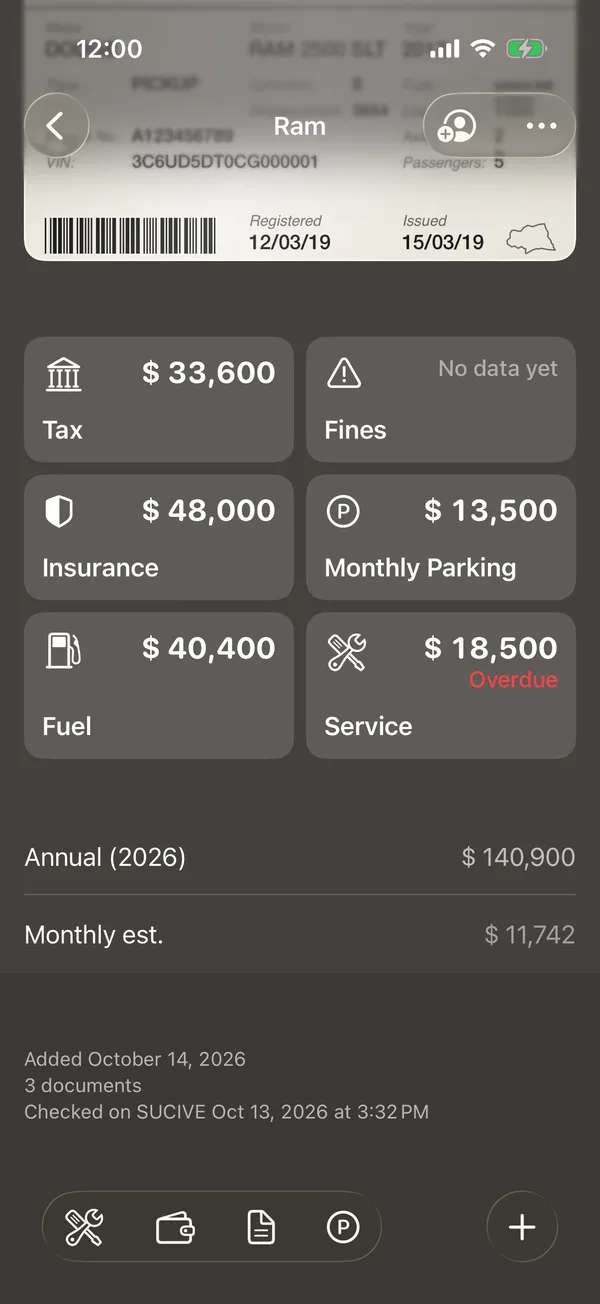
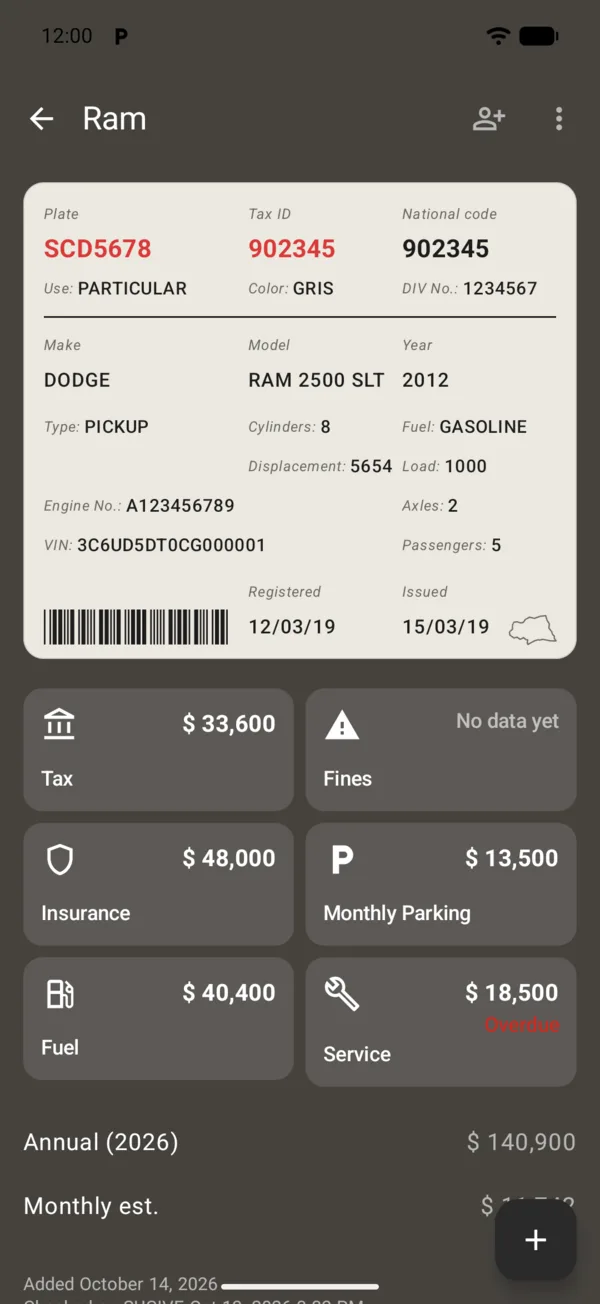
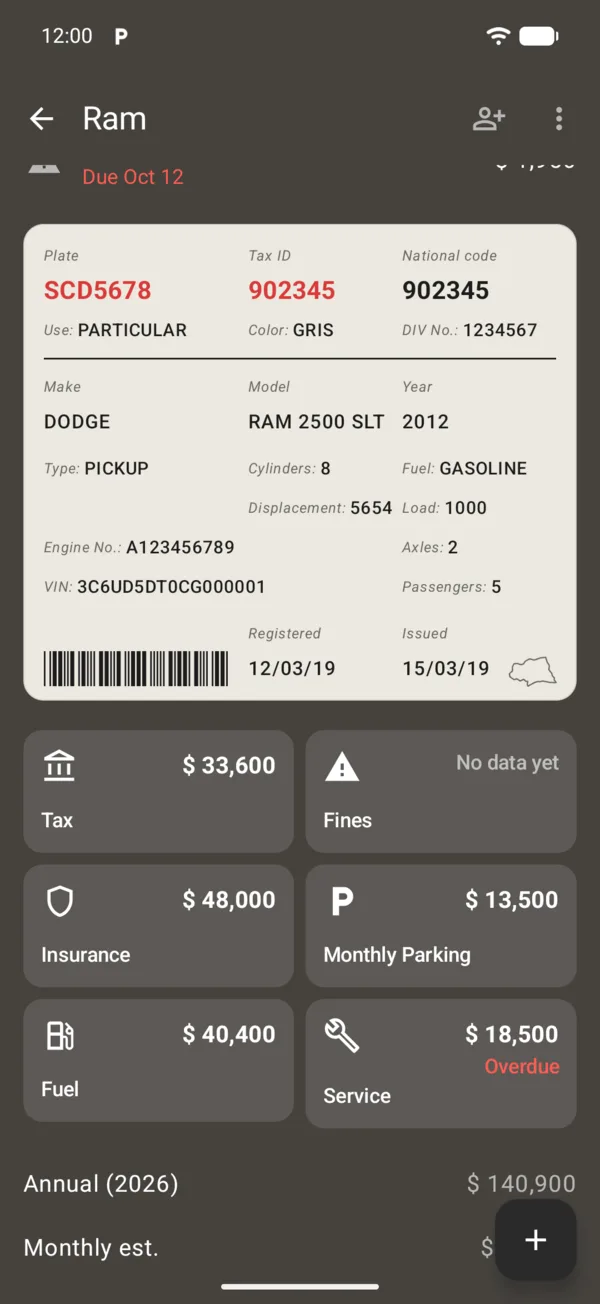
- The registration card. Tap any value to copy it.
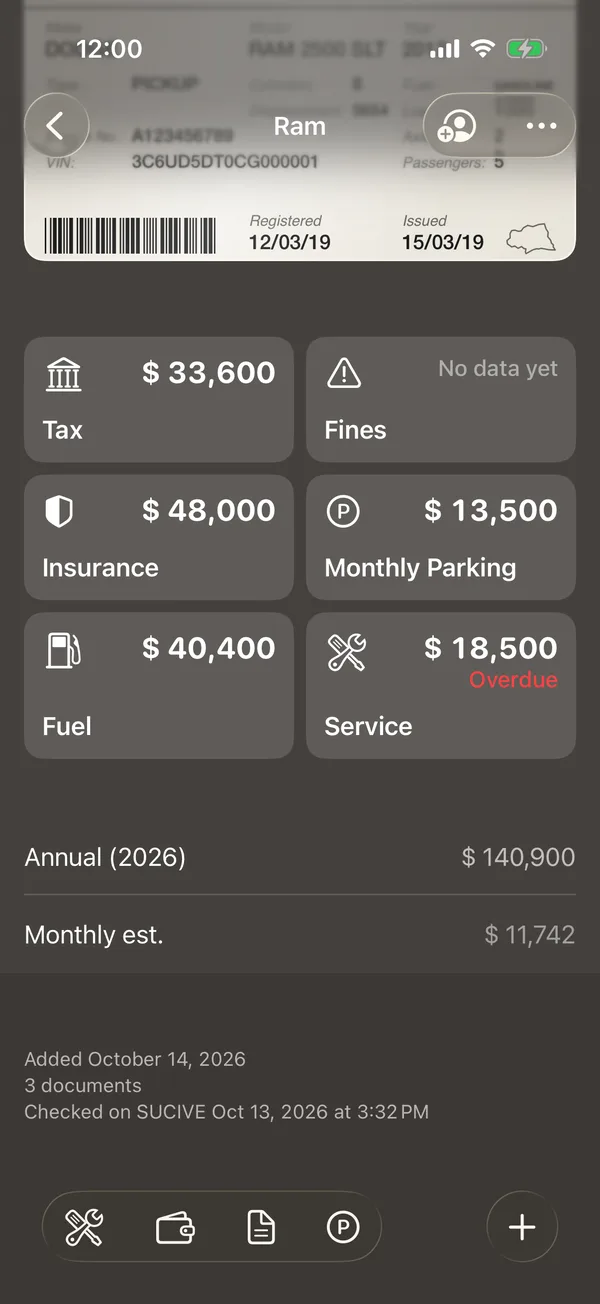
- The Tax, Fines, Insurance, Monthly Parking, Fuel and Service tiles. Each opens its section; an empty one says Add.
- Annual and Monthly est.: what the vehicle costs you this year, and per month.
The bottom bar
On a vehicle’s page the bottom bar replaces the tab bar: as you scroll down, shortcuts to each section appear, and + offers Record payment, Schedule service, Policy, Take photo and Choose photos.
As you scroll down, shortcuts to each section appear at the bottom. +, at the top right, offers Record payment, Schedule service, Policy, Take photo and Choose photos.
The public link
With the public link, anyone sees the vehicle’s photos, its alias, the make, model, version and year, and your photo in their browser, without the app or an account. It never shows the plate, the padrón, the chassis, the engine or names.
- Open the vehicle and tap Share vehicle at the top right.
- Tap Public link to turn it on.
- Tap Share link and choose how to send it.
To turn it off, tap Public link again: the link stops working at once, and if you turn it on again it’s a new one. The owner and admins turn it on; the vehicle’s other people can share it while it’s on. It’s the same on the web.
All your links are in your account, under Privacy & Access, Public links. There you also choose whether your photo shows, with Show my photo on public links.
What you see depends on your role in the vehicle. See What each person can do.
More in Getting started
Didn’t find what you were looking for? Write to [email protected] and we’ll get back to you.